To delete a file or folder in Windows 11, select it in File Explorer and press Delete or Ctrl + D, which moves it to the Recycle Bin.
This guide covers every built-in way to delete, how to skip the Recycle Bin, command-line deletion, OneDrive items, clearing recent-file history, and fixes for files that refuse to go.
How to delete files and folders in Windows 11/10
This works the same for a single file, a whole folder, or a group of items. Everything you delete this way can still be recovered from the Recycle Bin.
- Press Windows + E to open File Explorer.
- Go to the folder that holds the file or folder you want to remove.
- Click the item once to select it. Press Ctrl + A instead if you want everything in the window.
- Press Delete or Ctrl + D on the keyboard.
- Press Ctrl + Z straight away if you removed the wrong item; it undoes the last action.
Which way to delete files in Windows 11 should you use?
All of these remove the item, but they differ in whether you can get it back. Match your situation to a row.
| Your situation | Use this | Can you undo it? |
|---|---|---|
| Everyday cleanup of a few files | Delete key or Ctrl + D | Yes, from the Recycle Bin |
| You prefer the mouse | Right-click > Delete icon, or drag to the Recycle Bin | Yes, from the Recycle Bin |
| You want the item gone now | Shift + Delete | No, it skips the Recycle Bin |
| Thousands of files or a scripted job | PowerShell Remove-Item | No |
| Folder trees from Command Prompt | rmdir /s or del /s | No |
| Files with sensitive data | SDelete from Microsoft Sysinternals | No, data is overwritten |
| Items in your OneDrive folder | Delete key in File Explorer or onedrive.com | Yes, from the OneDrive recycle bin |
Delete a file or folder from the right-click menu
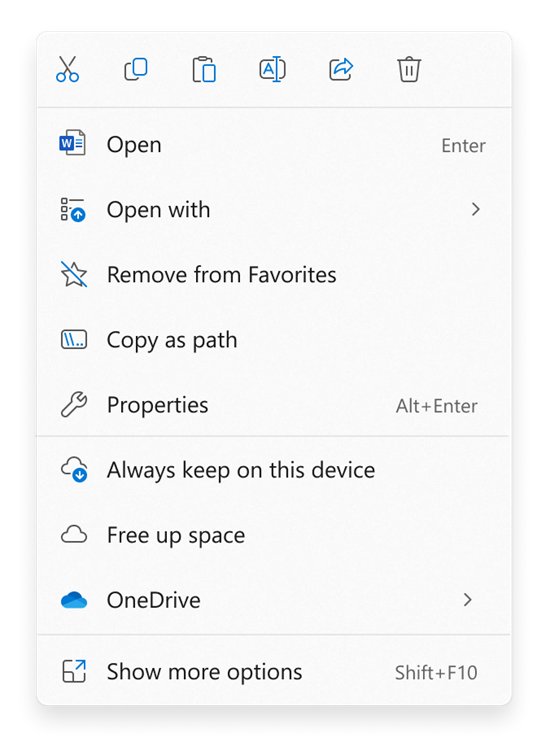
Windows 11 puts Cut, Copy, Paste, Rename, Share and Delete as small icons at the top of the context menu. Hover over an icon to see its name.
- Open File Explorer and find the item.
- Right-click the file or folder.
- Select the Delete icon (the bin) in the row at the top of the menu.
- Confirm if Windows asks; the item moves to the Recycle Bin.
Hold Ctrl while you click to select multiple separate files, then right-click any one of them to delete the whole selection.
Drag and drop files to the Recycle Bin
Dragging needs the Recycle Bin icon on the desktop. If it is missing, turn it back on first.
- Open Settings > Personalization > Themes and select Desktop icon settings.
- Check Recycle Bin and select OK.
- Right-click the desktop, select View and make sure Show desktop icons is checked.
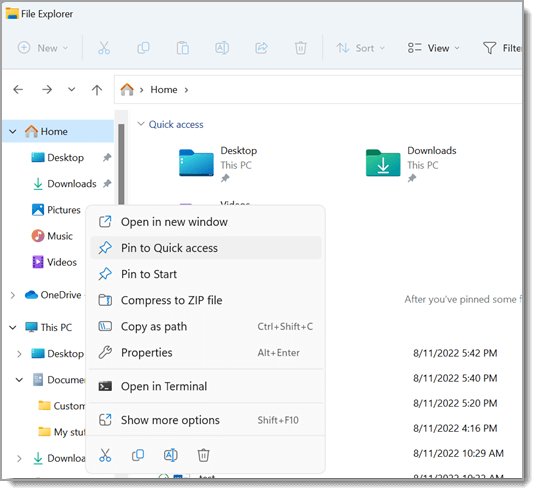
- Drag the file or folder from File Explorer onto the Recycle Bin icon and release it.
Permanently delete files with Shift + Delete
Shift + Delete removes the selected item without sending it to the Recycle Bin. Use it only when you are sure.
- Select the file or folder in File Explorer.
- Press Shift + Delete.
- Confirm the prompt that asks whether to permanently delete the item.
Items already in the Recycle Bin are only removed for good when you empty it, which also frees the drive space they hold.
PowerShell delete files and folders with Remove-Item
Remove-Item deletes directly and never uses the Recycle Bin. Run it from Windows Terminal or PowerShell, and replace the example paths with your own.
Remove-Item -Path "C:\Test\OldFolder" -Recurse -Force-Path names the file or folder. -Recurse removes everything inside a folder without prompting for each child item. -Force also removes hidden and read-only files, which Remove-Item skips otherwise. Force cannot override security permissions. To delete only one file type through subfolders, use Get-ChildItem -Path C:\Test -Include *.csv -Recurse | Remove-Item.
You should see: PowerShell returns to the prompt with no message, and Test-Path "C:\Test\OldFolder" returns False.
Delete all files and folders from the command line with del and rmdir
Command Prompt has two commands: del removes files and rmdir (or rd) removes folders. Microsoft states that files deleted with del cannot be retrieved.
- Type
cmdin the Search box and open Command Prompt. - Type
dir C:\Test\*.tmpfirst to list exactly what a wildcard will match. - Run
del /s /q C:\Test\*.tmpto delete matching files in the folder and its subfolders without prompts. Add/fto include read-only files, or use/pto confirm each file. - Type
cd ..if your prompt is inside the folder you want to remove, because rmdir cannot delete the current directory. - Run
rmdir /s /q C:\Test\OldFolderto delete the folder, its subfolders and all files without a confirmation prompt. - Leave out
/sand rmdir refuses any folder that still holds files, showing The directory is not empty.
Permanently delete files and folders with SDelete
A normal delete leaves the data on the disk until something overwrites it, which is why recovery tools work. SDelete, a free Microsoft Sysinternals tool, overwrites the data so it cannot be recovered.
- Get SDelete from its page on Microsoft Learn under Sysinternals and extract it to a folder.
- Open Command Prompt in that folder.
- Run
sdelete -s C:\Test\Privateto securely delete a folder and everything in its subfolders. - Add
-p 3to overwrite three times instead of the default single pass. - Run
sdelete -c D:to clean free space on a drive, which also covers files you deleted earlier.
SDelete overwrites file contents but not file names left in free space.
How to delete files and folders from OneDrive
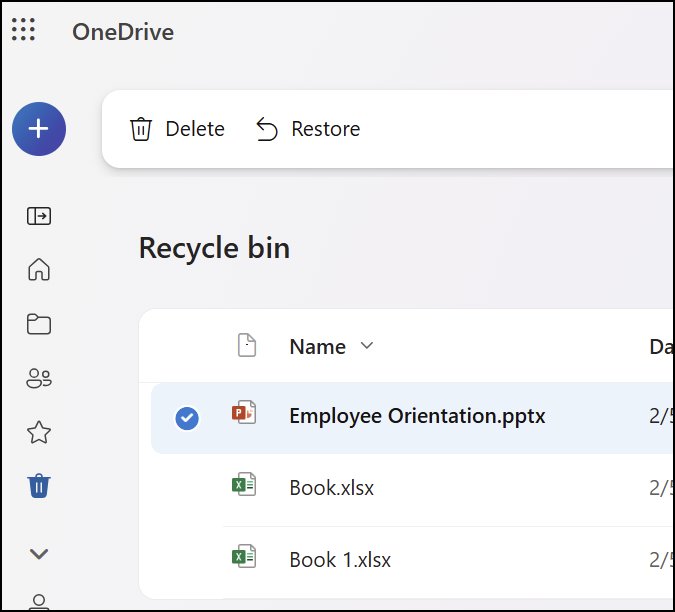
Deleting inside the OneDrive folder removes the item from the cloud and every synced device. Deleted items go to the OneDrive recycle bin: 30 days for personal accounts and 93 days for work or school accounts, unless an admin changed it.
- Select File Explorer on the taskbar and open your OneDrive folder.
- Select the files or folders and press the Delete key.
- On the web, sign in at onedrive.com, select the circle beside each item and select Delete on the top bar.
- To recover an item, open Recycle bin in the OneDrive navigation pane, check the item and select Restore.
Items deleted from the cloud do not appear in your PC's Recycle Bin. To free space on the PC but keep the file in OneDrive, use Files On-Demand instead of deleting.
Clear recent files and folders in Windows 11/10
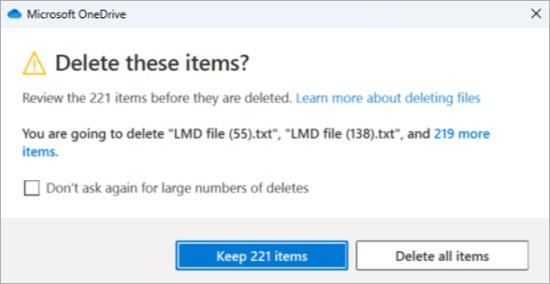
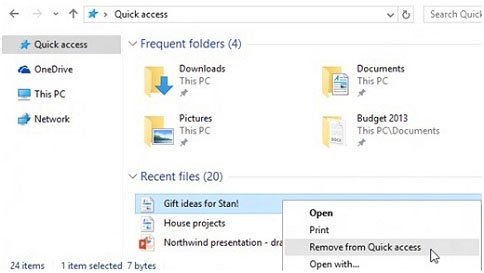
Deleting a file does not always remove its name from File Explorer's recent files history. Turn the lists off so Home or Quick access shows only pinned folders.
| What to clear | Where to do it | Result |
|---|---|---|
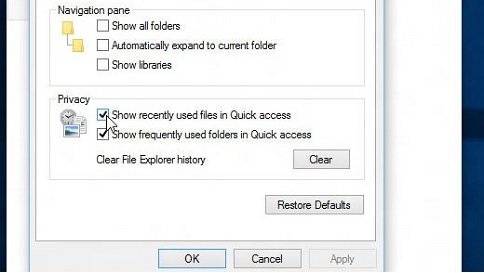
| Recent files and frequent folders (Windows 10) | File Explorer > View > Options > Privacy section: clear the check boxes, select Apply | Quick access shows only pinned folders |
| Recent files and frequent folders (Windows 11) | File Explorer > See more (three dots) > Options > Privacy section: clear the check boxes, select Apply | Home stops listing recent items |
| One item in Quick access (Windows 10) | Right-click the item > Remove from Quick access | That item does not come back |
| One pinned folder (Windows 11) | Right-click the folder > Unpin from Quick access | The folder leaves the pinned list |
| Recent files in Start Recommended | Start settings (ms-settings:personalization-start): toggle off Recommended providers | Start stops showing recently opened files |
Turning the options back on later can bring back files you removed from the lists.
Clear File Explorer address bar history
Typed paths and searches build up in File Explorer and Windows Search. Clear both if deleted file names still appear as suggestions.
- In File Explorer, open Options from the See more menu.
- On the General tab, under Privacy, select Clear to wipe File Explorer history, then select OK.
- Open Settings > Privacy & security > Search permissions.
- Under History, select Clear device search history.
Why can't I delete files in Windows 11 folders?
Most refusals come from a lock, an attribute or a permission. Find the symptom that matches what you see.
The file is open in another program
A running process holds the file, so Windows will not remove it.
- Close the app that uses the file and try again.
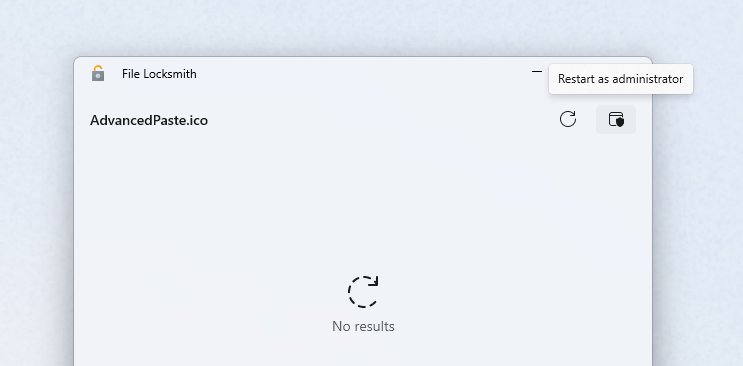
- If you cannot tell which app it is, install Microsoft PowerToys and turn on Enable File Locksmith.
- Right-click the file, select Show more options, then Unlock with File Locksmith.
- Select End task on the listed process, or Restart as administrator to see processes from other users.
- Delete the file again.
Hidden, read-only or system files will not delete
Attributes block standard deletion, and a folder with hidden files is not empty.
- Show hidden files and folders in File Explorer so you can see what is left.
- In PowerShell, run
Remove-Item -Path "C:\Test\file.txt" -Force. - In Command Prompt, run
attrib -h -s C:\Test\file.txt, then delete it withdel /f.
Access denied or you need permission to delete
The item belongs to another account or to Windows itself.
- Sign in with an administrator account.
- Open Command Prompt with Run as administrator and run the del or rmdir command again.
- Leave folders under C:\Windows alone; system folders such as Windows.old have their own cleanup route.
Recycle Bin will not empty or delete an item
Corrupted system files or a stuck item can block the bin.
- Restart the PC and try again.
- Run PowerShell as administrator and enter
Clear-RecycleBin. - If it still fails, open Command Prompt as administrator and run
DISM.exe /Online /Cleanup-image /Restorehealthfollowed bysfc /scannow.
File Explorer freezes when mounting ISO in Windows 11
File Explorer hangs while it opens the disc image, often from a pending update or damaged system files.
- Select Start > Settings > Windows Update > Check for updates and install what is offered.
- Restart the device, even if no update asked for it.
- Run
DISM.exe /Online /Cleanup-image /Restorehealthand thensfc /scannowin an elevated Command Prompt. - Look for Windows Resource Protection found corrupt files and successfully repaired them or did not find any integrity violations before you mount the ISO again.
Explorer keeps popping up in Windows 11
AutoPlay opens a File Explorer window each time a removable drive or memory card connects.
- Select Start > Settings > Bluetooth & devices > AutoPlay.
- Change the default for Removable drive and Memory card to an action that does not open a folder.
- Turn AutoPlay Off if you never want a window to open on connect.
Recover deleted files and folders in Windows 11
Act fast and stop saving new files, because new data can overwrite the space a deleted file still occupies. Recovery is least likely on a solid-state drive.
| How it was deleted | Where to look | Chance of recovery |
|---|---|---|
| Delete key, Ctrl + D or drag | Open the Recycle Bin and restore the item; Ctrl + Z works right after the delete | High until the bin is emptied |
| From the OneDrive folder | Recycle bin at onedrive.com | High within 30 or 93 days |
| Shift + Delete, del, rmdir or Remove-Item | A File History backup, or Windows File Recovery from the Microsoft Store | Depends on how much has been written since |
| SDelete | Nowhere; the data was overwritten | None |
Delete files and folders in Windows 11 FAQ
How do I delete files and folders?
Select the file or folder in File Explorer and press Delete or Ctrl + D. Windows moves it to the Recycle Bin, where it stays until you empty the bin. Press Shift + Delete instead to skip the Recycle Bin entirely.
How do I delete files and folders in OneDrive?
Open your OneDrive folder in File Explorer, select the items and press Delete, or select them on onedrive.com and choose Delete. They go to the OneDrive recycle bin for 30 days on personal accounts and 93 days on work or school accounts.
How do I delete a file in a folder without deleting the folder?
Open the folder, select only the files you want gone and press Delete. To empty the folder but keep it, press Ctrl + A inside it and then Delete. The folder itself stays in place.
How do I delete folders and keep the files?
Move the files out first. Open the folder, press Ctrl + A, then Ctrl + X, go to the new location and press Ctrl + V. Once the folder is empty, delete it with the Delete key.
What happens when you delete a folder?
Everything inside it goes too, including subfolders and their files. A folder deleted in File Explorer goes to the Recycle Bin as one item, so restoring it brings back its whole contents.
Why can't I delete files in Windows 11 folders?
The usual causes are a file still open in an app, hidden or read-only attributes, or missing permissions. Close the app or use PowerToys File Locksmith, use Remove-Item with -Force, or run the command as administrator.
Where is the deleted files folder on this PC?
Deleted files go to the Recycle Bin. If its icon is missing, open Settings > Personalization > Themes > Desktop icon settings, check Recycle Bin and select OK to put it back on the desktop.
How do I delete all files and folders from the command line?
In Command Prompt, run rmdir /s /q followed by the folder path to remove a folder and everything inside it. In PowerShell, use Remove-Item with -Recurse and -Force. Neither command uses the Recycle Bin.
Can PowerShell delete files but not folders?
Yes. Pipe Get-ChildItem into Remove-Item and filter by file type, for example Get-ChildItem -Path C:\Test -Include *.csv -Recurse | Remove-Item. Only the matching files are removed and the folder structure stays.
How do I permanently delete files and folders?
Press Shift + Delete to skip the Recycle Bin, or empty the bin after a normal delete. For sensitive data, use Microsoft's SDelete, which overwrites the file contents so recovery tools cannot read them.
Bottom line: the safest way to delete files in Windows 11
Use the Delete key for daily cleanup and keep Shift + Delete, command-line tools and SDelete for items you are certain about. Only the Recycle Bin route can be undone without recovery software, and it costs nothing until you empty the bin.