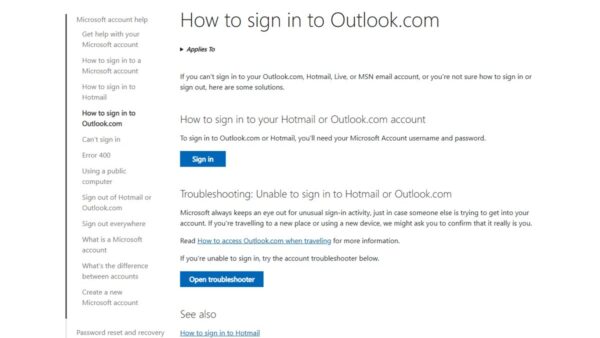
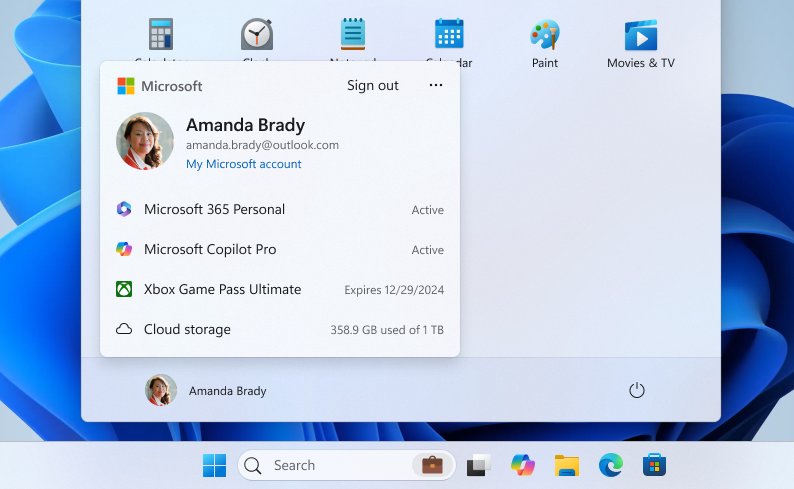
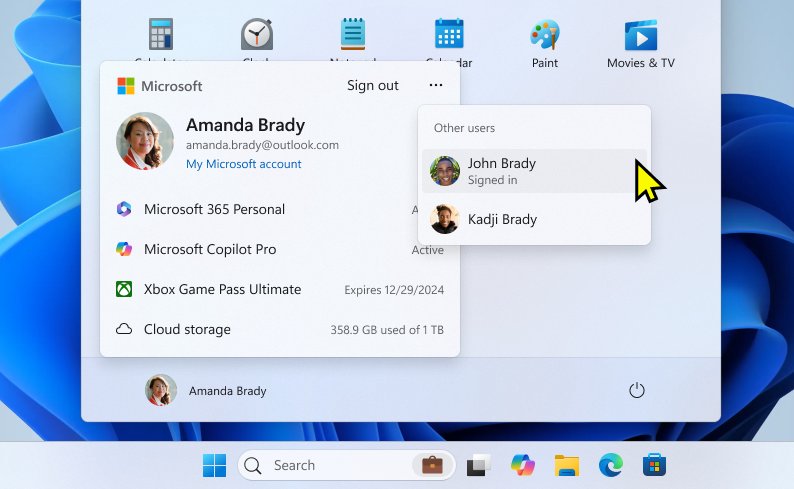
To log off a Windows 11 or Windows 10 computer, select Start, select your account picture, and then select Sign out.
This guide covers every built-in way to sign out, including keyboard and command options, how signing out differs from locking, and why a PC sometimes logs off or locks by itself.
How to log off computer or sign out from Windows 11/10
Windows now calls logging off signing out. The Start menu route works the same way on both versions.
- Save any open files, because signing out closes all open apps.
- Select Start on the taskbar.
- Select your user picture or the Accounts icon at the bottom of the Start menu.
- Select Sign out.
- Wait for the sign-in screen to appear. You are now logged off.
Quickest way to log off a Windows computer for your situation
| Your situation | Use this | Why |
|---|---|---|
| Mouse in hand, normal desktop | Start > account picture > Sign out | Three clicks, works on Windows 11 and 10 |
| Keyboard only, or Start will not open | Ctrl + Alt + Delete > Sign out | The security screen opens even when the desktop is busy |
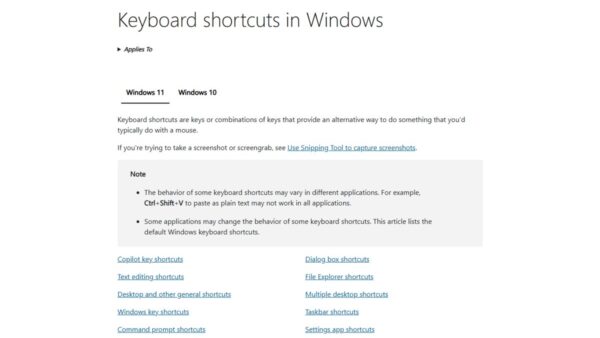
| You right-click Start out of habit | Win + X > Shut down or sign out > Sign out | Sign out sits next to Shut down and Restart |
| You want it instant, or scripted | shutdown /l in Command Prompt |
Signs out immediately with no time-out |
| You are stepping away briefly | Win + L to lock instead | Locking the screen keeps your apps open; you sign back in where you left off |
Sign out of Windows with Ctrl + Alt + Delete
This route works when the Start menu is frozen or you prefer the keyboard.
- Save your work in any open apps.
- Press Ctrl + Alt + Delete together.
- On the screen that appears, select Sign out.
The same screen offers Lock, so use it to secure the PC without closing anything.
Sign out from the Win + X menu in Windows 11 and 10
- Press Win + X, or right-click the Start button.
- Point to Shut down or sign out.
- Select Sign out.
The Shut down or sign out submenu also holds Hibernate once it is turned on under Shutdown settings in the power button options.
Log off computer from Command Prompt with shutdown /l
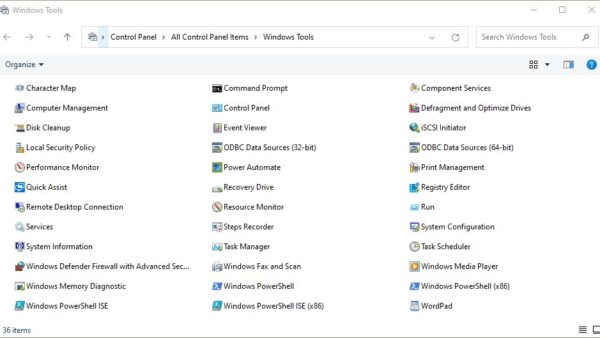
The shutdown command has a sign-out switch you can run in a Command Prompt window, which makes it useful for desktop shortcuts and scripts.
shutdown /l/l signs out the current user immediately with no time-out period. It works on its own: Windows ignores any other switch you combine with it, such as /t or /m.
You should see: The desktop closes and the Windows sign-in screen appears.
Unsaved work in open apps can be lost, so save first. On a Remote Desktop session, the logoff command signs you out of the current session in the same way.
Sign out vs lock vs switch user vs shut down in Windows
These four options look alike in the menus, but only signing out ends your session while leaving the PC on for someone else.
| Option | What happens to your apps | Fastest route | Use it when |
|---|---|---|---|
| Sign out | All apps close and your session ends | Start > account picture > Sign out | You are done and someone else will use the PC |
| Lock | Apps keep running behind the lock screen | Win + L | You step away and come back later |
| Switch user | Your apps keep running while another account signs in | Start > account picture > the other account | Two people share the PC in short turns |
| Shut down | All apps close and the PC turns off | Start > Power > Shut down | You are done for the day |
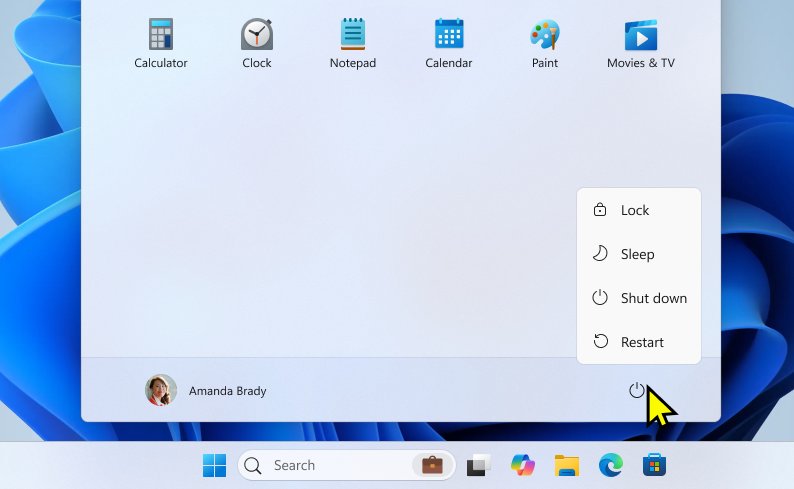
On Windows 11, Lock sits under the Power button in Start. Earlier Windows 11 versions placed it under the account menu, as Windows 10 still does.
How to confirm you are signed out of Windows
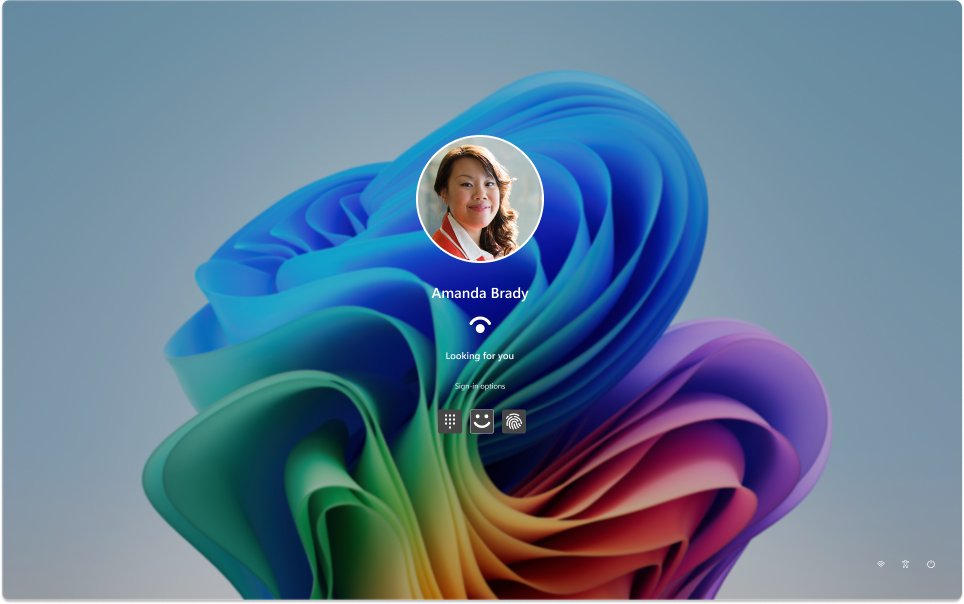
- Wait for the Windows sign-in screen, where any account on the PC can sign in.
- Sign back in and check the taskbar. After a real sign-out, none of the apps you had open are still running.
- If your apps reappear exactly as you left them, the PC was locked, not signed out. Repeat the sign-out with Ctrl + Alt + Delete > Sign out.
How to stop your computer from logging off or locking after inactivity
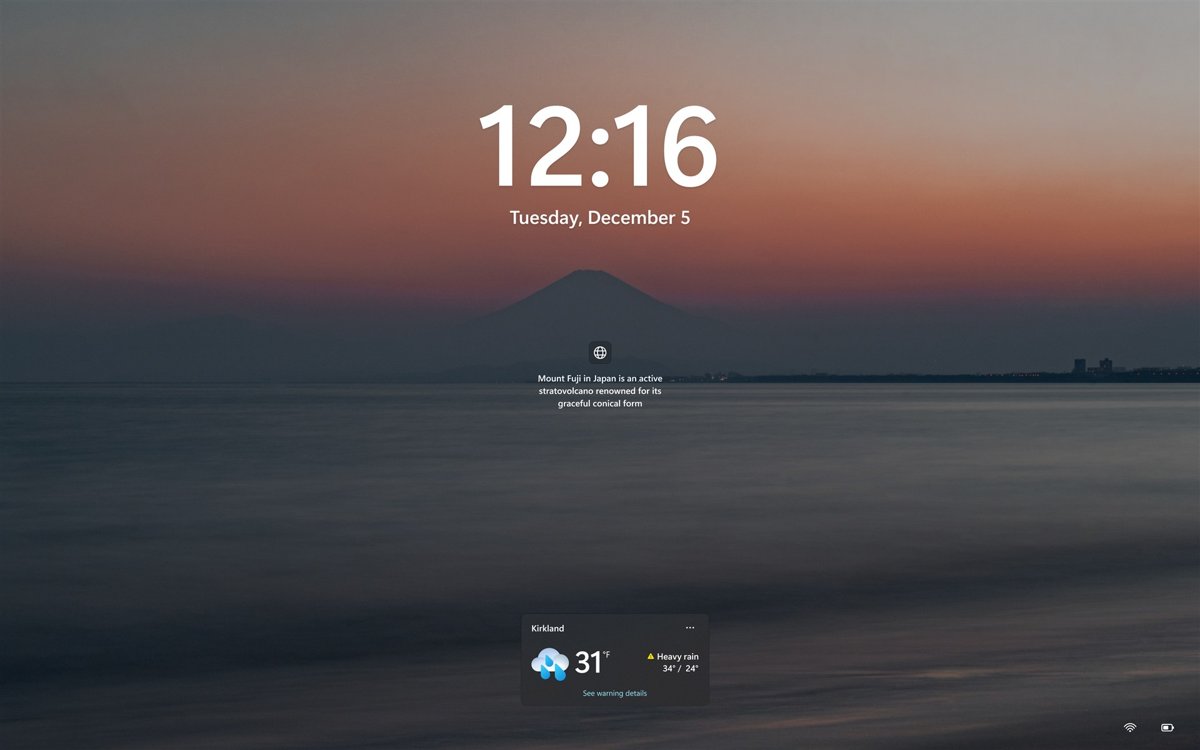
On most home PCs, what looks like an automatic log-off is the screen turning off or the PC going to sleep, which then asks for your password.
- Open Start > Settings > System > Power & battery.
- Expand Screen, sleep, & hibernate timeouts.
- Set Turn my screen off after to a longer time for Plugged in and On battery.
- Set Make my device sleep after to a longer time, or Never while plugged in.
- On Windows 10, open Settings > System > Power & sleep and lengthen the screen and sleep times there.
Shorter times are safer on a laptop you carry around. Balance the time you save against who can reach the PC while you are away.
Why does my computer log off automatically?
Computer logs off or locks after inactivity, or after 2 minutes
The screen timeout or sleep timer is short, or a work policy sets a machine inactivity limit.
- Lengthen the screen and sleep timeouts as shown in the previous section.
- On a work or school PC, ask IT about the Interactive logon: Machine inactivity limit policy. When it is set, the PC also locks whenever the display turns off.
- Do not change that policy on a managed PC yourself; your organization sets it for security.
Computer locks by itself when you walk away
Dynamic lock or Presence Sensing locks the PC when you leave.
- Open Settings > Accounts > Sign-in options.
- Under Additional settings, turn off Dynamic lock if you do not want your phone's Bluetooth range to lock the PC.
- On Windows 11 PCs with a presence sensor, open Settings > System > Power & battery > Screen and sleep and review the Presence Sensing options.
Can't log off: the Start menu does not respond
Explorer or the Start menu is frozen, so the account menu does not open.
- Press Ctrl + Alt + Delete and select Sign out.
- If that screen does not appear, press Win + R, type
cmd, press Enter, then runshutdown /l.
Why is it important to log off your computer?
| Reason | What signing out protects |
|---|---|
| Shared or public PCs | The next person cannot open your email, files or browser sessions |
| Account separation | Other users sign in to their own account and settings instead of yours |
| Fresh start | Every app closes, so the next sign-in begins with a clean desktop |
| Unsaved work | Signing out closes apps, so save first; a forced sign-out can lose data |
On a public computer, also sign out of websites in the browser before you sign out of Windows.
Windows sign out and log off FAQ
How do I log off this computer?
Select Start, select your account picture or the Accounts icon, and choose Sign out. Windows closes your apps and returns to the sign-in screen, where another user can sign in.
How do I log off a laptop?
A Windows laptop signs out the same way as a desktop: Start > account picture > Sign out. Closing the lid is a separate power action set in the power button options, so it does not replace signing out.
How do I log off my computer quickly?
Press Ctrl + Alt + Delete and select Sign out, or run shutdown /l from Command Prompt for an immediate sign-out with no delay. If you only need to step away, Win + L locks the PC in one keystroke.
What does log off mean on a computer?
Logging off, now called signing out in Windows, ends your user session. Your apps close, your account stays protected, and the PC stays on at the sign-in screen so the next person can use their own account.
How do I completely log off a computer?
Choose Sign out, not Lock. Locking keeps your apps running in the background, while signing out closes them and ends the session. To turn the PC off as well, select Start > Power > Shut down.
Why does my computer log off by itself?
In most cases the screen timeout or sleep timer has run out, and Windows asks for your password when you return. Dynamic lock, a presence sensor or a work inactivity policy can also lock the PC automatically.
How do I stop my computer from logging off?
Open Settings > System > Power & battery and lengthen Turn my screen off after and Make my device sleep after. On a work PC, a locking policy may be set by IT and cannot be changed locally.
How do I remove a login account from Windows 11?
Open Settings > Accounts > Other users, open the account you want to remove, and select Remove next to Account and data. This deletes the account's data from the PC but does not delete the person's Microsoft account.