Error 1109 in the middle of an iPhone 11 restore means your Mac or PC could not reach Apple's software update servers, so fix the network connection, update your Mac or the Apple Devices app, and run the restore again.
This guide covers the quick fix, network and hosts file checks, restoring from recovery mode, finishing the restore on another computer, and what to do if a different error code appears.
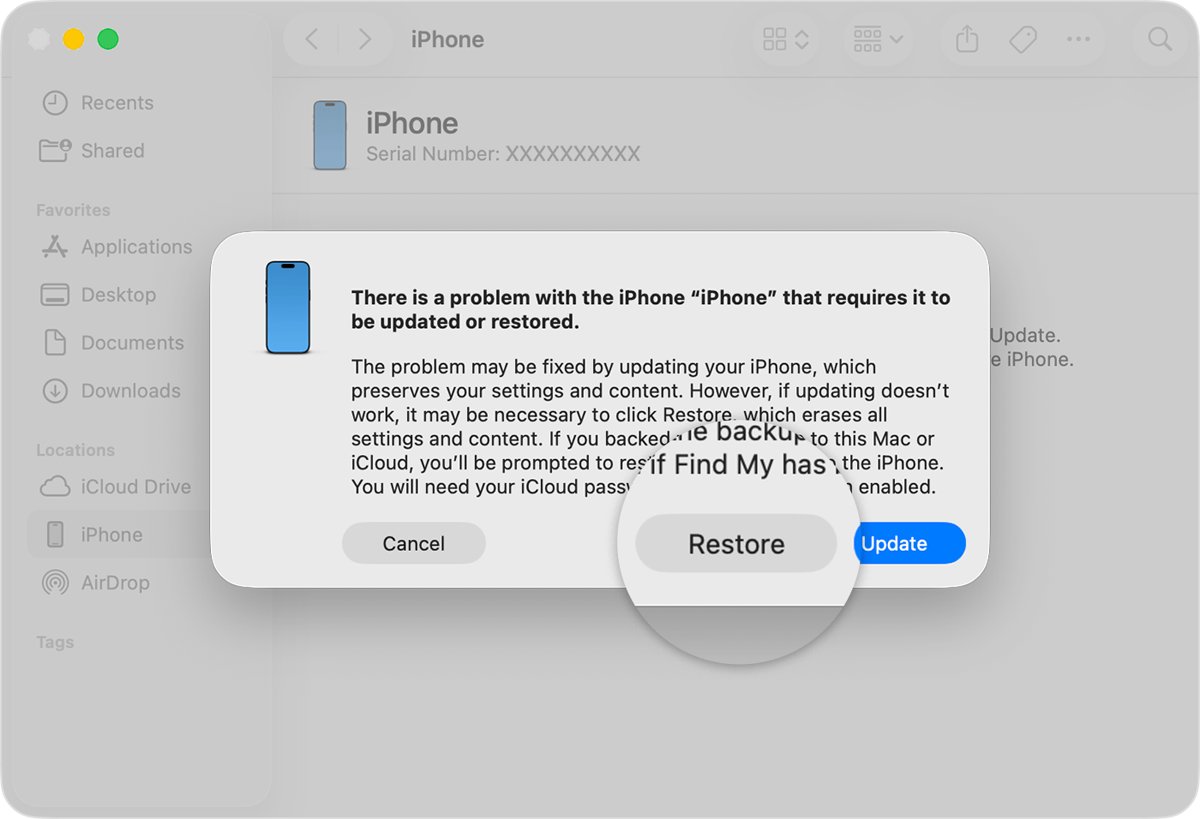
Quick fix for iPhone 11 restore error 1109
Apple lists Error 1109 with its network connectivity errors, alongside Error 17, Error 1639, Error 3194 and Errors 3000-3020. The iPhone itself is usually fine; the computer simply could not talk to Apple's servers.
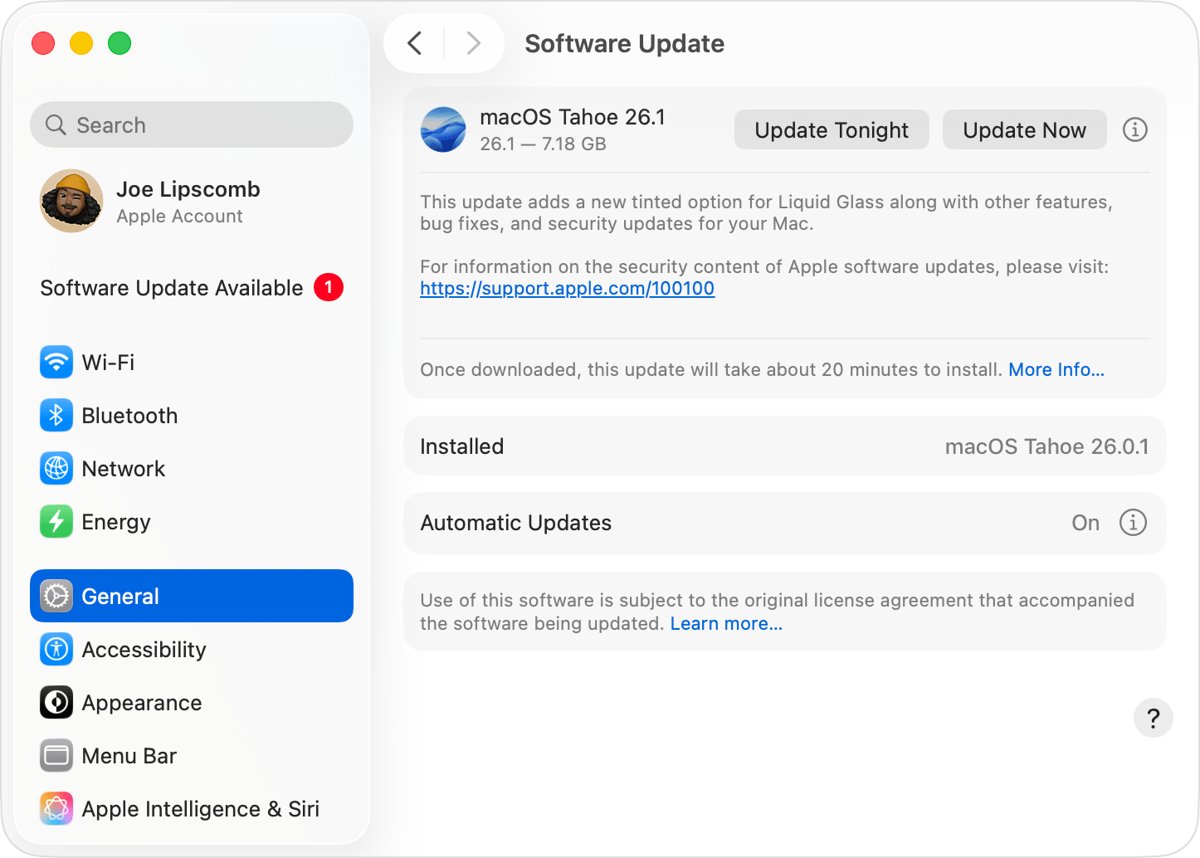
- Update your Mac, or install the latest version of the Apple Devices app or iTunes on your Windows PC.
- Confirm the computer has a working internet connection by loading a website.
- Restart the computer and your modem or router.
- Plug the iPhone 11 directly into a USB port on the computer, not a keyboard or USB hub.
- Open the Finder on a Mac or the Apple Devices app on a PC and select your iPhone.
- Choose Restore again and leave the cable connected until the restore finishes.
If Error 1109 returns, work through the network and hosts file checks below before trying a different computer.
What is error code 1109 on iPhone restore?
During a restore, the computer downloads iOS and asks Apple's update servers to authorize the install. When that request fails, Finder, iTunes or the Apple Devices app stops and shows an error number.
| Error code group | What Apple says it means | Where to start |
|---|---|---|
| 1109, 17, 1639, 3194, 3000-3020, 3100-3999 | The computer cannot communicate with Apple's software update servers | Network, firewall, security software and hosts file |
| 4005, 4013, 4014, 9 | Connection to the device dropped during the process | Try the update again, then the USB cable and port |
| 13, 1600-1604, 1611, 1643-1650, 2000-2009 | USB connection problem | Apple cable, a different USB port, a different computer |
| 1, 3, 11, 12, 16, 1002, 1004, 1011, 1012, 1014, 1667, 1669 | Possible hardware issue | Security software and USB checks, then Apple service |
| 1015 or "The required resource can't be found" | Modified software or an attempt to install an older iOS version | Restore the latest iOS from recovery mode |
| 4037 | The device is locked | Unlock the iPhone, then try again |
Read the number in the alert carefully. A restore that fails with 4013 needs a cable fix, not a network fix.
What you need to restore an iPhone 11 with a computer
| Requirement | Detail |
|---|---|
| Mac or Windows PC | A Mac with current macOS, or a PC with the latest Apple Devices app or iTunes |
| USB cable | The cable that came with the iPhone, or another Apple-certified cable |
| Direct USB port | A port on the computer itself; keyboard ports often lack the power for a restore |
| Internet connection | The computer downloads iOS and contacts Apple's update servers during the restore |
| Time | Apple allows up to 60 minutes; the iOS download alone can take more than 15 minutes |
| Apple Account password | Needed after the restore if Activation Lock is on |
A restore erases the iPhone. Your data comes back only from an iCloud or computer backup made before the problem started.
Fix error 1109 by checking network and firewall settings
A firewall or security software on your computer can block Apple's update servers. Some routers block the connection too.
- Check that the computer's internet connection works, and contact your internet service provider if it does not.
- Open your firewall settings and make sure they allow access to Apple's software update servers.
- Open your security software and update it, or change its settings so it does not block the Apple Devices app, iTunes or Finder.
- Disconnect the computer from your wired or wireless router.
- Connect the computer straight to your modem with an Ethernet cable.
- Restart the computer and the modem, then restore the iPhone again.
On a work or school network, proxies and firewalls managed by the network administrator can cause these errors. Ask the administrator, or use a home network instead.
Check the hosts file for gs.apple.com on Mac
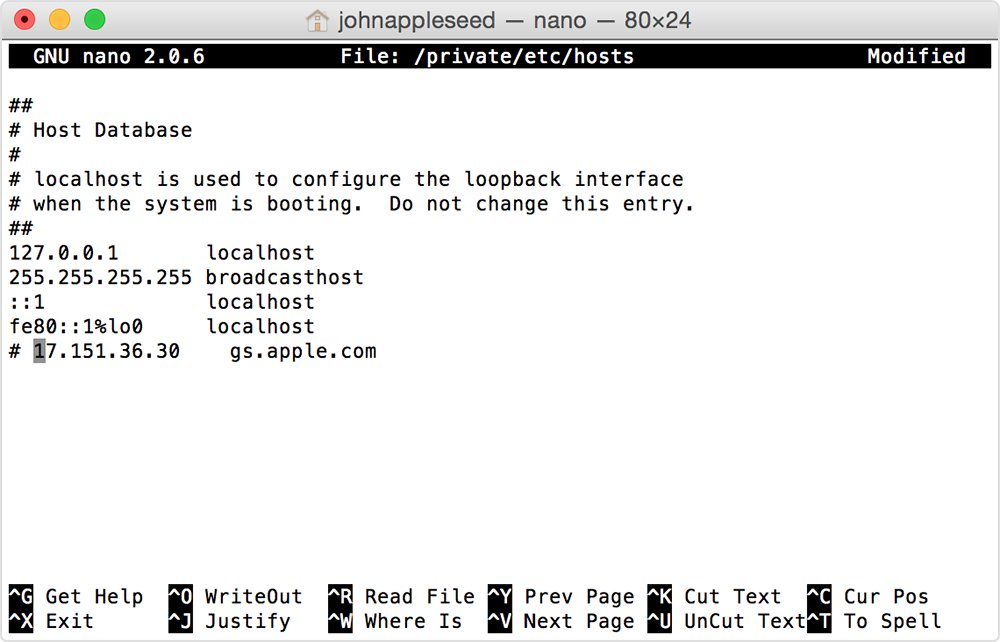
An entry for gs.apple.com in the hosts file redirects the restore away from Apple's server. If there is no such entry, the hosts file is not the cause.
- Open the Finder, choose Applications, then Utilities, and open Terminal.
- Type
sudo nano /private/etc/hostsand press Return. - Enter your Mac sign-in password and press Return; no text appears while you type it.
- Use the arrow keys to find any line containing gs.apple.com.
- Add
#at the start of that line to turn it off. - Press Control-O to save, press Return to keep the filename, then press Control-X to exit.
- Restart your Mac and restore the iPhone again.
On a Windows PC, reset the Windows 11 hosts file to its default using Microsoft's own instructions. On a work computer, check that your other apps still run correctly afterwards, because some software relies on hosts entries.
Restore iPhone 11 in recovery mode after error 1109
If the failed restore left the iPhone 11 stuck on the Apple logo or the "Connect to computer" screen, start again from recovery mode once the network problem is fixed.
- Connect the iPhone 11 to your computer with a USB cable.
- Open the Finder on a Mac, or the Apple Devices app on a PC.
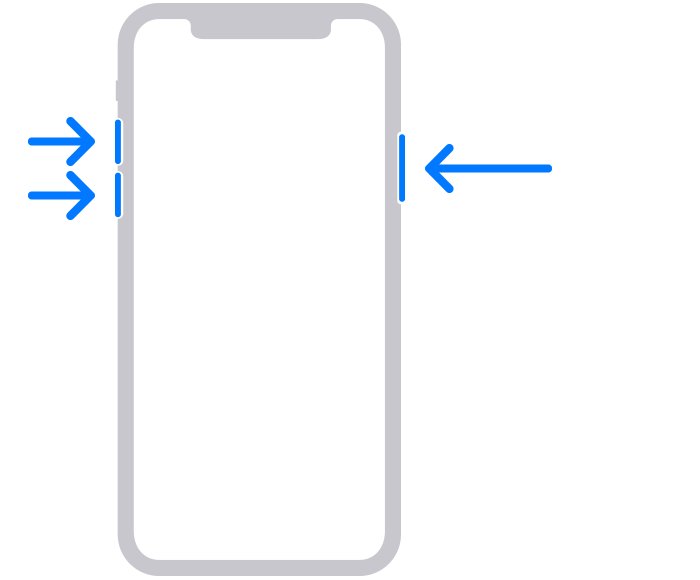
- Press and quickly release the Volume Up button.
- Press and quickly release the Volume Down button.
- Press and hold the side button until the "Connect to computer" screen appears.
- Select your iPhone on the computer and choose Restore when the Update or Restore options appear.
- Wait for the software to download and install, then set up the iPhone.
If the download takes more than 15 minutes, the iPhone can leave the recovery screen. Let the download finish, then repeat the button steps and choose Restore again.
Restore iPhone 11 on another computer and network
Restoring from a different computer on a different internet connection rules out anything on your own computer or network that blocks Apple's servers.
- Choose a Mac with current macOS, or a PC with the latest Apple Devices app or iTunes.
- Use a different network, such as a home connection instead of a work one.
- Connect the iPhone 11 to that computer with an Apple USB cable.
- Put the iPhone in recovery mode if it does not start up normally.
- Select Restore and wait for the restore to complete.
How to check the iPhone 11 restore finished
- Watch the iPhone screen; a finished restore shows the Hello screen.
- Check that the computer no longer shows an error alert or a progress indicator.
- Disconnect the iPhone and follow the setup steps.
- Choose to restore your data from an iCloud or computer backup during setup if you have one.
- Open Settings > General > About and confirm the iOS version is listed.
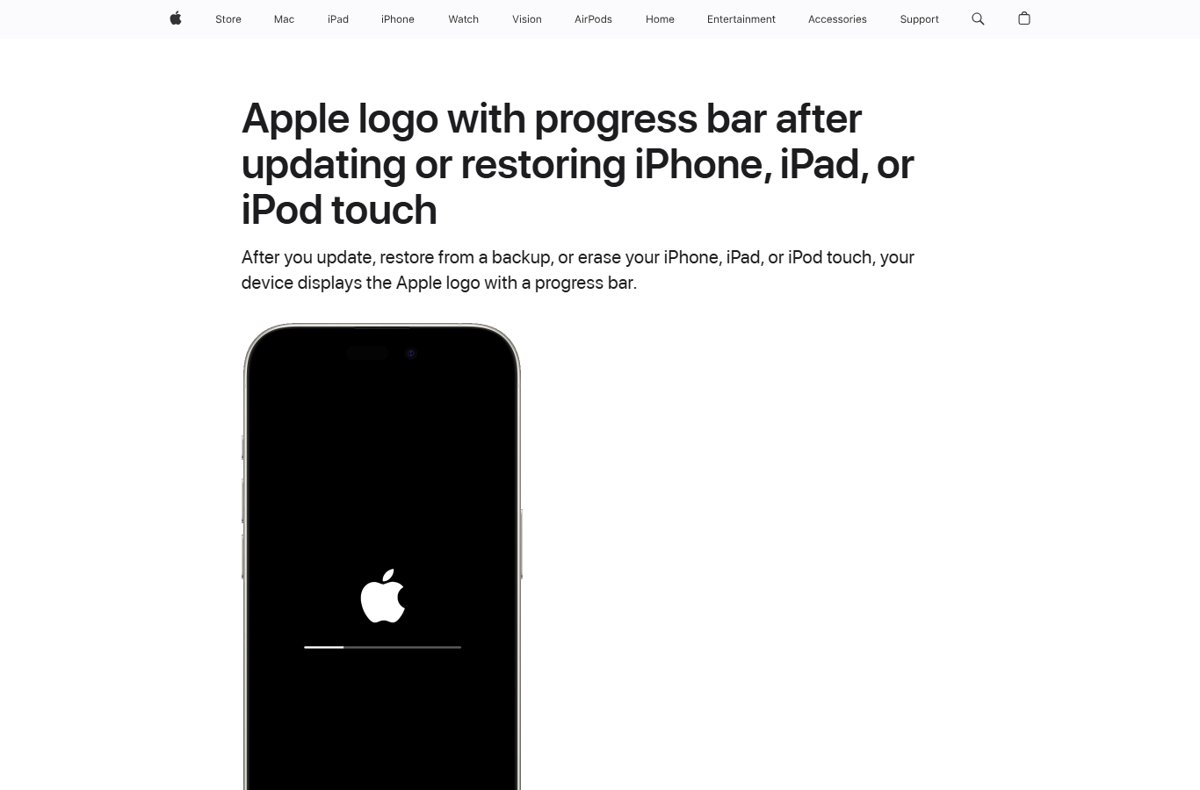
An Apple logo with a progress bar after the restore is normal and can take a while. If your device appears on the computer and you can sync content, the process is complete.
iPhone 11 restore error 1109 still showing: other fixes
Error 1109 comes back on every restore
Something on the computer or network still blocks Apple's update servers.
- Restart the computer and the iPhone.
- Plug the iPhone into a different USB port on the computer.
- Try a different Apple USB cable.
- Update or change the settings of your security software.
- Restore on another computer that uses a different network.
The restore now fails with a different error code
The network problem is fixed and another cause is showing, such as USB or a locked device.
- Note the new number from the alert.
- For 4005, 4013 or 4014, try the restore again, then change the cable and USB port.
- For 4037, unlock the iPhone before you try again.
- For 1015, restore the latest iOS from recovery mode.
iPhone 11 stuck on the Apple logo after the failed restore
The restore stopped partway and iOS did not finish installing.
- Wait several minutes; a slow progress bar can still be working.
- Force restart the iPhone if it stays unresponsive.
- Put the iPhone in recovery mode and choose Restore again.
Computer does not recognize the iPhone 11
The device is locked, not trusted, or connected through a hub.
- Unlock the iPhone and tap Trust if asked.
- Connect directly to the computer, not a keyboard or USB hub.
- Update macOS, the Apple Devices app or iTunes.
- Use recovery mode if the iPhone will not start up.
Recovery mode buttons do not work or restore never completes
A stuck button or hardware fault stops recovery mode from working.
- Try the button sequence again, pressing each volume button quickly.
- Contact Apple Support or visit an Apple Store or Apple Authorized Service Provider for service.
iPhone restore error 1109 FAQ
What is error code 1109 on an iPhone?
Error 1109 is one of Apple's network connectivity errors. It appears when your Mac or PC cannot communicate with Apple's software update servers while updating or restoring an iPhone or iPad.
Why is my computer giving an error code during an iPhone restore?
The error code tells you what stopped the restore. Network errors such as 1109 and 3194 point to blocked server access, while 4013 and 1600-series errors point to the USB connection, cable or port.
How do I check the error code for a failed iPhone restore?
Read the alert that Finder, iTunes or the Apple Devices app shows when the restore stops. It usually says an unknown error occurred and gives the number, which you can match against Apple's update and restore error list.
How do I find what an iPhone error code means?
Apple groups update and restore error codes by cause on its support site: network, USB, security software, hardware and modified software. Find your number in those groups and follow the matching checks.
Does error 1109 mean my iPhone 11 is broken?
No. Apple lists Error 1109 as a network connectivity error, not a hardware error. Fixing the computer's connection to Apple's servers, or restoring from another computer and network, usually clears it.
Will I lose my data if the restore fails with error 1109?
A restore erases the iPhone whether it finishes or not. You can get your data back only from an iCloud or computer backup made earlier, which you choose during setup after the restore succeeds.
Can a VPN or work network cause error 1109?
Yes. Apple says proxies, firewalls and other network security measures on managed networks can block its update servers. Ask your network administrator, or restore on a different network such as home Wi-Fi.
Can I restore an iPhone 11 without a computer after error 1109?
A recovery mode restore needs a Mac or PC. If you cannot borrow a computer, take the iPhone to an Apple Store or Apple Authorized Service Provider for help.
Fixing error 1109 on iPhone 11: final recommendation
Treat Error 1109 as a network problem: update your computer's software, clear any firewall, security software or hosts file block on Apple's update servers, then restore from recovery mode, switching to another computer and network if it still fails. Apple groups Error 1109 with its server connectivity errors, so the iPhone 11 itself rarely needs repair unless the restore later fails with a hardware error code.