To run Command Prompt as an administrator in Windows 11, type cmd in Start search, right-click Command Prompt, select Run as administrator and choose Yes at the User Account Control prompt.
This guide covers twelve routes to an elevated window plus sudo and runas, how to make one open as admin every time, how to confirm the window is elevated, and what to do when UAC or a missing option stops you.
How to run Command Prompt as administrator in Windows 11/10
This route works the same way in Windows 11 and Windows 10, and it is the one Microsoft's own repair articles use.
- Select Start or the Search box on the taskbar.
- Type cmd.
- In the search results, right-click Command Prompt.
- Select Run as administrator.
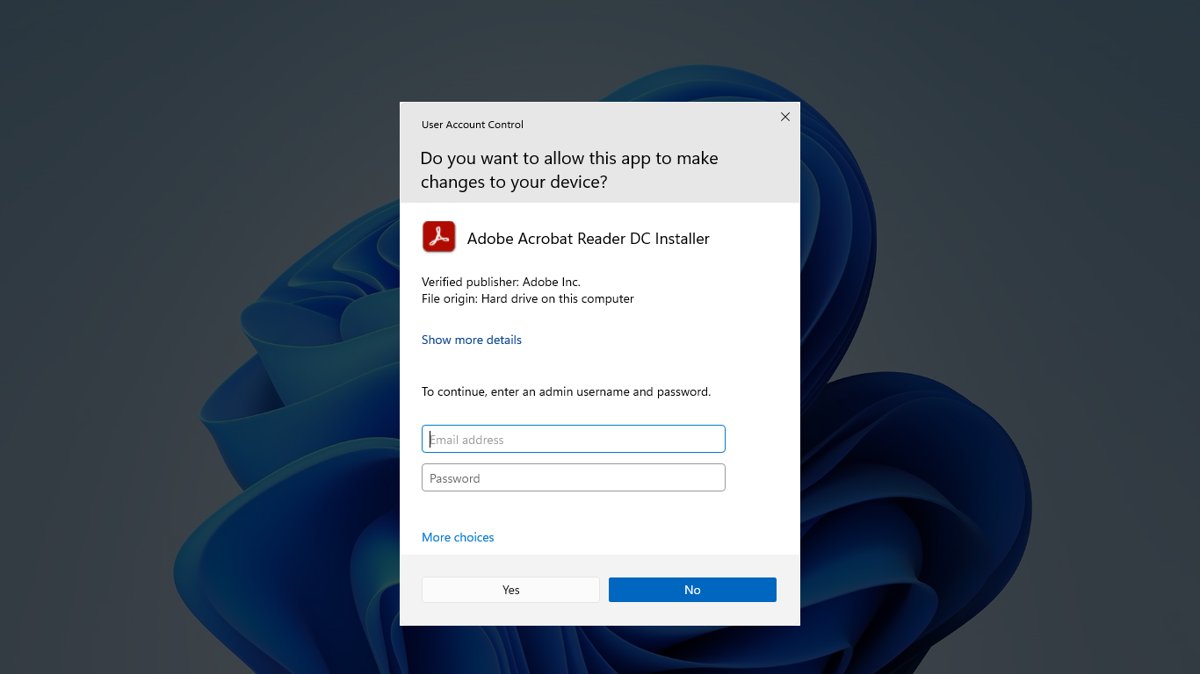
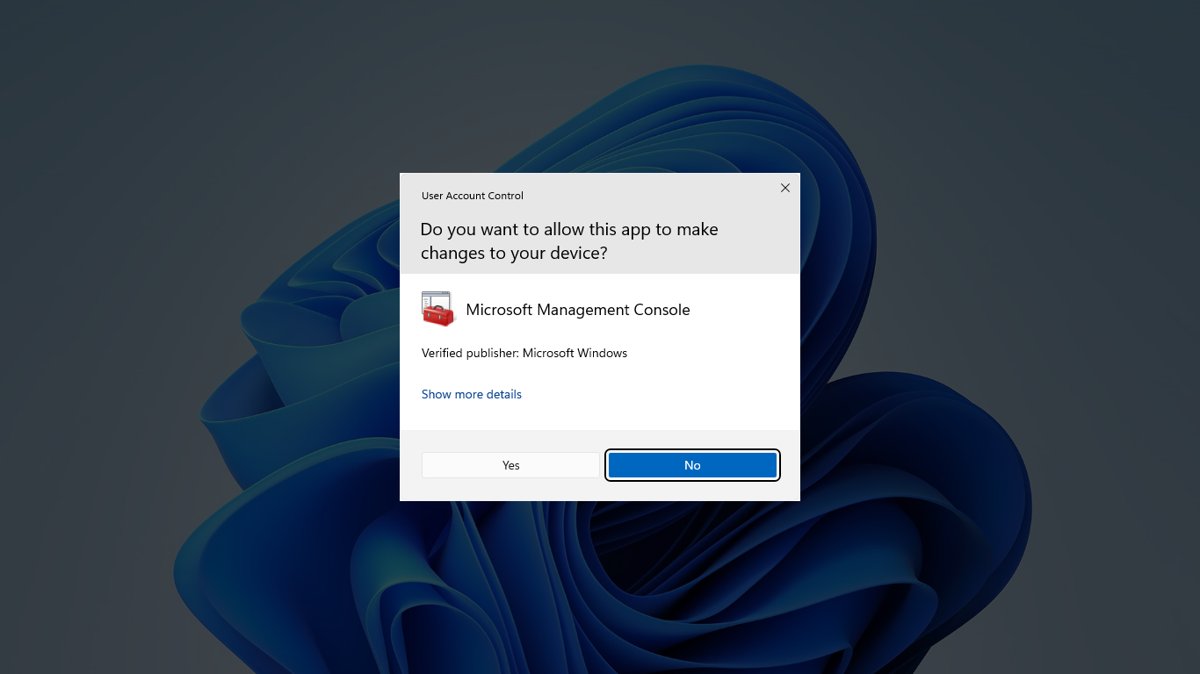
- Select Yes at the User Account Control prompt, or type an administrator password if Windows asks for one.
Since Windows 11 22H2, Command Prompt opens inside Windows Terminal by default, so the elevated window may look like a Terminal tab. That is normal, and the same happens when you open Command Prompt without elevation.
What "Run as administrator" means in Windows
When an administrator signs in, Windows creates two access tokens: a standard one with administrative privileges removed, and a full administrator token. Every app, including Command Prompt, starts with the standard token unless you approve elevation.
| Account type | What you see when you choose Run as administrator | Result |
|---|---|---|
| Administrator in Admin Approval Mode | A consent prompt asking you to select Yes | Command Prompt runs with the full administrator token |
| Standard user | A credential prompt asking for an administrator account's password | Command Prompt runs as that administrator account |
| Either, with elevation declined | You select No or close the prompt | Command Prompt does not open elevated |
Elevation is why admin commands work: an elevated process runs at high integrity and can change system data, which a standard process cannot.
Quick reference: fastest ways to open Command Prompt as administrator
| Your situation | Fastest method | Why |
|---|---|---|
| You use the mouse and Start search | Search cmd > Run as administrator | Two clicks and a UAC prompt |
| You want a keyboard shortcut | Pin Command Prompt to the taskbar, then press Windows key + Ctrl + Shift + number | Opens an admin instance from the keyboard |
| You already work in Windows Terminal | Windows key + X > Terminal (Admin) | Elevated Terminal, then a Command Prompt tab |
| Explorer or the Start menu has frozen | Task Manager > Run new task | Works without the Start menu |
| You are in PowerShell already | Start-Process cmd -Verb RunAs |
One line, no menus |
| You need one admin command on Windows 11 24H2 or later | sudo followed by the command |
Elevates a single command from a normal window |
| You open admin CMD every day | A shortcut with Run as administrator ticked, or a Terminal profile set to run as admin | Always elevated, no right-click needed |
| Windows will not start | Windows Recovery Environment > Command Prompt | Works outside the installed Windows |
Method 1: Open Command Prompt as administrator from Windows Search
Windows Search and the Start menu share the same search box in Windows 11, so this also covers the Start menu route.
- Press the Windows key or select Start.
- Type cmd or Command Prompt.
- Right-click Command Prompt in the results.
- Select Run as administrator.
- Select Yes in the User Account Control dialog.
For a keyboard shortcut instead of the Start search right-click, pin Command Prompt to the taskbar and use the Ctrl + Shift shortcuts in Method 7.
Method 2: Use the Power User menu
The Start button right-click menu, also called the Quick Link menu, lists Windows Terminal rather than Command Prompt in Windows 11. Open the admin Terminal and start a Command Prompt tab inside it.
- Press Windows key + X, or right-click the Start button.
- Select Terminal (Admin).
- Select Yes at the User Account Control prompt.
- Select the down arrow next to the new tab button.
- Select Command Prompt; the new tab opens elevated because the window is elevated.
Windows Terminal does not mix admin and non-admin tabs in one window, so every tab in a Terminal (Admin) window runs as administrator.
Method 3: Open an elevated Command Prompt from Windows Terminal
Use the Windows Terminal admin option when you want Command Prompt as the tab that opens first, or when you want the Command Prompt profile to always run as administrator.
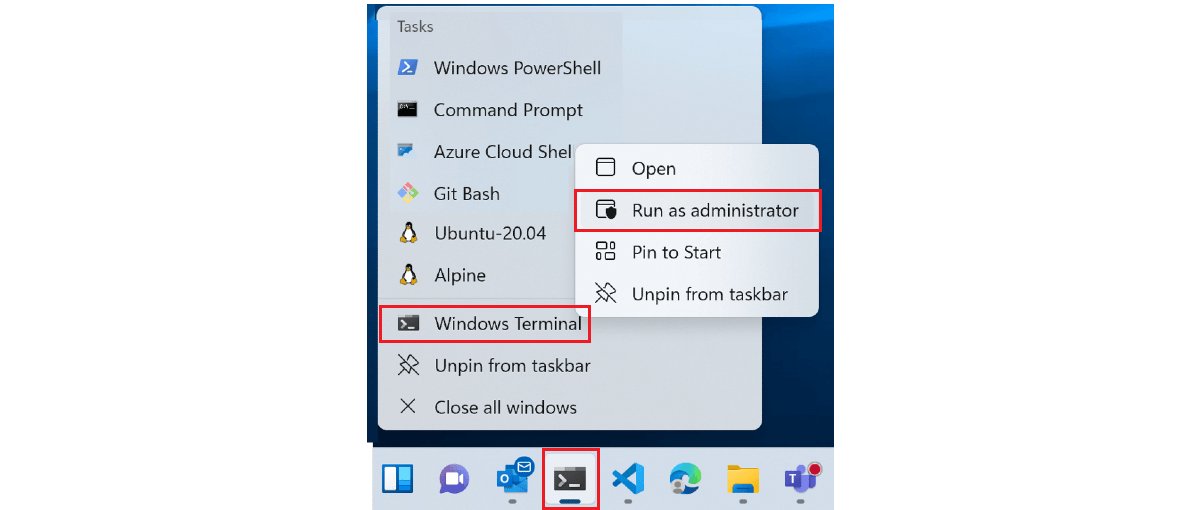
- Right-click the Windows Terminal icon, right-click the Windows Terminal title that appears, and select Run as administrator.
- In the elevated window, open the tab menu and select Settings.
- On the Startup page, set Default profile to Command Prompt and select Save.
- To make the profile elevate on its own, open the Command Prompt profile in the sidebar.
- Turn on Automatically run as Administrator and select Save.
With that setting on, opening the Command Prompt profile from a normal Terminal window creates a new elevated window to host it.
Method 4: Use Task Manager to open an elevated Command Prompt
Task Manager works when the Start menu, taskbar or Explorer will not respond, which makes it the standard recovery route.
- Press Ctrl + Shift + Esc to open Task Manager.
- Select Run new task; in the classic layout, go to File > Run new task.
- Type
cmd.exein the box. - Tick Create this task with administrative privileges.
- Select OK.
Method 5: Open an admin Command Prompt from the Run dialog
Typing cmd in Run opens a standard window. To elevate from the Run box, have PowerShell start Command Prompt with the RunAs verb.
- Press Windows key + R to open the Run box.
- Type
powershell -Command "Start-Process cmd -Verb RunAs". - Press Enter.
- Select Yes at the User Account Control prompt.
The same idea works when you run other programs as admin from Run.
Method 6: Open Command Prompt as administrator from File Explorer
File Explorer gives you the right-click context menu on the program file itself, which is useful when search is broken.
- Open File Explorer and go to This PC > your Windows drive > Windows > System32.
- Find cmd (cmd.exe) in the folder.
- Right-click it and select Run as administrator.
- Select Yes at the User Account Control prompt.
If Windows 11 shows the short context menu without the option you need, select Show more options to see the full menu.
Method 7: Open an elevated Command Prompt from a folder location
An elevated Command Prompt always starts in the system folder. Change to the folder you need with one command.
- Open an elevated Command Prompt with any method above.
- In File Explorer, open the target folder, click the address bar and copy the path.
- In Command Prompt, type
cd /d "followed by the pasted path and a closing quote. - Press Enter; the prompt now shows that folder.
The /d switch also changes the drive letter, so it works when the folder is on D: or another drive.
Method 8: Create a desktop shortcut that always runs as administrator
This is the way to always run Command Prompt as administrator on Windows 11 without right-clicking each time.
- Right-click an empty part of the desktop and select New > Shortcut.
- Type
cmd.exeas the location and select Next. - Name it, for example Admin Command Prompt, and select Finish.
- Right-click the new shortcut and select Properties.
- On the Shortcut tab, select Advanced.
- Tick Run as administrator, then select OK two times.
The shortcut still shows a UAC prompt each time, which is expected; it only removes the right-click step.
Method 9: Pin admin Command Prompt to Start or the taskbar
Pinning gives you a true keyboard shortcut, because Windows has built-in Ctrl + Shift combinations that open a taskbar app as administrator.
- Search for cmd, right-click Command Prompt and select Pin to taskbar or Pin to Start.
- To pin the always-admin version, right-click the shortcut from Method 8 and pin that instead.
- Hold Ctrl + Shift and select the Command Prompt icon on the taskbar to open it as administrator.
- Or press Windows key + Ctrl + Shift + number, where the number is the icon's position on the taskbar.
- Select Yes at the User Account Control prompt.
Method 10: Open an elevated Command Prompt from PowerShell
If PowerShell is already open, one cmdlet starts a new Command Prompt window with the administrator token. The RunAs verb works with any .exe file.
Start-Process cmd -Verb RunAsStart-Process launches cmd.exe, and -Verb RunAs requests elevation, so Windows shows the User Account Control prompt.
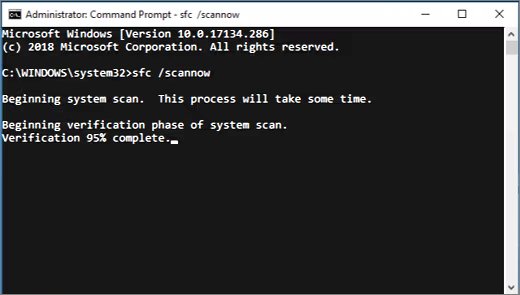
You should see: After you select Yes, a new Command Prompt window opens and commands such as sfc /scannow run without an access error.
You can run PowerShell as administrator the same way.
Method 11: Use a batch file to request administrator rights
A batch file can call the same PowerShell cmdlet, which gives you a double-click launcher that asks for admin rights. Batch files (.cmd) support the RunAs verb too, so you can also right-click a .bat or .cmd file and select Run as administrator.
powershell -Command "Start-Process cmd -ArgumentList '/k' -Verb RunAs"Save this line in Notepad as AdminCMD.bat. Double-clicking it starts an elevated Command Prompt, and /k keeps the new window open after it starts.
You should see: The UAC prompt appears, and after Yes an elevated Command Prompt window opens and stays open.
Method 12: Open Command Prompt as administrator in Windows Recovery Environment
When Windows will not start, Windows Recovery Environment (Windows RE) offers a Command Prompt for advanced troubleshooting. It runs outside your normal Windows session, from the sign-in screen or a failed boot.
- If Windows starts, open Settings > System > Recovery and select Restart now next to Advanced startup.
- From the sign-in screen, hold Shift while you select Power > Restart.
- If Windows will not start, interrupt startup with the power button two times; the third start shows Automatic Repair, then select Advanced options.
- In the Windows RE menus, open Advanced options and select Command Prompt.
- Enter your BitLocker recovery key if the device is encrypted and Windows RE asks for it.
Use sudo in Windows 11 to run one command as administrator
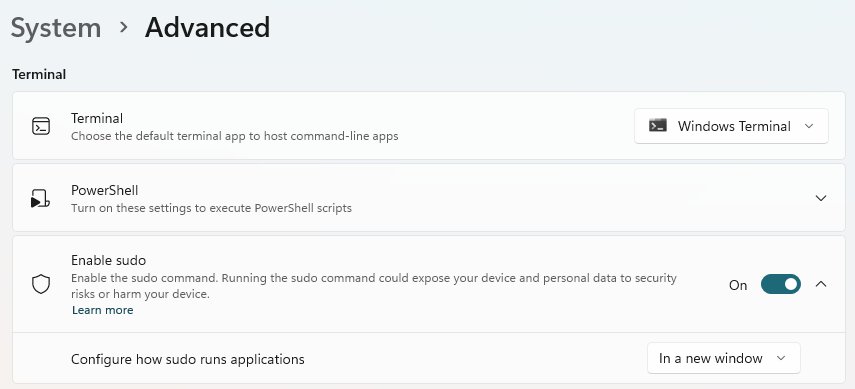
Sudo for Windows runs a single command elevated from a normal Command Prompt. It needs Windows 11, version 24H2 or later, and you turn it on in Settings > System > Advanced by setting Enable sudo to On.
sudo netstat -abPrefix any command with sudo. Windows shows a UAC prompt, then runs the command elevated. The default mode, In a new window, opens the elevated command in a separate window.
You should see: netstat -ab lists connections with the owning program names instead of returning an elevation error.
Microsoft warns that the Input closed and Inline modes carry extra risk; keep the default In a new window mode unless you understand them.
Run Command Prompt as another user with runas
The runas command opens a program under a different account, such as a local administrator, and asks for that account's password in the window.
runas /user:<ComputerName>\administrator cmdReplace <ComputerName> with your PC name and administrator with the account name. For a domain account, use /user:<DomainName>\<AccountName>.
You should see: After you enter the password, a new Command Prompt window opens running as that user.
runas runs the program as the other user; sudo only elevates your own account and cannot switch users.
How to tell if Command Prompt is running as administrator
- Confirm that a User Account Control prompt appeared and you selected Yes; without it, the window is not elevated.
- In the window, type
whoami /privand press Enter. - Compare the list with the same command in a normal window; the elevated window lists many more privileges, because the standard token has administrative privileges removed.
- In Windows Terminal, remember that every tab in an elevated window is elevated, because admin and non-admin tabs cannot share a window.
Common admin Command Prompt examples
These Command Prompt commands commonly need administrator rights.
| Command | What it does |
|---|---|
DISM.exe /Online /Cleanup-image /Restorehealth |
Repairs the Windows image; run it before SFC |
sfc /scannow |
Scans protected system files and replaces corrupted ones |
diskpart |
Opens the disk partitioning tool |
netstat -ab |
Shows network connections with the program that owns each one |
notepad C:\Windows\System32\drivers\etc\hosts |
Opens the hosts file so you can save changes |
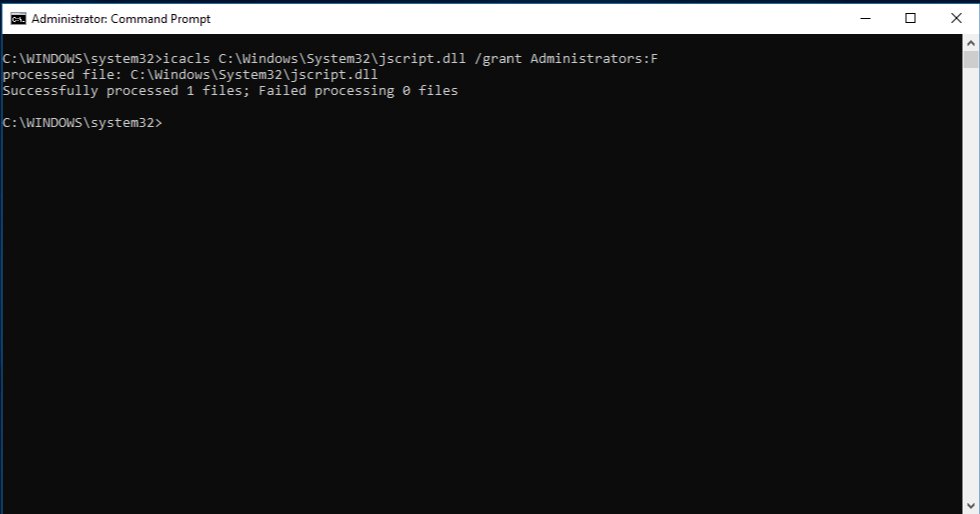
icacls <file> /grant administrators:F |
Grants administrators full access to a file |
Command Prompt vs. PowerShell vs. Windows Terminal
| Tool | What it is | How to run it as admin |
|---|---|---|
| Command Prompt (cmd.exe) | The Windows command interpreter for cmd commands and batch files | Search cmd > Run as administrator |
| Windows PowerShell | A shell and scripting language with cmdlets such as Start-Process | Search PowerShell > Run as administrator |
| Windows Terminal | The app that hosts Command Prompt, PowerShell and other shells in tabs; the default console host since Windows 11 22H2 | Windows key + X > Terminal (Admin) |
What to do if admin Command Prompt will not open
"Run as administrator" is missing
Windows 11 hides some entries in the short right-click menu, or you right-clicked an item that is not the program.
- Right-click Command Prompt in the search results, not the web suggestion.
- In File Explorer, select Show more options to see the full context menu.
- Use Task Manager > Run new task with Create this task with administrative privileges ticked.
UAC blocks Command Prompt or asks for a password you do not have
You are signed in as a standard user, so Windows shows a credential prompt for an administrator account.
- Enter the password of an administrator account on the PC.
- On a work or school PC, ask your IT department to run the command, because policy controls elevation.
- Before that, check whether your account has admin privileges.
Command Prompt opens and immediately closes
The window was started with /c, which runs one command and exits, or a batch file finished.
- Start it with
cmd /kfollowed by the command; /k keeps the window open. - Add
/kto the ArgumentList in your PowerShell or batch launcher, as in Method 11.
Why can't I run Command Prompt as admin from Start?
Start search or Explorer is not responding.
- Press Ctrl + Shift + Esc and use Run new task with administrative privileges.
- Or press Windows key + X and select Terminal (Admin).
Safety tips for using an elevated Command Prompt
| Tip | Reason |
|---|---|
| Use a standard window unless a command needs admin rights | Microsoft recommends running as a standard user to limit what malware can change |
| Close the elevated window when you finish | Child processes inherit its administrator token |
| Paste commands only from sources you trust | An elevated command can modify system files, disks and the registry |
| Keep User Account Control on | The prompt is the checkpoint that stops silent elevation |
| Keep sudo in its default mode | Inline and Input closed modes let unelevated processes interact with the elevated one |
| Check the target disk twice in diskpart | Partition changes apply immediately |
Command Prompt as administrator FAQ
How do I run Command Prompt as admin in Windows 10?
The steps match Windows 11. Type cmd in the taskbar search box, right-click Command Prompt, select Run as administrator and choose Yes. Task Manager's Run new task and PowerShell's Start-Process cmd -Verb RunAs work on Windows 10 as well.
How do I force Command Prompt to run as administrator?
Create a desktop shortcut to cmd.exe, open its Properties, select Advanced on the Shortcut tab and tick Run as administrator. In Windows Terminal, turn on Automatically run as Administrator for the Command Prompt profile instead.
How do I run cmd as administrator as a standard user?
Choose Run as administrator as usual. Because you are a standard user, Windows shows a credential prompt, and you must type the user name and password of an administrator account on that PC.
How do I run Command Prompt as another user?
Use the runas command, for example runas /user:ComputerName\AccountName cmd. Windows asks for that account's password in the window and then opens a new Command Prompt running as that user.
What is the command to run Command Prompt as administrator?
From PowerShell, run Start-Process cmd -Verb RunAs. From a Command Prompt on Windows 11 24H2 or later with sudo turned on, prefix a single command with sudo to run just that command as administrator.
Why can't I run Command Prompt as admin?
Usually your account is a standard user without an administrator password, or a work policy blocks elevation. If only the Start menu fails, open Task Manager, select Run new task, type cmd.exe and tick Create this task with administrative privileges.
Is there a keyboard shortcut to open Command Prompt as administrator?
Yes, once Command Prompt is pinned to the taskbar. Press Windows key + Ctrl + Shift + its position number, or hold Ctrl + Shift and select its taskbar icon. Windows key + X followed by Terminal (Admin) is another quick route.
Does running Command Prompt as administrator make commands faster?
No. Elevation only grants the administrator access token, so commands that change system files, disks or protected settings can run. Speed is the same as in a standard window.
Bottom line: the best way to run Command Prompt as administrator
Use Start search > Run as administrator for occasional tasks, and set up an always-admin shortcut or Terminal profile if you need an elevated Command Prompt daily. Search is the fastest route that works on every Windows 11 and Windows 10 PC, while Task Manager and Windows RE cover the cases where Start or Windows itself is broken.