To change audio balance levels on Windows 11, open Start > Settings > System > Sound, select your device under Output, and set the Left and Right volume levels.
This guide covers that Settings route, the classic Control Panel route, mono audio, the stereo format check and fixes for sound that plays in one ear only. Set it on the device you actually listen through, since each one in your Windows output settings keeps its own levels.
Adjust sound balance (left and right) on Windows 11
Windows 11 keeps a separate left and right level for each output device, so set the balance on the speakers or headphones you are actually using.
- Select Start > Settings > System > Sound.
- Under Output, select the speakers or headphones you want to adjust.
- Go to Output settings and find Volume.
- Lower Left to shift the sound towards the right side, or lower Right to shift it left.
- To restore an even balance, set Left and Right to the same level, typically 100.
The change applies straight away to that device. Other output devices keep their own balance and other Windows 11 sound settings.
Which audio balance setting should you change on Windows 11?
| Your situation | Use this | Why |
|---|---|---|
| You want one side louder than the other | Settings > System > Sound > device > Volume | Separate Left and Right levels per device |
| You prefer the classic Sound dialog | Control Panel > Hardware and Sound > Sound | The same device properties in the older window |
| You hear well in only one ear | Turn on Mono audio | Plays both channels through each side instead of shifting volume |
| Sound plays in one earbud or speaker only | Check balance, Mono audio and Format | Microsoft's fix order for one-channel audio |
| You use Windows 10 | Control Panel > Sound, or Sound Control Panel in Settings | The classic dialog exists on both versions |
Adjust sound balance (left and right) from Control Panel
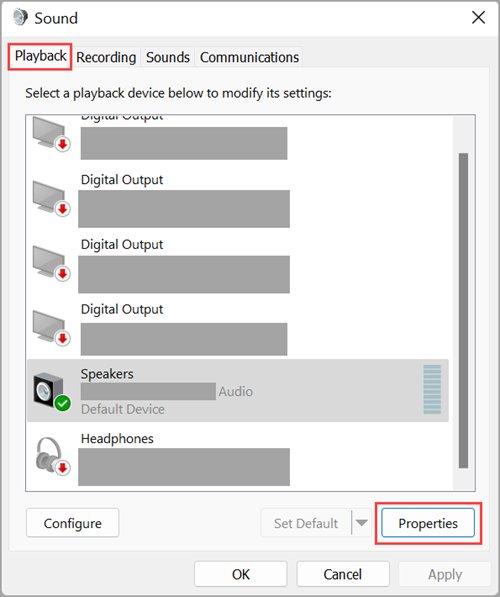
The classic Sound dialog opens the same playback device properties that older versions of Windows used. On Windows 11, Settings also opens it through More sound settings, one of several ways to open the old Sound settings.
- In the search box on the taskbar, type control panel and select it from the results.
- Select Hardware and Sound, then select Sound.
- On the Playback tab, right-click your speakers or headphones and select Properties.
- Open the Levels tab.
- If the device shows a Balance button next to its volume slider, select it and set the left and right levels.
- Select OK to close the balance window, then OK again to save.
To open the same dialog from Windows 11 Settings, go to Settings > System > Sound and select More sound settings, then use the Playback tab. On Windows 10, select Sound Control Panel under Related settings.
Where the left and right balance setting lives in Windows 11 and Windows 10
| Windows version | Route | Path |
|---|---|---|
| Windows 11 | Settings | Settings > System > Sound > device under Output > Output settings > Volume > Left / Right |
| Windows 11 | Classic dialog from Settings | Settings > System > Sound > More sound settings > Playback |
| Windows 11 and 10 | Control Panel | Control Panel > Hardware and Sound > Sound > Playback > device > Properties |
| Windows 10 | Classic dialog from Settings | Settings > System > Sound > Sound Control Panel |
| Windows 11 | Mono audio | Settings > Accessibility > Audio > Mono audio |
Windows 10 reached its end of support on October 14, 2025, so Microsoft now writes its sound guidance for Windows 11 first.
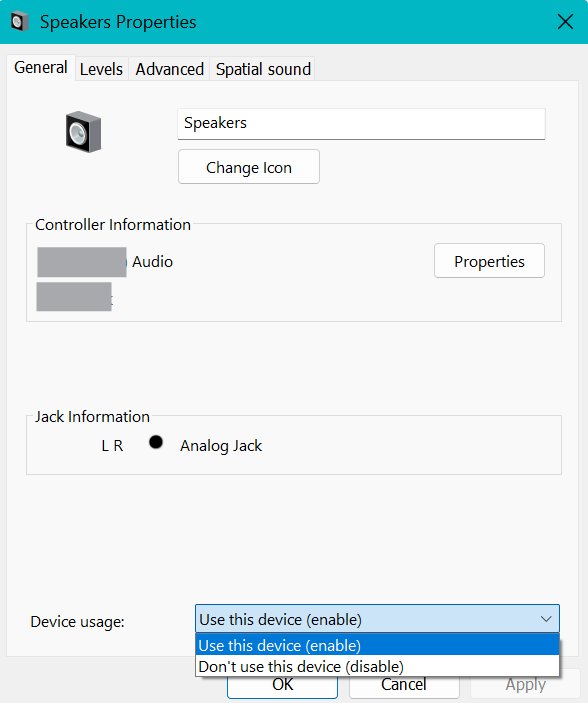
Turn mono audio on or off in Windows 11
Balance changes how loud each side is. Mono audio is different: it combines the left and right channels so every sound plays through both sides. Use it if you have hearing loss in one ear or wear a single earbud.
- Select Start > Settings > Accessibility > Audio.
- Turn on Mono audio to hear all sounds in one channel.
- Turn it off again to return to normal stereo sound.
- You can also reach the same toggle under Settings > System > Sound in the Output section.
Leave Mono audio off if you only want to make one side louder. With it on, a balance change affects one combined signal instead of two separate channels.
How to check the audio balance on Windows 11
- Play music or a video that you know has stereo sound.
- Open Settings > System > Sound, select your device and confirm the Left and Right values are the ones you set.
- Confirm Mono audio is off unless you turned it on on purpose.
- Under Output settings, open Format and check it is set to a 2-channel option such as 2 channels, 16 bit, 48000 Hz (DVD Quality).
- Listen with the headphones on the right way round. Sound should now sit where you placed it.
Fix audio balance and one-sided sound on Windows 11
Sound plays in only the left or right side
Balance is set unevenly, or the device is not using a stereo format.
- Open Settings > System > Sound and select the device under Output.
- Under Output settings > Volume, set Left and Right to the same level.
- Turn off Mono audio under Output.
- Open Format and select 2 channels, 16 bit, 48000 Hz (DVD Quality).
Bluetooth headphones play in one earbud only
A low battery, a stale pairing or only one earbud is connected.
- Charge the headphones. Settings > Bluetooth & devices shows battery level for supported devices.
- In Bluetooth & devices > Devices, select the earbuds under Audio, then Disconnect and Remove device.
- To re-pair the earbuds for stereo sound, put both in the case, start pairing mode, then select Add device > Bluetooth and pick them.
- Connect the second earbud if Windows prompts you to.
The balance setting does not fix the sound
The headphones, cable or the device's firmware may be at fault.
- Inspect the headphones or speakers for loose wires or damage.
- Test with a different pair. If the other pair works, the original device is likely faulty.
- Check the manufacturer's website for a firmware update, then restart the device and the PC.
- Run the audio troubleshooter from Settings > System > Troubleshoot > Other troubleshooters, or reset the audio settings to their defaults.
Windows 11 audio balance FAQ
Where is the audio balance setting in Windows 11?
Open Settings > System > Sound, select your speakers or headphones under Output, then go to Output settings and find Volume. The Left and Right levels there are the balance controls for that device.
How do you reset left and right balance to even on Windows 11?
Set the Left and Right levels to the same value in Settings > System > Sound > your device > Volume. Microsoft's guidance says the even level is typically 100 for both.
Can you change audio balance from Control Panel on Windows 11?
Yes. Open Control Panel > Hardware and Sound > Sound, right-click your device on the Playback tab and select Properties, then use the Levels tab. Settings > System > Sound > More sound settings opens the same dialog.
What is the difference between balance and mono audio?
Balance makes the left or right side louder. Mono audio mixes both channels so each side plays everything. Use balance to correct volume differences and mono audio when you can hear in only one ear.
Why is my sound only coming out of one side on Windows 11?
The usual causes are uneven Left and Right levels, a non-stereo output format or a Bluetooth earbud that is not connected. Even out the balance, turn off Mono audio, set Format to 2 channels and re-pair the device.
Does each audio device have its own balance setting?
Yes. Windows 11 stores balance per output device, so you select the device under Output before changing Left and Right. Headphones and speakers can keep different settings.
Bottom line: changing audio balance on Windows 11
Use Settings > System > Sound > your device > Volume to set Left and Right, and switch to Mono audio only when you need every sound in both ears. The Settings route is the one Microsoft documents for Windows 11, and it sets balance per device without the older dialog.