To use Bing AI for writing, open Microsoft Copilot at copilot.cloud.microsoft, in the Edge sidebar or in Word, and type what you want written, rewritten or summarized.
This guide covers each place Copilot writes, the prompt structure that gets usable drafts, blog and SEO workflows, what is free, and how to fix missing Copilot buttons.
How to access Bing AI writing
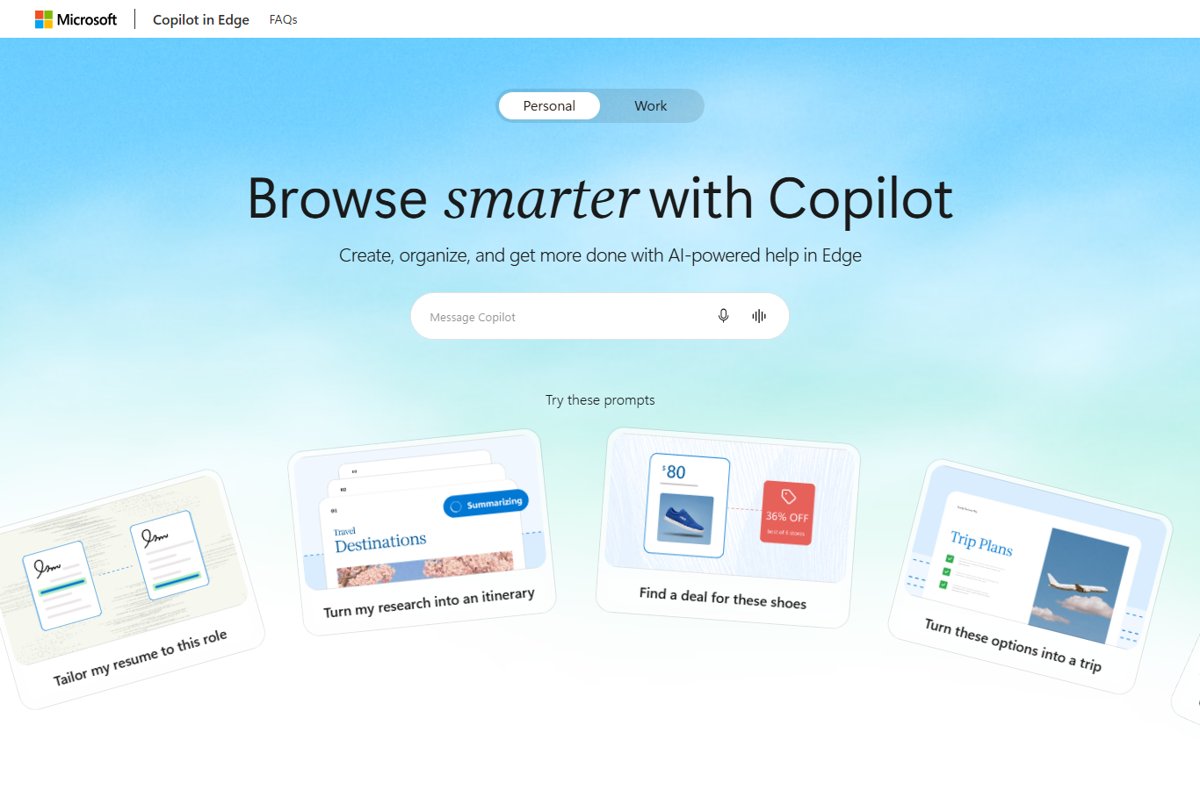
The free Copilot web app is the quickest start. Microsoft states it is available at no cost and that signing in is optional.
- Open a browser and go to copilot.cloud.microsoft, or open the Copilot app on Windows, macOS, iOS or Android.
- Sign in with a personal Microsoft account if you want Copilot chat history and longer conversations. You can skip this.
- Type a writing request that names the task, the reader, the tone and the length, for example: "Write a 150-word email to my landlord asking to fix the heating, polite but firm."
- Press Enter and read the draft.
- Reply with a follow-up such as "Make it shorter" or "Use a friendlier tone" until it fits.
- Copy the final text into your email, document or website.
What is Bing AI writing?
Bing AI writing is the common name for the writing help inside Microsoft Copilot. Microsoft's AI chat that began in Bing now carries the Copilot name; Microsoft documents, for example, that Copilot is the new name for Bing Chat Enterprise.
| Where you use it | Product name today | What it writes with |
|---|---|---|
| Website and apps | Microsoft Copilot (free) | Chat prompts and follow-ups |
| Microsoft Edge sidebar | Copilot in Edge | Prompts plus the page, PDF or video you have open |
| Text boxes on web pages in Edge | Inline Compose (Draft with Copilot, Rewrite with Copilot) | Your prompt or the text you typed |
| Microsoft Word | Copilot in Word | Your document, files you reference and work context |
What can Bing AI writing do?
| Task | Where it works best | Example request |
|---|---|---|
| Draft from scratch | Copilot web, Word | Write a 300-word product announcement for small business owners |
| Rewrite your own text | Edge Rewrite with Copilot, Word | Make this paragraph concise and professional |
| Change tone, length or format | Edge Inline Compose, Word | Turn this into a bulleted list in a casual tone |
| Summarize a page, PDF or video | Copilot in Edge | Create a summary of this page |
| Summarize a document | Word | Summarize this document in five bullet points |
| Outline long content | Copilot web, Word | Create an outline for a project update |
| Turn text into a table | Word | Turn this text into a table with columns for task, owner and due date |
| Add citations | Word | Generate this section with citations to referenced sources |
Which Copilot writing tool should you use?
| Your situation | Use this | Why |
|---|---|---|
| You want a free draft with no setup | Microsoft Copilot on the web | No cost, sign-in optional |
| You are writing about a page you have open | Copilot in the Edge sidebar | It can read the current page, PDF or video |
| You are typing in a web form, email or post box | Draft with Copilot in Edge | Writes straight into the text box |
| You already typed text and want it polished | Rewrite with Copilot in Edge | Adjusts tone, length and format in place |
| You are building a full document | Copilot in Word | Drafts, edits and reorganizes inside the file |
Method 1: Use Microsoft Copilot on the web
The web app suits emails, outlines, social posts and first drafts. You can also download the Microsoft Copilot app for Windows or Mac and use the same prompts there.
- Go to copilot.cloud.microsoft in any browser.
- Sign in with a personal Microsoft account if you want to keep the conversation in your history.
- Type the writing task with its goal, audience, tone and length.
- Paste any notes or source text under the request, inside quotation marks, so Copilot knows what to use.
- Review the draft and ask for changes in follow-up messages.
- Type "new topic" before switching to an unrelated writing task.
Method 2: Use Bing AI writing in Microsoft Edge
Copilot in Edge sits in the sidebar and can use the page you are reading, which helps when you write a reply, a review or notes about that page. It sits alongside Bing AI search in Edge, which answers questions rather than writing.
- Sign in to Microsoft Edge with your personal Microsoft account.
- Open the web page, video or PDF you want to write about.
- Select the Copilot icon in the upper-right corner of Edge.
- Allow Copilot to use browser information if Edge asks the first time.
- Type a writing request, such as "Draft a 100-word reply to this article's main argument", or select Create a Summary.
- Copy the text from the sidebar into where you need it.
Method 3: Use Compose in Microsoft Edge
Microsoft calls the current compose feature Inline Compose. It works in text boxes on web pages and writes from a short prompt.
- In Edge, click inside a text box on a web page, such as an email body or a post field.
- Click the floating Copilot button that appears, or right-click the box and choose Draft with Copilot.
- Type what you want, for example "Thank the team for finishing the launch early".
- Adjust the tone, length and format options until the draft fits.
- Add the result to the text box, then edit it as needed.
Method 4: Rewrite text with Copilot in Edge
- Type or paste your text into a text box on a web page in Edge.
- Select the text you want to improve.
- Right-click the selection and choose Rewrite with Copilot.
- Change the tone, length or format if the first version misses.
- Use the version you prefer in place of your original.
If Rewrite with Copilot and Draft with Copilot are missing, the setting Collaborate with Copilot as you write on the web is turned off in Edge settings.
Method 5: Use Copilot in Microsoft Word
Copilot in Word needs an eligible Microsoft 365 subscription or Copilot license. The same subscription also lets you enable Copilot in Excel.
- Open a blank document, or place the cursor where new content should go.
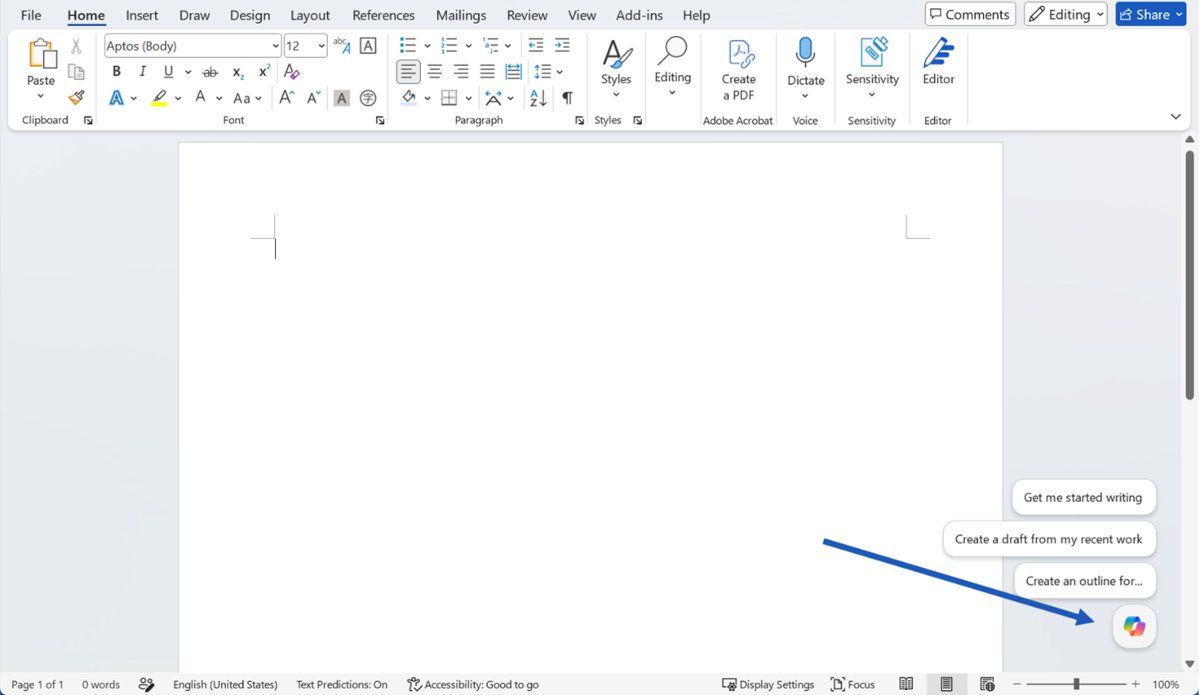
- Select the Copilot button in the corner of the document to open the chat pane.
- Describe what you want, including topic, audience, tone, format and length.
- Type / and choose a file if Copilot should draw on a specific source.
- Select Generate.
- Keep, discard or regenerate the draft, or refine it with a follow-up prompt.
How to use Bing AI writing effectively
Copilot only knows what is in the current conversation, so detail in the prompt decides the quality of the draft. These five habits cover most of it.
| Habit | What to include | Example |
|---|---|---|
| 1. Tell Copilot exactly what you need | The deliverable and its length | Write a 200-word product description |
| 2. Specify your audience | Who reads it and what they already know | for first-time home buyers with no finance background |
| 3. Choose a writing tone | Formal, friendly, persuasive, neutral | in a warm, plain-English tone |
| 4. Define the structure | Headings, bullets, paragraphs, word count per part | Use three short paragraphs and end with one call to action |
| 5. Give Copilot useful context | Facts, notes or text to work from, in quotation marks | Use these specs: "12-hour battery, 1.2 kg, USB-C charging" |
Microsoft also advises clear punctuation and grammar in the prompt, and quotation marks around any text Copilot should modify.
How to use Bing AI writing for blog posts
Build a post in stages rather than asking for the whole article in one prompt. Each stage gives you a point to correct course.
- Research the search intent: ask "What questions do people have about [topic]?" and pick the ones your post answers.
- Generate an article outline: "Create an outline with H2 and H3 headings for a post on [topic] for [audience]."
- Generate individual sections one at a time: "Write the section [heading] in about 200 words."
- Improve the draft: ask Copilot to tighten repetition, simplify sentences and add examples.
- Fact-check the content against official sources before you publish, especially numbers, names and dates.
- Rewrite the intro and conclusion in your own voice so the post reads as yours.
How to use Bing AI writing for SEO
Copilot can speed up keyword and metadata work, but it does not see search volume data. Treat its keyword lists as ideas to check in a keyword tool or Bing Webmaster Tools.
| SEO task | Prompt to use | What to check |
|---|---|---|
| Find related keywords and topics | List 20 related keywords and subtopics for [main keyword], grouped by intent | Real search demand for each term |
| Generate SEO titles | Write 10 titles under 60 characters that start with [keyword] | Length and that the title matches the page |
| Write meta descriptions | Write three meta descriptions of 120 to 160 characters for this page: "[summary]" | The keyword appears early and the claim is true |
| Find content gaps | Here is my outline: "[outline]". What questions about [topic] does it not answer? | Whether each gap is worth a section |
| Generate FAQ ideas | List 10 questions people ask about [topic], one line each | Each question is something readers actually search |
How to rewrite content with Bing AI
Rewriting works in Copilot web, Edge and Word. Name the single change you want so Copilot does not alter the meaning.
- Paste the text in quotation marks, or select it in Word or an Edge text box.
- To improve readability, ask: "Rewrite this for a general reader at a simpler reading level."
- To make text shorter, ask: "Cut this to half the length without losing any facts."
- To improve professionalism, ask: "Make this concise and professional for an executive audience."
- To remove repetition, ask: "Remove repeated ideas and merge overlapping sentences."
- To fix grammar, ask: "Correct grammar and spelling only. Do not change the wording otherwise."
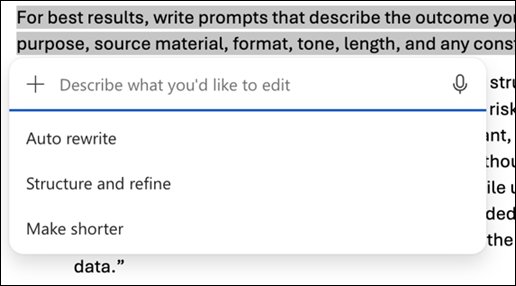
- In Word, choose Replace, Insert below or Regenerate to apply or retry the rewrite.
How to summarize content with Bing AI
- For a web page, video or PDF, open it in Edge and select the Copilot icon.
- Select Create a Summary, or type "Summarize this page in five bullet points."
- For a Word document, open Copilot in Word and type "Summarize this document in five bullets."
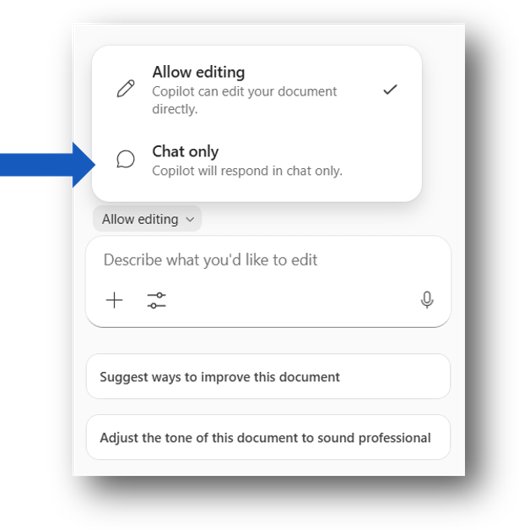
- Select Chat only in Word if you want the summary in the pane without changes to the document.
- For pasted text in Copilot web, put the text in quotation marks and state the summary length you want.
Best Bing AI writing prompts
Swap the bracketed parts for your own details. Each prompt states the task, reader, tone and format.
| Use | Prompt |
|---|---|
| Blog article | Write a 1,200-word blog post on [topic] for [audience]. Use H2 headings, short paragraphs and a practical tone. |
| Write a polite 120-word email to [person] asking for [request] by [date]. | |
| Rewriting | Rewrite this paragraph to be clearer and 30% shorter without changing its meaning: "[text]" |
| Product description | Write a 150-word product description for [product] aimed at [buyer], using these specs: "[specs]". |
| Social media | Write three LinkedIn posts under 80 words announcing [news], each with a different opening line. |
| Summary | Summarize this text in five bullet points and a one-sentence conclusion: "[text]" |
A simple formula for better Bing AI prompts
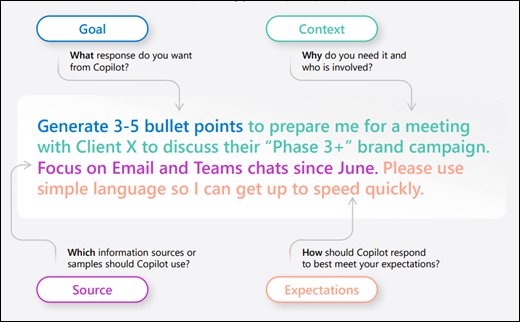
Microsoft breaks a good Copilot prompt into four parts: goal, context, source and expectations.
| Part | Answers | Example |
|---|---|---|
| Goal | What do you want written? | Write a cover letter |
| Context | Why, and for whom? | for a junior data analyst role at a retail company |
| Source | What should it draw on? | using this resume summary: "[text]" |
| Expectations | How should it look and sound? | under 250 words, confident but not boastful, three paragraphs |
How to check a Copilot draft before you publish
Microsoft states that Copilot output can include misleading content and that you are responsible for what you keep. Check every draft before it goes out.
- Highlight every number, name, date and quote in the draft.
- Confirm each one against an official or primary source.
- Open any citation Copilot added and confirm the source says what the draft claims.
- Read the text aloud to catch phrases that do not sound like you.
- Remove any sensitive personal or business details you pasted into the prompt.
Fix Copilot writing problems in Edge and Word
Draft with Copilot or Rewrite with Copilot is missing in Edge
Inline Compose is turned off.
- Open Edge Settings.
- Find the setting Collaborate with Copilot as you write on the web.
- Turn the setting on, then right-click a text box again.
Copilot in Edge ignores the page you have open
Context clues are turned off.
- Select the More menu (…) in the Edge toolbar.
- Select Copilot and AI.
- Turn on Allow Copilot to read context clues on the web.
The Copilot button does not appear in Word
Your Microsoft 365 plan does not include Copilot, you are not the subscription owner, or your organization has not enabled it.
- Confirm you are signed in to Word with the account that owns a Microsoft 365 Personal, Family, Premium or Pro subscription.
- If Family or Premium is shared with you, use Copilot Chat on the web instead, since Copilot in the desktop apps is for the owner only.
- On a work or school account, ask your admin whether a Copilot license is assigned.
Pros and cons of Bing AI writing
| Pros | Cons |
|---|---|
| Free on the web with no sign-in required | Desktop Word integration needs a paid Microsoft 365 plan |
| Works where you already write: Edge text boxes and Word | Drafts can contain wrong or misleading facts |
| Adjusts tone, length and format in seconds | Generic output when the prompt lacks detail |
| Summarizes pages, PDFs and videos in Edge | Edge features need a signed-in Microsoft account |
| Word can cite sources and use your files | Copilot supports fewer languages than the Word interface |
Is Bing AI writing free?
Yes, the basic version is free. Paid Microsoft 365 plans add Copilot inside the desktop apps and higher usage limits.
| Plan | Price (US, monthly) | Writing access |
|---|---|---|
| Microsoft Copilot (free) | $0 | Copilot web and apps; sign-in optional, signing in adds history and longer chats |
| Microsoft 365 Personal | $9.99 | Copilot in Word, Excel, PowerPoint and Outlook desktop apps, higher usage than free |
| Microsoft 365 Family | $12.99 | Same as Personal, with Copilot for the subscription owner only |
| Microsoft 365 Premium | $19.99 | Extensive Copilot usage plus Premium-only features |
| Microsoft 365 Pro | $99.99 | Highest Copilot usage limits |
| Business plans | Varies | Copilot Chat included; full Copilot needs a separate add-on license |
Bing AI writing vs Microsoft Copilot: What’s the difference?
| Question | Answer |
|---|---|
| Are they separate products? | No. Bing AI writing describes the writing features of Microsoft Copilot. |
| Where do the features live now? | Copilot web and apps, Copilot in Edge, and Copilot in Microsoft 365 apps such as Word |
| Does writing still use Bing? | Copilot can use web information when available, which is the search part of the experience |
| Which should you search for? | Use Microsoft Copilot for current help pages and downloads |
Bing AI writing FAQ
Is Bing AI writing the same as Microsoft Copilot?
Yes. Bing AI writing is the common name for the writing features of Microsoft Copilot, which runs on the web at copilot.cloud.microsoft, in the Edge sidebar and in Microsoft 365 apps such as Word.
Can Bing AI write full articles?
Yes, Copilot can draft a full article from one prompt, but results are better when you generate an outline first and then each section. Fact-check every number, name and claim before publishing, because Copilot output can contain mistakes.
Can Bing AI rewrite my text?
Yes. Paste the text into Copilot with a clear instruction, select it in an Edge text box and choose Rewrite with Copilot, or select it in Word and choose Auto Rewrite from the Copilot options.
Do I need to sign in to use Copilot for writing?
Not on the web. Microsoft says sign-in is optional for free Copilot, though a personal account adds chat history and longer conversations. Copilot in Edge requires signing in to Edge with a personal Microsoft account.
Does Copilot in Word cost extra?
Copilot in Word is included for subscription owners of Microsoft 365 Personal, Family, Premium and Pro, with usage limits. People who have a Family or Premium plan shared with them get Copilot Chat on the web only.
How do I turn off Rewrite with Copilot in Edge?
Turn off Collaborate with Copilot as you write on the web in Microsoft Edge settings. The floating Copilot button and the Draft with Copilot and Rewrite with Copilot menu options then stop appearing in text boxes.
Can Copilot summarize a PDF in Edge?
Yes. Open the PDF in Microsoft Edge, select the Copilot icon in the upper-right corner, and type a prompt or select Create a Summary to get an overview of the content.
Bottom line: is Bing AI writing worth using?
Use free Copilot on the web for drafts and rewrites, Edge's Rewrite with Copilot for text you type in the browser, and Copilot in Word only if you already pay for Microsoft 365. The free tools cover most writing tasks, while Word's version adds document editing and citations that matter mainly for longer, sourced work.