When wireless CarPlay in a BMW shows No Internet Connection, check that Cellular Data is on for your iPhone, because apps use cellular data whenever the Wi-Fi network they are on offers no internet.
This guide covers the quick fix, how wireless CarPlay uses Wi-Fi and Bluetooth, a full reconnect routine, and symptom-based fixes for CarPlay that will not connect or keeps dropping.
Quick fix for wireless CarPlay no internet connection
Wireless CarPlay joins your car through a Wi-Fi network listed as your CarPlay network in iPhone settings. Maps, music streaming and Siri requests still need a data connection from the phone itself.
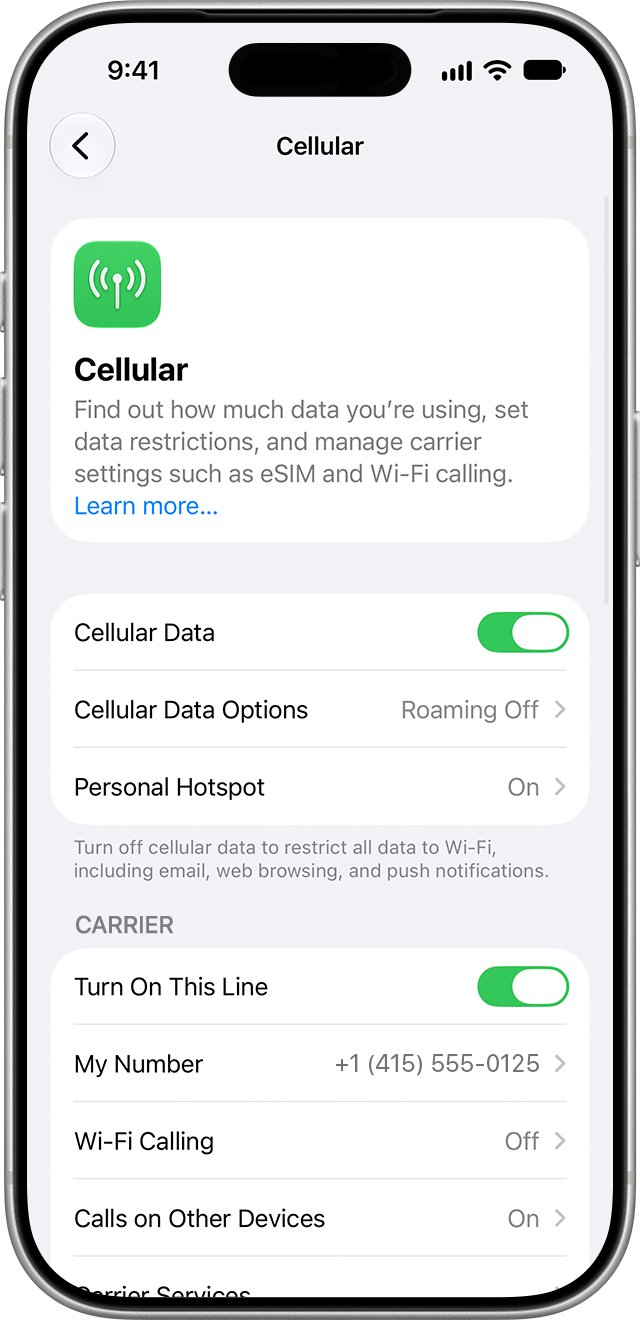
- On your iPhone, open Settings and tap Cellular.
- Turn on the Cellular Data slider.
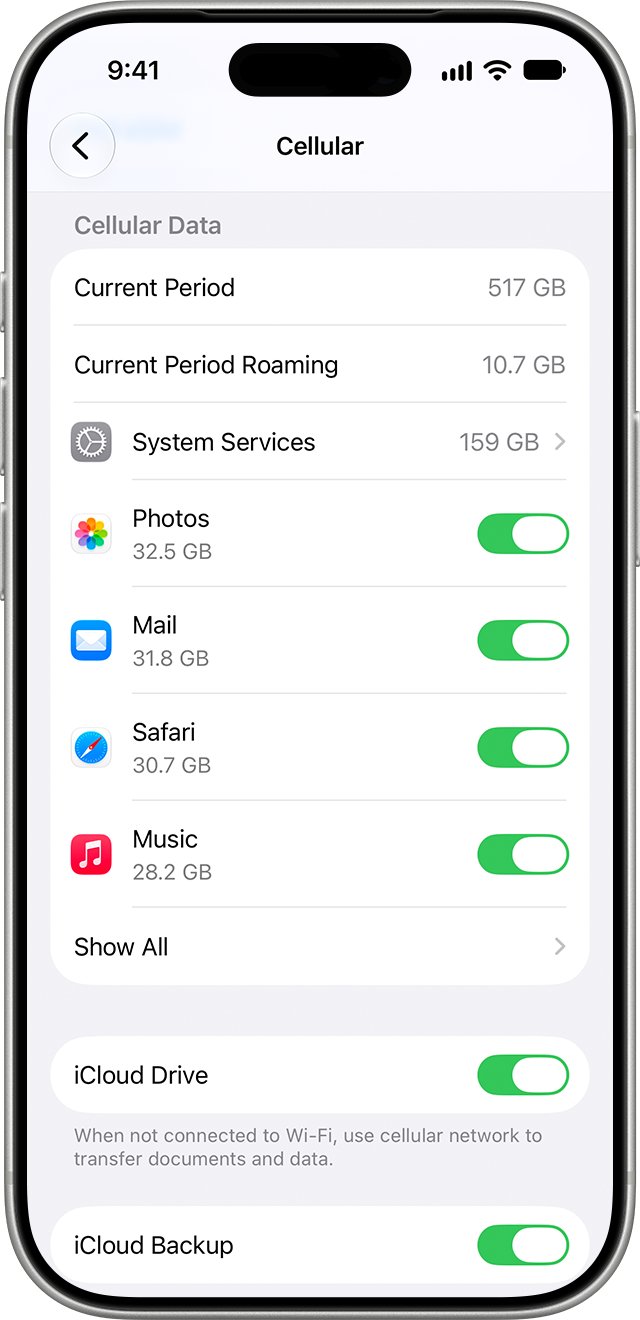
- Scroll down the app list and make sure Maps, your music app and any other CarPlay app have cellular data turned on.
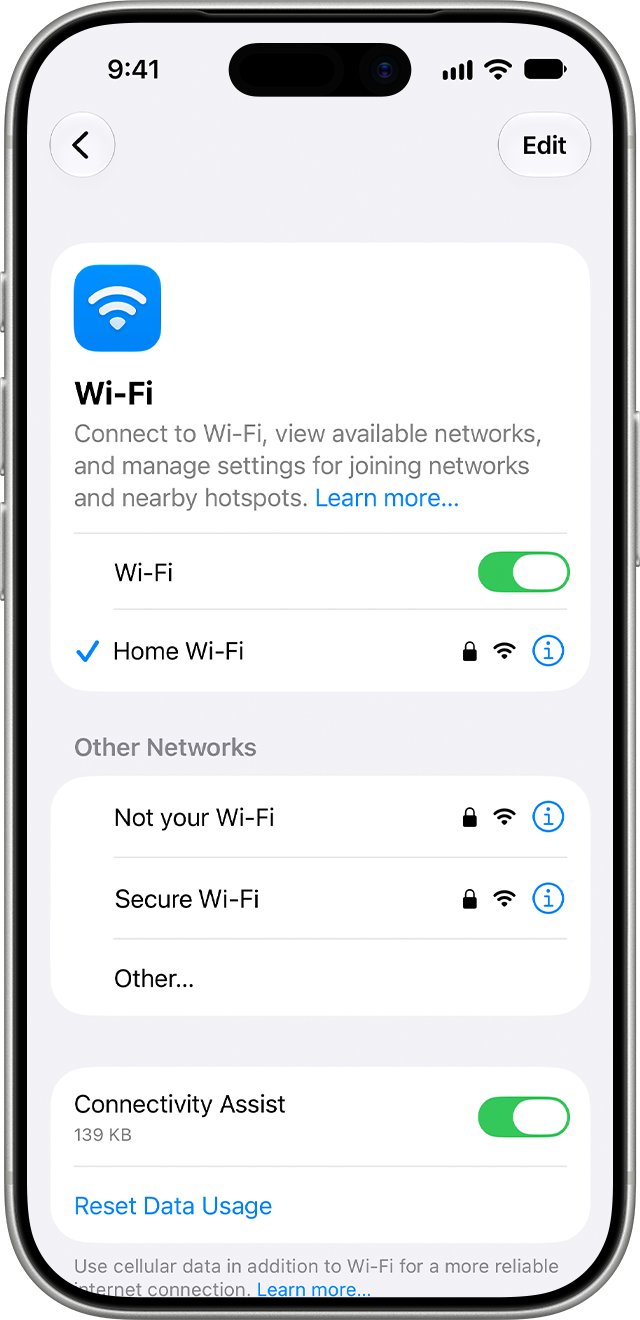
- Go back to Settings > Wi-Fi, tap the Info button next to your CarPlay network and confirm Auto-Join is on.
- Select the CarPlay logo on the car display if CarPlay did not start by itself.
- Open Maps in CarPlay and search for an address to confirm data is flowing.
When Cellular Data is off for an app, that app uses only Wi-Fi, so it goes offline the moment the phone joins the car's network.
Does wireless CarPlay use Wi-Fi or Bluetooth?
Wireless CarPlay uses both radios on the iPhone. Each one does a different job, which is why a phone can show the car's Wi-Fi network and still have no internet.
| Connection | What it is used for | Where to check it on iPhone |
|---|---|---|
| Bluetooth | Required on for wireless CarPlay to connect | Settings > Bluetooth |
| Wi-Fi (CarPlay network) | The wireless link between iPhone and the car stereo | Settings > Wi-Fi, then the Info button next to the CarPlay network |
| Cellular data | Internet for apps when the current Wi-Fi network provides none | Settings > Cellular |
| USB cable | Wired CarPlay, and first-time setup in cars that support both modes | Car USB port marked with a CarPlay or smartphone icon |
Wireless CarPlay requirements for a BMW
| Requirement | How to confirm it |
|---|---|
| CarPlay is available in your country or region | Check Apple's CarPlay availability list |
| The car supports wireless CarPlay | Check the owner's manual or ask the BMW dealer; some cars support wired CarPlay only |
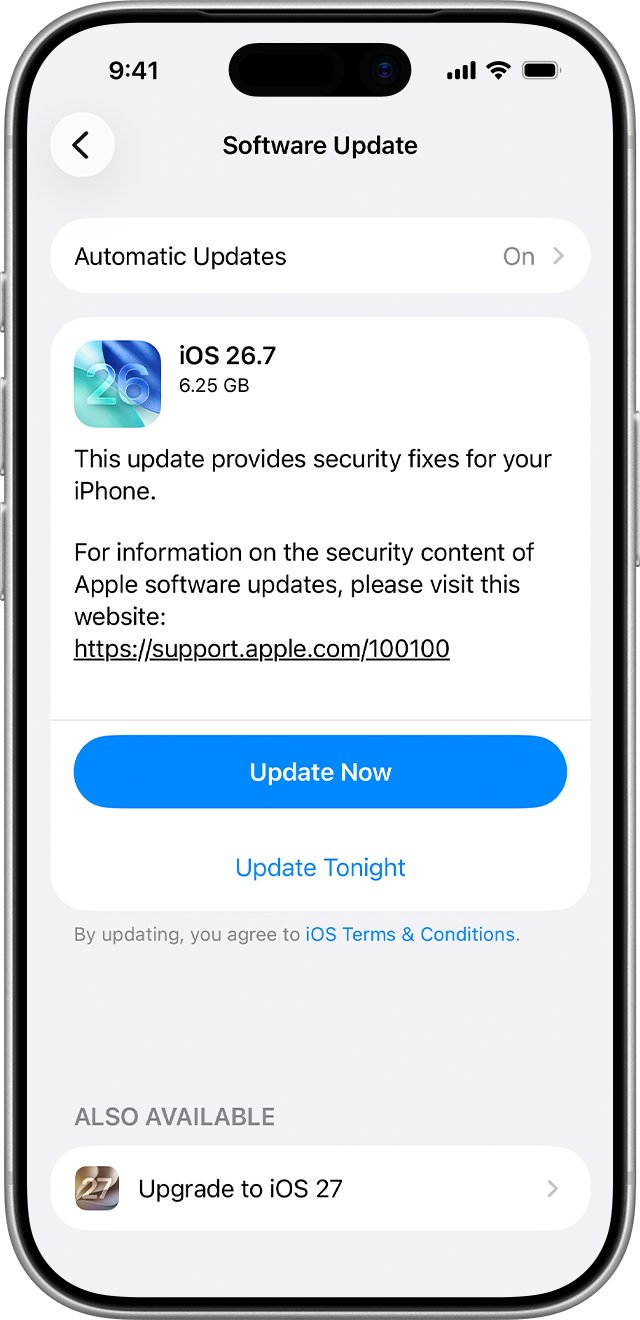
| iPhone runs the latest iOS | Settings > General > Software Update |
| Siri is turned on | Siri settings on the iPhone |
| Car stereo firmware is current | Follow the update steps in the car's manual |
| Cellular plan with data | Settings > Cellular shows Cellular Data on |
How to connect wireless CarPlay in a BMW
Use this routine for a first setup, or after you remove the car from your iPhone.
- Start the car and make sure Siri is on in your iPhone.
- If the car supports both wired and wireless CarPlay, plug the iPhone into the car's USB port first and accept the alert that offers a wireless connection for future drives.
- If the car supports wireless CarPlay only, press and hold the voice command button on the steering wheel.
- Set the car stereo to wireless or Bluetooth pairing mode.
- On your iPhone, open Settings > Wi-Fi and make sure Wi-Fi is on.
- Go to Settings > General > CarPlay > Available Cars and choose your car.
- Tap the Info button next to the CarPlay network in Settings > Wi-Fi and confirm Auto-Join is on.
How to check wireless CarPlay has internet
- Look at the car display and confirm the CarPlay Home screen is showing.
- On your iPhone, open Settings > Wi-Fi and look for a blue checkmark next to the CarPlay network.
- In CarPlay, open Maps and search for a nearby address; results mean the phone has data.
- Play a song that is not downloaded to the phone; streaming audio confirms cellular data reaches the music app.
- Ask Siri a question that needs the internet, such as the weather.
If the car network has the checkmark but Maps cannot search, the problem is the data connection, not the CarPlay link.
Fix wireless CarPlay not connecting or no internet
iPhone shows No Internet Connection on the CarPlay network
Apps are limited to Wi-Fi, so they lose data while the phone is joined to the car's network.
- Open Settings > Cellular and turn on Cellular Data.
- Scroll the app list and turn cellular data on for every app you use in CarPlay.
- Check that the phone has a working cellular signal and that your plan has data remaining.
- Restart the iPhone and the car, then reconnect.
Wireless CarPlay not connecting
Bluetooth or Wi-Fi is off, Auto-Join is off, or Siri is disabled.
- Turn on Bluetooth in Settings > Bluetooth.
- Turn on Wi-Fi in Settings > Wi-Fi, tap the Info button next to the CarPlay network and turn on Auto-Join.
- Turn on Siri.
- Select the CarPlay logo on the car display to start it manually.
- Restart the iPhone and the car.
Why won't my phone connect to CarPlay at all
Screen Time restrictions can hide CarPlay so the car never detects the iPhone.
- Open Settings > Screen Time > Content & Privacy Restrictions.
- If restrictions are on, tap Allowed Apps.
- Make sure CarPlay is turned on.
- Reconnect the iPhone to the car.
Wireless CarPlay stopped working or keeps disconnecting
A stale pairing record or outdated software on the phone or stereo.
- Open Settings > General > CarPlay and select your car.
- Remove the car from the list.
- Set up wireless CarPlay again with the connection routine above.
- Update the iPhone in Settings > General > Software Update.
- Update the car stereo firmware using the instructions in the car's manual.
Wireless CarPlay connection issues continue after every fix
Saved network settings on the iPhone are damaged.
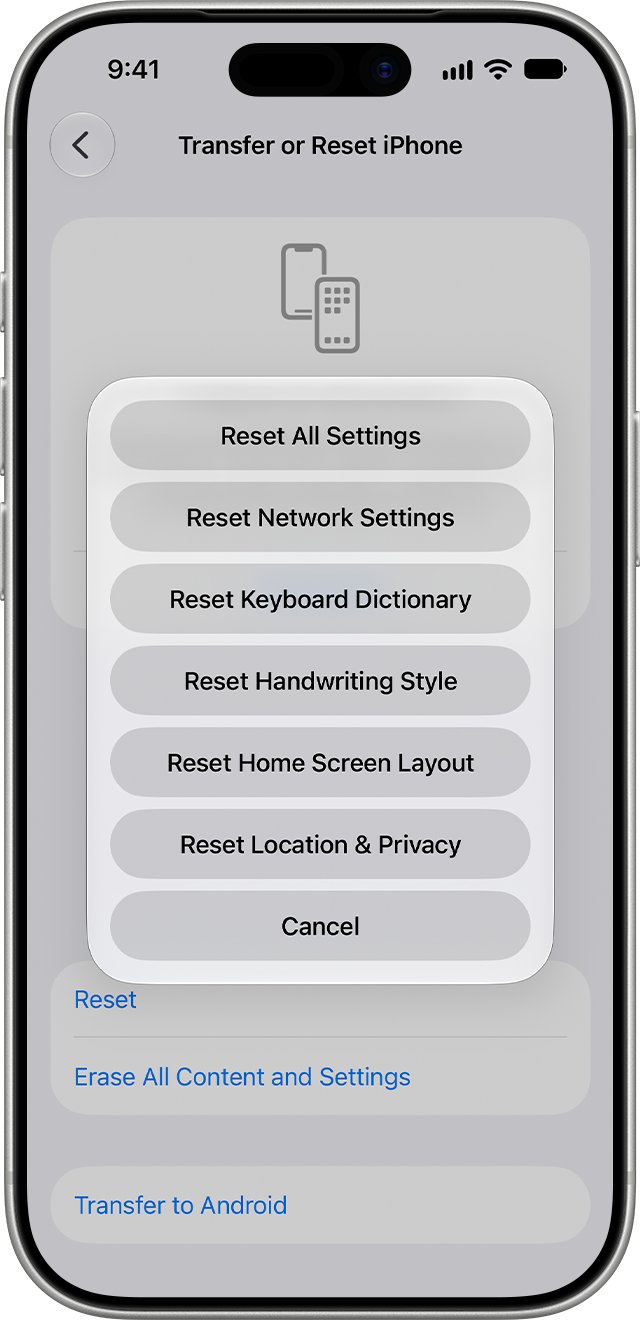
- Open Settings > General > Transfer or Reset iPhone.
- Tap Reset, then Reset Network Settings.
- Note that this removes all saved Wi-Fi networks and passwords, cellular settings, and VPN and APN settings.
- Pair the car again, then rejoin your home and work Wi-Fi networks.
Wired vs wireless CarPlay when the connection drops
| Your situation | Use this | Why |
|---|---|---|
| Car supports wired and wireless, wireless keeps failing | Wired CarPlay with a USB cable | No Wi-Fi link to drop, and the phone charges |
| Car supports wireless only | Forget the car and pair again | Removes a damaged pairing record |
| iPhone with USB-C and an adapter disconnects | A direct USB cable | Some adapter, cable and car combinations disrupt wired CarPlay |
| CarPlay runs but apps have no data | Turn on Cellular Data | The car's Wi-Fi network does not supply the apps with internet |
Wireless CarPlay in a BMW FAQ
Does wireless CarPlay use Wi-Fi?
Yes. Wireless CarPlay connects the iPhone to the car through a Wi-Fi network shown as the CarPlay network in Settings > Wi-Fi. Bluetooth must also be on. That Wi-Fi link carries the CarPlay screen, while app data comes from cellular data.
Does CarPlay require Wi-Fi?
Only wireless CarPlay does. Wired CarPlay runs over a USB cable, so Wi-Fi is not needed for the connection itself. Either way, apps such as Maps and streaming music still need a data connection from the iPhone.
Can you use CarPlay without Wi-Fi internet?
Yes. CarPlay does not need a Wi-Fi network with internet. Turn on Cellular Data in Settings > Cellular so apps can reach the internet while the phone is joined to the car's CarPlay network.
How do you turn on wireless CarPlay?
Press and hold the voice command button on the steering wheel, set the stereo to wireless or Bluetooth mode, then go to Settings > General > CarPlay > Available Cars on the iPhone and choose your car. Wi-Fi and Bluetooth must be on.
How do you connect to CarPlay wirelessly if the car also has USB?
Plug the iPhone into the car's USB port first. An alert then offers to connect wirelessly on future drives. Accept it, and CarPlay connects without the cable next time you start the car.
Does my car support wireless CarPlay?
Check the owner's manual or ask the car manufacturer. Some cars support only wired CarPlay, others support wireless only, and some support both. If Available Cars in iPhone settings never lists the car, it may not offer wireless CarPlay.
Why isn't CarPlay connecting?
The usual causes are Bluetooth or Wi-Fi turned off, Auto-Join off for the CarPlay network, Siri disabled, or CarPlay blocked in Screen Time. Restarting both the iPhone and the car and removing the car in Settings > General > CarPlay fix most remaining cases.
How do you get wireless CarPlay working again after an update?
Restart the iPhone and the car, then check that Wi-Fi, Bluetooth and Siri are still on. If CarPlay still fails, remove the car in Settings > General > CarPlay and pair it again.