If you are locked out of your Mac and the login window shows no Wi-Fi icon, start up from macOS Recovery, where the Wi-Fi menu icon sits in the upper-right corner of the screen, or plug in an Ethernet cable.
This guide covers how to get online in Recovery on Apple silicon and Intel Macs, which password reset routes need the internet, and the reset options that work offline.
Connect a locked Mac to Wi-Fi from macOS Recovery (Apple silicon)
macOS Recovery has its own Wi-Fi menu, so it works when the login window gives you no way to pick a network. These steps are for a Mac with an Apple M-series chip.
- Shut down the Mac; if it will not shut down, hold the power (or Touch ID) button for up to 10 seconds.
- Press and hold the power button again until you see Loading startup options or the Options icon, then release it.
- Click Options, then click Continue.
- Click the Wi-Fi menu icon in the upper-right corner of the screen.
- If the icon has a slash through it, choose Turn Wi-Fi On first.
- Choose your network from the list and type its password when asked.
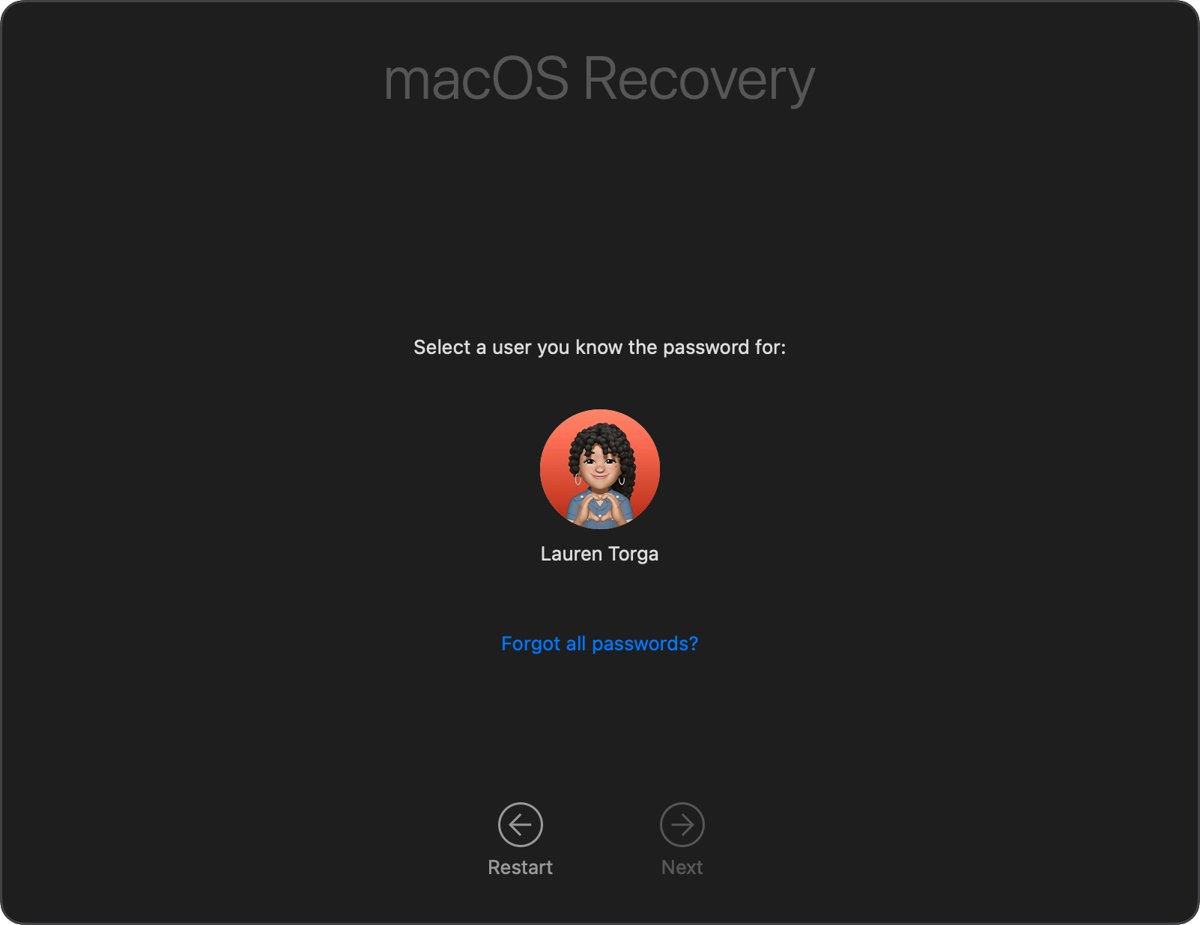
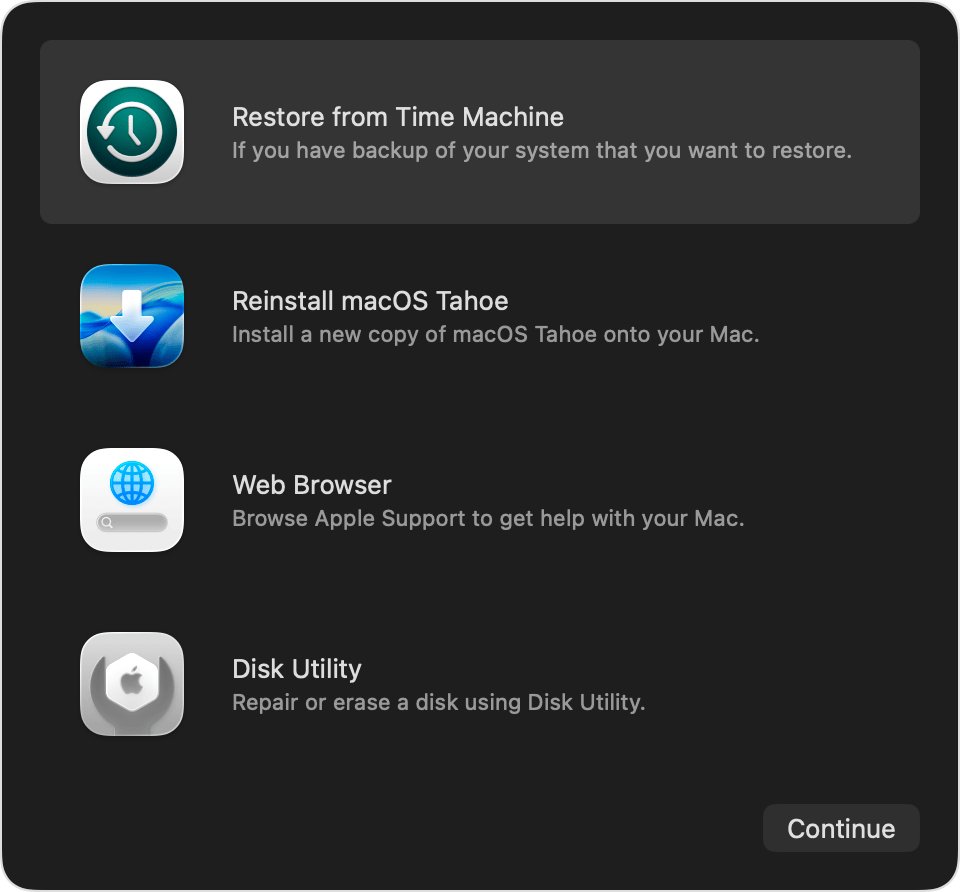
- Continue with the password reset: when asked to select a user you know the password for, click Forgot all passwords?.
If you are not sure which chip your Mac has, Apple says you can safely try these steps and the Intel steps below.
Mac password reset options: which ones need Wi-Fi?
| What you have | Reset route | Needs internet? |
|---|---|---|
| Your Apple Account email or phone and password | Reset with Apple Account from the login window or Recovery | Yes, for Apple Account sign-in and the verification code |
| Your FileVault recovery key (24 characters) | Enter the recovery key when the reset asks for it | No |
| Password of another administrator account on the Mac | Log in to that account and change your password in Users & Groups | No |
| None of the above | Erase Mac from Recovery, then activate with your Apple Account | Yes, to activate the Mac after erasing |
| No working Wi-Fi at all | Attach a network cable in Recovery | Uses the wired connection instead |
Recovery supports both wireless and wired connections, so an Ethernet cable or adapter is a fallback when Wi-Fi will not join.
Join Wi-Fi in macOS Recovery on an Intel-based Mac
- Shut down the Mac completely.
- Press and release the power button, then immediately hold Command (⌘) + R.
- Keep holding until you see an Apple logo or a spinning globe.
- If asked to select a network, choose one from the Wi-Fi menu or attach a network cable.
- If asked to select a volume to recover, select your startup disk, such as Macintosh HD, then click Next.
- At the user selection screen, click Forgot all passwords? to start the reset.
Use the Mac's built-in keyboard for the key combination; external, wireless and PC keyboards can miss the startup keys.
Reset the Mac login password with your Apple Account once Wi-Fi is connected
- In Recovery, click Forgot all passwords? when asked to select a user you know the password for.
- Enter the email or phone number and password of the Apple Account previously used with this Mac.
- Enter the verification code sent to your other Apple devices if asked.
- Select your startup disk, such as Macintosh HD, if asked, and allow the Mac to deactivate temporarily if prompted.
- Create a new login password, then choose Restart from the Apple menu and log in.
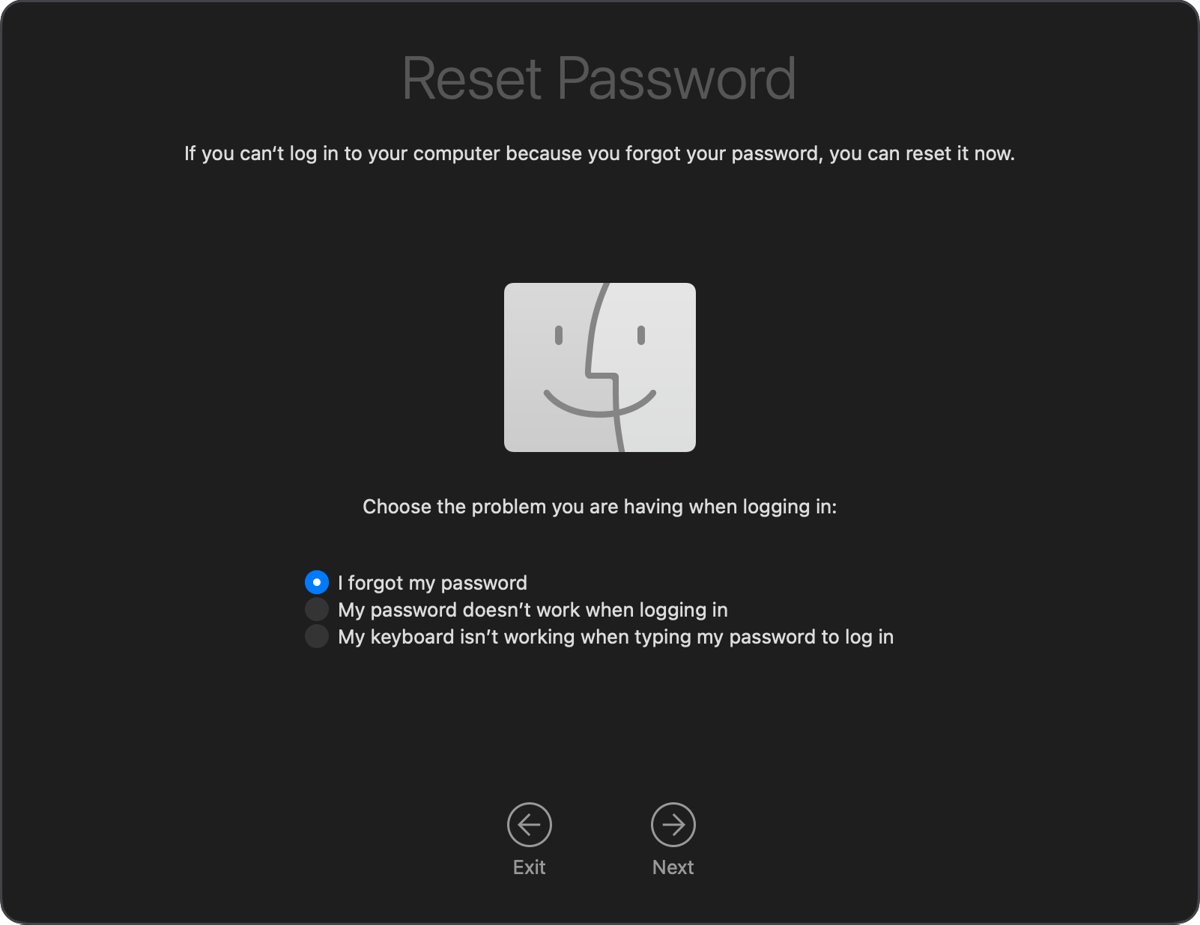
- If no new-password screen appeared, click Exit to Recovery, choose Utilities > Terminal, type
resetpasswordand press Return. - Select I forgot my password, click Next, and follow the prompts to set a new password.
After the reset, allow the Mac to create a new keychain if it asks; the old keychain stays locked with the old password. Once you are logged in, you can change the Mac login password again from System Settings whenever you like.
Reset a Mac password without Wi-Fi using the FileVault recovery key
A FileVault recovery key resets the password with no internet connection. It is a 24-character code created when FileVault was turned on, not your Apple Account recovery key.
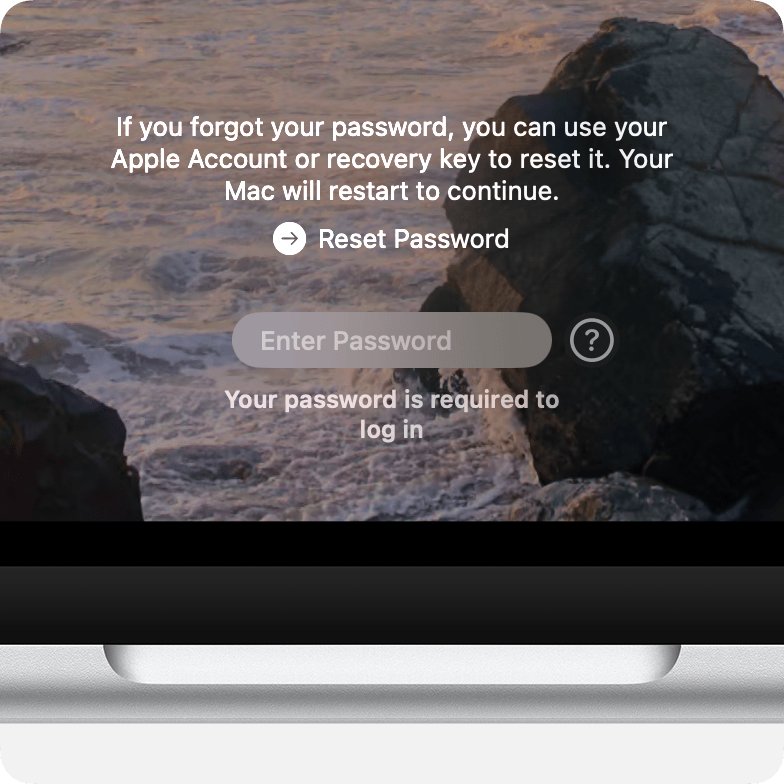
- At the login window, click the question mark next to the password field, or enter a password up to three times.
- Click the reset message, such as Reset Password or Restart and show password reset options.
- When asked for the recovery key, type its letters and numbers; it never contains I, S, 1 or 0.
- Create the new password and log in.
- If you lost the key and the Mac runs macOS Tahoe 26 or later, open the Passwords app on an iPhone, iPad or Mac signed in to the same Apple Account and search for recovery key.
The other device needs iCloud Passwords & Keychain turned on for the key to appear in Passwords.
Mac Recovery Wi-Fi icon meanings: bars, no bars and a slash
| What the Wi-Fi menu icon shows | Meaning | What to do |
|---|---|---|
| One or more bars | Wi-Fi is on and connected | Continue with the password reset |
| No bars | Wi-Fi is on but not joined to a network | Click the icon and choose a network |
| A slash through the icon | Wi-Fi is turned off | Click the icon and choose Turn Wi-Fi On |
| Your network is missing from the list | The network is hidden (closed) | Choose Join Other Network and type its name and password |
Check your Mac is online in macOS Recovery
- Look at the Wi-Fi menu icon in the upper-right corner; filled bars mean you are connected.
- On a Mac with Apple silicon, open the Recovery app, select Web Browser and click Continue.
- Load any web page; if it opens, the Apple Account reset can reach Apple's servers.
- Choose Web Browser > Quit Web Browser to return to the Recovery app.
Mac Wi-Fi not working in Recovery or at the login window: fixes
Hotel, coffee shop or school Wi-Fi joins but nothing loads
Captive portal and enterprise networks often cannot be used from macOS Recovery.
- Switch to a home network or a plain password-protected network.
- Attach an Ethernet cable if one is available.
- Use the FileVault recovery key route, which needs no internet.
Spinning globe with an exclamation point or error -2001F, -2002F or -2003F
Internet Recovery on an Intel Mac could not reach Apple over the network.
- Connect with Ethernet instead of Wi-Fi.
- Try Command-R, Option-Command-R and Shift-Option-Command-R in turn.
- Try a different network, or try again later.
"Your account is locked" message at the login window
Too many wrong password attempts.
- Wait until the time shown on screen has passed.
- Restart the Mac and try your password again.
- If it still fails, use the reset options in Recovery.
Password is correct but still rejected
Caps Lock or the wrong keyboard language is changing what you type.
- Check for the Caps Lock symbol in the password field.
- Open the Input menu in the corner of the login window and pick the right keyboard language.
- Type your Mac login password, not your Apple Account password.

Erase a locked Mac when no password reset works
Erasing the Mac removes every user account, password and file on it. Use it only when the Apple Account, recovery key and admin account routes have all failed.
- Shut down the Mac and start up from macOS Recovery.
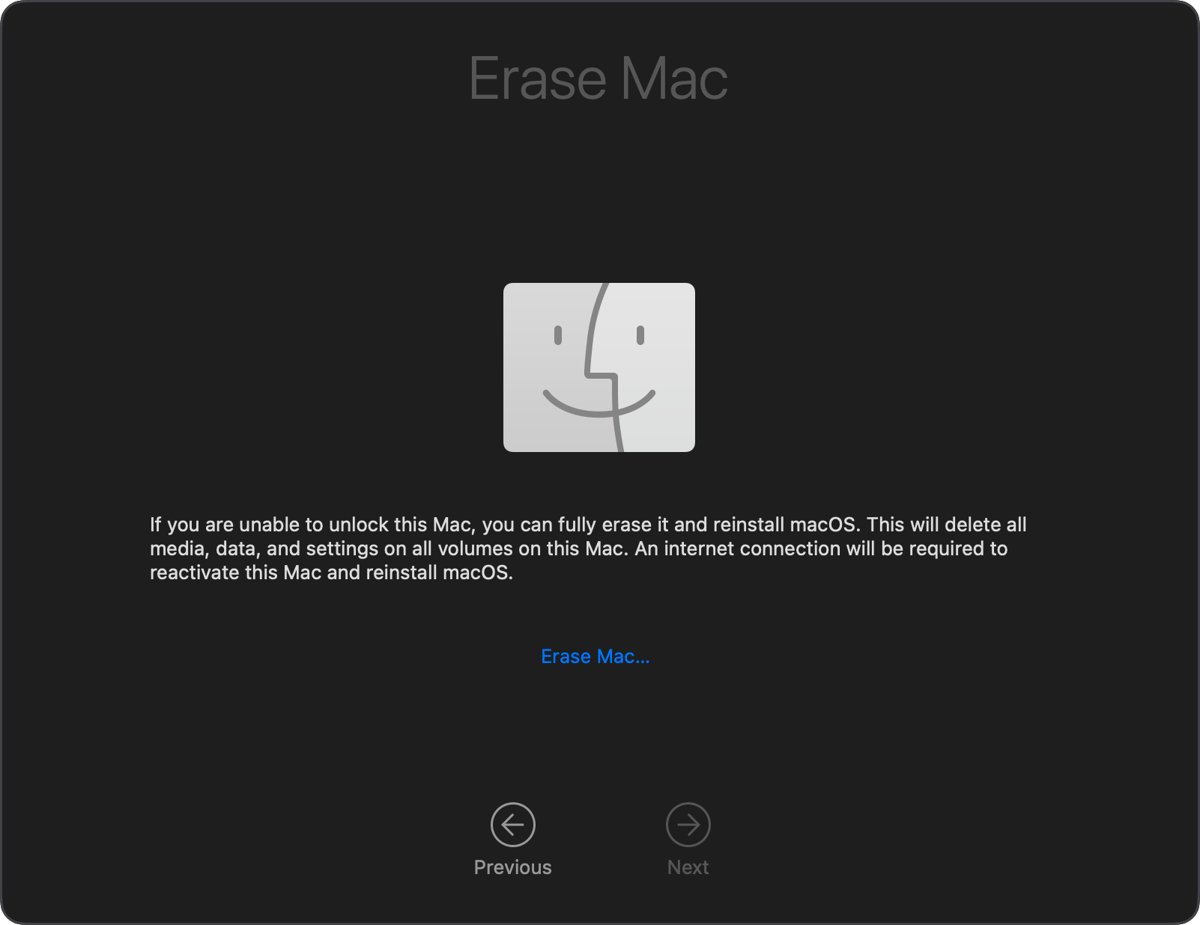
- At the user selection screen, choose Erase Mac from the Recovery Assistant menu in the menu bar.
- Click Erase Mac, then click Erase Mac again to confirm.
- If the Mac restarts to Activate Mac, choose a network from the Wi-Fi menu or attach a network cable.
- Enter your Apple Account details, then click Exit to Recovery and reinstall macOS from Recovery.
Locked out of Mac Wi-Fi FAQ
What should I do when I'm locked out of my Mac?
Restart the Mac and try your login password again, checking Caps Lock and the keyboard language. Then click the question mark or reset message in the login window. If that fails, start up from macOS Recovery and click Forgot all passwords?.
Why does my Mac lock me out?
A Mac locks the account after repeated wrong passwords, and the login window shows how long to wait. Wrong passwords often come from Caps Lock, the wrong input language, or typing the Apple Account password instead of the Mac login password.
Why is my account locked on the Mac login screen?
The account locked itself after too many failed attempts. Wait until the stated time passes, restart the Mac and try again. If it stays locked, reset the password from macOS Recovery with your Apple Account or recovery key.
I'm locked out of my computer with no Wi-Fi. How do I fix it?
Use the FileVault recovery key or another administrator account, because neither needs the internet. If you must use your Apple Account, start up from macOS Recovery and join Wi-Fi from its Wi-Fi menu, or attach an Ethernet cable.
Do I need internet to reset my Mac password?
Only for the Apple Account route, which signs in to Apple and may send a verification code to your other devices. Resetting with a FileVault recovery key or from another admin account works offline.
Can I use hotel Wi-Fi in macOS Recovery?
Often not. Apple notes that captive portal networks, such as hotels, libraries and coffee shops, and enterprise networks might not give internet access in macOS Recovery. Use a home network or an Ethernet cable instead.
Where is the Wi-Fi icon in macOS Recovery?
The Wi-Fi menu icon is in the upper-right corner of the screen in macOS Recovery. Click it to turn Wi-Fi on, choose a network, or select Join Other Network for a hidden network.