To use Approvals in Teams, open the Approvals app, select New approval request, enter the request details and approvers, and select Send.
This guide covers creating requests from the app and from chats, responding, reminders, cancelling, templates, e-signatures, who can see a request, and the fixes for common problems.
Create an approval from the Approvals app
The Approvals app is the hub for every request you send or receive, including ones that come from Power Automate flows, SharePoint and Dynamics 365.
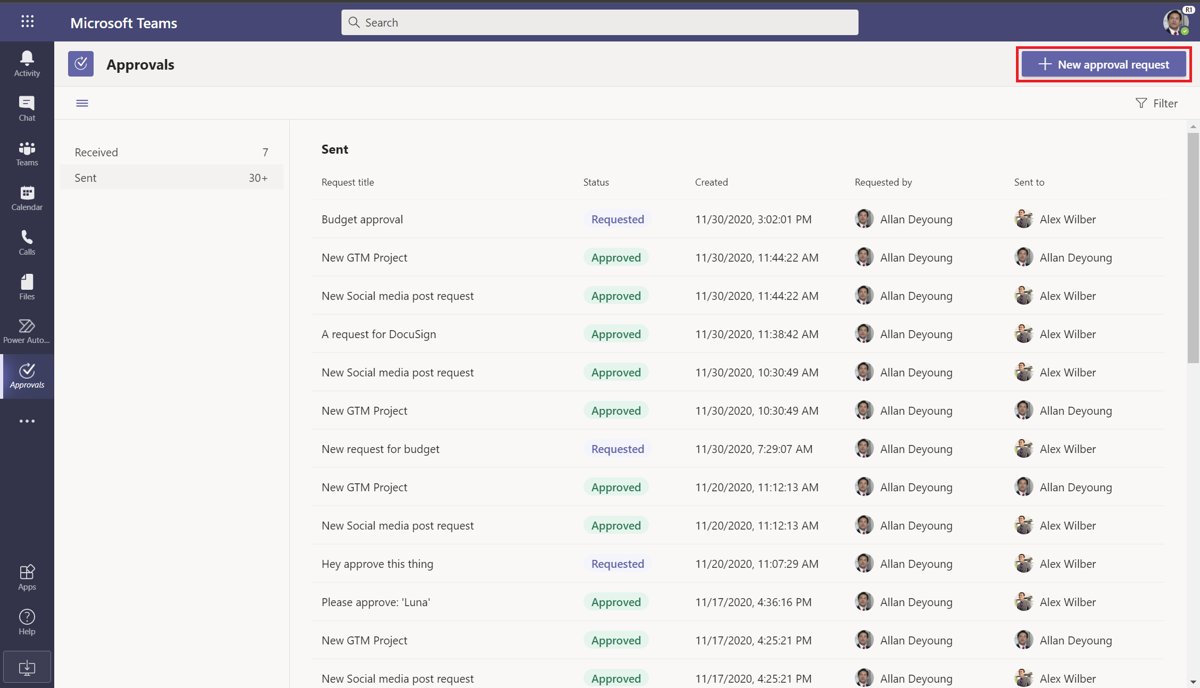
- Open the Approvals app in Microsoft Teams.
- Select New approval request at the top right.
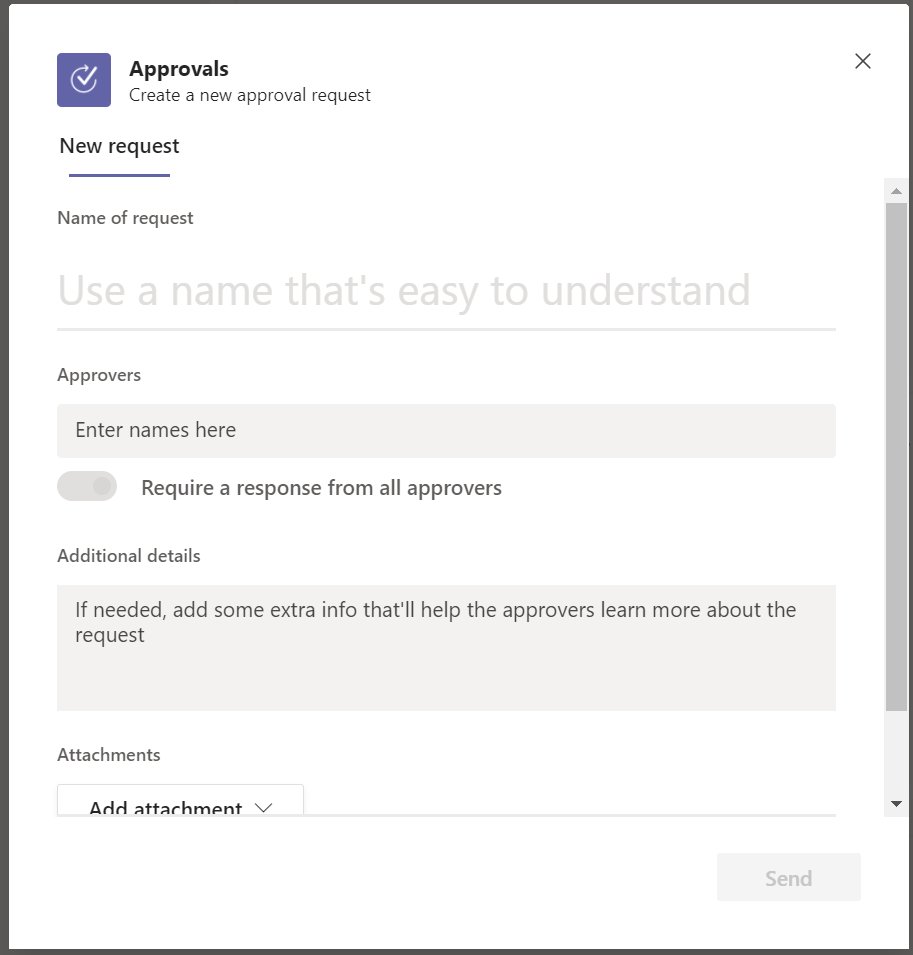
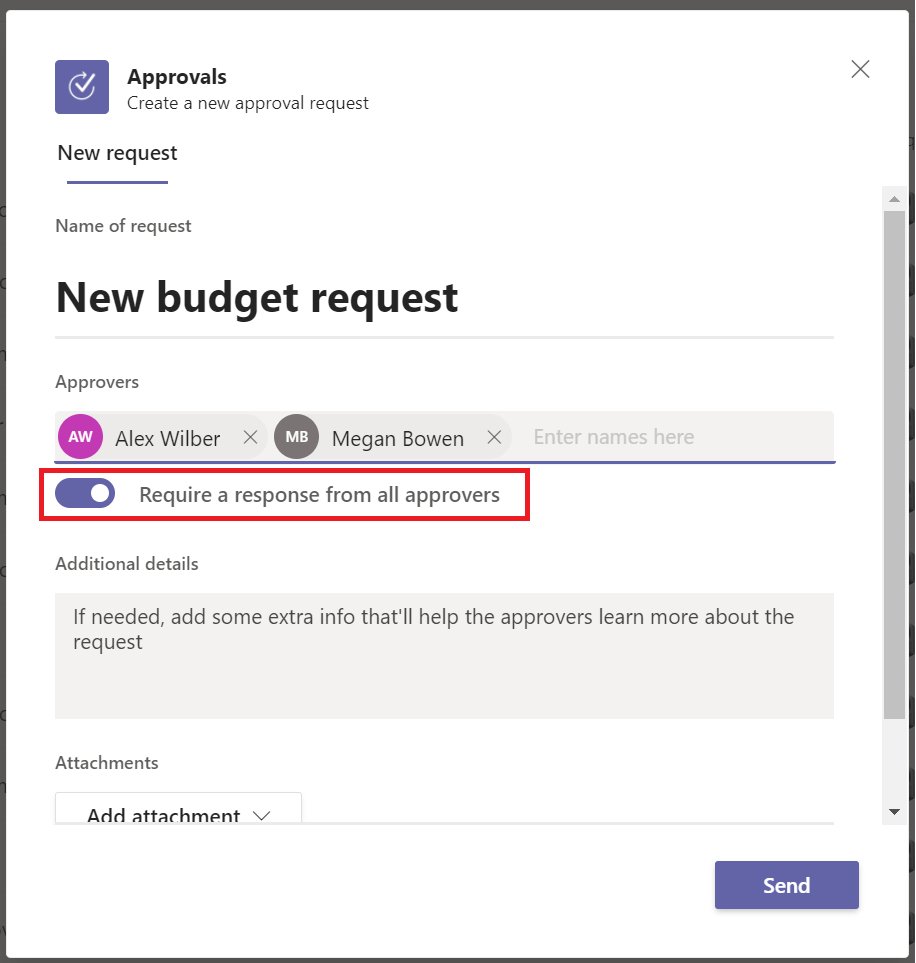
- Enter the request name and the people who need to approve it.
- Set the approval order, add any extra details, and select Add attachment if a file is needed.
- Turn on Require a response from all approvers if everyone must respond; leave it off if one approval is enough.
- Select Send.
The request appears in the Sent tab, and each approver gets a Teams notification to review it.
Before you start: Teams Approvals requirements and licenses
| Requirement | Details |
|---|---|
| License | Power Automate, Microsoft 365 or Dynamics 365. A Microsoft Forms license is also needed to set up new approval templates. |
| App availability | Approvals is on by default for every Teams user, unless an admin disabled it in the Teams admin center. |
| Cloud | Not yet released to GCC High and DoD. Adobe Sign and DocuSign e-sign requests are not available in GCC. |
| Environment | Requests made in Teams are created in your organization's default Dataverse environment. |
| E-signatures | An account with the e-signature provider, such as Adobe Sign or DocuSign. |
The first approval anyone creates in the tenant provisions the Approvals solution in the default Dataverse environment, so the very first request can take longer to appear.
Open the Approvals app in Teams
- Sign in to Microsoft Teams.
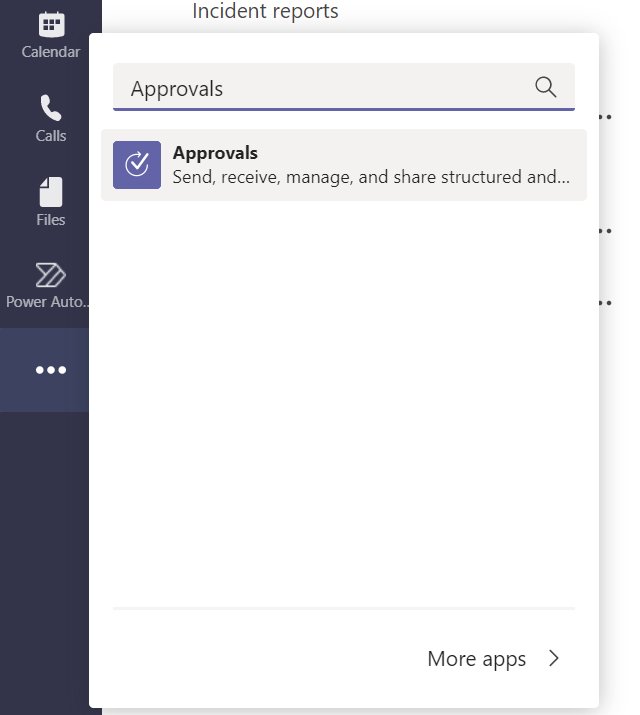
- Select View more apps (…) in the left app bar.
- Search for approvals.
- Select the Approvals app.
- Pin the app so it stays in the app bar for next time.
Users with a frontline F license often see Approvals pinned already, because the tailored frontline app experience pins it by default. Admins can also pin it for everyone with an app setup policy.
Create an approval in a chat or channel
Starting from a Teams chat or channel conversation keeps the request and its status card in the thread where it was discussed.
- Go to the chat or channel where you want to send the approval.
- Select the Approvals icon under the compose box. If it is hidden, select Actions and apps first.
- Enter the request name, approvers and details.
- Select Add attachment to include a file. Uploaded files are stored in OneDrive or SharePoint like other Teams files.
- Select All must approve if there is more than one approver and everyone needs to agree.
- Select Send.
Teams posts an approvals card in the conversation showing who has responded. Approvers are limited to people already in that chat or team.
Choose the right approval behavior
| You need | Use this | Where |
|---|---|---|
| Any one of several people can sign off | Leave Require a response from all approvers off | Approvals app request form |
| Every approver must agree | Require a response from all approvers or All must approve | App form or chat form |
| Approvers in a set sequence | Set the approval order when you create the request | Approvals app request form |
| Answers other than Approve and Reject | Turn on Custom responses (two responses natively) | Request form |
| A repeat request with fixed fields | A template such as an expense report or discount request | New approval request > Templates |
| A signed document | An e-sign request through Adobe Sign or DocuSign | New approval request > provider |
| Automatic triggers or follow-up actions | A Power Automate approval flow | powerautomate.microsoft.com |
Respond to an approval
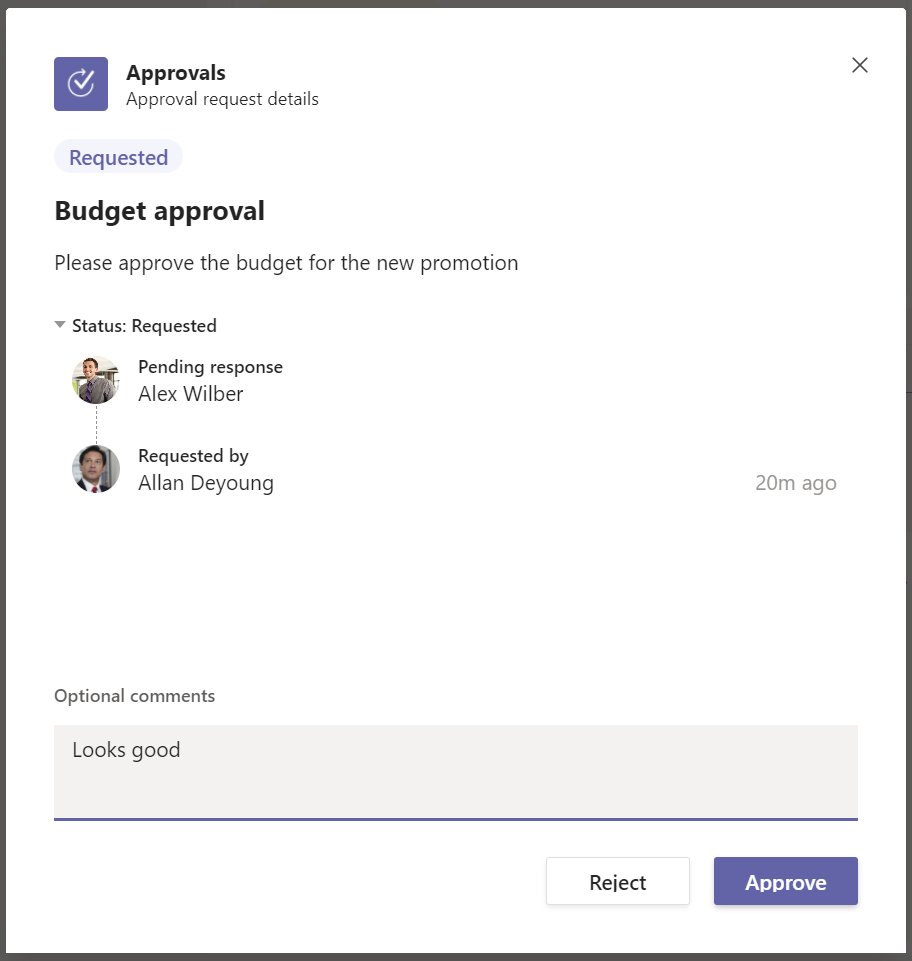
- Go to the chat or channel with the approval card, or open the Approvals app and select Received.
- Select View details on the card, or select the request in the list.
- Review the details and any attachment.
- Add a comment if you want to explain your decision.
- Select Approve or Reject, or the custom response the sender set up.
The status updates on the card and in the app as soon as you respond. Requests sent by a Power Automate flow in the same environment appear in Received too.
Track outstanding requests and send reminders
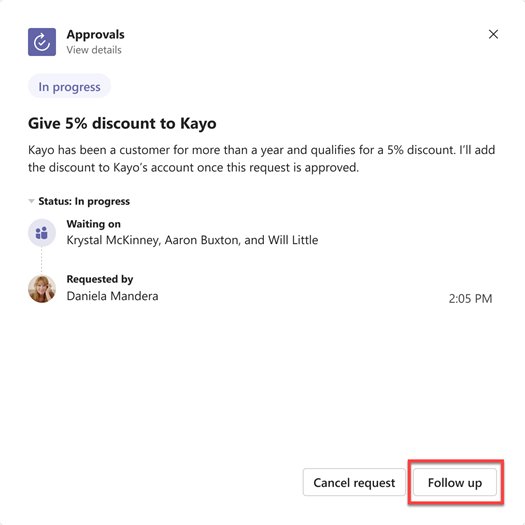
The Sent list shows every request you created and who still has to respond. Follow up notifies only the people who have not acted yet.
- Open the Approvals app from the Teams app bar and select Sent.
- Check the status of each request to see which are still in progress.
- Select More options next to the request you want to chase.
- Select Follow up.
- Alternatively, open the request, or select View details on its chat card, and select Follow up there.
Cancel an approval
- Open the Approvals app and select Sent.
- Select the request you want to stop.
- Select Cancel approval (Cancel request for e-sign requests).
- Add a comment explaining why, if needed.
Only requests that are still in progress can be cancelled. To change a request after sending it, cancel it and send a corrected one; Adobe Sign requests cannot be edited once sent.
Who can see an approval?
| Person | Can see it? | Can act on it? |
|---|---|---|
| Creator | Yes, in Sent | Can follow up or cancel |
| Named approver | Yes, in Received and on the card | Yes |
| Member of the chat or channel where it was created | Yes, as a viewer | No, unless named as an approver |
| Other people in the organization | No | No |
| Tenant admin | Yes, through Dataverse | Not as a responder |
Templates, storage, and limits
| Topic | What applies |
|---|---|
| Who creates templates | Team owners for teams they own; admins for the whole organization |
| Using a template | New approval request > Templates; preset recipients may be locked |
| Where requests are stored | The default Microsoft Dataverse environment |
| Where template responses are stored | Microsoft Forms |
| Attachments | OneDrive or SharePoint |
| E-sign agreements | The e-signature provider's cloud |
| Template limit | 400 templates per team |
| Request limit | 50,000 requests per template |
| Backups | The default Dataverse environment does not support backups |
Deleting a template's form on the Microsoft Forms site breaks the template, and users get a "CDB TableNotFound" error. Team-scoped templates are deleted when the team is permanently deleted.
Auditing and e-signatures
Admins can audit approval activity in Microsoft Purview, and users can send documents for signature from the same hub.
- To send an e-sign request, select New approval request and choose Adobe Sign or DocuSign. In the classic view, select E-sign first.
- Sign in to the provider account.
- Add the request name, select Add attachment, and assign each recipient the Signer or Approver role.
- Select Must complete in order if signing order matters, then select Send or Prepare to add signature fields.
- To audit, sign in to the Microsoft Purview portal and select Audit.
- Under Activities, choose the Microsoft Teams approvals activities to search, such as created, approved, rejected or cancelled requests.
When an e-sign request is complete, every recipient gets a signed copy by email. Admins can turn Adobe Sign or DocuSign off under Teams apps > Manage apps > Approvals > Settings in the Teams admin center.
When to use Power Automate instead
Use a Power Automate approval flow when the request must start from an event, such as a new SharePoint item, or must trigger actions after the decision, or needs more than two custom responses. Native Teams approvals run on Power Automate infrastructure without a flow, but the app only lets you change custom responses; pre-approval and post-approval actions need a flow.
Common problems and fixes
Approvals app is missing from Teams
A Teams administrator disabled the app for the tenant.
- Search for approvals under View more apps to confirm it is not just unpinned.
- If it is still missing after you update Microsoft Teams, ask your Teams admin to enable it under Teams apps > Manage apps > Approvals in the Teams admin center.
Cannot add someone as an approver from a chat
Chat and channel approvals only accept people already in that conversation.
- Add the person to the chat or team first.
- Or create the request from the Approvals app instead, where any colleague can be named.
Template shows a "CDB TableNotFound" error
The Microsoft Forms form behind the template was deleted.
- Ask the team owner or admin to restore the form or rebuild the template.
- Send the request from a blank New approval request in the meantime.
Approver has not responded
The notification was missed.
- Open Sent, select More options on the request, then Follow up.
Adobe Sign or DocuSign option is missing
The provider is disabled by an admin, or the tenant is in GCC.
- Ask your admin to check the provider toggles on the Approvals Settings tab in the Teams admin center.
Cannot cancel a request
The request is already complete.
- Check the status in Sent; only in-progress requests show Cancel approval.
Teams Approvals FAQ
What is Approvals in Teams?
Approvals is a built-in Teams app for creating, sending and answering sign-off requests. It collects every request you send or receive in one hub, including requests from Power Automate, SharePoint and Dynamics 365.
How do approvals work in Microsoft Teams?
You create a request with details, approvers and optional files, and Teams notifies each approver. Approvers respond from the chat card or the Received tab, and the status updates for everyone. Requests run on Power Automate without needing a flow.
How do I find approvals in Teams?
Select View more apps in the Teams app bar, search for approvals and open the app. The Received tab lists requests waiting for you, and the Sent tab lists requests you created.
How do I add the Approvals app to Teams?
Approvals is available to all Teams users by default, so there is nothing to install. Open it from View more apps and pin it. If it does not appear, your admin has disabled it in the Teams admin center.
Do I need a Power Automate flow to use Teams Approvals?
No. Native Teams approvals trigger directly on Power Automate infrastructure without a flow. Build a flow only when you need automatic triggers, pre-approval or post-approval actions, or more than two custom responses.
Where are Teams approvals stored?
Requests are stored in your organization's default Microsoft Dataverse environment. Responses to template-based requests are stored in Microsoft Forms, attachments in OneDrive or SharePoint, and e-sign agreements with the signature provider.
Can I create an approval in a selected Power Automate environment?
Not from Teams. Every approval created in the Teams app, chats or channels goes to the organization's default environment. Use a Power Automate flow if the request must live elsewhere.
Can everyone in a team see every approval?
No. Only the creator, the named approvers and members of the chat or channel where it was created can see a request. Chat and channel members are viewers and cannot respond unless named as approvers.
How do I remind someone about a Teams approval?
Open the Approvals app, select Sent, select More options on the request and choose Follow up. Teams notifies only the approvers who have not responded yet.
How many custom responses can a native approval have?
Two. Turn on Custom responses in the request form to replace Approve and Reject. To offer more than two responses, send the approval from a Power Automate cloud flow.
How do I change an approval in Teams?
Cancel the in-progress request from the Sent tab and send a corrected one. Adobe Sign e-sign requests cannot be edited at all after they are sent.
The bottom line on Teams Approvals
Start everyday sign-offs from a chat or the Approvals app, use templates for repeat requests, and move to Power Automate only when a process needs automatic triggers or follow-up actions. Native approvals need no setup beyond a license, keep a searchable record in one hub, and support reminders, cancellation, e-signatures and audit logging.