Turn subtitles on or off on Peacock from the player itself: start a show, open the playback controls, and pick a caption track or Off in the subtitles menu.
This guide covers the Peacock player on a PC, iPhone, Android, Fire TV Stick, Roku, Apple TV, smart TVs and Xfinity boxes, plus the device settings that override it and the fixes when captions refuse to turn on or off.
Turn closed captions on Peacock on or off during playback
Peacock keeps its caption control inside its own video player, so the in-player menu is the switch that works on every device.
- Open Peacock and start the movie, episode or live event you want to watch.
- Bring up the playback controls: move the mouse or tap the screen, or press the remote's centre or down button on a TV.
- Open the subtitles or audio-and-subtitles option in the player controls.
- Pick a caption language to turn subtitles on, or choose Off to remove them.
- Close the menu and let the video run for a few seconds to confirm the change.
If the menu shows no caption languages, that title or live stream has no caption track, and no setting will add one inside Peacock.
Where to change Peacock subtitles on each device
| Your device | Fastest switch | Device-level setting that can also add captions |
|---|---|---|
| PC or Mac browser | Subtitles option in the Peacock web player | Chrome Live Caption; Windows 11 live captions |
| iPhone or iPad | Subtitles option in the Peacock app player | Settings > Accessibility > Subtitles & Captioning |
| Android phone or tablet | Subtitles option in the Peacock app player | Settings > Accessibility > Caption preferences; Live Caption |
| Fire TV Stick | Subtitles option in the Peacock player | Fire TV accessibility settings |
| Roku | Press the Star button during playback | Settings > Accessibility > Captions mode |
| Apple TV 4K | Subtitles option in the player controls | Settings > Accessibility > Subtitles and Captioning |
| Smart TV app (Samsung, LG, VIZIO) | Subtitles option in the Peacock player | The TV's own caption setting |
| Xfinity X1 or Flex | Subtitles option inside the Peacock app | X1 caption settings usually do not carry into third-party apps |
How to turn subtitles on or off on Peacock TV using a PC
On a Windows PC or Mac, Peacock plays in the browser, and its caption control sits in the web player's on-screen controls.
- Go to peacocktv.com in your browser and sign in.
- Start the title you want to watch.
- Move the mouse over the video so the player controls appear.
- Select the subtitles option in the control bar.
- Choose a caption language to turn subtitles on, or Off to turn them off.
If a title has no caption track, Chrome can generate captions locally: open More > Settings > Accessibility and turn on Live Caption. Turn the same switch off when you no longer want the caption bubble.
On Windows 11 version 22H2 and later, press Windows key + Ctrl + L to start live captions for any audio, or toggle Live captions under Settings > Accessibility > Captions.
How to turn subtitles on or off on the iPhone Peacock app
- Open the Peacock app and start a video.
- Tap the screen to show the playback controls.
- Tap the subtitles option in the player.
- Choose a subtitle or caption language, or choose Off.
To prefer closed captions and SDH wherever an app offers them, go to Settings > Accessibility > Subtitles & Captioning and turn on Closed Captions + SDH. Turn it off again if captions keep returning on their own.
The same screen holds Automatic Subtitles, where Show When Muted, Show on Skip Back and When Languages Don't Match can switch subtitles on in supported apps without you asking.
How to turn subtitles on or off on the Android Peacock TV app
- Open the Peacock app on your Android phone or tablet and play a title.
- Tap the video to bring up the controls.
- Tap the subtitles option.
- Select a caption language to turn subtitles on, or Off to hide them.
Android also has a system caption switch. Open Settings, tap Accessibility > Caption preferences, and turn Show captions on or off. Apps that do not support Caption Preferences ignore it.
Android's Live Caption writes its own captions over any media. If an unexpected caption box sits above Peacock's video, that is Live Caption, not Peacock.
How to turn subtitles on or off on the Firestick Peacock TV app
- Open Peacock on your Fire TV Stick and start a title.
- Press the centre button or down on the Alexa Voice Remote to show the player controls.
- Move to the subtitles option and press the centre button.
- Select a caption language or Off.
- Press Back to return to the video.
If Fire TV's own closed captioning setting is on, captions can appear even after you switch them off in Peacock. Turn that system setting off in the Fire TV accessibility settings, then recheck the Peacock player.
How to turn subtitles on or off on the Roku Peacock TV app
Roku gives you two switches: the app's own caption menu and a Roku-wide Captions mode. Some apps use their own captions and skip the Roku setting, so start in the app.
- Open Peacock on your Roku and start a show.
- Press the Star button on the Roku remote while the show is playing.
- Choose the captions option in the menu that opens.
- Pick a caption language or Off.
- If nothing changes, press Home and go to Settings > Accessibility > Captions mode, then set it to match what you want.
Caption choices can be saved per profile, so switch to the same Peacock profile each time if your setting keeps resetting. If the app is missing, add Peacock to your Roku first.
How to turn subtitles on or off on the Apple TV Peacock app
- Open Peacock on Apple TV 4K and play a title.
- Press the clickpad or touch surface to show the playback controls.
- Swipe up or down to reach the subtitles option and select it.
- Choose a caption language or Off.
For a system-wide preference, go to Settings > Accessibility > Subtitles and Captioning and select Closed Captions and SDH. Under Settings > Video and Audio, the Automatic Subtitles section holds Show When Muted and Show on Skip Back, which turn subtitles on temporarily in supported apps.
How to turn subtitles on or off in the Peacock TV app on a smart TV
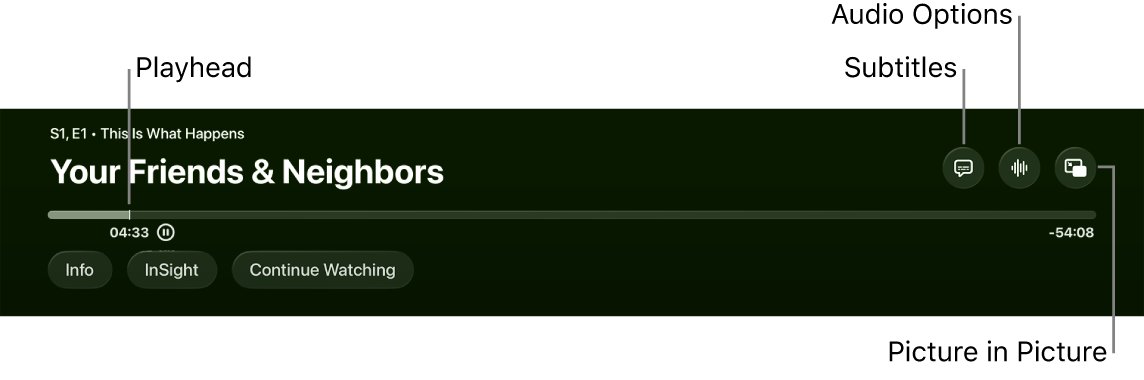
Peacock's app on Samsung, LG, VIZIO and other smart TVs uses the same in-player caption menu as every other device.
- Launch Peacock on the TV and start a title.
- Press the remote's centre or down button to show the player controls.
- Highlight the subtitles option and press the centre button.
- Select a caption language or Off.
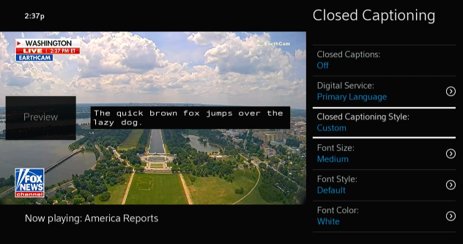
- If captions still appear after choosing Off, open the TV's own accessibility or caption setting and turn its closed captions off.
On Xfinity X1 or Xfinity Flex, Comcast notes that your X1 caption preferences often do not apply once you launch a third-party app. Use Peacock's own subtitle menu inside the app instead of the X1 CC button.
How to check Peacock captions are on or off
- Play a scene with dialogue for 10 to 15 seconds.
- Reopen the subtitles option and confirm the language you chose, or Off, is selected.
- Pause and play again; the caption state should stay the same.
- Start a second title from the same profile and confirm the setting carried over.
Change the Peacock subtitle size, color and style
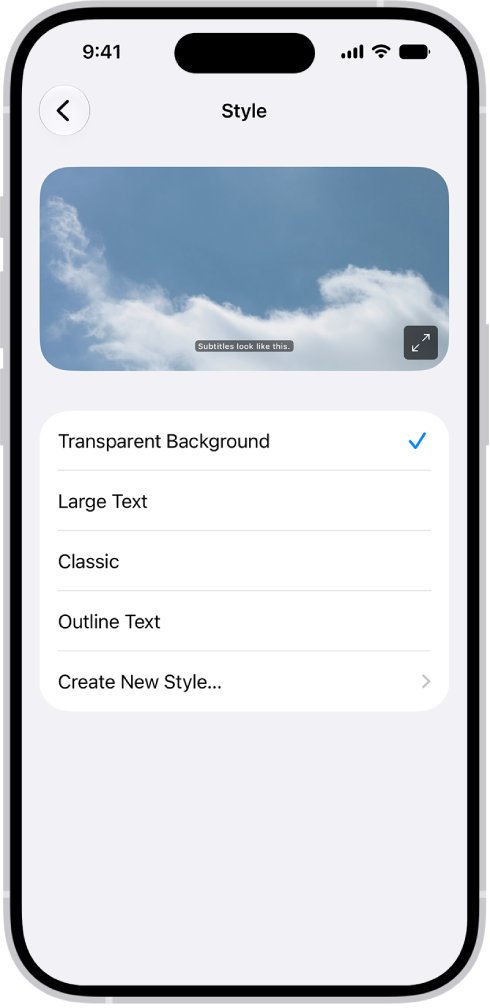
Caption appearance is usually set on the device, not in the streaming app. These are the system style menus each platform documents.
| Device | Where caption style lives | What you can change |
|---|---|---|
| iPhone or iPad | Settings > Accessibility > Subtitles & Captioning > Style | Font, size, color, background, opacity, edge style |
| Apple TV 4K | Settings > Accessibility > Subtitles and Captioning > Style | Font, size, color, background, opacity, edge style |
| Android | Settings > Accessibility > Caption preferences > Caption size and style | Text size, caption style and colors |
| Chrome Live Caption | Chrome Settings > Accessibility | Caption font, size and color; drag the bubble to move it |
| Xfinity X1 channels | X1 Accessibility Settings > Closed Captioning Options | Font size, color, background and window style |
Apps that do not support the system caption style keep their own look whatever you choose here.
Peacock closed caption not working or won't turn off
Peacock closed captions won't turn off
A device-level caption or automatic subtitle setting is switching them back on.
- Choose Off in Peacock's subtitles menu first.
- On iPhone, turn off Closed Captions + SDH and the Automatic Subtitles options under Settings > Accessibility > Subtitles & Captioning.
- On Apple TV, turn off Show When Muted and Show on Skip Back under Settings > Video and Audio.
- On Roku, set Settings > Accessibility > Captions mode to off.
- On Android or in Chrome, turn off Live Caption if a separate caption box is showing.
Peacock closed captions won't turn on
The title has no caption track, or the app needs an update.
- Try captions on a different Peacock title to see whether the problem follows the show.
- Check the same title on your phone with the same account.
- Update the Peacock app; on Roku, highlight the app, press Star and select Check for updates.
- Restart the app, then restart the device.
- Remove Peacock, restart the device and add the app again.
Why can't I get closed captions on Peacock
Captions differ by title and live event, and some device caption switches do not reach the app.
- Open the subtitles menu during playback and look for a caption language.
- If the list is empty, the title carries no captions; use Chrome Live Caption on a PC or Live Caption on Android instead.
- On Xfinity X1 or Flex, switch captions on inside Peacock rather than with the X1 CC option.
Peacock caption setting keeps resetting
Caption choices are saved per profile, so a different profile loads different settings.
- Confirm you are on the same Peacock profile each time.
- Set captions again from that profile.
- Update the app if the setting still does not stick.
Peacock TV subtitles FAQs
Does Peacock have closed captions?
Yes, Peacock offers subtitles and closed captions on titles that carry a caption track. Open the subtitles option in the player during playback to see which languages a title has. Some titles and live events may not include captions.
How do I get closed captions on Peacock TV?
Start a title, open the player controls with your remote, select the subtitles option and choose a caption language. On Roku, press the Star button during playback to open the same caption menu.
How do I turn off closed captions on Peacock?
Open the subtitles option in the Peacock player during playback and choose Off. If captions return, turn off your device's own caption setting, such as Closed Captions + SDH on iPhone or Captions mode on Roku.
How do I remove closed captioning on Peacock TV?
Choose Off in Peacock's subtitles menu, then switch off the TV's own closed caption setting. A TV-level caption switch can keep text on screen even after Peacock's captions are off.
Why can't I get closed captions on Peacock?
The title may have no caption track, or the app may need an update. Try another title, update and restart the Peacock app, and on Xfinity boxes use Peacock's own menu because X1 caption settings often do not carry into third-party apps.
How do I turn on closed captioning on Peacock on Xfinity?
Launch Peacock on your X1 or Flex box, start a title and use the subtitles option inside the Peacock player. Comcast says X1 accessibility preferences often do not apply once a third-party app is running.
What is the difference between subtitles and closed captioning?
Subtitles show the spoken dialogue, often translated. Closed captions and SDH also describe sounds such as music, speaker changes and effects, so they suit viewers who are deaf or hard of hearing.
I can't use subtitles with Peacock TV. What else can I do?
Use a device caption generator. On a PC, turn on Live Caption in Chrome settings or Windows 11 live captions with Windows key + Ctrl + L. On Android, Live Caption captions any media playing on the phone.
How do I set closed captions on Peacock to stay on?
Turn on your device's caption preference, such as Closed Captions + SDH on iPhone or Apple TV, and set captions from the same Peacock profile each time, because caption choices can be saved per profile.
How do I stop Peacock captions from appearing when my phone is muted?
On iPhone, go to Settings > Accessibility > Subtitles & Captioning > Automatic Subtitles and turn off Show When Muted. Apple TV has the same option under Settings > Video and Audio.