The quickest way to transfer contacts to a new phone is to keep them in your Google Account or iCloud, then sign in to that account on the new phone and let them sync.
This guide covers every pairing (Android to Android, Android to iPhone, iPhone to Android, iPhone to iPhone and Samsung Galaxy), the vCard file fallback, moving your phone number and fixes when contacts go missing.
The fastest way to transfer contacts to a new phone
If your contacts already live in an online account, there is nothing to copy. The new phone downloads them when you sign in.
- On the old phone, confirm which account holds your contacts: Google on Android, iCloud on iPhone.
- Turn on the new phone and connect it to Wi-Fi.
- Sign in with the same Google Account or Apple Account during setup.
- On an iPhone, go to Settings > [your name] > iCloud, tap See All next to Saved to iCloud, and turn on Contacts.
- Open the Contacts app and wait for the list to fill.
Contacts saved only to the phone's storage or SIM card do not sync this way. Use one of the transfer tools below for those.
How to transfer contacts to new phone: 3 main methods
| Method | Best for | What you need |
|---|---|---|
| Account sync (Google or iCloud) | Same platform, or an iPhone that adds your Google Account | Contacts already saved to the account, and the same sign-in on the new phone |
| Setup transfer tool (Move to iOS, Android setup copy, Quick Start, Smart Switch) | Moving everything, including contacts saved on the device | Both phones nearby, charged and on Wi-Fi; some tools work only during first setup |
| vCard (.vcf) file | A one-off copy, or when the setup tool is no longer available | A way to move the file: email, message or iCloud.com on a computer |
Moving the SIM card is a fourth route, but it carries only contacts that were saved to the SIM, so treat it as a last resort.
How to transfer contacts from Android to Android
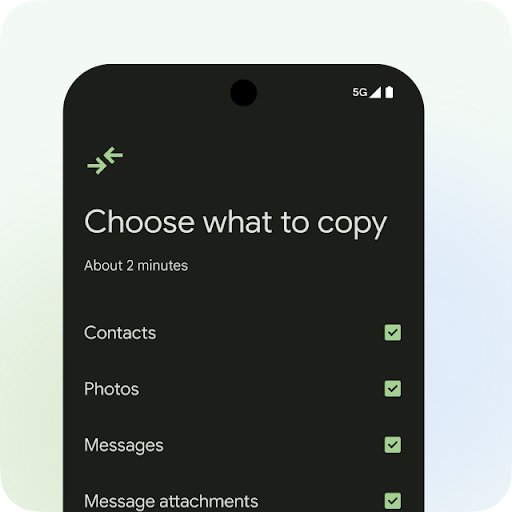
Contacts saved to your Google Account sync automatically. Android's setup assistant can also copy device-only contacts from the old phone.
- Charge both phones, connect to Wi-Fi and make sure you can unlock the old one.
- Turn on the new phone; when asked to set up using another device, select Android device.
- Scan the QR code shown on the new phone with the old phone to pair them.
- Enter the old phone's PIN, pattern or password to bring across Wi-Fi and Google accounts.
- Choose to copy apps and data, select Contacts among the data types and finish setup.
- If setup is already complete, open Settings > Google > Set up & restore > Restore contacts, tap the old phone and tap Restore.
The restore option copies only contacts the phone does not already have, and cannot restore a backup from a newer Android version onto an older one.
Move contacts saved on the phone into your Google Account
Do this on the old Android phone before you switch, so every contact rides along with your Google sign-in; create a Google account first if you do not have one. Moving a contact removes it from its original account.
- Open the Contacts app and tap a contact that is stored on the device or SIM.
- Tap the Contact settings icon at the top right.
- Choose Move to another account.
- Select your Google Account.
- Repeat for other device contacts, or export them all at once with Fix & manage > Export to file.
How to transfer contacts from Android to iPhone
Apple's Move to iOS app copies contacts, messages, photos, call history and calendars during iPhone setup. If the iPhone is already set up, you must erase it to use Move to iOS, or use Google sync or a vCard instead.
- Turn on Wi-Fi on the Android phone and plug both phones into power.
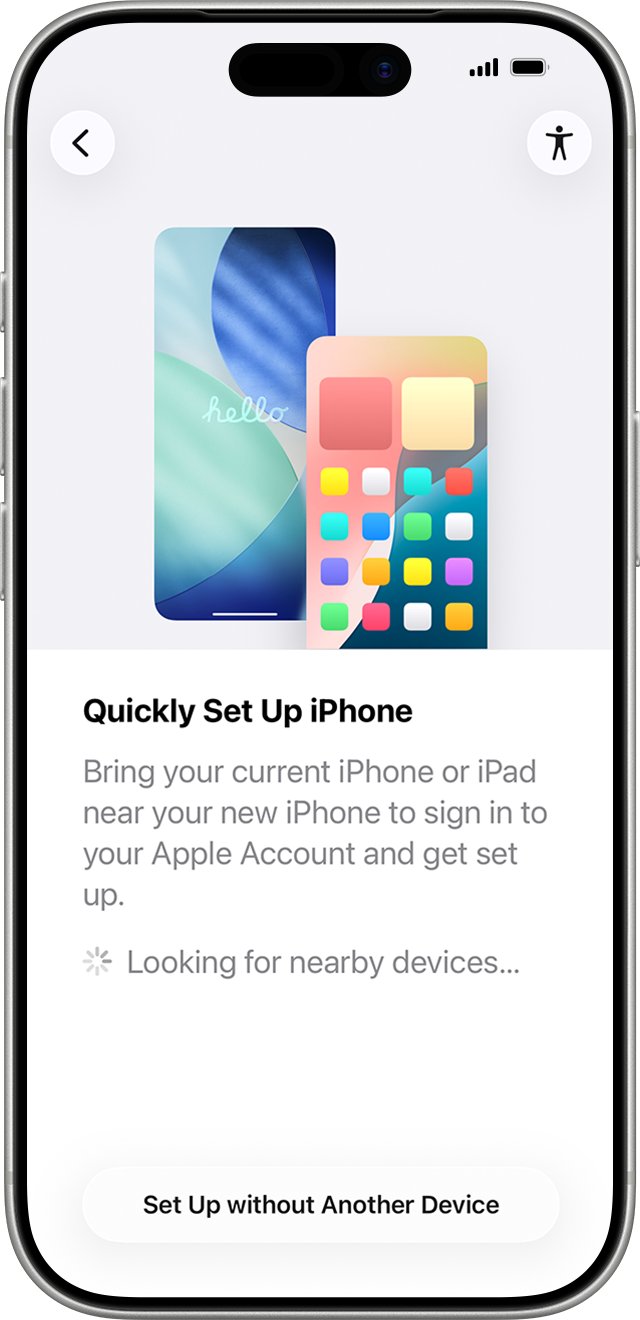
- On the new iPhone's Quick Start screen, tap Set Up Without Another Apple Device.
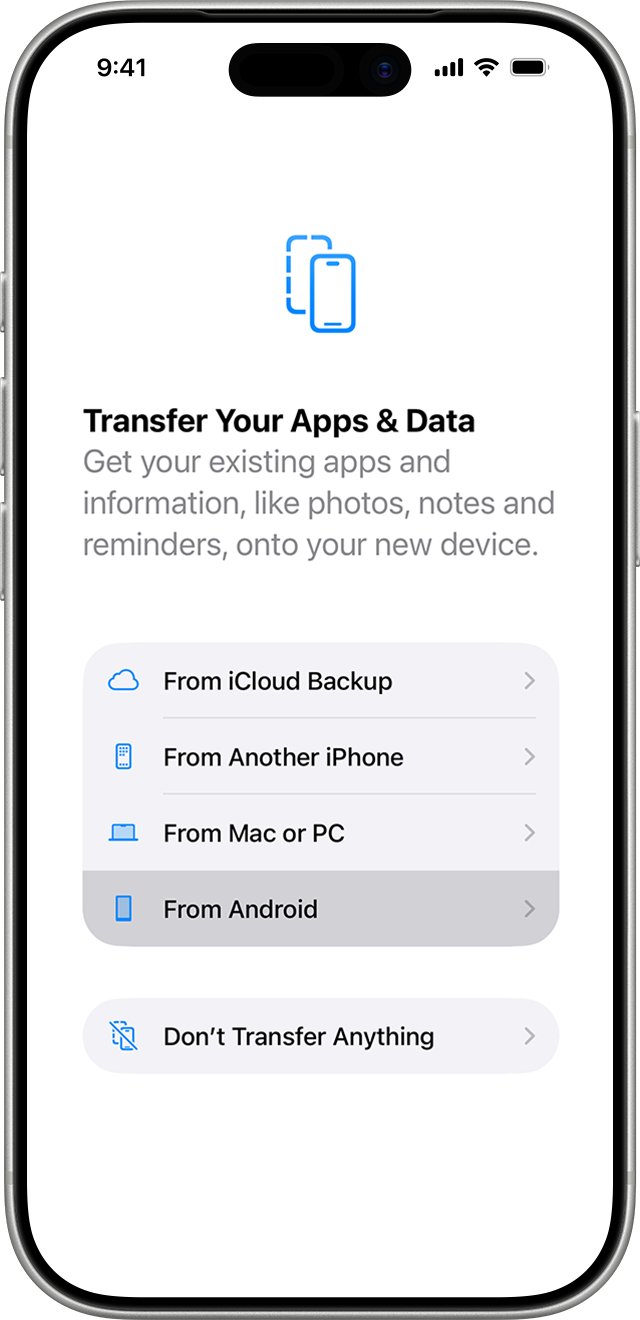
- On Transfer Your Apps & Data, tap From Android, then Transfer with App.
- Open Move to iOS on the Android phone (scan the iPhone's QR code to get it from Google Play), tap Continue and accept the terms.
- On the iPhone, tap Continue and wait for a six-digit or ten-digit code, then enter it on the Android phone.
- Tap Connect on the Android phone to join the iPhone's temporary Wi-Fi network.
- On Transfer Data, select Contacts and anything else you want, tap Continue, and leave both phones alone until the iPhone's loading bar finishes.
With a compatible Android 17 or later phone, the iPhone also offers Transfer without App: tap it, scan the iPhone's QR code with the Android camera and pick contacts from the list.
Sync Google contacts to an iPhone without a computer
This keeps contacts in Google and shows them on the iPhone, which suits anyone who still uses Gmail or an Android tablet.
- On the iPhone, open Settings and tap Apps, then Contacts.
- Tap Contacts Accounts, then Add Account.
- Choose Google, sign in, and turn on Contacts.
- To save new contacts to Google, go back and tap Default Account, then choose the Google account.
How to transfer contacts from iPhone to Android
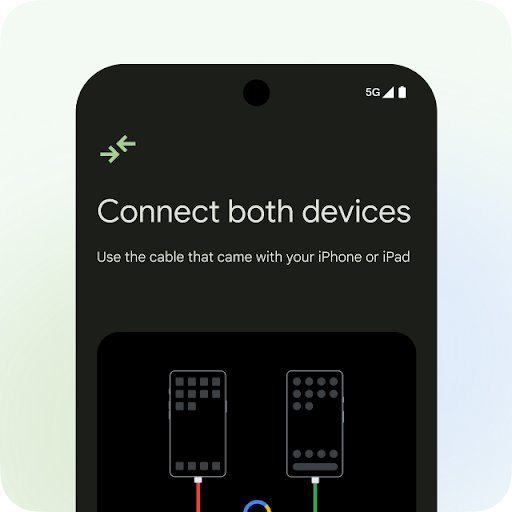
Google's setup assistant copies contacts from an iPhone during setup. A cable moves the most data types; the Android Switch app on the iPhone handles a wireless transfer. Charge both phones to at least 80 percent first.
- On the iPhone, turn off iMessage and FaceTime so texts reach the new phone.
- Turn on the Android phone and tap through the first screens.
- When asked to copy data from an existing device, select iPhone or iPad.
- Scan the QR code with the iPhone camera, or connect the phones with a Lightning-to-USB-C or USB-C cable when prompted.
- Select Contacts and any other data, then keep the phones connected until setup finishes.
- Open the Contacts app on Android to confirm the list arrived.
If the iPhone contacts live in iCloud and the Android phone is already set up, export them as a vCard from iCloud.com and send the file to the Android phone.
Transfer contacts to a new Samsung phone with Smart Switch
Samsung Smart Switch moves contacts, messages, photos, calendars and notes to a Galaxy phone from another Android phone or an iPhone.
| Old phone | Smart Switch route | Note |
|---|---|---|
| Android phone | Wireless transfer or USB cable | QR code quick setup is offered when you set up the new Galaxy |
| iPhone | USB cable, wireless or iCloud | Samsung recommends the cable because it moves the most data types |
| Any phone backed up earlier | Smart Switch on a Windows PC or Mac, or a microSD card / USB OTG drive | Restore the backup to the Galaxy later |
Transfer contacts from iPhone to iPhone
- Make sure iCloud Contacts is on in the old iPhone's Settings > [your name] > iCloud.
- Turn on the new iPhone and place it next to the old one (iOS 12.4 or later on both for a full wireless transfer).
- Follow the Quick Start prompts on the old iPhone to set up the new one.
- Choose to transfer data directly from the old iPhone, or restore from your iCloud backup.
- Keep both phones close and plugged in until the migration completes.
If iCloud storage is short, the old iPhone's Settings > General > Transfer or Reset iPhone > Get Started gives a free temporary iCloud backup for up to three weeks after the purchase.
Transfer contacts with a vCard file between any phones
A vCard (.vcf) file holds one or many contacts and works between platforms. Each person in the file becomes a separate contact when imported.
| Step | From Android | From iPhone (iCloud) |
|---|---|---|
| Export | Contacts app > Fix & manage > Export to file > Export to .VCF file | On a computer, icloud.com/contacts > Select All Contacts > Export vCard |
| Or from the web | contacts.google.com > Selection Actions > All > More actions > Export > vCard | Same iCloud.com export |
| Import to iPhone | Email or message the .vcf to yourself and tap the attachment, or use icloud.com/contacts > Import Contact | Tap the .vcf attachment on the new iPhone |
The menu for importing a .vcf on an Android phone differs between manufacturers, so check your phone maker's help pages, or use the setup copy or Smart Switch instead.
How to transfer your phone number to a new phone
Your number belongs to the SIM or eSIM, not to the contacts list. After an eSIM moves, the number stops working on the old phone.
| Your switch | How the number moves |
|---|---|
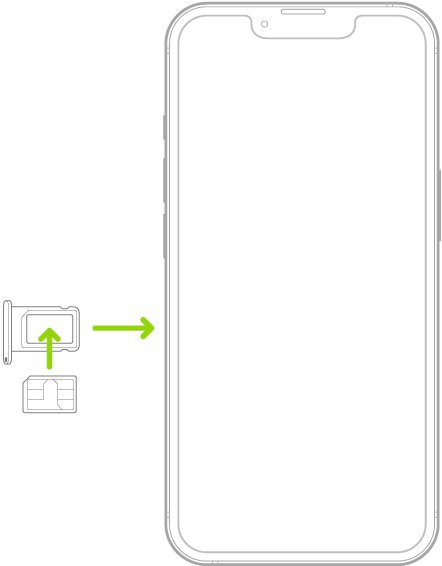
| Physical SIM, compatible tray | Eject the SIM from the old phone and insert it in the new one; enter the SIM PIN if you set one, never guess it |
| iPhone to iPhone (eSIM) | New iPhone: Settings > Cellular > Set Up Cellular or Add eSIM > Transfer From Nearby iPhone, then confirm on the old iPhone, if your carrier supports eSIM Quick Transfer |
| Android to iPhone (eSIM) | During Transfer without App on Android 17 or later, select the number on the Android phone and tap Transfer; otherwise contact your carrier |
| Carrier QR code | Settings > Cellular > Add eSIM > Use QR Code on iPhone, or your carrier's instructions on Android |
| Anything else | Contact your carrier, or activate in the carrier's app or store |
How to check all your contacts transferred
- Note the contact count on the old phone before you wipe or sell it.
- Open the Contacts app on the new phone and compare the count.
- Search for two or three contacts you added recently, plus one old one with several numbers.
- On iPhone, check Settings > Apps > Contacts > Contacts Accounts to see every account that is syncing.
- On Android, open contacts.google.com on a computer to confirm the contacts are in your Google Account and not only on the phone.
Common contacts transfer problems and how to fix them
Why didn't my contacts transfer to my new phone?
They were saved to the old phone's storage or SIM instead of a Google or iCloud account.
- On the old Android phone, move them with Contact settings > Move to another account, or export a .vcf.
- On the new Android phone, try Settings > Google > Set up & restore > Restore contacts with Device storage and SIM card turned on.
- On a new iPhone, use Settings > Apps > Contacts > Import SIM Contacts for SIM contacts.
iPhone contacts did not appear on the new iPhone
iCloud Contacts is off on one of the phones, or a different Apple Account is signed in.
- On both phones, open Settings > [your name] and confirm the same Apple Account.
- Tap iCloud > See All and turn on Contacts.
- Wait a few minutes on Wi-Fi, then reopen the Contacts app.
Restore contacts is missing contacts on the new Android phone
The new phone runs an older Android version than the backup, which can leave the transfer incomplete.
- Update the new phone to the latest Android version available.
- Run Restore contacts again and pick the correct old phone.
- If it still fails, import the .vcf exported from the old phone.
Move to iOS stalls or fails partway
Wi-Fi interference, the Android phone leaving the app, or not enough space on the iPhone.
- Leave both phones alone and keep Move to iOS open until it finishes.
- Turn off cellular data on the Android phone and turn off apps that affect Wi-Fi.
- Restart both phones and try again; if content is missing after the transfer, erase the iPhone and start over.
WhatsApp or Outlook contacts are missing
Those contacts belong to the app's own account, not to the phone.
- Install the app on the new phone.
- Sign in with the same account or phone number.
- Let the app sync its contacts back.
Transfer contacts to a new phone FAQs
Will contacts transfer to a new phone automatically?
Yes, if they are saved to an account. Contacts in your Google Account appear on a new Android phone after you sign in, and iCloud contacts appear on a new iPhone when iCloud Contacts is on. Contacts stored only on the phone or SIM need a transfer tool or a vCard.
How do I transfer all contacts to a new Android phone?
Select Android device or iPhone or iPad when the new phone asks to copy data during setup, then include contacts. After setup, use Settings > Google > Set up & restore > Restore contacts to copy contacts backed up from the old Android phone.
How do I transfer contacts to a new iPhone?
From another iPhone, use Quick Start or iCloud Contacts. From Android, use Move to iOS during setup, add your Google Account under Settings > Apps > Contacts > Contacts Accounts, or open a .vcf attachment on the iPhone.
How do I transfer contacts to a new Samsung phone?
Use Samsung Smart Switch, which copies contacts from another Android phone or an iPhone to a Galaxy by cable, wirelessly or from iCloud. Contacts already in your Google Account also appear once you sign in on the Galaxy.
Can I transfer contacts to a new phone without a SIM card?
Yes. Account sync, Move to iOS, Android's setup copy, Smart Switch and vCard files all work over Wi-Fi or a cable and never touch the SIM. A SIM only matters for contacts that were saved on it.
Does transferring contacts also move my text messages?
Not with account sync or a vCard, which carry contacts only. Move to iOS, Android's setup copy and Smart Switch can move messages alongside contacts if you select them during the transfer.
Will transferring contacts delete them from my old phone?
No. Syncing, setup transfers and vCard exports copy contacts and leave the old phone untouched. The exception is moving a single contact to another account on Android, which removes it from the original account.
How do I transfer contacts from Android to iPhone without a computer?
Use Move to iOS during iPhone setup, or add your Google Account on the iPhone and turn on Contacts. You can also email yourself a .vcf from the Android Contacts app and tap the attachment on the iPhone.
Can I transfer contacts between an iPhone and an Android phone in both directions?
Yes. Move to iOS and Transfer without App handle Android to iPhone, while Android's setup assistant, the Android Switch app and Smart Switch handle iPhone to Android. A Google Account synced on both phones keeps the same contacts on each.
Why did some of my contacts not transfer to my new phone?
Usually because they were saved to the old phone or SIM, belong to an app such as WhatsApp, or sit in an account not signed in on the new phone. Check every account on the old phone and move or export the missing ones.