To access OneDrive files offline, right-click the file or folder in File Explorer or Finder and select Always keep on this device, or tap Keep offline or Make Available Offline in the OneDrive mobile app.
This guide covers Windows, macOS, Android and iOS, shared folders, Office editing without internet, disk space, and the fixes for files that will not open when you are offline.
Choosing files and folders for offline availability
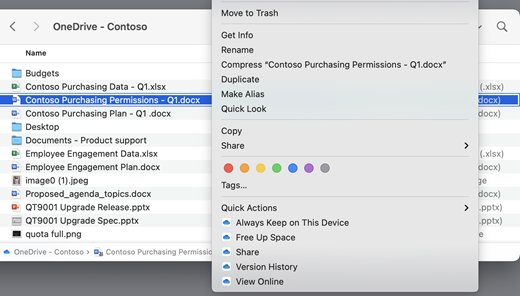
These steps work in Windows File Explorer and macOS Finder once the OneDrive app is signed in. The file downloads and stays on the device until you change it back.
- Open File Explorer on Windows or Finder on a Mac and select OneDrive in the left pane.
- Right-click the file or folder you need without internet.
- Select Always keep on this device.
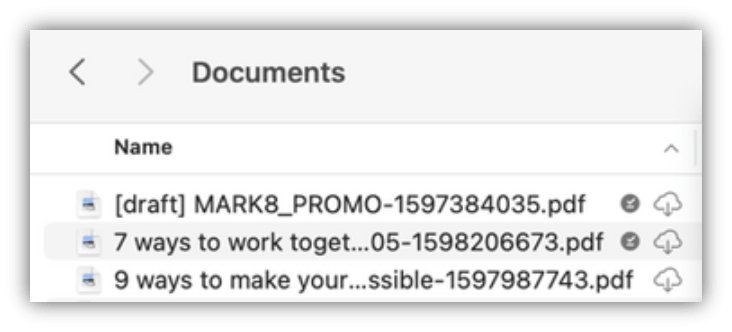
- Wait for the status icon to change to a solid green circle with a white check mark.
- Disconnect and open the file to confirm it loads.
When you mark a folder this way, new files added to it later also download automatically. Inside an online-only folder you can still mark single files as always available.
Understanding OneDrive's offline capabilities
OneDrive Files On-Demand shows every cloud file on your device without downloading it. Each file sits in one of three states, and only two of them open offline.
| Status icon | State | Opens offline? | Uses disk space? |
|---|---|---|---|
| Blue cloud | Online-only | No | No |
| Green check mark outline | Locally available (downloaded when you opened it) | Yes, until you or Storage Sense frees the space | Yes |
| Solid green circle with white check | Always keep on this device | Yes, always | Yes |
| Red circle with white cross | Sync error | Only the last downloaded copy | Depends on state |
| People icon | Shared with others | Depends on the sync state shown alongside | Depends on state |
Starting with OneDrive build 23.066, Files On-Demand is on by default for all users, so new files from the cloud arrive as online-only.
Real-world scenarios of offline access
| Your situation | Use this | Why |
|---|---|---|
| A flight or trip with a laptop | Always keep on this device on the folders you need | Files stay put even if Storage Sense runs |
| You want the whole OneDrive on one PC | Download all files in OneDrive settings | Downloads every cloud file, like turning Files On-Demand off |
| Reading documents on a phone on the move | Keep offline (Android) or Make Available Offline (iPhone) | The mobile app stores a local copy for reading |
| A colleague's shared folder | Add shortcut to My files, then mark it always available | Shared folders sync to your PC only after you add the shortcut |
| Writing a Word or Excel file without internet | Open it once while online, then work offline | Office syncs pending changes as soon as you reconnect |
| One-off copy for a USB drive or another computer | Download from OneDrive on the web | Creates a copy that no longer syncs with the original |
The ZIP download is the slowest choice for a whole library. OneDrive on the web packs several selected files or folders into one .zip file, downloads are capped at 10,000 files and 250 GB, OneNote notebooks are left out, and you still have to extract the archive before the files are usable.
Setting up OneDrive on your device
Offline access needs the OneDrive app signed in on each device. Windows 11 already includes it; Files On-Demand needs Windows 10 version 1709 or later, or macOS 10.14 or later on an APFS volume.
- On Windows, press the Windows key, search for OneDrive, and open the OneDrive desktop app. On a Mac, press Cmd + Space, type OneDrive and open it.
- Enter your personal Microsoft account or work or school account and select Sign in.
- On This is your OneDrive folder, accept the default location or select Change location.
- Read the All your files, ready and on-demand screen, which explains the three file states.
- Choose which folders sync to this device when prompted, then let the first sync finish.
Syncing files for offline access on Windows
Use this when you want every OneDrive file on the PC rather than picking folders one by one.
- Select the OneDrive cloud icon in the notification area on the taskbar.
- Select the Help and Settings gear icon, then Settings.
- Open the Sync and back up tab and expand Advanced settings.
- Select Download all files to download the whole OneDrive folder. On older builds, turn off the Files On-Demand toggle instead.
- Wait until the OneDrive icon shows that sync is up to date.
Free up disk space is the default setting and keeps new cloud files online-only. To turn Files On-Demand back on after downloading everything, return to Advanced settings and select Free up disk space. You can open OneDrive settings the same way later to switch back.
Make OneDrive files available offline with PowerShell attrib and robocopy
Admins comfortable scripting can set Files On-Demand states from Command Prompt or PowerShell instead of right-clicking folders. Each state maps to a file attribute: pinned is always available, unpinned is online-only.
- Open Command Prompt or PowerShell on the PC that runs the OneDrive sync app.
- Check a folder's current state with
attrib "C:\Users\<name>\OneDrive\Documents". Work or school folders are named OneDrive – <organization>. - Pin the folder and everything in it with
attrib +p "C:\Users\<name>\OneDrive\Documents" /s /d. OneDrive downloads the contents and marks them always available. - To return the folder to online-only later, run the same command with
attrib +uinstead of+p. - To copy the pinned files to a separate destination, such as an external drive, run
robocopy "C:\Users\<name>\OneDrive" "E:\OneDrive copy" /e. The/eswitch copies all subfolders, including empty ones.
To set an online-only file to locally available, pin it with +p first, then clear the pin with attrib -p. A robocopy copy is a separate set of files that no longer syncs with OneDrive.
Syncing files for offline access on macOS
Files On-Demand settings are unique to each Mac, so repeat these steps on every Mac you use.
- Open Finder and select your OneDrive folder in the sidebar.
- Control-click or right-click the file or folder.
- Select Always keep on this device.
- If the option is missing, press and hold Control and Option, select Finder in the Dock, and select Relaunch.
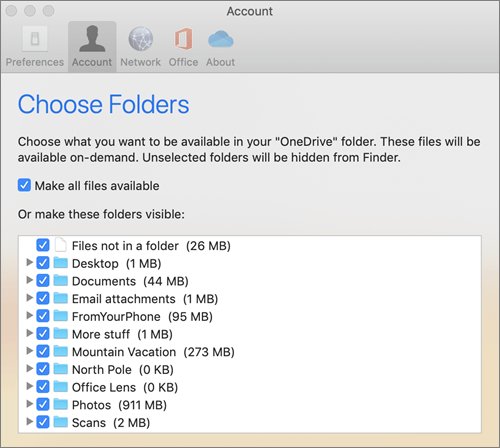
- To check which folders sync at all, select the OneDrive icon in the menu bar, open Preferences, then Account > Choose folders.
Accessing OneDrive files offline on mobile devices
The OneDrive app for Android and iOS keeps a local copy of files you mark. Offline folders, rather than single files, need Premium OneDrive with a Microsoft 365 subscription.
- Open the OneDrive app and find the file or folder.
- Press and hold it, or tap the three dots next to it.
- On Android, tap Keep offline. On iPhone or iPad, tap Make Available Offline.
- Find all offline items later under Files Available Offline on Android (tap your profile picture) or Offline Files on iOS (tap the Me icon).
- To stop, select the item and tap Online only on Android or Remove from Offline on iOS.
On Android, offline files are read-only; editing one offline saves a new file rather than changing the original. On iOS, Office files marked offline can be edited in the Office apps and update when you reconnect.
Working with shared files offline
Files that others share with you do not appear in File Explorer or Finder until you add the shared folder to your own OneDrive. You need edit permission on the folder.
- Sign in to OneDrive on the web.
- Work or school account: go to Shared > With you. Personal account: select Shared in the left pane.
- Select the circle on the folder's tile, or right-click the folder.
- Select Add shortcut to My files.
- On your PC or Mac, wait for the shortcut to sync into your OneDrive folder.
- Right-click the synced shortcut folder and select Always keep on this device.
Only folders can be added, not single shared files, and work or school accounts cannot add folders shared by external users. If the folder never appears, check Account > Choose folders in OneDrive settings.
Leveraging OneDrive's integration with Microsoft Office
Word, Excel and PowerPoint save straight to OneDrive with AutoSave while you are online. When the connection drops, pending changes wait and sync once you are back online.
| Task offline | What works | Condition |
|---|---|---|
| Create a new document, workbook or presentation | Yes | Saved to the device until you reconnect |
| Open a OneDrive file in the Office mobile apps | Yes | The file must have been opened online at least once |
| Edit a file marked Always keep on this device on a PC or Mac | Yes | Changes upload when OneDrive reconnects |
| Save changes to a OneDrive file | Yes | Synced as soon as you are back online |
| Save changes to a file shared in SharePoint | Yes | Synced once you are online and the app is running |
Using OneDrive files on different devices
| Device | Offline option | Edit offline? | Requirement |
|---|---|---|---|
| Windows PC | Always keep on this device, or Download all files | Yes | Windows 10 version 1709 or later |
| Mac | Always keep on this device | Yes | macOS 10.14 or later, APFS volume |
| Android phone or tablet | Keep offline | No, offline edits save as a new file | Folders need Microsoft 365 Premium OneDrive |
| iPhone or iPad | Make Available Offline | Yes, Office files in Office apps | Folders need Microsoft 365 Premium OneDrive |
| Web browser | Download a copy | Yes, but the copy no longer syncs | None |
Offline settings stay on the device where you set them. Marking a folder offline on your laptop does not download it to your desktop PC or phone, even when you sync OneDrive across Windows devices.
Managing storage space on your device
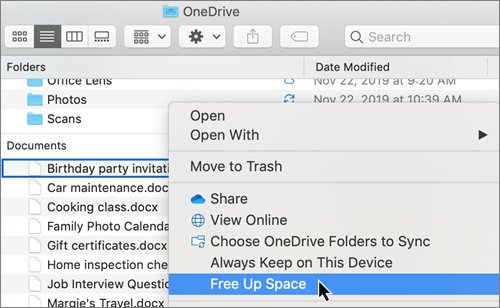
Always-available files take up disk space. Free it when you no longer need a file offline; the file stays in OneDrive.
- In File Explorer or Finder, right-click a downloaded file or folder.
- Select Free up space to return it to online-only.
- Confirm the icon changes to the blue cloud.
- On Windows, turn on Storage Sense if you want locally available files you have not used to become online-only after a set period.
- Leave files you need on trips set to Always keep on this device, which Storage Sense does not touch.
Changing a file to online-only never deletes it from OneDrive. Deleting an online-only file, however, removes it from OneDrive on every device, so use Free up space, not Delete, to save room. Keeping a separate OneDrive backup protects against accidental deletes.
How to check OneDrive sync status before going offline
- Select the OneDrive cloud icon in the taskbar or menu bar and confirm it does not show Paused or an error.
- In File Explorer or Finder, check that every file you need has a solid green circle with a white check mark.
- Turn off Wi-Fi or switch on airplane mode.
- Open two or three of the files to prove they load without internet.
- On a phone, open Files Available Offline or Offline Files and open one item in airplane mode.
Troubleshooting offline access issues
Why is OneDrive showing offline or a gray cloud?
A grayed-out cloud with a line through it means you are not signed in, or OneDrive setup is not complete.
- On Windows, press the Windows key, search for OneDrive, and open the OneDrive desktop app.
- On a Mac, start OneDrive from Finder or Spotlight.
- Sign in with the account that holds your files and let sync finish.
OneDrive says Paused and files are not downloading
Sync was paused for 2, 8 or 24 hours, or OneDrive paused itself on battery saver or a metered network.
- Select the OneDrive icon in the notification area or menu bar.
- Select Resume syncing.
- Plug in the laptop or switch to an unmetered network before marking large folders offline.
A file will not open when you are offline
The file was online-only (blue cloud) when you lost the connection.
- Reconnect to the internet.
- Right-click the file or its folder and select Always keep on this device.
- Wait for the solid green check, then go offline again.
Shared folder files are missing on the PC
Shared folders do not sync until they are added to My files, and selective sync can hide them.
- Add the folder with Add shortcut to My files on OneDrive on the web.
- Open OneDrive settings and check Account > Choose folders includes the shortcut.
- Mark the shortcut folder Always keep on this device.
OneDrive lost offline files or edits made offline on Android
Editing an offline file on Android saves a new copy instead of changing the original.
- Open the folder in the OneDrive app and look for the newly saved copy.
- Reconnect, open the original file online and copy your changes in.
- If a file was deleted, restore it from the OneDrive recycle bin: 30 days for personal accounts, 93 days for work or school accounts.
A red circle with a white cross appears on a file
OneDrive cannot sync that file or folder.
- Select the OneDrive icon in the notification area to read the error.
- Follow the fix shown for that error, such as a full account or a locked file.
- Check storage: if you exceed your Microsoft storage, you cannot upload, edit or sync new files.
Comparing OneDrive with other cloud storage solutions
Google Drive uses a similar model. The table compares how each service makes files available offline, based on each vendor's own help pages.
| Feature | OneDrive | Google Drive |
|---|---|---|
| Desktop app keeps files cloud-only by default | Yes, Files On-Demand | Yes, in streaming mode |
| Make a file offline on desktop | Always keep on this device | Offline Access (Windows) or Available offline (macOS) |
| Download everything to the computer | Download all files | Mirroring mode |
| Offline in the browser | Download a copy | Docs, Sheets and Slides offline in Chrome or Edge with the Google Docs Offline extension |
OneDrive usage statistics and offline limits
| Limit or figure | Value | Why it matters offline |
|---|---|---|
| File types with thumbnails without the app installed | Over 300 | You can identify online-only files before downloading them |
| Folder shortcuts from one person's OneDrive or Teams site | Up to 100 | Caps how many shared folders you can sync from one source |
| Total shortcuts across files and folders | Up to 1,000 | Upper limit for synced shared content |
| Recycle bin retention, personal account | 30 days | Window to recover a file deleted while offline |
| Recycle bin retention, work or school account | 93 days | Same, for business OneDrive and SharePoint |
| Pause sync durations | 2, 8 or 24 hours | Downloads stop during a pause |
| Files On-Demand default since | OneDrive build 23.066 | Newer installs start online-only |
Adapting to changes in work environments
Hybrid and remote work push more files into shared SharePoint and Teams libraries. Offline access there follows the same rules, with a few business-specific limits.
| Work change | What to do for offline access | Limit |
|---|---|---|
| Team files move into Teams or SharePoint | Add a shortcut to the whole library or a folder, then mark it always available | Needs edit permission |
| Working with external partners | Ask for a copy or download the files | Work or school accounts cannot add shortcuts to folders shared by external users |
| IT manages OneDrive centrally | Ask IT if shortcuts are disabled | Admins can block Add shortcut to My files tenant-wide |
| Personal and work accounts on one PC | Pause, resume and mark offline files in each account separately | Each account syncs on its own |
| Company uses Windows Information Protection (WIP) | Ask IT how offline OneDrive files should be handled | Files On-Demand is not supported when WIP is enabled |
Best practices and tips to enhance your OneDrive offline experience
- Mark folders offline the day before you travel, while you still have a fast connection.
- Mark the parent folder rather than single files so new files added by colleagues also download.
- Open Office files once while online on mobile so they can be edited offline later.
- Check the green check marks and airplane-mode test before you leave.
- Reconnect as soon as you can after editing so changes upload before someone else edits the same file.
- Select Free up space on folders you no longer need offline to reclaim disk space.
Future developments and features in OneDrive
Microsoft has already changed how offline sync works on Windows, and it lists upcoming features on the Microsoft 365 roadmap.
| Change | Effect on offline files |
|---|---|
| Files On-Demand on by default from build 23.066 | New devices start with cloud files online-only until you mark them |
| Files On-Demand toggle replaced by Free up disk space and Download all files buttons | Download all files now does what turning Files On-Demand off used to do |
| Updated status icons | The same three states remain: online-only, locally available, always available |
| Microsoft 365 roadmap | Microsoft publishes new and updated OneDrive features there before release |
Frequently asked questions about accessing OneDrive files offline
Can I access my OneDrive files offline?
Yes. Files marked Always keep on this device on Windows or Mac, files you have already opened, and files marked offline in the mobile app all open without internet. Online-only files with a blue cloud do not.
How do I make OneDrive files available offline?
Right-click the file or folder in File Explorer or Finder and select Always keep on this device. On a phone, open the OneDrive app, tap the three dots next to the item, and tap Keep offline or Make Available Offline.
How do I work on OneDrive files offline?
Mark the files as always available, then open and edit them normally in Word, Excel or PowerPoint. OneDrive uploads your changes automatically the next time the device connects to the internet.
How do I sync offline files to OneDrive?
Save or edit the file inside your OneDrive folder while offline, then reconnect. The OneDrive app uploads pending changes on its own, as long as sync is not paused and you are signed in.
How do I make all OneDrive files available offline?
Open OneDrive Settings, go to Sync and back up, expand Advanced settings and select Download all files. Every cloud file downloads to the PC, so check you have enough free disk space first.
Why is my OneDrive offline?
A gray cloud with a line through it means you are not signed in or setup did not finish. Open the OneDrive desktop app from Start, sign in, and the icon returns to normal once sync begins.
Can I view OneDrive files offline on Android?
Yes. Tap the three dots next to a file in the OneDrive app and tap Keep offline. Offline files on Android are read-only, and taking whole folders offline needs Microsoft 365 Premium OneDrive.
What happens if I edit a file offline?
On a PC, Mac or iOS Office app, the edit is saved locally and uploads when you reconnect. On Android, editing an offline file saves it as a new file and leaves the original OneDrive file unchanged.
Can I access shared files offline?
Yes, for shared folders you can edit. Add the folder with Add shortcut to My files on OneDrive on the web, let it sync to your computer, then mark it Always keep on this device.
Does OneDrive automatically sync files offline?
Not by default. New cloud files arrive online-only. Files you create on the device, files you open, and anything inside a folder marked Always keep on this device stay available offline.
Conclusion: the reliable way to use OneDrive offline
Mark the folders you need as Always keep on this device and confirm the solid green check marks before you disconnect. Locally available files can be returned to online-only by Storage Sense, and online-only files never open without internet, so only the always-available state guarantees access offline.