To enable Processor Performance Boost Mode, unhide it with powercfg -attributes SUB_PROCESSOR be337238-0d82-4146-a960-4f3749d470c7 -ATTRIB_HIDE, then set it to Enabled or Aggressive under Processor power management in Power Options.
This guide covers the Control Panel route, a command-only route, what each boost value does, how to confirm the CPU is boosting, and how to hide the setting again.
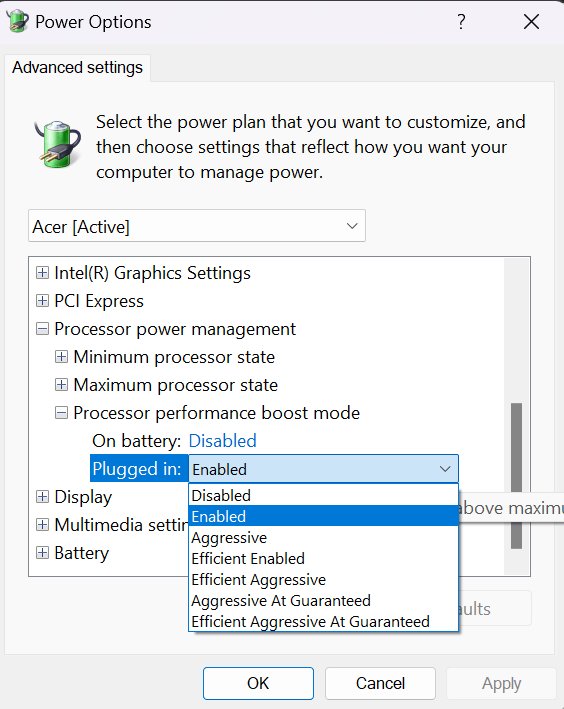
Steps to enable Processor Performance Boost mode
Windows ships this setting hidden, so it does not appear in Power Options until you expose it. You need an administrator account.
- Select Start, type cmd, right-click Command Prompt and choose Run as administrator.
- Run
powercfg -attributes SUB_PROCESSOR be337238-0d82-4146-a960-4f3749d470c7 -ATTRIB_HIDEto unhide the setting. - Open Control Panel > System and Security > Power Options.
- Select Change plan settings next to the active plan, then Change advanced power settings.
- Expand Processor power management > Processor performance boost mode.
- Set Plugged in to Enabled or Aggressive, and choose a value for On battery on a laptop.
- Select Apply, then OK.
The change applies to the plan you edited, including a High Performance power plan if you added one. Repeat the last four steps for any other plan you switch to.
Processor performance boost mode values explained
Microsoft documents this setting as PERFBOOSTMODE. It decides how the processor picks a performance level when conditions allow it to run above its nominal speed.
| Index | Name | What it does |
|---|---|---|
| 0 | Disabled | No boosting above the nominal performance level |
| 1 | Enabled | Windows picks a target boost level when conditions allow it |
| 2 | Aggressive | On CPPC processors, Windows picks the maximum boost level; on older ACPI P-state processors it behaves like Enabled |
| 3 | Efficient variant of Enabled | Microsoft lists it as the same as value 1 |
| 4 | Efficient variant of Aggressive | Microsoft lists it as the same as value 2 |
The setting is supported on x64 Windows 11 and on x86 and x64 Windows 10 desktop editions, plus Arm-based Windows 11 devices.
Best processor performance boost mode setting for your PC
| Your situation | Plugged in | On battery |
|---|---|---|
| Desktop used for games, rendering or compiling | Aggressive | Not applicable |
| Laptop used at a desk on the charger | Aggressive | Enabled |
| Laptop runs hot, loud or throttles | Enabled | Enabled or Disabled |
| Maximum battery life matters most | Enabled | Disabled |
| Troubleshooting heat or fan noise | Disabled for a test, then back to Enabled | Disabled |
Aggressive only differs from Enabled on processors that use CPPC. On older chips both values give the same result.
Set processor performance boost mode with powercfg commands
If you prefer not to open Control Panel, powercfg can change the value directly. Run each command in an elevated Command Prompt.
powercfg /setacvalueindex SCHEME_CURRENT SUB_PROCESSOR PERFBOOSTMODE 2
powercfg /setdcvalueindex SCHEME_CURRENT SUB_PROCESSOR PERFBOOSTMODE 1
powercfg /setactive SCHEME_CURRENT
The first line sets the plugged-in (AC) value to 2 (Aggressive) on the active plan. The second sets the battery (DC) value to 1 (Enabled). The third reapplies the active plan so the new values take effect. Change the last number to 0, 1, 2, 3 or 4 to pick a different value.
You should see: Each command returns to the prompt without an error message.
These commands work even while the setting is still hidden in Power Options, because hiding only affects the user interface.
How to check processor boost is working
- Run
powercfg /query SCHEME_CURRENT SUB_PROCESSOR PERFBOOSTMODEin Command Prompt. - Read the current AC (plugged in) and DC (battery) index values at the end of the output. An index of 2 means Aggressive and 1 means Enabled.
- Press Ctrl + Shift + Esc to open Task Manager and select the Performance tab.
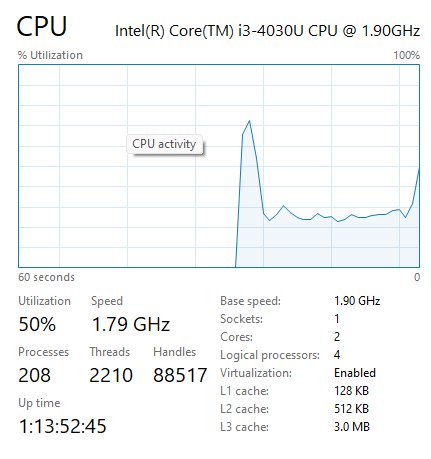
- Select CPU and compare Speed with the Base speed shown on the same page.
- Start a heavy task. When boost is active, Speed climbs above the base speed.
Intel says Turbo Boost is enabled by default on supported processors, and suggests checking the same speed values after you open Task Manager.
Windows 11 power mode and processor boost
The Power mode setting in Settings works alongside the boost setting. Set it first, then fine-tune boost in Power Options.
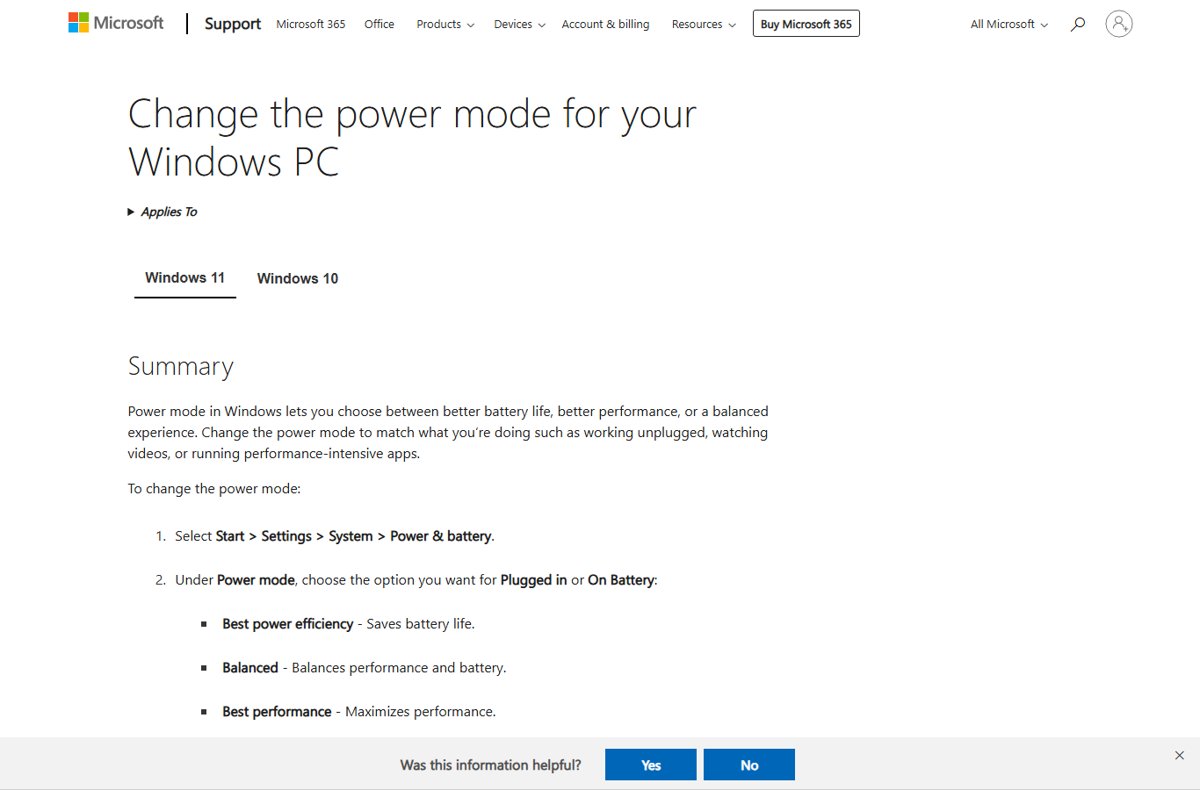
- Select Start > Settings > System > Power & battery.
- Under Power mode, choose Best performance for Plugged in.
- Choose Balanced or Best power efficiency for On battery if battery life matters.
- On Windows 10, select the battery icon on the taskbar and drag the slider toward best performance.
If Power mode is greyed out, a custom plan is active. Open Control Panel > System and Security > Power Options and select Balanced.
Disable or hide processor performance boost mode
- Open Power Options > Change plan settings > Change advanced power settings.
- Set Processor performance boost mode to Disabled to stop boosting, or Enabled for standard boosting.
- Select Apply, then OK.
- To hide the setting again, run
powercfg -attributes SUB_PROCESSOR be337238-0d82-4146-a960-4f3749d470c7 +ATTRIB_HIDEas administrator.
Hiding the setting does not reset its value. Set the value you want before you hide it.
Processor performance boost mode not showing or not working
Processor performance boost mode is missing from Power Options
Windows marks the setting as hidden by default.
- Open Command Prompt as administrator.
- Run
powercfg -attributes SUB_PROCESSOR be337238-0d82-4146-a960-4f3749d470c7 -ATTRIB_HIDE. - Close and reopen the Advanced settings dialog so it reloads the list.
The command returns an access denied or permission error
powercfg needs an elevated prompt to change setting attributes.
- Close the current window.
- Right-click Command Prompt and choose Run as administrator.
- Run the command again.
Speed never rises above base speed after enabling boost
Turbo is switched off in the firmware, or the processor does not support it.
- Restart into firmware setup and open the BIOS setup screen.
- Find the Turbo Boost or core performance boost option and set it to enabled.
- Check your processor's specification page on the Intel or AMD site to confirm it supports boost.
The laptop runs hot or the fan is loud with Aggressive
Aggressive asks for maximum boost whenever conditions allow it.
- Set Plugged in to Enabled instead of Aggressive.
- Set On battery to Enabled or Disabled.
- Select Apply and watch temperatures under the same workload.
Processor performance boost mode FAQ
How do I boost processor performance in Windows?
Set Power mode to Best performance in Settings > System > Power & battery, then set Processor performance boost mode to Aggressive in Power Options. Make sure Turbo Boost or the equivalent AMD boost feature is enabled in the BIOS.
How do I boost my processor speed?
Processor speed rises above the base clock only when boost is allowed. Enable boost in Power Options, choose the Best performance power mode while plugged in, and keep the laptop cool, because the processor boosts only when operating conditions allow it.
Why is processor performance boost mode not showing?
Windows hides the setting by default. Run powercfg -attributes SUB_PROCESSOR be337238-0d82-4146-a960-4f3749d470c7 -ATTRIB_HIDE in an administrator Command Prompt, then reopen Change advanced power settings to see it under Processor power management.
Do I need to edit the registry to enable processor performance boost mode?
No. The powercfg -attributes command changes the hidden flag that controls whether the setting appears in Power Options. It is quicker than editing the registry by hand and leaves nothing to type wrongly.
What is the best processor performance boost mode setting?
Aggressive is best for plugged-in desktops and laptops that stay cool. Enabled is the safer choice on battery or on thin laptops that run hot. Disabled reduces heat and power use at the cost of performance.
Does processor performance boost mode work on Windows 11?
Yes. Microsoft lists the setting as supported on x64 and Arm-based devices running Windows 11 Home, Pro, Enterprise and Education. It is hidden on Windows 11 too, so unhide it with the same powercfg command.
How do I disable processor performance boost mode?
Open Change advanced power settings, expand Processor power management, and set Processor performance boost mode to Disabled for Plugged in and On battery. Select Apply. The processor then stays at or below its nominal speed.
Is there a download for processor performance boost mode?
No. The setting is built into Windows power management, and powercfg.exe is part of Windows. Avoid any download that claims to unlock it, because nothing extra is needed.
Final tips
Use Aggressive when plugged in and Enabled on battery, and pair it with the Best performance power mode. That combination lets the processor reach its highest boost level when power is plentiful, while keeping heat and battery drain in check away from the charger.