Gmail keyboard shortcuts are single keys and key combinations, such as c to compose, e to archive and Ctrl + Enter to send, that you turn on under Settings > See all settings > General > Keyboard shortcuts on.
This list numbers 85 desktop shortcuts from Google's own Gmail Help tables and 16 Android and iPad hotkeys, with Mac keys, custom remapping and fixes for shortcuts that stop responding.
How do you enable advanced Gmail keyboard shortcuts?
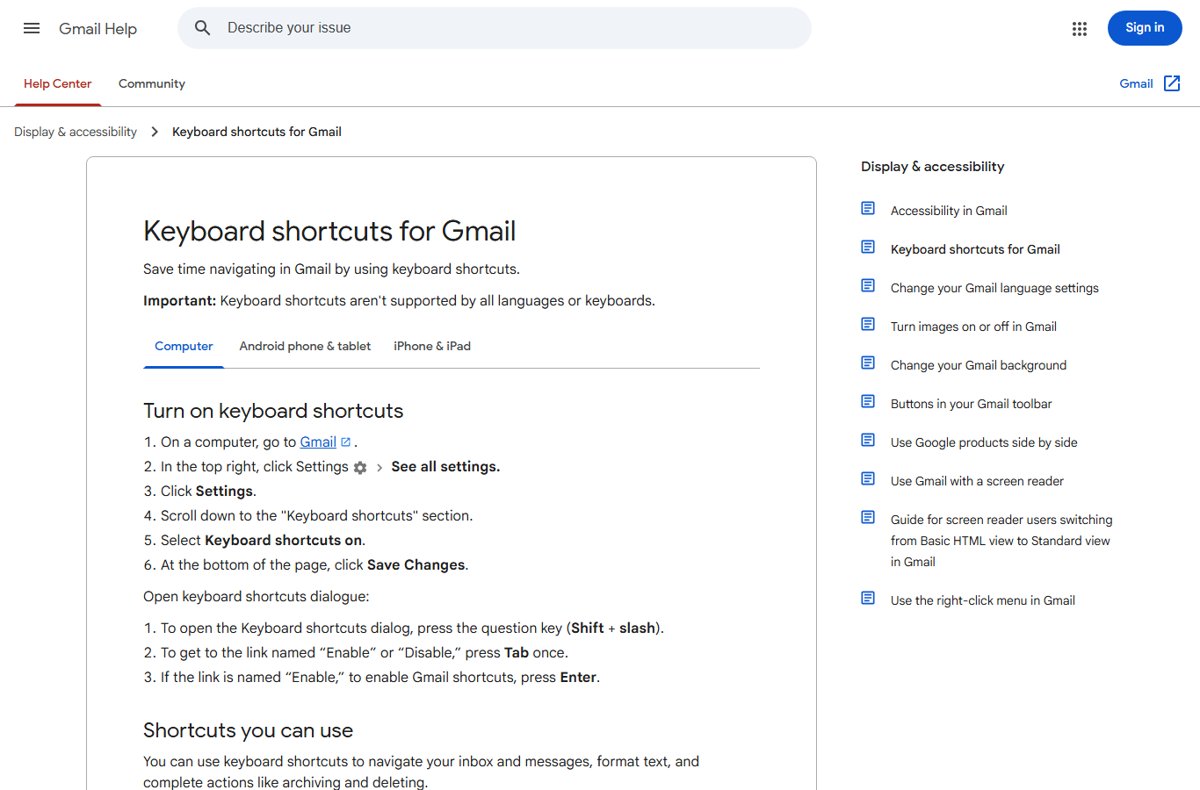
Single-key shortcuts such as e, r and g + i stay silent until this setting is on. It takes about 20 seconds on a computer, starting from the Gmail gear icon in the top right.
- Open Gmail in your browser on a computer.
- Click the Settings gear in the top right, then click See all settings.
- Stay on the General tab and scroll down to the Keyboard shortcuts section.
- Select Keyboard shortcuts on.
- Click Save Changes at the bottom of the page.
Keyboard-only route: press ? (Shift + slash) to open the Keyboard shortcuts dialog, press Tab once to reach the link, and press Enter if it reads Enable.
How many Gmail keyboard shortcuts does Google officially document?
Google's Gmail Help page for computers splits its shortcuts into seven tables. Counting each row once, the desktop page lists 85 rows, and the Android and iPad tabs add platform-only keys.
| Group on Google's page | Rows | Needs Keyboard shortcuts on? | Numbered below |
|---|---|---|---|
| Compose & chat | 13 | No note on Google's page | #1-#13 |
| Formatting text | 16 | No note on Google's page | #14-#29 |
| Actions | 25 | Yes | #30-#54 |
| Jumping | 9 | Yes | #55-#63 |
| Threadlist selection | 6 | Yes | #64-#69 |
| Navigation | 8 | Yes | #70-#77 |
| Application | 8 | Yes | #78-#85 |
| Android and iPad only | 16 | External keyboard required | #86-#101 |
Press ? inside Gmail at any time to see the full list for your account, including keys you have remapped.
What default keyboard shortcuts does Gmail offer for composing and chatting?
These keys work in the compose window and in open conversations. On a Mac, swap Ctrl for ⌘ wherever the table shows it.
| # | Action | Windows / ChromeOS | Mac |
|---|---|---|---|
| 1 | Previous message in an open conversation | p | p |
| 2 | Next message in an open conversation | n | n |
| 3 | Focus the main window | Shift + Esc | Shift + Esc |
| 4 | Focus the latest chat or compose window | Esc | Esc |
| 5 | Advance to the next chat or compose window | Ctrl + . | Ctrl + . |
| 6 | Advance to the previous chat or compose window | Ctrl + , | Ctrl + , |
| 7 | Send | Ctrl + Enter | ⌘ + Enter |
| 8 | Add Cc recipients | Ctrl + Shift + C | ⌘ + Shift + C |
| 9 | Add Bcc recipients | Ctrl + Shift + B | ⌘ + Shift + B |
| 10 | Access a custom From address | Ctrl + Shift + F | ⌘ + Shift + F |
| 11 | Insert a link | Ctrl + K | ⌘ + K |
| 12 | Go to the next misspelled word | Not listed | ⌘ + ; |
| 13 | Open spelling suggestions | Ctrl + M | ⌘ + M |
What default shortcuts handle text formatting in Gmail?
Formatting keys apply to selected text in the compose body. Select the words first, then press the combination.
| # | Action | Windows / ChromeOS | Mac |
|---|---|---|---|
| 14 | Previous font | Ctrl + Shift + 5 | ⌘ + Shift + 5 |
| 15 | Next font | Ctrl + Shift + 6 | ⌘ + Shift + 6 |
| 16 | Decrease text size | Ctrl + Shift + – | ⌘ + Shift + – |
| 17 | Increase text size | Ctrl + Shift + + | ⌘ + Shift + + |
| 18 | Bold | Ctrl + B | ⌘ + B |
| 19 | Italics | Ctrl + I | ⌘ + I |
| 20 | Underline | Ctrl + U | ⌘ + U |
| 21 | Numbered list | Ctrl + Shift + 7 | ⌘ + Shift + 7 |
| 22 | Bulleted list | Ctrl + Shift + 8 | ⌘ + Shift + 8 |
| 23 | Quote | Ctrl + Shift + 9 | ⌘ + Shift + 9 |
| 24 | Indent less | Ctrl + [ | ⌘ + [ |
| 25 | Indent more | Ctrl + ] | ⌘ + ] |
| 26 | Align left | Ctrl + Shift + L | ⌘ + Shift + L |
| 27 | Align center | Ctrl + Shift + E | ⌘ + Shift + E |
| 28 | Align right | Ctrl + Shift + R | ⌘ + Shift + R |
| 29 | Remove formatting | Ctrl + \ | ⌘ + \ |
What advanced shortcuts handle actions like replying, archiving, and deleting?
These are the keys that make inbox triage fast. Every one of them needs Keyboard shortcuts on, and they are identical on Windows and Mac.
| # | Action | Key |
|---|---|---|
| 30 | Move focus to the toolbar | , |
| 31 | Select a conversation | x |
| 32 | Toggle star or rotate among superstars | s |
| 33 | Archive | e |
| 34 | Mute a conversation | m |
| 35 | Report as spam | ! |
| 36 | Delete | # |
| 37 | Reply | r |
| 38 | Reply in a new window | Shift + R |
| 39 | Reply all | a |
| 40 | Reply all in a new window | Shift + A |
| 41 | Forward | f |
| 42 | Forward in a new window | Shift + F |
| 43 | Update the conversation | Shift + N |
| 44 | Archive and go to the previous or next conversation | ] or [ |
| 45 | Undo the last action | z |
| 46 | Mark as read | Shift + I |
| 47 | Mark as unread | Shift + U |
| 48 | Mark unread from the selected message | _ |
| 49 | Mark as important | + or = |
| 50 | Mark as not important | – |
| 51 | Snooze | b |
| 52 | Expand the entire conversation | ; |
| 53 | Collapse the entire conversation | : |
| 54 | Add the conversation to Tasks | Shift + T |
Shift keys use the symbol on your layout: # is Shift + 3 and ! is Shift + 1 on a US keyboard.
What shortcuts let you jump between Gmail sections and navigate threads?
Jump keys are two-key sequences: press g, release it, then press the second letter. Selection keys work the same way with \*.
| # | Action | Keys | Group |
|---|---|---|---|
| 55 | Go to Inbox | g then i | Jumping |
| 56 | Go to Starred conversations | g then s | Jumping |
| 57 | Go to Snoozed conversations | g then b | Jumping |
| 58 | Go to Sent messages | g then t | Jumping |
| 59 | Go to Drafts | g then d | Jumping |
| 60 | Go to All mail | g then a | Jumping |
| 61 | Switch between the Calendar, Keep or Tasks sidebar and the inbox | Ctrl + Alt + , and Ctrl + Alt + . (Mac: ⌘ + Alt) | Jumping |
| 62 | Go to Tasks | g then k | Jumping |
| 63 | Go to a label | g then l | Jumping |
| 64 | Select all conversations | * then a | Threadlist selection |
| 65 | Deselect all conversations | * then n | Threadlist selection |
| 66 | Select read conversations | * then r | Threadlist selection |
| 67 | Select unread conversations | * then u | Threadlist selection |
| 68 | Select starred conversations | * then s | Threadlist selection |
| 69 | Select unstarred conversations | * then t | Threadlist selection |
| 70 | Go to the next page | g then n | Navigation |
| 71 | Go to the previous page | g then p | Navigation |
| 72 | Back to the thread list | u | Navigation |
| 73 | Newer conversation | k | Navigation |
| 74 | Older conversation | j | Navigation |
| 75 | Open a conversation | o or Enter | Navigation |
| 76 | Go to the next inbox section | Backtick key | Navigation |
| 77 | Go to the previous inbox section | ~ | Navigation |
To select one email with the keyboard, move to it with j or k and press x.
What application and communication shortcuts does Gmail provide?
Application keys open the main Gmail tools from anywhere in the inbox.
| # | Action | Key |
|---|---|---|
| 78 | Compose | c |
| 79 | Compose in a new tab | d |
| 80 | Search mail | / |
| 81 | Search chat contacts | q |
| 82 | Open the More actions menu | . |
| 83 | Open the Move to menu | v |
| 84 | Open the Label as menu | l |
| 85 | Open keyboard shortcut help | ? |
Gmail keyboard shortcuts on Android, iPad, and iPhone
The Gmail app on Android accepts shortcuts from an external keyboard, and the iPad app accepts them from a connected keyboard. Google states that keyboard shortcuts are not currently supported in the Gmail app for iPhone.
Most single letters match the desktop list (c, r, a, f, e, z, #, !, j, k). The rows below are the ones the desktop list does not have.
| # | Action | Key | Platform |
|---|---|---|---|
| 86 | Save draft | Ctrl + S | Android |
| 87 | Close compose and save | Ctrl + W | Android |
| 88 | Ctrl + P | Android | |
| 89 | Refresh inbox | Ctrl + U | Android |
| 90 | Open Settings | Ctrl + , | Android |
| 91 | Open Help & Feedback | Ctrl + / | Android |
| 92 | Cut | Ctrl + X | Android |
| 93 | Copy | Ctrl + C | Android |
| 94 | Paste | Ctrl + V | Android |
| 95 | Select all | Ctrl + A | Android |
| 96 | Unselect all | u | iPad |
| 97 | Delete a line while composing | ⌘ + Delete | iPad |
| 98 | Delete a word while composing | Option + Delete | iPad |
| 99 | Close the draft | ⌘ + W | iPad |
| 100 | Previous item | Up arrow | iPad |
| 101 | Next item | Down arrow | iPad |
On iPad, turn shortcuts on in the Gmail app under Menu > Settings, then touch and hold ⌘ to see descriptions. On Android, press ? to see the list. The same copy and paste keys you use on a Windows PC work in the Android compose window.
How can you create custom keyboard shortcuts and text expansions in Gmail?
Gmail lets you reassign the key for each action. It has no built-in text expansion that turns a typed abbreviation into a paragraph; the closest built-in helper is Gmail's Smart Compose suggestions, which predict phrases as you type.
- In Gmail on a computer, click Settings, then See all settings.
- Open the Advanced tab.
- Next to Custom keyboard shortcuts, click Enable, then click Save Changes.
- Return to See all settings and open the new Keyboard Shortcuts tab at the top.
- Type a new key in the box next to the action you want to change.
- Click Save Changes at the bottom.
One key can map to only one action, so free a key before reusing it. Chrome also lets you assign shortcuts to extensions; pick combinations there that do not collide with Gmail's Ctrl keys.
What tips help you master Gmail keyboard shortcuts faster?
Learn the keys in the order you use them during a normal inbox session. Each stage builds on the one before.
| Stage | Keys to learn | What it replaces |
|---|---|---|
| 1. Move | j, k, o or Enter, u | Clicking up and down the inbox |
| 2. Clear | e, #, z | Archive and Delete buttons, plus a safety net |
| 3. Answer | r, a, f, Ctrl + Enter | Reply, Reply all, Forward and Send buttons |
| 4. Create | c, / | The Compose button and the search box |
| 5. Jump | g then i, g then s, g then t | The left-hand folder list |
| 6. Bulk | x, * then a, * then u | Checkbox clicking |
Keep the ? overlay as your cheat sheet: it shows the current mapping, including any keys you have customised.
How to check Gmail keyboard shortcuts are turned on
- Click an empty area of the inbox so no text box has focus.
- Press ? to open the Keyboard shortcuts dialog.
- Look at the link near the top: Disable means shortcuts are on, Enable means they are off.
- Press Esc, then press g followed by s. Gmail should switch to Starred.
Why are my Gmail keyboard shortcuts not working?
Ctrl shortcuts work but e, r, # and g + i do nothing
Single-key shortcuts need the Keyboard shortcuts setting, which is off by default.
- Open Settings > See all settings > General.
- Select Keyboard shortcuts on.
- Click Save Changes, then reload Gmail.
A key types a letter instead of running the shortcut
A text field, such as search or a reply box, has focus.
- Press Esc or Shift + Esc to return focus to the main window.
- Press the shortcut again.
A shortcut runs the wrong action
Custom keyboard shortcuts are enabled and the key was reassigned.
- Open See all settings > Keyboard Shortcuts.
- Find the action and check its key.
- Type the key you expect next to that action, then click Save Changes.
Symbol shortcuts such as #, ! or / fail on a non-US keyboard
Google states that shortcuts are not supported by every language or keyboard layout.
- Press ? to confirm which keys Gmail expects.
- Use the toolbar button for that action, or remap it to a letter under Custom keyboard shortcuts.
No shortcuts work in the Gmail app on a phone
The iPhone app does not support shortcuts, and Android needs an external keyboard.
- On Android, connect a USB or Bluetooth keyboard and press ?.
- On iPad, connect a keyboard and turn shortcuts on in Menu > Settings.
- On iPhone, use Gmail in a browser on a computer instead.
Three corrections to what most Gmail shortcut guides say
| Common claim | What Google's Help page shows |
|---|---|
| Every Gmail shortcut needs Keyboard shortcuts on | The not-turned-on warning appears on the Actions, Jumping, Threadlist selection, Navigation and Application tables, not on Compose & chat or Formatting text. |
| Custom keyboard shortcuts were removed from Gmail | Google still documents Custom keyboard shortcuts under Settings > Advanced, with a Keyboard Shortcuts tab after you enable it. |
| Gmail shortcuts work in every Gmail app | Google states the Gmail app for iPhone does not currently support keyboard shortcuts; Android and iPad need a physical keyboard. |
What Google doesn't document about keyboard shortcuts
| Gap | Detail |
|---|---|
| Windows spelling jump | The next misspelled word key (⌘ + 😉 is listed for Mac only, with no Windows equivalent. |
| Which layouts fail | Google warns that some languages and keyboards are unsupported but does not name them. |
| Android m key | The Android list assigns m to both Mute and Open side menu. |
| Mac chat switching | Next and previous chat or compose (#5 and #6) are shown with Ctrl, not ⌘, on Mac. |
Frequently asked questions about Gmail keyboard shortcuts
What are Gmail keyboard shortcuts?
Gmail keyboard shortcuts are keys that run Gmail actions without the mouse. Examples are c to compose, e to archive, # to delete and Ctrl + Enter to send. Press ? in Gmail to see the full list for your account.
How do I turn on keyboard shortcuts in Gmail?
Click Settings, then See all settings. On the General tab, select Keyboard shortcuts on and click Save Changes. You can also press ? to open the shortcut dialog, press Tab once and press Enter on the Enable link.
What does Ctrl + K do in Gmail?
Ctrl + K inserts a link while you write an email in Gmail. It belongs to the Compose & chat group, so it works in the compose window. On a Mac the same shortcut is ⌘ + K.
What is the keyboard shortcut to send an email in Gmail?
Press Ctrl + Enter on Windows or ChromeOS, or ⌘ + Enter on a Mac, while the cursor is in the compose window. The same Ctrl + Enter shortcut sends mail in the Android app with an external keyboard.
What is the Gmail keyboard shortcut to delete or archive an email?
Press # (Shift + 3 on a US keyboard) to delete the selected or open conversation, and press e to archive it. Both need Keyboard shortcuts on. Press z straight away if you want to undo the action.
How do I select an email in Gmail with the keyboard?
Move to the conversation with j or k, then press x to select it. To select every conversation on the page, press * and then a; press * and then n to deselect all.
Do Gmail keyboard shortcuts work on Mac?
Yes. The single-key shortcuts are identical on a Mac. Combinations that use Ctrl on Windows use ⌘ on a Mac, so Send is ⌘ + Enter and Bold is ⌘ + B.
How many keyboard shortcuts does Gmail have?
Google's desktop Help page lists 85 rows across seven groups, and the Android and iPad tabs add keys of their own. The ? overlay inside Gmail shows the exact set for your account, including remapped keys.
How do I create custom keyboard shortcuts in Gmail?
Go to Settings, See all settings, Advanced, and enable Custom keyboard shortcuts. Save, then open the Keyboard Shortcuts tab, type a new key next to any action and click Save Changes. One key can map to one action only.
Is there a Gmail keyboard shortcuts cheat sheet?
Press ? (Shift + slash) inside Gmail to open the built-in cheat sheet. It lists every shortcut, shows whether shortcuts are enabled and reflects any keys you have customised, so it stays accurate for your account.