To fix an overheating Windows 10 or 11 PC, find and close the process driving the CPU, clear the vents and fans of dust, and switch Windows to a Balanced or more efficient power mode.
The steps below cover how to judge whether the temperature is actually a problem, safe cleaning, the Windows 11 and Windows 10 power settings, a processor cap for stubborn cases, and fixes grouped by symptom.
How to fix PC overheating in Windows 10 and 11 fast
These five steps clear most heat complaints in under 15 minutes, without opening the case.
- Press Ctrl + Shift + Esc to open Task Manager, select the CPU column header to sort, and close apps you are not using.
- Move a laptop onto a hard, flat surface, and pull a desktop at least a few inches away from walls and furniture.
- Shut down, unplug the power cable, and remove visible dust and lint from the intake and exhaust vents.
- Open Start > Settings > System > Power & battery and set Power mode to Balanced or Best power efficiency.
- Run your normal workload for 15 minutes and check whether the fan noise, case heat and slowdowns have dropped.
Prerequisites and compatibility
Before you begin, save open work and check that these items apply to your PC.
| Item | What applies | Notes |
|---|---|---|
| Windows version | Windows 11 and Windows 10 | Power mode lives in Settings on Windows 11; Windows 10 uses the battery icon slider and Control Panel power plans |
| Account | Administrator rights | Needed to disable startup apps for all users and to change processor settings with powercfg |
| Tools | A soft brush or lint-free cloth for vents | Shut down and unplug before cleaning; never clean a running PC |
| Room temperature | 0°C to 35°C (32°F to 95°F) | The operating range Dell and Microsoft give for their laptops; above 25°C (77°F) fans run more often |
| Warranty | Opening a laptop can affect it | Clean external vents yourself; leave internal cleaning of sealed laptops to the maker's service |
1. Establish whether the PC is truly overheating
A warm case is normal after 10 to 15 minutes of use, and during gaming or video streaming. Overheating shows up as throttling within minutes of light work, lockups, sudden restarts or shutdowns.
Intel processors reduce their speed at a temperature called Tjunction max, usually between 100°C and 110°C, and shut down if throttling cannot hold the temperature. Brief peaks near that limit under boost are expected behaviour, not a fault.
- Press Ctrl + Shift + Esc, open the Performance tab and select CPU to see utilization and current speed.
- Note whether the speed drops sharply while utilization stays high; that pattern points to thermal throttling.
- Read the CPU temperature in your PC maker's own utility or in the BIOS/UEFI setup screen if your board shows one there.
- Find your processor's limit: go to ark.intel.com, search the processor number and open Package Specifications to read Tjunction or Max Operating Temperature.
- Compare the reading under load with that limit; a temperature that sits at the limit during light work confirms a cooling problem.
A PC that shuts down randomly while the case feels cool usually has a power or battery fault rather than a heat problem, and faulty RAM is worth ruling out with Windows Memory Diagnostic.
Signs your computer is overheating
Recognize a real overheating symptom by when it appears: trouble during light work points to a cooling fault, while warmth during gaming or video export is expected.
| Early warning sign | What it usually means | Where to start |
|---|---|---|
| Shuts down a short time after booting | Heat is not leaving the processor, so its built-in protection turned it off | Step 4, then Troubleshooting and escalation |
| CPU speed in Task Manager lower than expected under load | Thermal throttling | Step 1 and Step 5 |
| General slowness within minutes of light work | Throttling from dust, blocked vents or a heavy process | Steps 2 to 4 |
| Loud, constant fan noise | A heavy background process or dust on the fan | Step 2 and Step 4 |
| Lockups or sudden restarts | Serious overheating, or a power or memory fault if the case feels cool | Step 1 |
| Case too hot to touch, swollen, or smells of burning | A hardware or battery fault | Shut down, unplug, and contact the maker |
2. Remove the workload causing unnecessary heat
The processor turns load into heat, so reducing CPU usage from a runaway process is the cheapest fix. Malware can also consume CPU time in the background.
Close power-hungry applications you are not using before changing any hardware or power settings.
- Press Ctrl + Shift + Esc, select More details if Task Manager opens in compact view, and sort the Processes tab by CPU.
- Right-click an app you are not using near the top of the list and select End task.
- Select Startup apps in the left menu, right-click apps you do not need at sign-in, and select Disable.
- Open Settings > Apps > Installed apps, select More options (…) next to a heavy app, choose Advanced options, and set Let this app run in the background to Never.
- Open Settings > Privacy & security > Windows Security > Virus & threat protection and select Quick scan.
- Restart from Start > Power > Restart and open only the apps you need.
Keep your antivirus running while you do this; security software is never the item to switch off.
3. Restore clear airflow around the PC
Blankets, pillows, cloth and paper block a laptop's fan intake, and lap use restricts it too.
- Place a laptop on a desk or other hard, flat surface, never on a bed or sofa.
- Keep the intake and exhaust vents clear of walls, bags and paper on every side.
- Use a cooling pad with its own fans if the laptop must run heavy work for long periods.
- Give a desktop tower clear space at the front intake and the rear exhaust, away from heaters and direct sun.
- Inside a desktop, route cables so they do not block the path between intake fans, the CPU cooler and exhaust fans.
- Move the PC to a cooler room if the air temperature is above 35°C (95°F).
4. Clean dust from fans and heat sinks safely
Dust and lint on the cooling fins stop air from carrying heat away, and a clogged CPU heat sink fan is the most common cause on older desktops.
- Shut down Windows, then unplug the power cable and, on a laptop, the charger.
- Clear dust and lint from the intake and exhaust vents with a soft brush or lint-free cloth.
- On a desktop, open the side panel and check the CPU heat sink fan, case fans and power supply intake for dust buildup.
- Remove dust from the fan blades and the heat sink fins, and confirm nothing blocks the blades.
- Check that the CPU fan cable is firmly seated on the motherboard header before closing the case.
- Stop and contact the maker if the case is swollen, smells of burning or chemicals, or stays too hot to touch after shutdown.
5. Use a cooler Windows power configuration
Higher power modes, such as a High performance power plan, let the CPU run faster for longer, which also lets it run warmer and spin the fans harder. Microsoft notes that Best performance may make a laptop run warmer.
| Your situation | Choose this | Why |
|---|---|---|
| Laptop hot during office work or browsing | Best power efficiency | Limits background activity and keeps the CPU at lower power |
| Mixed work with occasional heavy apps | Balanced | Scales the CPU with demand instead of holding it high |
| Gaming or rendering on a well-cooled desktop | Best performance | Maximum speed, with more heat and fan noise accepted |
| Power mode options are greyed out | Control Panel Balanced plan | A custom power plan is active and overrides the slider |
Windows 11: Select a less aggressive power mode
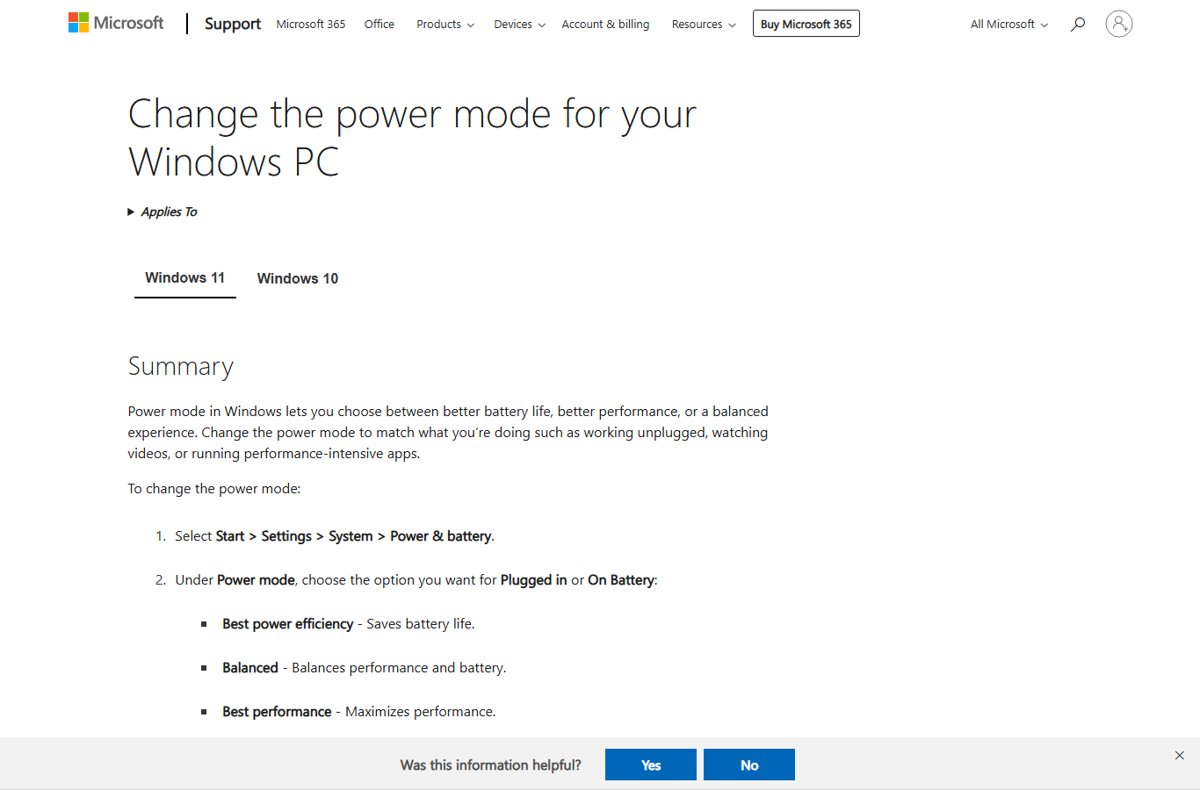
- Select Start > Settings > System > Power & battery.
- Find Power mode and open the Plugged in list.
- Select Balanced or Best power efficiency.
- On a laptop, repeat the choice in the On battery list.
- If you cannot change the mode, open Control Panel > System and Security > Power Options and select Balanced, then return to Settings.
Windows 10: Select the Balanced plan
- On a laptop, select the Battery icon on the right side of the taskbar.
- Move the slider to Recommended or a setting toward battery life instead of best performance.
- On a desktop, open Control Panel > System and Security > Power Options.
- Select Balanced under the list of plans.
- If High performance was selected before, run your usual workload again and compare fan noise.
6. Limit peak CPU heat if Balanced mode is not enough
The Maximum processor state setting caps the processor at a percentage of its maximum performance, from 0 to 100. Lowering it from 100 to 99 trims the top of the range, which reduces peak heat at the cost of some speed.
Open Command Prompt as administrator. Run powercfg /getactivescheme first and copy the GUID it prints, then use that GUID in place of <scheme GUID> below.
powercfg /setacvalueindex <scheme GUID> SUB_PROCESSOR PROCTHROTTLEMAX 99
powercfg /setdcvalueindex <scheme GUID> SUB_PROCESSOR PROCTHROTTLEMAX 99
powercfg /setactive <scheme GUID>
The first line sets the plugged-in maximum processor state to 99%, the second sets the on-battery value, and the third re-applies the plan so the change takes effect.
You should see: Run powercfg /query <scheme GUID> SUB_PROCESSOR PROCTHROTTLEMAX and the current AC and DC power setting index should both read 0x00000063, which is 99.
To undo the cap, run the same two value commands with 100 instead of 99, then powercfg /setactive <scheme GUID> again.
Verification of success
- Let the PC idle for 10 minutes with only Task Manager open; the fan should slow and the CPU utilization should settle low.
- Run your usual heavy task, such as a game or video export, for at least 15 minutes.
- Watch the Performance tab: the CPU speed should hold steady instead of dropping sharply under load.
- Check the temperature in the maker's utility and confirm it stays below the processor's Tjunction limit during light work.
- Confirm the PC no longer locks up, restarts or shuts down during that session.
Alternate method: Use the PC manufacturer’s thermal mode
Most laptop makers add a thermal or cooling profile that controls fan curves and power limits more directly than Windows can. A firmware setting can also override the profile you pick in software.
| PC maker | Where the thermal mode is | What to pick |
|---|---|---|
| Dell Latitude, Precision, OptiPlex | Dell Optimizer thermal settings | A cool or quiet profile |
| Dell XPS, Inspiron, Vostro | MyDell app | A cool or quiet profile |
| Dell, in firmware | Press F2 at startup, open Thermal Management | Balanced, Quiet, Optimized or Cool, then Apply Changes and Exit |
| Microsoft Surface | Power mode in Settings | Recommended or Balanced to limit fan speed |
| Other makers | The maker's preinstalled control app or BIOS setup | The coolest profile it offers, then compare fan noise |
A cooler profile can make the fan louder, because it trades noise for lower temperatures.
Check and replace CPU thermal paste
Thermal paste fills the microscopic gaps between the CPU lid (the integrated heat spreader) and the base plate or waterblock of the cooler. It normally lasts several years, but replace it whenever you remove the cooler, and consider it when desktop temperatures keep climbing after cleaning.
These steps are for desktops you built or can open without affecting the warranty. For a laptop or a ready-made PC from Acer, ASUS, Dell, HP or Lenovo, contact the maker instead.
- Shut down, unplug the power cable, and read the instructions that came with your CPU cooler and paste.
- Remove the cooler from the CPU the way its instructions describe.
- Wipe the old paste off the CPU lid and the cooler base with isopropyl alcohol and a lint-free microfiber cloth, then let both dry.
- Check the cooler base: if it already has pre-applied paste, do not add more.
- Put a drop of paste about the size of a pea or a grain of rice in the center of the CPU lid, and do not spread it by hand, which traps air bubbles.
- Lower the cooler straight down with light pressure, then fasten the screws diagonally in an X pattern, a few turns each, until all four are tight.
- Check that no paste has spilled over the CPU edges and that the cooler does not move; if paste spilled, clean everything and start again.
Do not reuse old paste after lifting the cooler; it forms air bubbles and only works as a short-term stopgap until fresh paste arrives.
Upgrade your cooling setup: case fans, CPU cooler or AIO
Find the source of the heat before replacing parts. If Steps 2 to 4 and fresh thermal paste have not lowered temperatures on a desktop, check that the cooler suits the processor, that it is installed correctly, and that every fan runs.
| Problem | Upgrade or fix | What to know |
|---|---|---|
| Warm air builds up inside the case | Add or replace PC case fans so cool air enters at the front and warm air leaves at the rear | An air cooler releases CPU heat into the case, so case airflow decides how well it works |
| Air cooler runs hot | Troubleshoot your air cooler: confirm the fan spins, its cable sits on the CPU fan header, and the heat sink sits evenly on the CPU | Clear dust from the fins before blaming the cooler |
| Stock or small air cooler hits its limit under load | Replace your cooler with a larger air cooler | Larger heat sinks and more fans usually remove heat better; measure the case clearance first |
| Heavy rendering, streaming or overclocking | All-in-one (AIO) liquid cooler | Carries heat to a radiator whose fans blow it out of the case; usually quieter, costs more, and needs room for the radiator |
| AIO cooler runs hot | Troubleshoot your AIO: confirm the radiator fans spin, clear dust from the radiator fins, and check that the waterblock is seated with fresh paste and the tubes follow the maker's routing | The pump and coolant are sealed and need little maintenance |
| Small form factor case | Low-profile air cooler or an AIO with a small radiator | A bulky tower cooler may not fit |
| Temperatures stay high after every hardware fix | Replace your CPU only after the maker or Intel support confirms a fault | When the CPU is not overclocked, its built-in thermal protection shuts it down to help prevent damage |
Laptop overheating: special challenges and solutions
A laptop packs the processor, graphics chip and battery into a thin case with small fans, so blocked vents and charging heat show up faster than on a desktop, and the inside is rarely user-serviceable.
| Laptop challenge | Solution |
|---|---|
| Soft surfaces block the intake vents | Use it on a desk or other hard, flat surface, never on a bed, sofa or lap |
| Fans run more while charging | Charge with the vents clear and save heavy work until the battery is full |
| Sealed case with no access to the fans | Clean the external vents only, and leave internal cleaning and thermal paste to the maker's service |
| Default profile favours speed | Pick the maker's cool or quiet thermal profile, or Best power efficiency in Windows 11 |
| Battery bulges or smells of chemicals | Stop using it, unplug it, and contact the maker |
Troubleshooting and escalation
The PC is hot, but CPU use is low
The heat comes from somewhere other than CPU load: the graphics chip, charging, a warm room, or missing thermal software on Intel laptops.
- Open Task Manager's Performance tab and check GPU utilization as well as CPU.
- Unplug the charger for a while and check whether the heat drops.
- On a Dell laptop, run SupportAssist > Update Software to install Intel Dynamic Tuning and other thermal updates.
- Enter BIOS setup and check that its thermal setting does not conflict with your software profile.
Temperatures rise rapidly after cleaning
A fan cable came loose, the heat sink moved, or the thermal material under it was disturbed.
- Shut down, unplug, and confirm the CPU fan spins and its cable is secure.
- Check that the heat sink is mounted firmly and evenly, and does not touch other components.
- If you removed the cooler, confirm the protective film was taken off the new thermal material.
- On a laptop, stop and book service rather than opening it further.
The PC shuts down before Windows loads
A failed fan, a detached heat sink, or a power fault; a heat shutdown this early means cooling is not working at all.
- Turn the PC off and let it cool for at least five minutes in a cooler place.
- On a Dell, press F12 at the logo, choose Diagnostics, then Advanced Test and run the fan tests.
- Load the default BIOS settings, noting your current settings first.
- Contact the maker if the shutdown repeats, a fan test fails, or a Surface keeps showing the thermometer icon.
The 99% processor setting makes the PC too slow
The cap removes the top of the processor's performance range, which heavy apps notice.
- Run
powercfg /getactiveschemein an admin Command Prompt to get the plan GUID. - Run the
/setacvalueindexand/setdcvalueindexcommands from step 6 with 100 instead of 99. - Run
powercfg /setactive <scheme GUID>to apply the change. - Use Balanced power mode and the maker's cool profile instead.
The PC overheats only while charging
Until the battery is full, the PC needs extra cooling, so fans run more often.
- Charge on a hard surface with the vents clear.
- Avoid heavy games or exports until the battery reaches full charge.
- Stop using the laptop and contact the maker if the case bulges or smells of chemicals.
Fans are loud after Windows updates or a driver update
Windows installs updates, syncs OneDrive and indexes files in the background after an update or a new setup; on new devices this lasts about 24 hours.
- Leave the PC plugged in and idle for a few hours so background work finishes.
- Open Settings > Windows Update and install any remaining updates, then restart.
- Check Advanced options > Optional updates for a newer driver from your PC maker.
- Sort Task Manager by CPU and note any process that stays high after a day.
Cleaning and power tuning do not lower temperatures
The cooling hardware itself is failing, or the motherboard runs overclocking settings by default.
- Reset the BIOS to defaults or update it from the PC or motherboard maker's support site.
- Check the motherboard settings for automatic overclocking and turn it off.
- Return any manual CPU overclock to the default settings, because the processor's thermal protection is designed for stock speeds.
- Undo any recent hardware or setting changes.
- Contact the maker if a fan grinds, rattles or runs at full speed with no load.
Why do computers overheat?
| Cause | How it shows | Fix in this article |
|---|---|---|
| Heavy or stuck process | High CPU in Task Manager, fan always on | Step 2 |
| Blocked vents | Hot on soft surfaces, cooler on a desk | Step 3 |
| Dust on fans and fins | Gets worse over months, loud fan | Step 4 |
| Aggressive power mode | Hot even during light work | Step 5 |
| Failing fan, heat sink or thermal material | Shutdowns, heat right after startup | Troubleshooting and escalation |
| Hot room | Fans spin more often above 25°C (77°F) | Step 3 |
How to prevent PC overheating in the future
- Check the vents and fans for dust regularly, and sooner if the fan gets louder; clean them only with the PC shut down and unplugged.
- Review Startup apps in Task Manager after installing new software, and disable what you do not need at sign-in.
- Leave Power mode on Balanced for everyday work, and switch to Best performance only for gaming or rendering.
- Keep the PC away from heaters, direct sun and closed cabinets, and keep a laptop off soft surfaces.
- Install Windows updates and your PC maker's driver and BIOS updates, which can include thermal fixes.
- Replace the thermal paste whenever you remove the CPU cooler.
- Avoid overclocking unless you have upgraded the cooling for it.
Windows PC overheating FAQ
How do I fix my computer overheating?
Close heavy apps in Task Manager, clear dust from the vents and fans, keep a laptop on a hard surface, and set Power mode to Balanced. Most overheating comes from load, blocked airflow or dust, and those steps address all three without opening the case.
Why is my computer overheating?
A computer overheats when it makes more heat than its fans and heat sink can remove. The usual causes are a process using the CPU heavily, blocked or dusty vents, a high power mode, a hot room, or a failing fan or thermal material.
What should I do when my laptop is overheating?
Save your work, close heavy apps, and move the laptop onto a hard, flat surface with the vents clear. If it shuts down, let it cool for at least five minutes before restarting, then clean the vents and choose a cooler power mode.
How do I stop my computer from overheating?
Keep the vents clean and unobstructed, disable startup apps you do not need, and avoid Best performance mode for everyday work. On laptops, the maker's cool or quiet thermal profile limits heat further, at the cost of some speed.
Can overheating damage the processor?
Usually not. Intel processors slow themselves down when they reach their throttle temperature and shut down if that cannot hold it, which protects the chip. Repeated heat shutdowns still point to a cooling fault you should fix.
Can overheating cause computer errors and slowdowns?
Yes. Heat makes the processor throttle, which slows the PC, and serious overheating causes lockups, reboots and sudden shutdowns. If slowdowns start within minutes of light use, treat them as a cooling problem.
Why does my PC keep overheating after cleaning?
A loose fan cable, a shifted heat sink or disturbed thermal material can make temperatures worse after cleaning. Check that the CPU fan spins and the cooler is mounted firmly, and book service for a laptop.
How do I fix a Dell computer that overheats?
Clean the vents, update Intel Dynamic Tuning through SupportAssist, and pick a cool thermal profile in Dell Optimizer, MyDell or the F2 BIOS Thermal Management option. Run the F12 Diagnostics fan test if the fan seems silent or stuck at full speed.
Bottom line: the first fix for an overheating Windows PC
Start with Task Manager and clean vents, then drop to Balanced power mode; use the 99% processor cap or the maker's cool profile only if heat persists. Load, blocked airflow and dust cause most overheating and cost nothing to fix, while shutdowns that continue after those steps point to a failing fan or cooler that needs service.