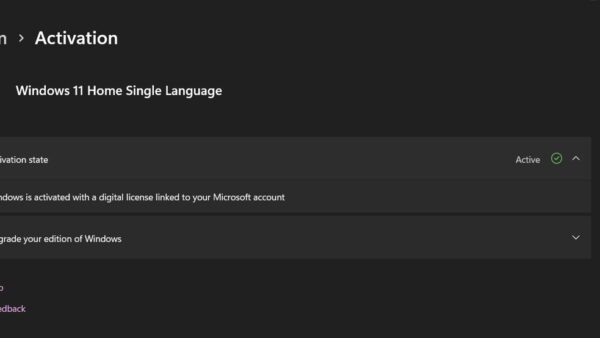
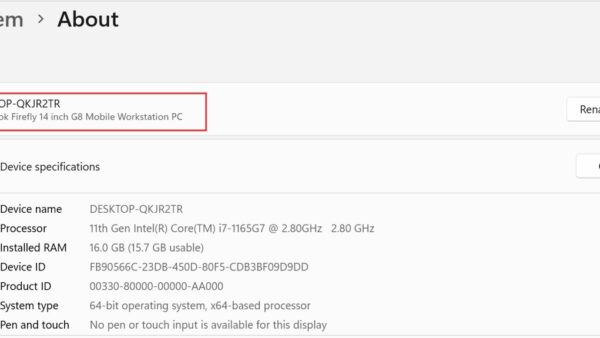
The best way to protect a Windows PC from viruses is to keep Windows Security's real-time protection and Windows Update switched on, then refuse unknown email attachments, unrecognised downloads and pirated software.
This guide covers twelve protections for Windows 11 and Windows 10, from antivirus and SmartScreen to User Account Control and the firewall, plus how to confirm each one works and how to get files back after an attack.
The fastest way to protect your PC from viruses
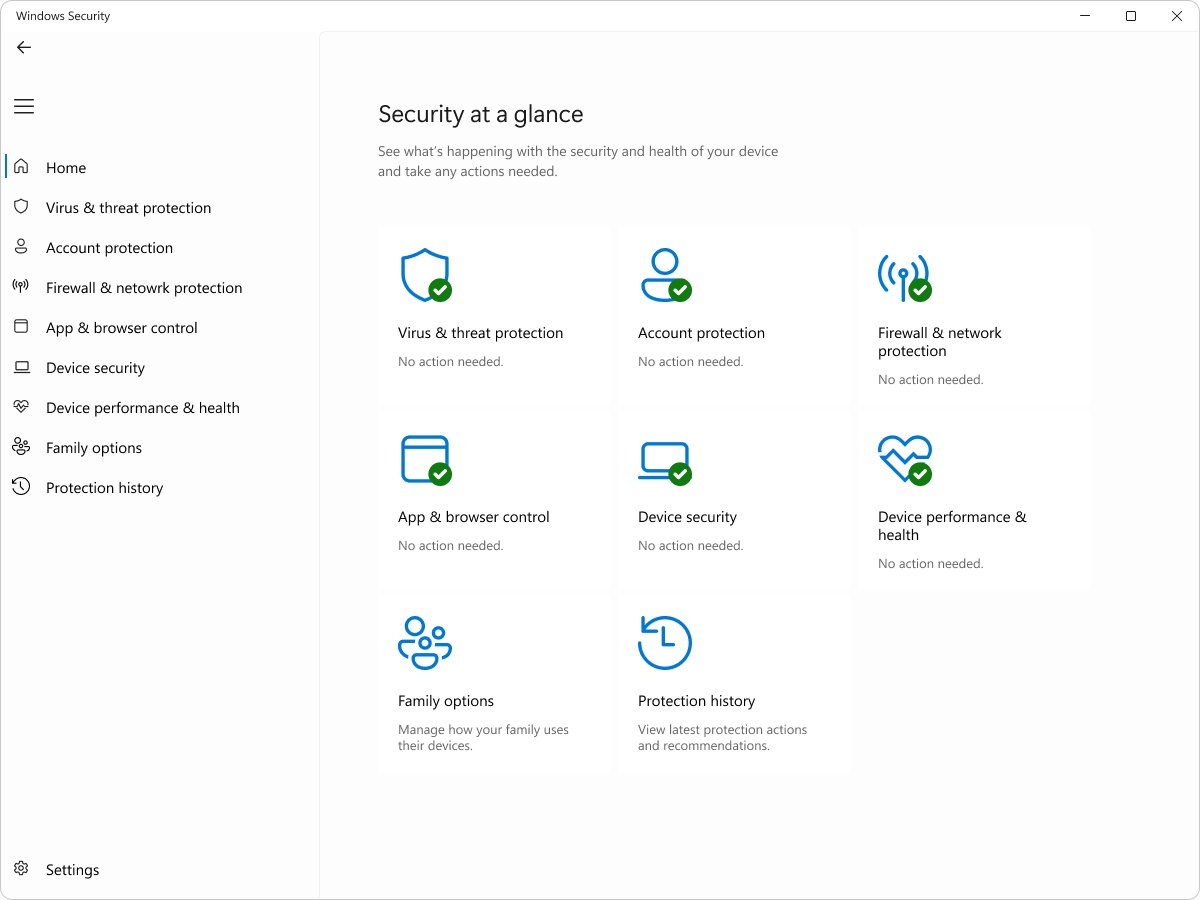
These five checks take about five minutes and cover the protections that stop most infections. Every one uses tools already built into Windows.
- Select Start, type Windows Security and open it. Every area on the home page should show a green icon.
- Select Virus & threat protection > Manage settings and confirm Real-time protection and Tamper protection are On.
- Open Settings > Windows Update (on Windows 10, Settings > Update & Security > Windows Update) and select Check for updates. Install what it finds and restart.
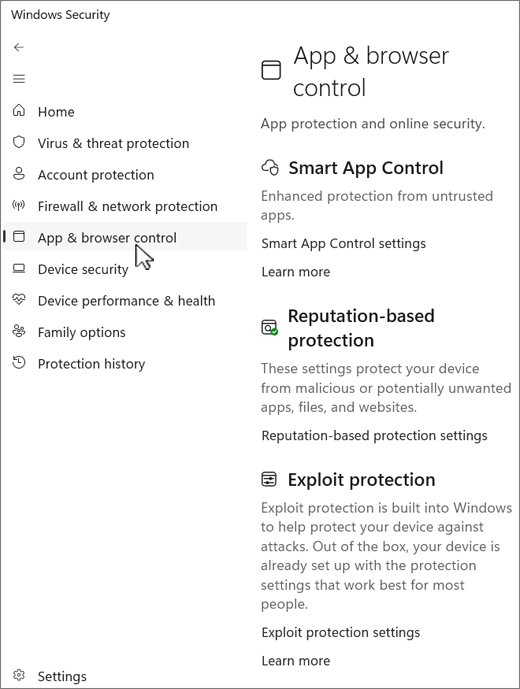
- In Windows Security, open App & browser control > Reputation-based protection settings and turn on Check apps and files and Potentially unwanted app blocking.
- Open Firewall & network protection and confirm Microsoft Defender Firewall is On for the network you use.
1. Use antivirus software
Windows 11 and Windows 10 already include an antivirus: Microsoft Defender Antivirus, inside the Windows Security app. It scans files in real time and uses cloud-delivered protection to identify new threats, so most home PCs need no extra product.
You need PC virus protection software because malware can steal personal information and money, use the PC to attack others, or damage files. Real-time protection stops it before it runs, not after.
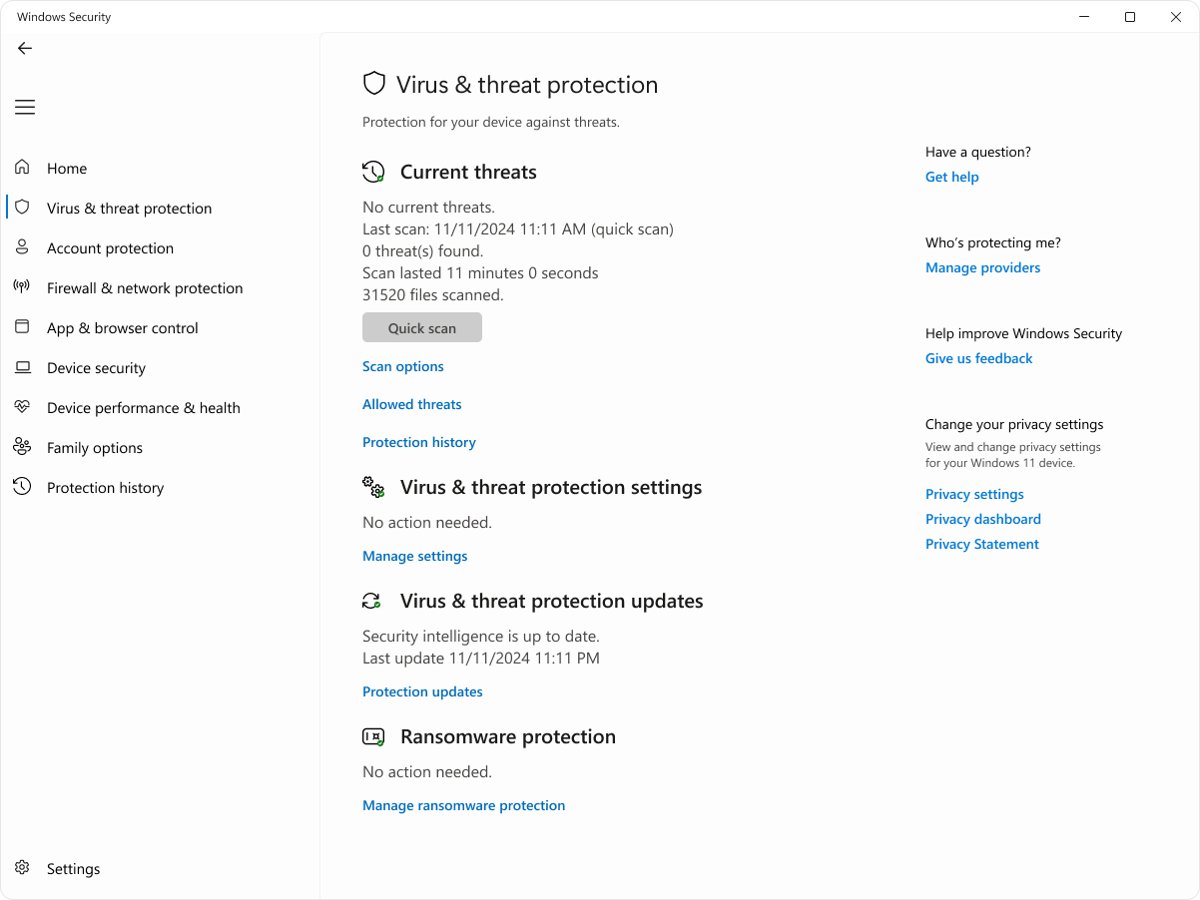
- Open Windows Security > Virus & threat protection.
- Select Manage settings and set Real-time protection, Cloud-delivered protection and Tamper protection to On.
- Go back and select Protection updates > Check for updates to get the newest security intelligence.
- Select Scan options and run a Full scan for a first complete check.
- If you install another antivirus, keep only one active. Running two at the same time slows Windows down or makes it unstable.
Microsoft Defender turns itself off automatically when another company's antivirus is installed, and turns back on when that product is removed. Microsoft 365 Personal and Family subscribers also get the separate Microsoft Defender app, which covers Mac, iOS and Android devices too. Tamper protection matters because many viruses try to switch security settings off as soon as they run. Windows Security also applies exploit protection against memory attacks by default.
Compare virus protection software for PC before you choose
Windows Security (Microsoft Defender) is the free antivirus built into Windows 11 and Windows 10, and it updates automatically through Windows Update. Other companies sell antivirus products too, so pick based on the devices you protect rather than on feature lists.
| Your situation | Best antivirus choice |
|---|---|
| You only need to protect Windows PCs at home | Keep Windows Security with real-time, cloud-delivered and Tamper protection on; it costs nothing extra. |
| You also want protection on a Mac, iPhone or Android phone | The Microsoft Defender app included with Microsoft 365 Personal or Family covers those devices as well as Windows. |
| You prefer a paid third-party antivirus suite | Buy it from the vendor's own site, install one product only and let Microsoft Defender switch itself off. |
| The PC belongs to work or school | Leave antivirus choices to the IT administrator, who may lock these settings. |
Whichever product you choose, keep only one antivirus active at a time and keep it updated.
How do I uninstall antivirus or antispyware programs?
Remove an old or unwanted antivirus before installing a new one, because two antivirus or antispyware programs running together can slow the PC, make it unstable or cause unexpected restarts. The PC is unprotected between removing one product and turning on the next.
- Select Start > Settings > Apps.
- Find the antivirus or antispyware app you no longer want and select it.
- Select Uninstall and follow the prompts.
- Restart the PC when asked; most security apps need a reboot after each removal.
- If no other antivirus is installed, open Windows Security > Virus & threat protection and confirm Microsoft Defender Antivirus is on, then confirm the firewall is on under Firewall & network protection.
Some security software does not uninstall completely. If remnants remain, use the removal help on the publisher's website or contact its technical support.
2. Don't open emails from unfamiliar senders
Many viruses arrive as email attachments and spread the moment the attachment opens. Phishing messages also disguise links as messages from banks, delivery firms or colleagues.
| What you see in the message | What to do |
|---|---|
| An attachment you were not expecting, even from a known contact | Do not open it. Confirm with the sender by phone or a fresh message first. |
| A sender address that does not match the company it claims to be | Delete the message without clicking anything. |
| Urgent demands to sign in, pay or "verify" an account | Open the company's website or app yourself instead of using the link. |
| A link in a social post, ad or text message that looks unusual | Do not click it; the same tricks appear outside email. |
| An office document asking you to enable editing or content to see it | Close it and confirm the file with the sender. |
3. Don't visit suspect websites
Sites offering illicit content often install malware on the fly or offer downloads that contain it. A modern browser blocks many of these sites, but only if you heed its warnings.
- Type the address of sites you use often, or use a bookmark, instead of following links to them.
- Leave a site at once if it shows a full-screen warning that your PC is infected or asks you to call a support number; that is a tech support scam.
- Close the tab when Microsoft Edge shows a page saying the site has been blocked for your safety.
- Avoid sites that stream or give away paid films, music, books or apps for free.
- Never plug in USB drives or other external devices you do not own or that come from an unknown source.
4. Strengthen your internet browser security settings
Microsoft Edge keeps its security options in one settings page. Its pop-up blocker is on by default, which stops many pop-ups that carry unsafe code.
- In Microsoft Edge, select Settings and more (the three dots) > Settings.
- Select Privacy, search, and services.
- Under Security, turn on Microsoft Defender SmartScreen.
- Turn on Block potentially unwanted apps, which is off by default.
- Turn on Use secure DNS.
- Set Tracking prevention to Balanced or Strict.
- Select About Microsoft Edge and confirm the browser is up to date.
Other browsers have equivalent settings; keep whichever browser you use updated automatically.
5. Turn on SmartScreen filter
Microsoft Defender SmartScreen checks websites, downloads and apps against what Microsoft knows about malicious sites and publishers. It has a switch for Edge, one for apps and files, and one for Microsoft Store apps.
- Open Windows Security and select App & browser control.
- Select Reputation-based protection settings.
- Turn on Check apps and files.
- Turn on SmartScreen for Microsoft Edge.
- Turn on SmartScreen for Microsoft Store apps.
- On Windows 11, turn on Phishing protection to get a warning if you type your Windows password into a malicious site.
If the switches are missing, turn SmartScreen back on first. On a work or school PC an administrator can lock these settings.
6. Pay attention to Windows SmartScreen notifications on your PC
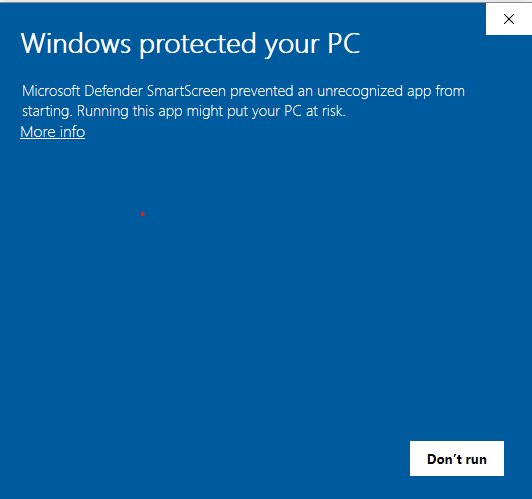
When you run an app downloaded from the internet that SmartScreen does not recognise, Windows shows a Windows protected your PC warning. Unrecognised apps are more likely to be unsafe, so treat the warning as a stop sign rather than a nuisance.
| Situation | What to do |
|---|---|
| You did not mean to run anything, or the file came from an email or pop-up | Close the warning and delete the file. |
| The app came from an unofficial download site | Close the warning and get the app from the developer's own site or Microsoft Store instead. |
| The app is new software from a developer you trust and you downloaded it from their own site | Choose Run anyway only after confirming the source; new apps can show the warning until they build reputation. |
| Edge says a download is blocked for your safety | Delete it. If you are certain it is safe, report it to Microsoft from the download's menu rather than overriding repeatedly. |
| The option to run the app is missing | An organisation policy blocks it; ask the IT administrator. |
Apps installed from Microsoft Store never show SmartScreen download warnings, so Store installs are the safest source.
7. Keep your Windows up to date
Microsoft releases security updates that close the holes viruses use to get in. Windows Update installs them automatically, but some only finish after a restart.
- On Windows 11, select Start > Settings > Windows Update. On Windows 10, select Start > Settings > Update & Security > Windows Update.
- Select Check for updates.
- Select Download & install if updates are listed.
- Restart when prompted, and restart the PC at least once a week so pending updates install.
- Turn on automatic updates in your browser, Microsoft Office, Adobe Acrobat Reader and other apps you use regularly.
Review the other Windows Update settings to keep pauses and active hours from delaying security fixes.
8. Use a firewall app
Windows has a firewall built in and turned on automatically: Microsoft Defender Firewall. It blocks unsolicited inbound connections, so a separate firewall app is optional.
- Open Windows Security and select Firewall & network protection.
- Select Domain network, Private network and Public network in turn.
- On each, set Microsoft Defender Firewall to On.
- When an app you trust is blocked, select Allow an app through firewall instead of turning the firewall off.
- If rules have been changed and things break, select Restore firewalls to default.
You can also turn Windows Firewall on or off from Control Panel.
9. Turn on User Account Control (UAC)
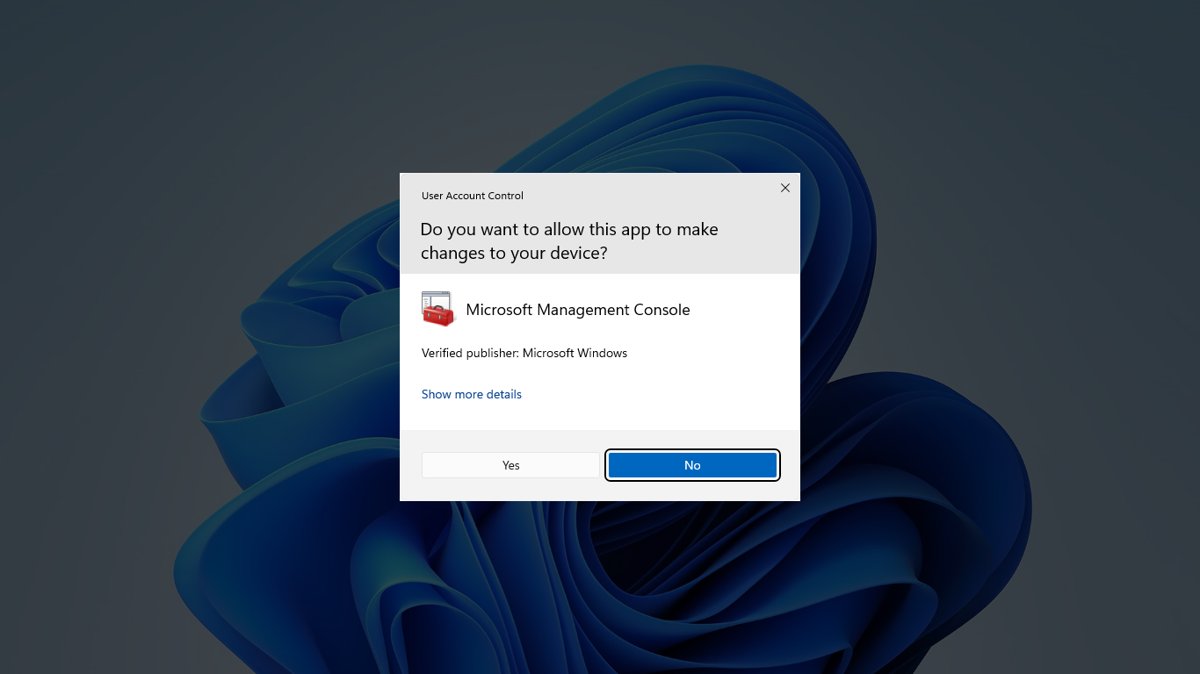
User Account Control asks for approval before anything makes changes that need administrator rights. That prompt stops many viruses from changing Windows silently.
- Select Start and type uac.
- Select Change User Account Control settings.
- Keep the slider at the default level or higher, never at the bottom.
- Select OK and approve the prompt.
- When a UAC prompt appears that you did not trigger, select No.
Using a standard account for everyday work adds another layer: apps then need an administrator password, not just a click, to make system changes.
10. Clear caches and view history for your web browser
Clearing cached files and cookies removes stored site data after you visit a site you do not trust, and reviewing history shows which sites the browser opened. In Edge the option clears data on every synced device unless sync is off.
- In Microsoft Edge, select Settings and more > Settings > Privacy, search, and services.
- Under Clear browsing data, select Choose what to clear next to Clear browsing data now.
- Pick a period under Time range.
- Tick Cached images and files and Cookies and other site data.
- Select Clear now.
11. Don't install cracked software
Cracked apps, key generators and "free" copies of paid software come from untrusted sources and often carry malware. Avoid downloading movies, music, books or apps that do not come from a trusted source.
| If you want | Safe source instead |
|---|---|
| A paid app without paying | The developer's free tier, free trial, or an open-source alternative from its official site |
| An app in general | Microsoft Store or the developer's own website |
| Windows or Office | Microsoft's own site or Microsoft Store |
| Games | The official store for the platform |
| Films, music and books | Licensed streaming services and stores |
12. Pay attention to your downloaded files
A file that was not scanned or came from an unknown site is the most common way malware gets onto a PC. Microsoft Defender scans downloads in real time, and you can scan any file on demand.
- Download apps only from Microsoft Store or the developer's own site.
- Open File Explorer and find the downloaded file.
- Right-click it and select Scan with Microsoft Defender. On Windows 11, select Show more options first if the entry is not shown.
- Delete the file if the scan reports a threat.
- Check the file type: a document that ends in .exe or a photo that asks to install something is not what it claims.
Tip: Recover your lost data after a virus attack
Clean the PC before trying to recover files, or the malware can damage the restored copies too. Never pay a ransom: payment does not guarantee you get the PC or files back.
- Run a full scan, then Microsoft Defender Antivirus (offline scan) from Virus & threat protection > Scan options; it restarts the PC and scans before Windows loads.
- Restore files saved in OneDrive from earlier versions; OneDrive keeps file versions and includes ransomware detection and recovery.
- Open Windows Security > Virus & threat protection > Manage ransomware protection and use Ransomware data recovery to restore files backed up to OneDrive.
- Restore anything else from your most recent backup.
- If you already paid a ransom, contact your bank and local authorities at once.
To prevent a repeat, turn on Controlled folder access on the same Ransomware protection page; it blocks untrusted apps from changing files in Documents, Pictures, Desktop and other protected folders.
Best practices to keep Windows 11 secure
Beyond the twelve protections above, these Windows 11 settings make an infected or stolen PC far less damaging.
| Practice | Where to set it | What it protects |
|---|---|---|
| Turn on device encryption | Settings > Privacy & security > Device encryption (administrator account; available on Windows Home too) | Encrypts the Windows drive and fixed drives with BitLocker so data stays unreadable if the PC is lost |
| Keep Smart App Control on where available | Windows Security > App & browser control > Smart App Control | Blocks apps the cloud service predicts are malicious and unsigned apps it cannot vouch for, alongside your antivirus |
| Use a standard account for daily work | Your everyday sign-in account | Forces apps to ask for an administrator password before system changes |
| Back up important files to OneDrive | OneDrive folder backup | Keeps earlier file versions and offers ransomware detection and recovery |
| Restart at least once a week | Start > Power > Restart | Finishes installing updates that wait for a reboot |
Device encryption turns on automatically when you sign in with a Microsoft account or a work or school account, but not with a local account. If the Device encryption page is missing, the PC does not support it or you are signed in as a standard user.
How to check your computer is protected from viruses
- Open Windows Security and confirm every area shows a green icon; yellow means a recommendation and red needs action now.
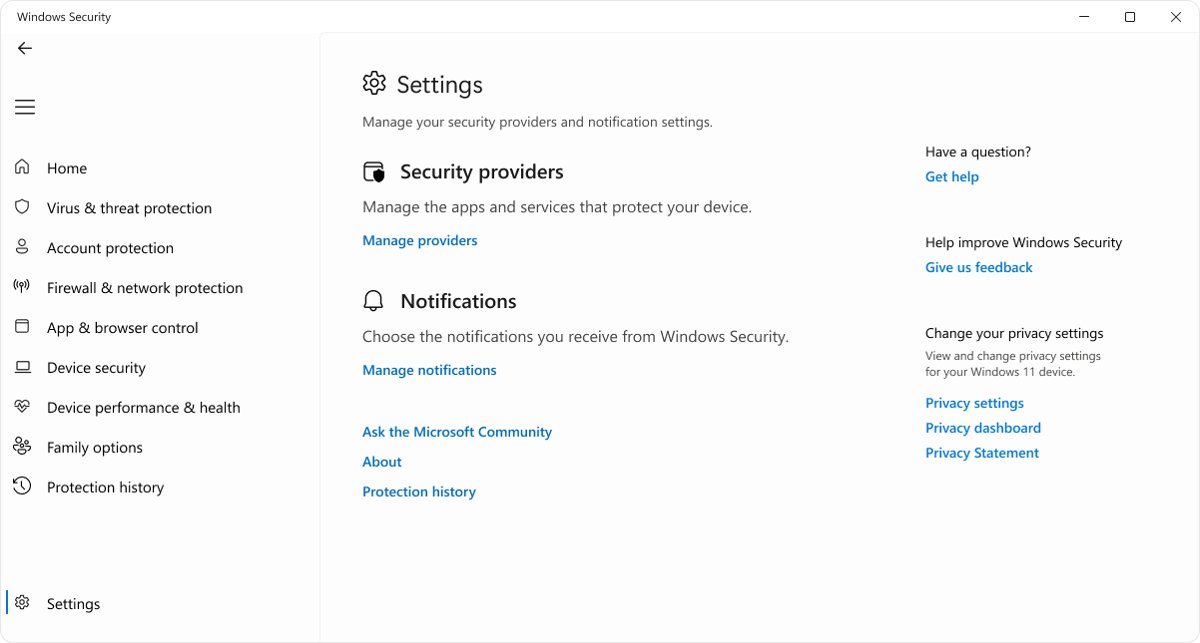
- Select Settings > Manage providers in Windows Security to see which antivirus and firewall are active.
- Select Virus & threat protection and check the date of the last scan under Current threats.
- Run a Microsoft Defender full scan and confirm it finds no threats.
- Open Settings > Windows Update and confirm it reports the PC is up to date.
How to protect your computer from viruses FAQ
How do I protect my PC from viruses for free?
Use the protection built into Windows. Windows Security includes Microsoft Defender Antivirus, Microsoft Defender Firewall and SmartScreen at no cost. Keep real-time protection and Windows Update on, and avoid unknown attachments, pirated software and downloads from unofficial sites.
What is the best way to protect a laptop from viruses?
The same steps apply to a laptop as to a desktop: Windows Security on, updates installed, SmartScreen on and the firewall on for every network. Laptops join public Wi-Fi more often, so keep the Public network firewall profile on.
Is Windows Security enough to protect against viruses?
For most home users, yes. Windows Security provides real-time malware detection, prevention and removal with cloud-delivered protection, plus a firewall and SmartScreen. Pair it with safe habits, because no antivirus stops every scam you choose to run.
Should I run two antivirus programs at once?
No. Running more than one antivirus at the same time can make Windows slow, unstable or restart unexpectedly. Microsoft Defender switches itself off when another antivirus is installed, but two third-party products both try to run.
Can I get a virus from opening an email?
Opening an attachment is the usual way email spreads viruses. Many viruses run as soon as the attachment opens, and phishing links lead to malicious sites. Do not open attachments you were not expecting, even from people you know.
How do I know if a downloaded file is safe?
Download only from Microsoft Store or the developer's own site, then right-click the file in File Explorer and select Scan with Microsoft Defender. Treat a SmartScreen Windows protected your PC warning as a reason to stop and check the source.
Does User Account Control stop viruses?
User Account Control asks for approval before changes that need administrator rights, which stops many viruses from altering Windows without your knowledge. Keep it at its default level or higher and decline any prompt you did not trigger.
What should I do if my PC already has a virus?
Disconnect from untrusted networks, update security intelligence and run a full scan in Windows Security. If the threat persists, run Microsoft Defender Antivirus (offline scan), which scans before Windows loads, then remove apps you do not recognise.
Bottom line: the best way to protect a PC from viruses
Keep Windows Security, Windows Update, SmartScreen, UAC and the firewall switched on, and install software only from Microsoft Store or the developer's own site. The built-in tools block known malware, unrecognised downloads and unauthorised changes, while the remaining risk comes from attachments, pirated software and warnings you click past.