Press Fn together with the key that shows a small keyboard-light icon, but only if that icon exists: many laptops have no keyboard backlight at all, and no key, setting or driver can add one.
This guide shows how to confirm your laptop has a backlight, the verified key for each major brand, how to change brightness and timeout, and what to check when the light stays off.
The fastest way to turn on your laptop keyboard light
These general steps work on most Windows laptops from Dell, HP, Lenovo and ASUS. The brand table below gives the exact key for your model.
- Look along the top row of keys, the arrow keys and the Space bar for an icon of a keyboard or a half-sun with light rays.
- Hold Fn and press the key with that icon.
- Press the same combination again to step through the brightness levels, which end at off.
- If nothing happens, press the icon key on its own. Function key lock may already make the top row act as hotkeys.
- If neither works, go to the brand table below for your manufacturer's key and its first fix.
If no key on your keyboard carries a backlight icon, the laptop almost certainly has no backlit keyboard. Confirm it with the checks in the next section before troubleshooting.
How to enable the backlit keyboard on popular laptop brands
Find your manufacturer, press the key in the middle column, and use the right column if the light stays off. Every row comes from that manufacturer's own support site or user guide.
Acer and MSI are not listed. Their support pages could not be loaded for verification, so check the hotkeys chapter of your model's user manual on the manufacturer's site.
| Your laptop | Press this | If nothing happens |
|---|---|---|
| Dell Latitude, Vostro, Inspiron | Fn + the backlight key, usually F5, F6, F7 or F10. Each press cycles Off, Low, High | Press Fn + Esc to toggle FnLock, then press the backlight key alone. Next, enable Keyboard Illumination in BIOS |
| Dell XPS | Fn + Right arrow on some models; a dedicated backlight key on certain high-end models | Same FnLock and BIOS checks as the row above |
| Dell Alienware with RGB lighting | Use Alienware Command Center, not an Fn combination | Confirm Alienware Command Center is running in the system tray, then open its Lighting or AlienFX section |
| HP (ENVY, Pavilion, Spectre, OMEN, select EliteBook and ProBook) | Fn + the backlight key, usually F5, F9 or F11. Some models use the Right arrow key | Check that the backlight is turned on in BIOS, then update or reinstall the keyboard driver |
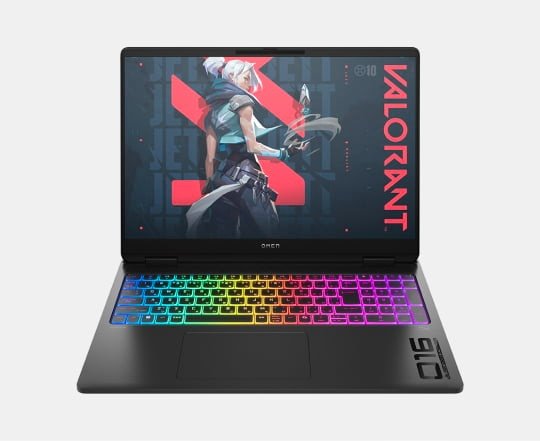
| HP OMEN | Fn + the backlight key, or OMEN Command Center | Open OMEN Command Center and go to the Lighting section |
| Lenovo ThinkPad | Fn + Space | Press Fn + Space again, since one press can set the light to off. Lenovo's user guide gives this as the fix when the backlight does not work |
| Lenovo Yoga | Fn + Space. Each press lowers, raises or turns off the light | Check the backlight works in the firmware setup utility, then update the keyboard driver in Device Manager |
| Lenovo Legion (Legion 7 Pro user guide) | Fn + the brightness-up icon key. Fn + Space cycles lighting effects | Open Lenovo Vantage to set lighting; check the brightness-down shortcut has not turned the light off |
| ASUS standard notebooks | Fn + F7, or Fn + F4 to brighten and Fn + F3 to dim | Press the F-key alone in case function key lock is on, then reinstall ASUS System Control Interface |
| ASUS gaming notebooks | Fn + Up arrow to brighten, Fn + Down arrow to dim | Reinstall Armoury Crate or MyASUS if the app controls do not respond |
| Apple MacBook | The increase keyboard brightness key | Open System Settings > Keyboard and drag the Keyboard brightness slider |
| Microsoft Surface | The top-row key with the keyboard backlight icon. It cycles levels including off | Not every Surface keyboard has this key. If the Fn light is on, press Fn to turn it off and try again |
Model lines vary inside every brand. When the key in the table carries no backlight icon on your keyboard, trust the icon on your own keys over the table.
Understanding whether your laptop has a backlit keyboard
A keyboard backlight is a hardware option. Dell states it cannot be added through software to a model that did not ship with it, and the same physical limit applies to every brand.
Run these checks in order. The first one settles it for most people.
| Check | How to do it | What the result means |
|---|---|---|
| Icon on the keys | Look for a backlight icon on the F-keys, arrow keys, Space or Esc | No icon on any key usually means no backlight. Dell states this directly for its laptops |
| BIOS setting (Dell) | Restart, press F2 at the Dell logo, open Keyboard | If Keyboard Illumination is not listed, the laptop has no backlit keyboard |
| User manual (ASUS) | Open the Hotkeys chapter of your model's manual | No backlight hotkey in that chapter means the model may not support one |
| Mac settings | Open System Settings > Keyboard | A Keyboard brightness slider appears on Macs that can light the keys |
| Spec sheet | Find your exact model number on the manufacturer's support site and read the keyboard line | The listing states backlit or non-backlit for that configuration |
| Lighting type | Check for single-color, zone or per-key RGB lighting in the same listing | RGB and per-key models usually need the brand's lighting app for colors and effects |
Turn on keyboard light on a MacBook
A Mac can control the backlight from the keyboard, System Settings, the menu bar or Control Center. System Settings works on every Mac with a backlit keyboard.
- Choose Apple menu > System Settings.
- Click Keyboard in the sidebar.
- Drag the Keyboard brightness slider to the right to turn the light on.
- Turn on Adjust keyboard brightness in low light if you want the Mac to control it for you.
- Click the pop-up menu next to Turn keyboard backlight off after inactivity and choose a longer time or leave it as it is.
The light sensor sits at the top of the Mac near the camera. Keep that area uncovered, or automatic brightness will misjudge the room.
Enable keyboard illumination in a Dell laptop's BIOS
On Dell laptops the backlight runs through the embedded controller, not a Windows driver. A Disabled setting in BIOS overrides every key combination, so check it when the Fn key does nothing.
- Save your work and shut the laptop down completely, not Sleep or Hibernate.
- Press the power button, then press F2 about once per second as soon as the Dell logo appears.
- In the BIOS Setup Utility, select Keyboard.
- Find Keyboard Illumination and choose Dim or Bright instead of Disabled.
- Select Apply Changes, then exit BIOS.
- After Windows loads, press Fn + the backlight key to test it.
The same Keyboard page may also show Keyboard Backlight Timeout and an ambient light sensor option. Both are covered in the settings table below.
How to check the keyboard light is working
- Dim the room lights and look at the key legends. Lit characters confirm the backlight is on.
- Press your brand's combination repeatedly and confirm the light steps up in brightness, then turns off.
- Leave the keyboard untouched for a minute. If the light goes out and returns on the next keypress, a timeout is working as designed, not a fault.
- On a Dell, restart and check the light before Windows loads. The embedded controller runs it, so it should respond even at the startup screen.
- On a Mac, open System Settings > Keyboard and confirm the Keyboard brightness slider has moved.
Advanced tips: brightness, timeout, automatic light and RGB colors
Once the light is on, these settings control how long it stays on, whether it follows room light, and what color it shows. Match the row to your laptop.
An additional tip for better battery usage: a backlight left on at full brightness drains the battery. Set a short timeout on battery power and a longer one at a desk.
| What you want | Where to change it | Details |
|---|---|---|
| Keep a Dell backlight on | BIOS > Keyboard > Keyboard Backlight Timeout | Common values are 5, 15, 30 or 60 seconds, and Always On. A shorter value saves battery |
| Stop a Dell backlight changing with room light | BIOS > Keyboard Illumination with ALS or Ambient Light Sensor | Disable it so only your key presses set the brightness |
| Change a Mac's timeout | System Settings > Keyboard > Turn keyboard backlight off after inactivity | Pick a longer time from the pop-up menu |
| Let a Mac light the keys in the dark | System Settings > Keyboard > Adjust keyboard brightness in low light | Keep the sensor near the camera uncovered |
| Automatic brightness on a supported Surface | Settings > Bluetooth & devices > Keyboard | Turn on Change keyboard brightness automatically when lighting changes. Available on models such as Surface Pro 8, Surface Laptop (7th Edition) and Surface Laptop Studio 2 |
| Light only while typing on a Lenovo Yoga | Set the backlight to auto | The light turns on when you start typing or using the touchpad |
| Colors and effects on a Lenovo Legion | Lenovo Vantage, or Fn + Space for preset effects | Use Fn + the brightness keys to set intensity |
| Colors and effects on HP OMEN | OMEN Command Center > Lighting | Choose static colors or dynamic lighting effects |
| Colors and effects on Alienware | Alienware Command Center > Lighting or AlienFX | When the app is active, it manages all lighting instead of the Fn keys |
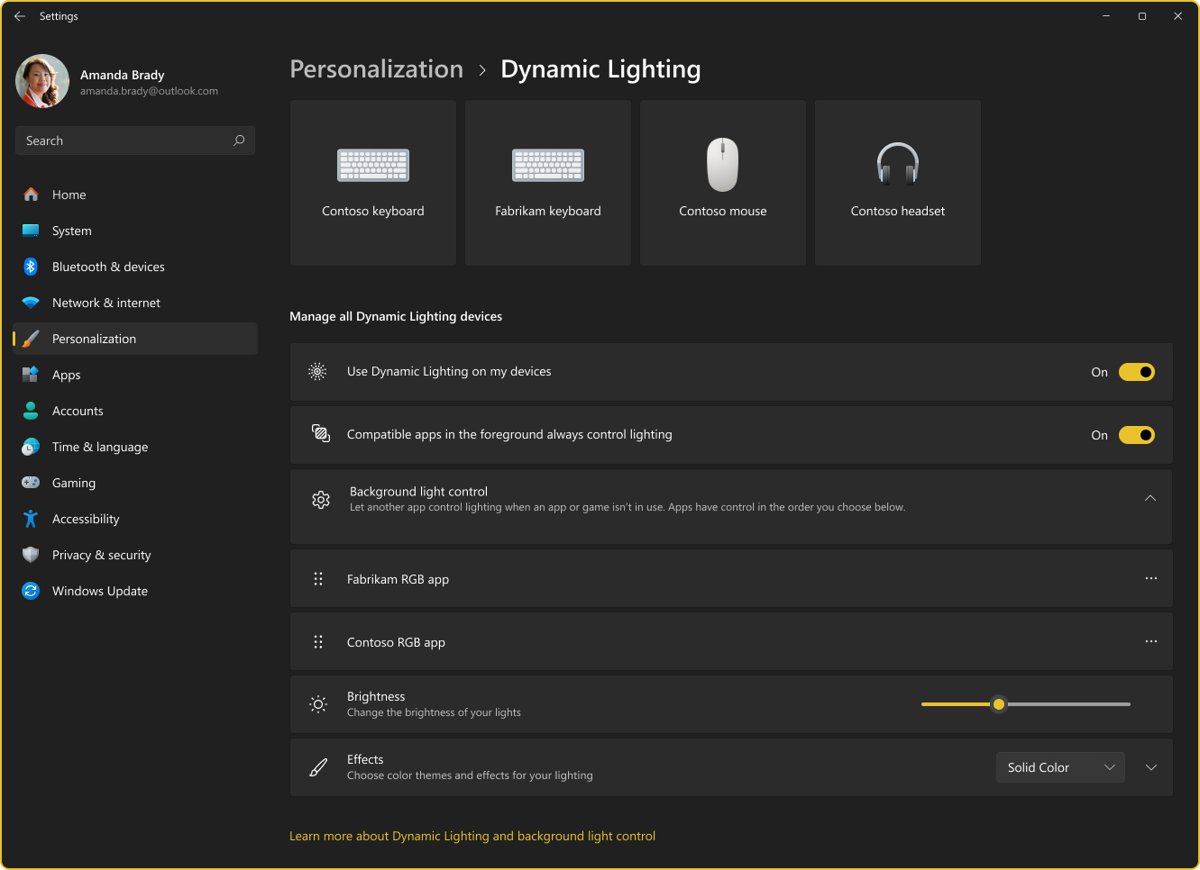
| One place for RGB keyboards in Windows 11 | Settings > Personalization > Dynamic Lighting | Turn on Use Dynamic Lighting on my devices, then set Brightness and Effects. Works only with devices that support the HID LampArray standard |
Troubleshooting common keyboard backlight issues
Match the symptom, then run only the fix under it. Each fix comes from the manufacturer named in it.
The backlight key does nothing
The laptop has no backlight, the function key lock expects a different press, or the backlight is disabled below Windows.
- Confirm a backlight icon exists on one of your keys. If none does, stop here: the laptop has no backlight.
- Press the icon key alone, then with Fn. On Dell, press Fn + Esc to switch FnLock and try both again.
- On Dell, restart into BIOS with F2 and set Keyboard > Keyboard Illumination to Dim or Bright.
- On HP, check that the backlight is turned on in BIOS settings.
- On Lenovo Yoga, confirm the backlight works in the firmware setup utility, then update the keyboard driver in Device Manager.
- Update the BIOS from the manufacturer's own tool, such as SupportAssist on Dell. Connect AC power before any BIOS update.
The keyboard light turns off by itself after a few seconds
A backlight timeout is switching the light off after the last keypress to save power.
- Press any key. If the light returns, the timeout is the cause.
- On Dell, open BIOS > Keyboard and set Keyboard Backlight Timeout to Always On or a longer value.
- On a Mac, open System Settings > Keyboard and pick a longer time next to Turn keyboard backlight off after inactivity.
- On a Lenovo Yoga, check whether the backlight is set to auto, which lights only while you type or use the touchpad.
The backlight dims or switches off in a bright room
An ambient light sensor is controlling keyboard brightness.
- On Dell, disable Keyboard Illumination with ALS or Ambient Light Sensor in BIOS.
- On a Mac, turn off Adjust keyboard brightness in low light in System Settings > Keyboard.
- On a supported Surface, open Settings > Bluetooth & devices > Keyboard and turn off Change keyboard brightness automatically when lighting changes.
ASUS backlight hotkeys stopped working
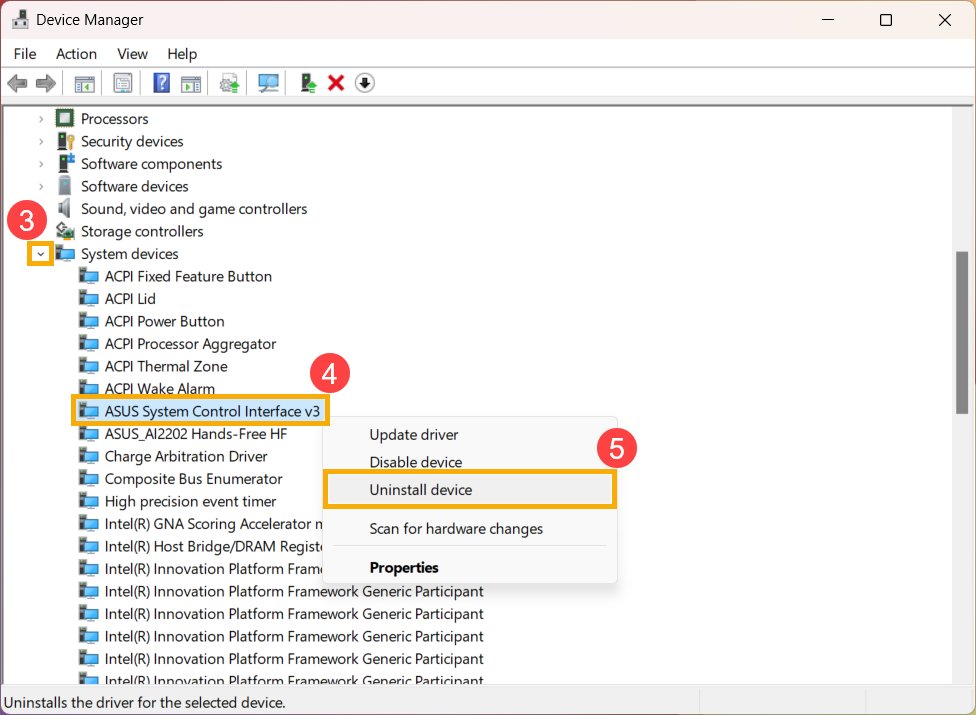
The ASUS System Control Interface driver that handles the hotkeys is damaged or out of date.
- Search for and open Device Manager.
- Expand System devices, right-click ASUS System Control Interface and select Uninstall device.
- Select Attempt to remove the driver for this device, then select Uninstall.
- Download the ASUS System Control Interface driver for your model from ASUS support and install it.
- If app controls also fail, uninstall and reinstall MyASUS or Armoury Crate.
- If nothing changes, ASUS recommends an EC reset or hard reset, then restoring BIOS defaults with F2 at startup.
RGB brightness and effects do not respond in Windows 11
A background lighting app has higher priority than Dynamic Lighting.
- Open Settings > Personalization > Dynamic Lighting.
- Find the Background light control section.
- Move Dynamic Lighting Background Controller to the top of the priority list.
- Change Brightness or Effects again to confirm the keyboard responds.
Alienware keyboard shows no color or only dim white
Alienware Command Center is not installed or not running.
- Go to Dell Drivers & Downloads and enter your Service Tag or model.
- Filter by Application and install the latest Alienware Command Center.
- Open it, go to Lighting or AlienFX, and apply any pending lighting firmware update.
If the light stays dark after every step for your brand, contact the manufacturer's support. ASUS, for example, directs unresolved backlight faults to an authorized repair center.
Frequently asked questions
How do I enable the backlit keyboard on a Lenovo laptop?
Press Fn + Space on ThinkPad and Yoga laptops with a backlit keyboard. Each press changes the level or turns the light off. Legion gaming models use Fn with the brightness keys, while Fn + Space cycles lighting effects. Lenovo Vantage also controls lighting.
How do I enable the backlit keyboard on a Lenovo Yoga?
Hold Fn and press Space. Lenovo's Yoga user guides state this lowers, raises or turns off the backlight. If it stays dark, check that it works in the firmware setup utility, then update the keyboard driver in Device Manager.
How do I enable the backlit keyboard on an HP laptop?
Press Fn with the key marked by a keyboard illumination icon, usually F5, F9 or F11. Some HP models use the Right arrow key instead. Press the combination repeatedly to step through the brightness levels until you reach the one you want.
How do I enable the backlit keyboard on a Dell laptop?
Hold Fn and press the backlight key, usually F5, F6, F7 or F10, or the Right arrow key on some XPS models. If nothing happens, press Fn + Esc to toggle FnLock, then check Keyboard Illumination in BIOS.
How do I turn on the backlit keyboard in Windows 11?
Windows 11 has no single on switch for laptop keyboard backlights, so the manufacturer's key does the job. Use your brand's key, usually Fn plus a key with a light icon. Supported Surface devices add an automatic brightness toggle in Settings > Bluetooth & devices > Keyboard.
How do I turn the backlit keyboard back on?
Press the same combination that turned it off, because backlight keys cycle through off and back to the lowest level. If it went dark on its own, a timeout switched it off. Press any key, or lengthen the timeout in BIOS or your Mac's keyboard settings.
How do I control a backlit keyboard's brightness?
Press the backlight combination repeatedly to step through levels, or use separate brighten and dim keys where they exist. ASUS uses Fn + F4 and Fn + F3. On a Mac, drag the Keyboard brightness slider in System Settings > Keyboard.
How do I set up a backlit keyboard to stay on?
Change the timeout. On Dell, set Keyboard Backlight Timeout to Always On in BIOS. On a Mac, choose a longer time next to Turn keyboard backlight off after inactivity. A light that never turns off drains the battery faster.
Can I add a backlight to a laptop keyboard that does not have one?
No. A keyboard backlight is a hardware part, and Dell states it cannot be added through software on models that did not ship with it. No driver, app or key combination changes that. An external backlit keyboard is the practical alternative.
How important is a backlit keyboard?
It matters mainly if you type in dim rooms, on flights or at night, where it makes key legends readable. It adds battery drain when switched on. If you touch-type in well-lit rooms, a non-backlit keyboard costs you little.



![How to Enable & Use Thunderbolt on Windows 11 [Easy Guide]](https://techdows.com/wp-content/uploads/2026/10/How-to-Enable-Use-Thunderbolt-on-Windows-11-Easy-Guide-600x338.jpg)