To print double sided on a Mac, open the document, press Command + P, select your printer, and turn Double-Sided on in the print window. Your printer must support automatic duplex printing for macOS to print both sides without asking you to flip the paper manually.
The same basic method works on a MacBook Air, MacBook Pro, iMac, Mac mini, and other Macs. However, the location of the two-sided option can vary slightly between apps and printer drivers.
If the Double-Sided setting does not appear, your printer may not support automatic duplex printing, macOS may not have detected the feature correctly, or the option may be inside the printer-specific settings. You can still print on both sides manually by printing odd and even pages separately.
How to Print Double Sided on Mac
For most apps, including Preview, Safari, TextEdit, and many PDF readers, macOS uses the standard Print dialog.
- Open the document you want to print.
- Press Command + P, or choose File > Print.
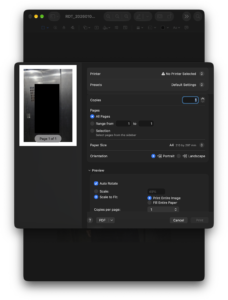
- Select the correct printer.
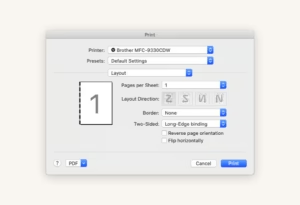
- Find Double-Sided in the print options.
- Select On for normal double-sided printing.
- Choose the page range, paper size, orientation, and number of copies if needed.
- Click Print.
macOS also refers to double-sided printing as duplex printing or two-sided printing. These terms mean the same thing.
Long Edge vs Short Edge Double Sided Printing on Mac
The binding option determines which direction the back of each page faces. Choosing the wrong one can make every second page appear upside down.
| Setting | Best for | How pages turn |
|---|---|---|
| Long edge | Normal portrait documents, reports, essays, PDFs | Like pages in a book |
| Short edge | Calendars and documents that flip upward | Like pages on a notepad |
For a normal portrait document, use Double-Sided: On or long-edge binding. Choose On (Short Edge) when you want the pages to turn from the top.
How to Print Double Sided PDF on Mac
Preview supports double-sided PDF printing through the standard macOS print controls.
- Open the PDF in Preview.
- Choose File > Print or press Command + P.
- Select your printer.
- Turn Double-Sided on.
- Choose short-edge binding if required.
- Click Print.
You can also choose a specific page range before printing, which is useful when only part of a large PDF needs to be printed on both sides.
How to Print Double Sided on Mac in Microsoft Word
Word for Mac can use automatic duplex printing when the selected printer supports it.
- Open the Word document.
- Select File > Print.
- Open the menu currently showing Copies & Pages.
- Select Layout.
- Open the Two-Sided menu.
- Select Long-Edge binding or Short-Edge binding.
- Click Print.
Use long-edge binding for most normal documents. Short-edge binding works better when the pages are intended to flip vertically.
How to Print Double Sided from Google Docs on Mac
Google Docs eventually sends the document to your browser or macOS printing controls, so the availability of double-sided printing depends primarily on the printer.
- Open the document in Google Docs.
- Choose File > Print.
- Select your printer.
- Look for Double-Sided or Two-Sided.
- Turn the option on.
- Click Print.
If Chrome shows its own print preview and you cannot find the duplex option, open the system print dialog and check the macOS printer settings there.
How to Print Double Sided from Safari on Mac
- Open the webpage in Safari.
- Select File > Print.
- Choose your printer.
- Turn Double-Sided on.
- Select the required binding direction.
- Click Print.
Safari uses the macOS print system, so supported duplex printers should expose the option directly in the Print dialog.
How to Print Double Sided Manually on Mac
You can still print on both sides if your printer does not support automatic duplex printing. macOS lets you print only odd or even pages, allowing you to feed the same sheets through the printer twice.
Step 1: Print one side
- Open the document and press Command + P.
- Scroll to Paper Handling.
- Find Sheets to Print.
- Select Odd Only or Odd Pages.
- Click Print.
Step 2: Flip and reload the paper
Take the printed pages and put them back into the paper tray so that the blank side will be printed next.
The correct orientation depends on how your printer feeds paper. Test the process with a two-page document before printing a large file because some printers require the stack to be rotated or reversed.
Step 3: Print the other side
- Open the Print dialog again.
- Return to Paper Handling.
- Select Even Only or Even Pages.
- Adjust the page order if your printer requires it.
- Click Print.
Check the first completed sheet before continuing with a long document. If the reverse side is upside down or attached to the wrong page, change how you reload the paper.
Double Sided Printing Option Missing on Mac
If Double-Sided or Two-Sided does not appear, first confirm that the printer actually supports automatic duplex printing. Some printers support two-sided copying but not automatic two-sided printing.
Then try the following fixes.
Check the selected printer
Make sure you have selected the physical printer rather than Save as PDF, a fax device, or another printer that does not support duplex printing.
Look under printer-specific settings
Some printer drivers place the option under Layout, Printer Features, Finishing, or another manufacturer-specific menu instead of showing it at the top of the macOS Print dialog.
Remove and add the printer again
- Open System Settings.
- Select Printers & Scanners.
- Select the affected printer.
- Remove it from the Mac.
- Click Add Printer, Scanner or Fax.
- Add the printer again.
macOS normally detects supported printer features when the device is added. Re-adding it can restore a duplex option that was not detected correctly during the original setup.
Check the printer driver
AirPrint printers usually work without a separate driver. If your printer does not support AirPrint or exposes only limited features, install the latest macOS software or driver provided by the printer manufacturer.
Check whether the duplex unit is enabled
Some printers have an optional duplex unit. If macOS does not know that the accessory is installed, two-sided printing may remain unavailable even though the hardware supports it.
Open System Settings > Printers & Scanners, select the printer, and review its options or accessories. The exact controls depend on the printer driver.
How to Make Double Sided Printing the Default on Mac
If you regularly print on both sides, save the configuration as a print preset instead of enabling it for every document.
- Open any document and choose File > Print.
- Turn Double-Sided on.
- Choose any other settings you regularly use.
- Open the Presets menu.
- Choose the option to save the current settings as a preset.
- Give the preset a name such as Double Sided.
Select that preset whenever you need the same duplex settings again.
FAQs
How do I print front and back on a Mac?
Press Command + P, select your printer, turn Double-Sided on, and click Print. The printer must support automatic duplex printing.
What is duplex printing on Mac?
Duplex printing is another name for printing on both sides of a sheet of paper. macOS usually labels the option Double-Sided.
Why can’t I print double sided on my Mac?
The selected printer may not support automatic duplex printing, macOS may not have detected its duplex hardware, or the printer driver may place the setting inside another menu. You can still print odd and even pages manually.
How do I print double sided on a MacBook Air?
The steps are the same as on other Macs. Open the document, press Command + P, select the printer, and enable Double-Sided.
How do I print double sided on a MacBook Pro?
Open File > Print, select a duplex-capable printer, turn Double-Sided on, choose the binding direction, and print.
Should I choose long edge or short edge?
Choose long edge for normal portrait documents that turn like a book. Choose short edge for pages that need to flip upward, such as a calendar.
Why is the back page printing upside down?
The wrong binding direction is selected. Switch between long-edge and short-edge duplex printing and try again.
Can I print double sided if my printer does not support duplex printing?
Yes. Print only the odd pages first, reload the sheets with the blank sides ready for printing, and then print the even pages.
Can I print a PDF double sided on Mac?
Yes. Open the PDF in Preview, press Command + P, turn Double-Sided on, and print.
Does AirPrint support double sided printing?
AirPrint can expose double-sided printing when the printer itself supports duplex printing. If the printer does not have that capability, AirPrint cannot add it.




How to Print on a Mac: Documents, PDFs, Photos & Wireless Printers - Techdows
[…] options such as paper size, orientation, color, double-sided printing, or scaling when […]