To insert a signature in Google Docs, click Insert > Drawing > New, draw your name with the Scribble line tool, then save the drawing into the page.
This guide also covers uploading a scanned signature image, sending and signing an eSignature request, signing on a phone or iPad, and adding a signature in Google Sheets.
Step by step tutorial: How to insert signature in Google Docs
The drawing tool works in any Google account, free or paid, in a browser on Windows, Mac or ChromeOS.
A mouse works, but a touchpad, touchscreen or stylus gives a smoother handwritten line.
- Open your document in Google Docs in a browser on your computer.
- Click the spot where the signature belongs, usually above the printed name line.
- In the top left, click Insert > Drawing > New.
- In the drawing toolbar, click Select line and pick Scribble.
- Click to start, then drag across the canvas to write your signature.
- Use the line color and line thickness buttons above the canvas if the stroke looks too thin or too pale.
- Save the drawing and close the editor; the signature appears at the cursor position in your document.
If the first attempt looks shaky, undo the stroke and draw it again before saving. Small, slow strokes usually look closer to a pen signature than one fast swipe.
Draw, upload or eSignature: ways to add a signature in Google Docs
| Your situation | Use this | Why |
|---|---|---|
| You need a quick signature on a letter or form you send yourself | Insert > Drawing > New with the Scribble line | Free in every Google account and needs no extra files |
| You want your real pen signature to appear the same every time | Upload a scan or photo with Insert > Image | The same image file can be reused in any document |
| Someone else must sign, or you need a record of who signed and when | Tools > eSignature | Produces a locked PDF with an audit trail page of events and timestamps |
| You are on a phone or iPad | Insert > Image in the Google Docs app | Inserts a saved photo of your signature |
| The signature belongs in a spreadsheet | Insert > Image in Google Sheets | Places the image in a cell or over the cells |
How to add a handwritten signature image to Google Docs
Sign a sheet of white paper with a dark pen, then scan it or photograph it in good light. Crop the image close to the ink before you upload it.
- Open the document in Google Docs on your computer.
- Place the cursor where the signature should go.
- Click Insert > Image.
- Choose Upload from computer and select your signature file.
- Click Open to place the image in the document.
- Select the image and choose a layout such as In line, Wrap text or In front of text.
- Drag a corner handle to resize it, or open Image options > All image options > Size & Rotation for exact dimensions.
In front of text lets the signature overlap a printed signature line. Wrap and layout options are not available in pageless documents, so switch the document to pages if you need them.
The same Insert menu also lets you add a text box for a typed name and date beneath the signature.
How to request an eSignature in Google Docs
eSignature is built into Google Docs for Workspace Individual accounts and, once an administrator turns it on, for Business Standard and Plus, Enterprise Starter, Standard and Plus, Enterprise Essentials and Essentials Plus, and Education Plus.
A free personal Google account does not have it unless you sign up for Workspace Individual. After an upgrade, the menu entry can take a few minutes to appear.
- Open or create the document in Google Docs.
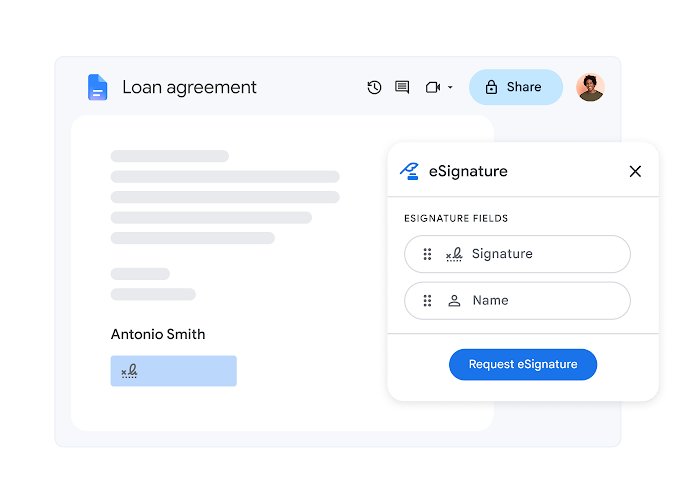
- Click Tools > eSignature.
- Use Insert fields for and Manage signers to add up to 10 signers.
- Drag Signature, Initials, Name, Text field or Date signed fields onto the page.
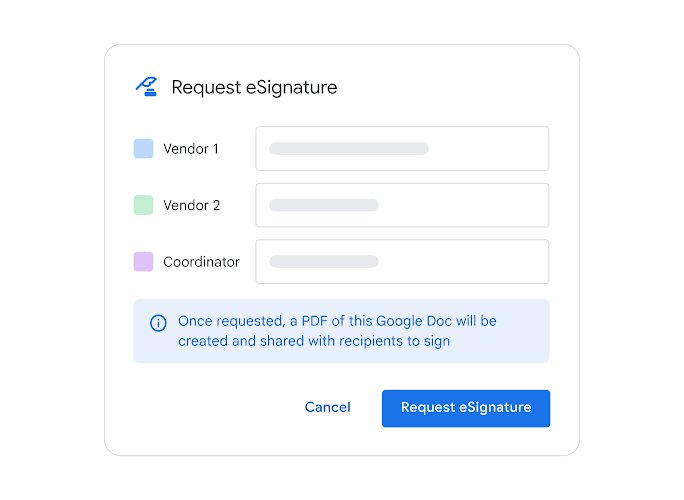
- Click Request signature, enter a title and each signer's email address.
- Add a message if you like, turn on Automatic reminders, then click Request signature again.
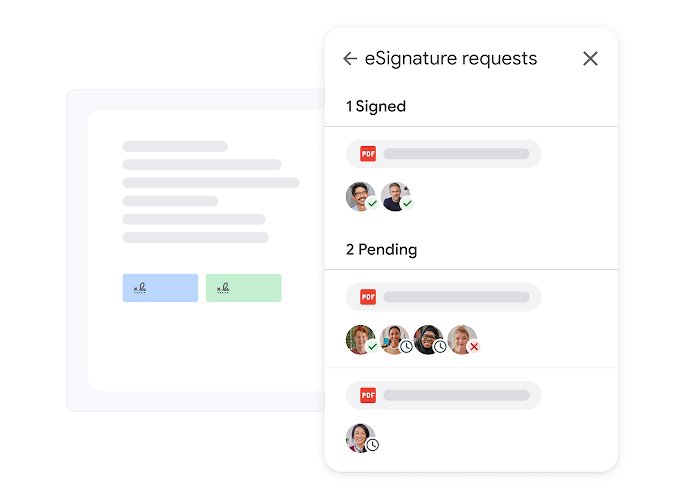
Once sent, the PDF is locked. To change it, cancel the request from the PDF's Menu with Cancel, edit the source document and send a new request.
A document can hold up to 200 fields. Automatic reminders go out three days after the request and then every three days, for up to nine days.
How to sign a Google Docs eSignature request
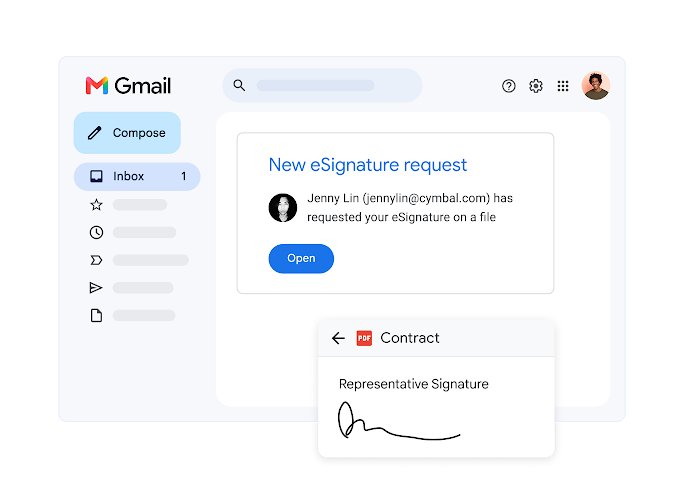
- Open the request email and click the link, or open the PDF in Google Drive and click Sign.
- Fill in any text fields assigned to you.
- Click each colored field that belongs to you.
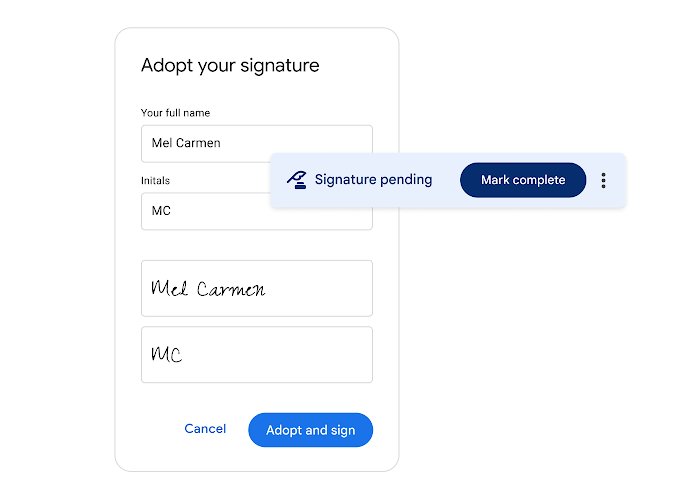
- Type your name or draw your signature, then click Adopt and sign.
- Click Mark Complete when every required field is filled.
- Accept the Terms of Service and click Agree & Continue.
To refuse the request, click Reject. To see the request details without signing, click View details.
How to insert signature in Google Doc on iPad, iPhone or Android
Google's help pages give the Insert > Drawing > New steps for a computer browser only. On a phone or tablet, save a photo of your signature to the device first, then insert it as an image.
- Open the document in the Google Docs app.
- Tap where the signature should go.
- Tap Insert in the toolbar.
- Tap Image.
- Choose where the image comes from, such as your photos.
- Tap the signature photo to insert it.
On Android, Google Docs also has a markups mode: tap Insert > Add markups on a phone, or the Markups toggle on a large screen, then write with the Pen. A markup is an annotation linked to nearby text, not an inserted drawing.
How to insert signature in Google Sheets
- Open the spreadsheet in Google Sheets on your computer.
- Select the cell where the signature should go.
- Click Insert > Image.
- Choose whether the image goes in the cell or over the cells.
- Pick the signature file from your computer.
- Click Open or Select.
A cell that holds an image cannot also hold text, so put the printed name in the next cell.
Where to find a signed Google Docs PDF
- For a drawn or uploaded signature, scroll to the signature spot and confirm the drawing or image sits on the signature line at a readable size.
- For an eSignature request you sent, open the folder that holds the original document and look for the completed PDF.
- If the PDF is not there, look in My Drive; it lands there when the folder's sharing rules block signers or you are not an Editor of the folder.
- As a signer, find your copy in My Drive or in the completion email.
- Scroll to the last page of the completed PDF to see the audit trail of events and timestamps.
Tips for inserting signature in Google Docs
| Tip | Why it helps |
|---|---|
| Draw slowly with the Scribble line, or use a stylus or touchscreen | A mouse drag at speed produces jagged strokes |
| Pick a dark line color and a heavier line thickness | Thin, pale strokes disappear when the page is printed or scanned |
| Sign on plain white paper and crop tightly before uploading | A clean background blends into the page instead of showing a grey box |
| Choose In front of text for an uploaded image | The signature can sit over a printed signature line |
| Keep the signature image in a private Google Drive folder | You can reuse it without redrawing, and it is not shared by accident |
| Use eSignature when another person must sign | It records who signed and when, and locks the final PDF |
| Turn on Automatic reminders on eSignature requests | Signers get a nudge every three days until they sign |
Insert signature in Google Docs: frequently asked questions
Can I insert a signature in Google Docs?
Yes. Click Insert > Drawing > New, choose the Scribble line and draw your signature, or insert a photo of your signature with Insert > Image. Workspace Individual and eligible business plans can also send formal eSignature requests from Tools > eSignature.
Can I use an image of my signature instead of drawing one?
Yes. Scan or photograph your signature on white paper, crop it, then click Insert > Image > Upload from computer in Google Docs. Select the image and choose In front of text to place it over a signature line.
How do I insert a signature in a Google Doc on a Mac?
The steps are the same as on Windows because Google Docs runs in the browser. Click Insert > Drawing > New, pick the Scribble line and draw with the trackpad, or upload a signature image with Insert > Image.
How do I insert a signature in a Google Doc on an iPad or phone?
Open the document in the Google Docs app, tap Insert, tap Image and choose a saved photo of your signature. Google documents the Insert > Drawing > New steps for a computer browser, so draw-based signatures are easier on a computer.
Can I move the signature after I have inserted it?
Yes. Click the drawing or image, then choose a layout such as Wrap text or In front of text. With those layouts selected, you can drag the signature anywhere on the page and resize it from its corner handles.
Can I make changes to my signature after I have inserted it?
Yes, for a drawn or uploaded signature: select it in the document to resize it, change its layout or reopen the drawing. An eSignature request is different, because the PDF is locked after sending; cancel the request, edit the document and send a new one.
Can I save my signature to use again later?
Yes. Keep the signature as an image file in Google Drive and insert it with Insert > Image whenever you need it. Copying a finished drawing from one document and pasting it into another also works for quick reuse.
Will my signature be legally binding?
That depends on your country's laws and the agreement itself, not on Google Docs. A pasted drawing proves little about who added it. eSignature adds an audit trail page with events and timestamps, which is stronger evidence for contracts.
How do I insert a signature in Google Sheets?
Select a cell, click Insert > Image and choose whether the image goes in the cell or over the cells. Then pick the signature file and click Open or Select. A cell holding an image cannot also hold text.
How do I add a signature to a PDF in Google Drive?
Open the PDF in Google Drive, click Menu and select eSignature to add signature fields and send a request. This needs Workspace Individual or an eligible Workspace plan with the feature turned on by an administrator.
How do I add a signature to a Google Form?
Google Forms has no drawing field, but a File upload question lets respondents upload a photo of their signature. Responders must sign in to a Google Account, and the question type is unavailable for forms stored in a shared drive.
How do I add a signature in Gmail?
In Gmail on a computer, click Settings > See all settings, type your signature in the Signature section, then click Save Changes. Images can be added there too, and they count toward the 10,000-character signature limit.
Best way to sign a Google Doc
Use Insert > Drawing > New with the Scribble line for your own letters and forms, and switch to Tools > eSignature when another person must sign or you need proof of signing. The drawing method is free in every account and takes under a minute, while eSignature adds signer fields, a locked PDF and an audit trail that a pasted drawing cannot provide. If you also work in Word, the same idea applies when you insert a signature in a Word document.