To set up Remote Help for Windows 11 and Windows 10, license your helpers and users, turn on Enable Remote Help under Tenant administration > Remote Help in the Microsoft Intune admin center, give helpers a role with Remote Help permissions, and deploy the Remote Help app to devices.
This guide covers each of those steps, the silent install command for Intune, attended and unattended sessions, how Remote Help differs from Quick Assist, and fixes for the errors admins hit most.
How to set up Remote Help for Windows 11/10
Remote Help is off by default in every Intune tenant. These five steps take a tenant from nothing to a working session.
- Assign a Remote Help license to every helper (IT support staff) and every sharer (the users who receive help).
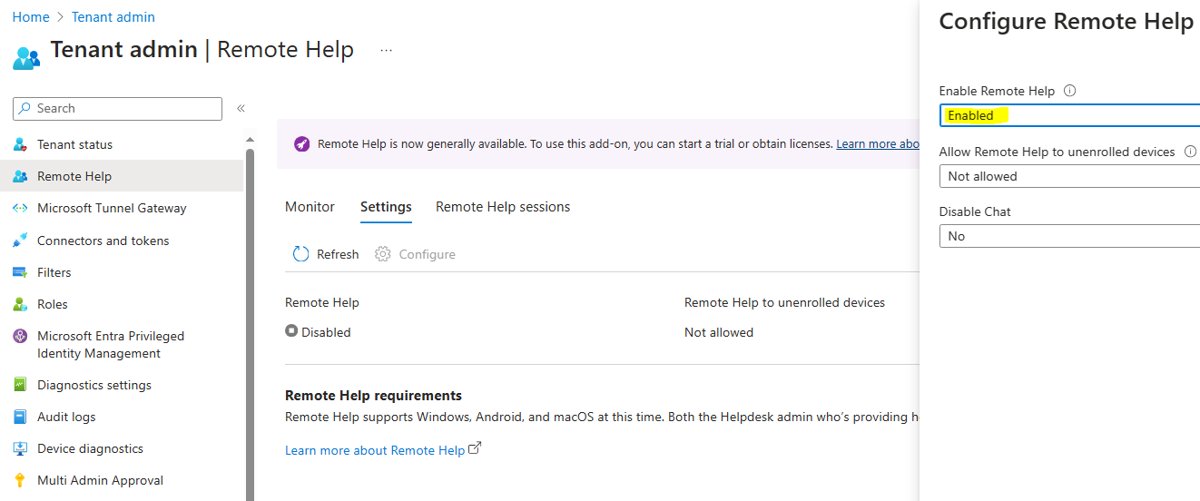
- Sign in to the Microsoft Intune admin center, go to Tenant administration > Remote Help, set Enable Remote Help to Enabled on the Settings tab, and select Save.
- Assign helpers the built-in Help Desk Operator role, or a custom role with the Remote Help permissions.
- Deploy the Remote Help app to Windows devices, either from the Enterprise App Catalog or as a Win32 app.
- Start a session from Devices > All devices > the device > New remote assistance session > Remote Help > Continue.
New or trial licenses can take anywhere from 30 minutes to 8 hours to become active, so sessions may report that Remote Help is not enabled for a while after you switch it on.
What is Remote Help in Intune?
Remote Help is Microsoft Intune's cloud remote support tool. A helper connects to a user's device to view the screen or take control, and both people sign in with Microsoft Entra accounts from the same organization.
| Capability | What it does on Windows |
|---|---|
| View only | The helper sees the sharer's screen without controlling it |
| Full control | The helper controls the device after the sharer allows it |
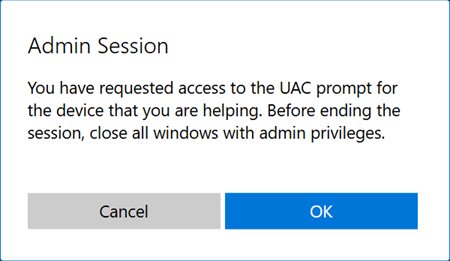
| Elevation | The helper can enter credentials at UAC prompts on the sharer's device |
| Remote launch | The helper starts the session from Intune and a notification opens Remote Help on the sharer's device |
| Unattended control | An authorized helper signs in to a corporate device with no user present |
| Compliance warning | The helper sees a warning before connecting to a noncompliant device |
| Chat | A continuous chat thread inside attended sessions, unless an admin turns chat off |
| Session reports | Who helped whom, on which device and for how long, kept for 30 days |
Remote Help requirements and licensing
| Requirement | Detail |
|---|---|
| License | A Remote Help license for every helper and sharer, on top of Microsoft Intune Plan 1 or Plan 2 |
| Accounts | Helper and sharer sign in with Microsoft Entra accounts from the same tenant; cross-tenant help is not possible |
| Enrolled devices | Intune-enrolled devices must be registered with Microsoft Entra |
| Windows platforms | Windows x86, x64 and ARM64, Windows 365, and Azure Virtual Desktop sessions |
| Network | Outbound port 443 to the Remote Help endpoints; exclude them from SSL inspection on proxies |
| Runtime | Microsoft Edge WebView2, which the installer adds if it is missing |
| Notifications | The Intune Management Extension on the target device for remote launch and unattended requests |
Remote Help works in GCC and GCC High tenants but not in DoD tenants.
Enable Remote Help in the Intune admin center
- Sign in to the Microsoft Intune admin center.
- Go to Tenant administration > Remote Help.
- On the Settings tab, set Enable Remote Help to Enabled.
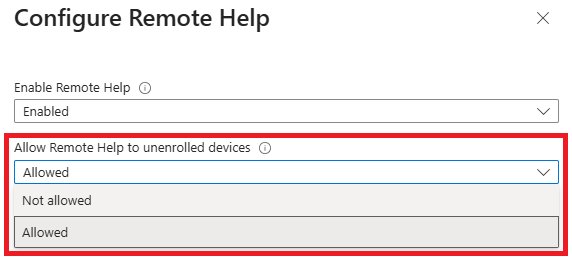
- Set Allow Remote Help to unenrolled devices to Enabled only if you need to support devices that are not enrolled in Intune.
- Set Disable chat to Yes if your policy does not allow chat; leave it at No to keep chat.
- Select Save.
Turning Remote Help on applies to the whole tenant. Unenrolled support gives less oversight, with no compliance information and limited audit data.
Assign Remote Help permissions to helpers
A helper needs three things together: the Remote Tasks – Offer remote assistance permission, the Remote Assistance Connector – Read permission, and at least one Remote Help app permission. The sharer or the sharer's device must also be in the helper's scope groups.
| Support role | Permissions to grant | Built-in role that fits |
|---|---|---|
| Tier 1, guide the user only | Remote Help app – View screen | Custom role |
| Tier 2, fix it hands-on | View screen, Take full control, Elevation | Help Desk Operator |
| School IT staff | View screen, Take full control, Elevation | School Administrator |
| Senior admins for after-hours work | Remote Help app – Windows unattended control remote sign-in | Custom role only; Help Desk Operator does not include it |
The All Devices scope group does not include unenrolled devices. To support them, use a user scope group in the role assignment.
Deploy Remote Help to Windows devices with Intune
Every device needs the Remote Help app before it can join a session. The simplest route is the Enterprise App Catalog, which already has Remote Help prepackaged. For a Win32 deployment, get the installer from aka.ms/downloadremotehelp and repackage remotehelpinstaller.exe as remotehelp.intunewin first.
- Add a Windows app (Win32) in Intune and choose Select app package file to upload remotehelp.intunewin.
- Enter a Publisher on the App information page and select Next.
- On the Program page, set the install and uninstall command lines shown in the next section.
- On the Requirements page, set Operating system architecture and Minimum operating system.
- On Detection rules, choose Manually configure detection rules, add a File rule for C:\Program Files\Remote Help with RemoteHelp.exe, String (version), Greater than or equal to and the version you are deploying.
- On Assignments, select device groups. Remote Help targets device groups, not user groups.
- Finish creating the app so Intune installs it on those devices.
Users with rights to install apps can also download and install Remote Help themselves. The app updates itself by default and prompts users when a newer version is required.
Remote Help silent install command line
Rename the downloaded installer to remotehelpinstaller.exe so these command lines match. The acceptTerms and enableAutoUpdates options are case sensitive.
remotehelpinstaller.exe /quiet acceptTerms=1Installs Remote Help silently and accepts the license terms. Use remotehelpinstaller.exe /uninstall /quiet acceptTerms=1 as the uninstall command, and add enableAutoUpdates=0 to the install command to opt out of automatic updates.
You should see: RemoteHelp.exe appears in C:\Program Files\Remote Help and the Win32 detection rule reports the app as installed.
To read the exact version for the detection rule, install Remote Help on one PC and run (Get-Item "$env:ProgramFiles\Remote Help\RemoteHelp.exe").VersionInfo in PowerShell, then use the FileVersion value.
Start a Remote Help session from the Intune admin center
- In the Microsoft Intune admin center, go to Devices > All devices and select the user's device.
- Select New remote assistance session > Remote Help > Continue in the remote actions bar.
- Select Initiate attended control.
- Select Open Remote Help once Intune confirms the notification was sent, and sign in with the same work account. Select Retry if the user did not get the notification.
- On the user's device, the user selects Open Remote Help in the notification, checks your name, job title and verified domain, and selects Allow screen sharing or full control.
- Request full control if you need it; the user chooses Allow full control or Decline the request.
- Select Leave in the upper-right corner of Remote Help when the fix is done.
If the helper used elevation and the user ends the session, Windows warns the user that continuing signs them out.
Use Remote Help with a security code
Use the code route for devices that are not enrolled in Intune, or for Azure Virtual Desktop sessions where an Intune request would reach every user on the host.
- Open the Remote Help app on the helper's PC and sign in with the work account.
- Under Give help, select Get a security code and give the code to the user.
- The user opens Remote Help, signs in with their work account, enters the code and selects Submit.
- Check the user's name, job title, company and verified domain on the trust screen.
- Request view-only access or full control; the user allows or declines.
- Select Leave to end the session.
A user who cannot install the app can share their screen from the web app at aka.ms/rh instead, but the helper then gets view-only access.
Set up Remote Help unattended control on Windows
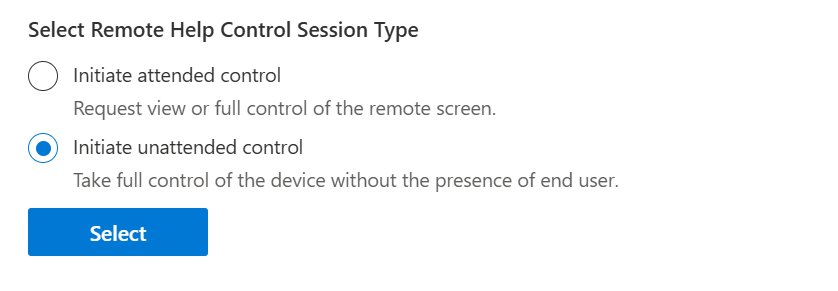
Unattended control lets a helper sign in to a device with no one at it. It works only on physical, corporate-owned, Intune-managed x64 Windows devices that are Microsoft Entra joined or hybrid joined.
- Deploy the Azure Virtual Desktop Agent and then the Azure Virtual Desktop Agent Bootloader as two Win32 apps, with the bootloader set to depend on the agent.
- In Intune, go to Devices > Manage devices > Configuration and select Create > New policy.
- Choose Windows 10 and later and Settings catalog, then select Create.
- Add the setting Allow users to connect remotely by using Remote Desktop Services, set it to Enabled and assign the profile to the target device groups.
- Create a custom role with Remote Help app – Windows unattended control remote sign-in and scope it to those device groups only.
- Start the session from the device page with Initiate unattended control, then sign in through Windows App in the browser.
On a target device, confirm the profile landed under Settings > System > Remote Desktop. It is the same switch you use to turn on Remote Desktop by hand. A signed-in user gets 30 seconds to answer the request before the session starts, and can take the device back by signing in from the lock screen.
Remote Help session reports in Intune
- Sign in to the Microsoft Intune admin center and go to Tenant administration > Remote Help.
- Open the Monitor tab to see the count of active sessions and past session data.
- Open the Remote Help sessions tab to see each session's helper, sharer, device, start and end time, and session type.
- Check Tenant administration > Audit Logs for Remote Help entries.
Session records stay on Microsoft servers for 30 days. Screen images and keystrokes are never recorded, and elevation use does not show in the sessions report.
What is the difference between Quick Assist and Remote Help?
Quick Assist is built for anyone, while Remote Help is built for one organization's IT team. Microsoft recommends Remote Help to organizations that use Quick Assist inside a single Microsoft Entra tenant.
| Feature | Quick Assist | Remote Help |
|---|---|---|
| Availability | Built into Windows 11 and Windows 10 | Paid add-on license on top of Intune |
| Who can help | Anyone with a Microsoft account or Entra ID | Only helpers with Remote Help roles in your tenant |
| Sharer sign-in | Not required | Required, with a work account from the same tenant |
| Roles and permissions | None | Intune role-based access control |
| Conditional Access | No | Yes, for attended sessions |
| Compliance warnings | No | Yes |
| Session reports | No | Yes, for 30 days |
| Unattended access | No | Yes, on eligible corporate Windows devices |
For family or one-off help outside a company, download Quick Assist instead; Remote Help cannot help anyone outside your tenant.
Fake Microsoft scams: Identify & avoid scams that fraudulently use the Microsoft name
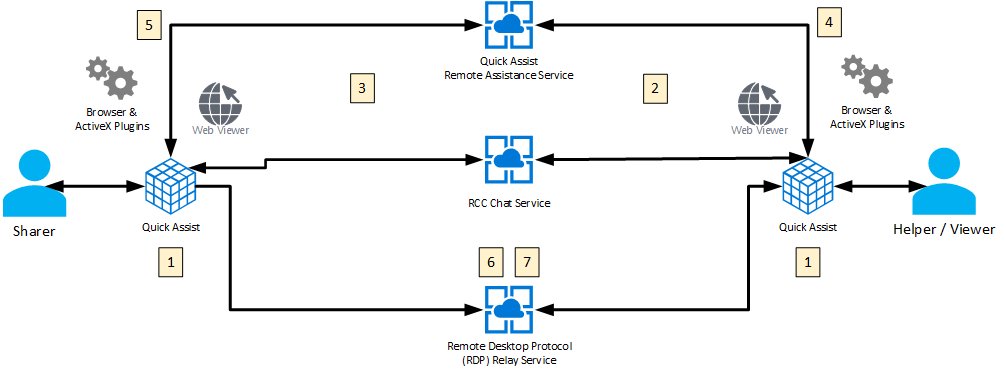
Remote support tools are a favourite of tech support scammers. Microsoft's rule is simple: only let a helper connect if you started the contact yourself by calling Microsoft Support or your own IT team.
| Warning sign | What Remote Help does about it |
|---|---|
| A caller or pop-up you did not ask for offers to fix your PC | Remote Help only connects people signed in to your own organization's tenant |
| The helper's identity is vague | The trust screen shows the helper's full name, job title, company, photo and verified domain |
| Pressure to hand over control at once | You choose screen sharing or full control, and can decline either request |
| No record of who connected | Admins see every session's helper, device and time in Intune reports |
If a stranger asks you to install a remote access app, end the call. Report affected users through Microsoft's technical support scam form.
Remote Help not working in Intune
Remote Help error "This app isn't available for your organization"
Remote Help is not enabled for the tenant yet, or the licenses have not activated.
- Go to Tenant administration > Remote Help and confirm Enable Remote Help is Enabled.
- Confirm both the helper and the sharer have a Remote Help license.
- Wait for new or trial licenses to activate; it can take 30 minutes to 8 hours.
- Make sure both people sign in with work accounts from the same tenant.
The user never receives the Remote Help notification
Do not disturb, blocked notifications, a stopped Intune service or a newly enrolled device.
- Ask the user to turn off do not disturb and check the notification center.
- Check that no policy blocks app notifications on the device.
- Wait a short time after a restart for the Microsoft Intune Management Service to start.
- Allow one hour after enrollment before a new device receives session notifications.
- Fall back to a security code: the user opens Remote Help and enters the code you share.
The helper cannot start a session with a user
Missing permissions or the user is outside the helper's scope.
- Confirm the helper has Offer remote assistance, Remote Assistance Connector – Read and at least one Remote Help app permission.
- Add the user or device group to the role assignment's scope groups.
- For unenrolled devices, use a user scope group instead of All Devices.
Error 1001, 1002 or 1003 when Remote Help opens
Microsoft Edge WebView2 failed to load or install.
- Update Microsoft Edge and make sure it is installed correctly.
- Open Remote Help again.
- If it still fails, install Microsoft Edge WebView2 from Microsoft's website and retry.
Elevation does not work during a session
The EnableSecureCredentialPrompting policy blocks UAC elevation in Remote Help.
- Find the policy that sets EnableSecureCredentialPrompting for the device.
- Disable it for devices that need elevated Remote Help sessions.
- Confirm the helper's role includes Remote Help app – Elevation.
Intune keeps reinstalling Remote Help or never installs it
The Win32 detection rule has the wrong version value.
- Read the FileVersion of RemoteHelp.exe on a test PC.
- Set the detection rule value to that version with Greater than or equal to.
Installation logs land in the user's Temp folder, and session events are under Event Viewer > Application and Services > Microsoft > Windows > RemoteHelp.
Microsoft Remote Help FAQ
What is Remote Help?
Remote Help is a Microsoft Intune add-on that lets IT staff view or control a user's Windows, macOS or Android device. Both people sign in with work accounts from the same organization, and admins control who can help through Intune roles.
How do I set up Remote Help in Intune?
License helpers and users, go to Tenant administration > Remote Help in the Intune admin center, set Enable Remote Help to Enabled and save. Then give helpers the Help Desk Operator role or a custom role and deploy the Remote Help app.
How do I enable Remote Help?
Sign in to the Microsoft Intune admin center, open Tenant administration > Remote Help, and on the Settings tab set Enable Remote Help to Enabled. Select Save. It is disabled by default and applies to the whole tenant once on.
How do I install Remote Help?
Admins deploy it from the Intune Enterprise App Catalog or as a Win32 app using remotehelpinstaller.exe /quiet acceptTerms=1. Users who can install apps can also download it from aka.ms/downloadremotehelp and run the installer themselves.
How do I use Microsoft Remote Help?
The helper starts a session from the device page in Intune or generates a security code in the app. The user opens Remote Help, confirms the helper's identity, and allows screen sharing or full control. Either person selects Leave to end it.
Does Remote Help need a separate license?
Yes. Remote Help needs its own license for every helper and sharer, on top of Microsoft Intune Plan 1 or Plan 2. Quick Assist, which comes with Windows, needs no roles, permissions or policies.
How do I set up a computer for remote support with Remote Help?
Enroll it in Intune and register it with Microsoft Entra, install the Remote Help app, and allow outbound port 443 to the Remote Help endpoints. For unattended support, also add the Azure Virtual Desktop agent and enable Remote Desktop.
Can Remote Help connect to users in another company?
No. Helpers, sharers and devices must all be in the same Microsoft Entra tenant. Outsourced help desks need devices or Cloud PCs joined to the customer's tenant.