Keychain Access is still installed on your MacBook: press Command-Space bar, type Keychain Access and press Return to open it, even when you can't see it in your Applications folders.
This guide covers why it seems to be missing, where your saved passwords now live, how to pin it to the Dock, how to restore it with macOS Recovery, how to reach your keychain from Windows, and fixes for common keychain problems.
How to open Keychain Access on Mac
Apple's own Keychain Access guide for macOS Sequoia, macOS Tahoe and macOS 27 gives one route to open the app: search for it in Spotlight.
- Press Command-Space bar to open Spotlight.
- Type Keychain Access.
- Press Return to open the top result.
- If the list of keychains is hidden, choose Window > Keychain Viewer or press Command-1.
If Spotlight shows no result, the app is not the problem. Spotlight indexing or the system itself needs attention, which the restore section below covers.
Where is Keychain on MacBook?
Starting with macOS Sequoia, Apple split the old Keychain Access job in two. Your passwords, passkeys and verification codes moved to the Passwords app, while Keychain Access stays for certificates and keychain settings.
| What you're looking for | Where it is on macOS Sequoia or later | How to open it |
|---|---|---|
| Website and app passwords | Passwords app | Spotlight, or the Passwords icon in the menu bar if you turned it on |
| Passkeys and verification codes | Passwords app | Open Passwords, then choose the category in the sidebar |
| Wi-Fi passwords | Passwords app | Open Passwords, then choose the Wi-Fi category in the sidebar |
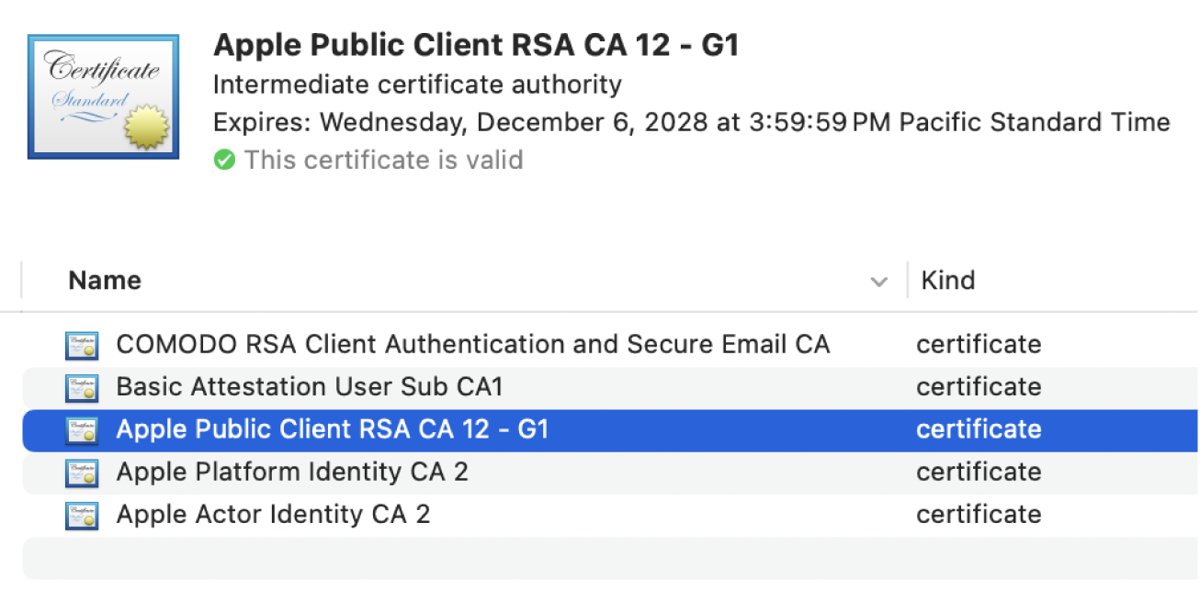
| Certificates and digital identities | Keychain Access | Spotlight, then Return |
| Login keychain settings and reset | Keychain Access | Keychain Access > Settings |
| Passwords synced across devices | iCloud Keychain | System Settings > your name > iCloud > Passwords |
To see the folder that holds Keychain Access, search for it in Spotlight, select the result and hold Command. Spotlight then shows the file's location in the Finder.
Find saved passwords in the Passwords app on Mac
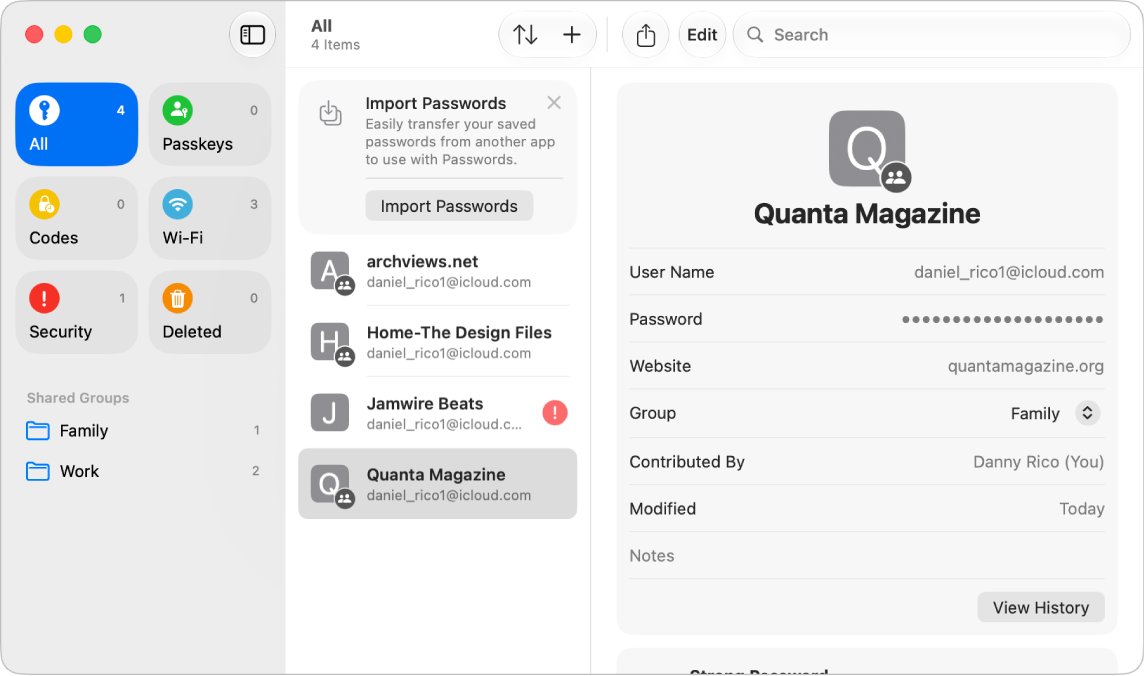
Most people who go looking for Keychain Access want a saved password. The Passwords app is the faster place to read one on macOS Sequoia or later.
- Press Command-Space bar, type Passwords and press Return.
- Enter the account name in the Search field at the top of the window.
- Select the account.
- Hold the pointer over the dots next to Password to reveal it.
- To browse instead, click All in the sidebar and sort the list.
For one-click access, choose Passwords > Settings and select Show Passwords in Menu Bar. The mini version lets you search and add passwords without opening the full app.
Add Keychain Access to the Dock on Mac
Pinning the app saves you a Spotlight search every time you need a certificate or keychain setting.
- Open Keychain Access from Spotlight. Its icon appears in the Dock while it runs.
- Control-click the Keychain Access icon in the Dock.
- Choose Options > Keep in Dock.
- Quit the app and confirm the icon stays in the Dock.
Removing the icon from the Dock later only removes the alias. The app itself stays on your Mac.
Restore Keychain Access by reinstalling macOS
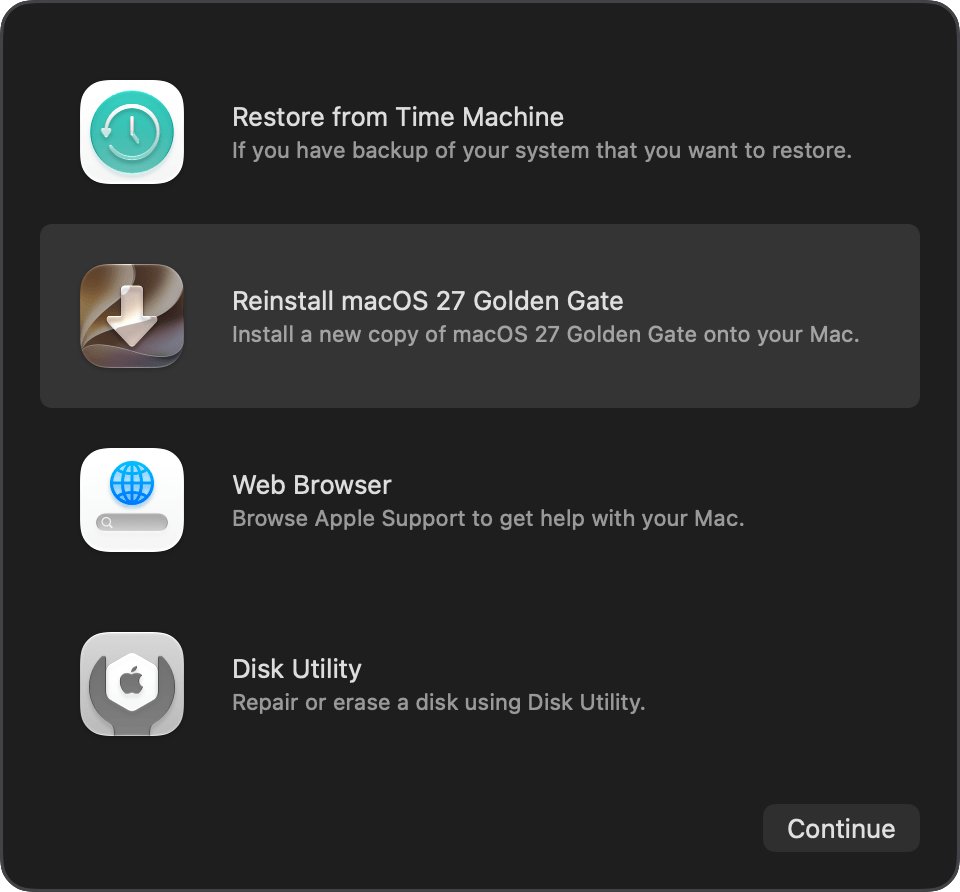
Keychain Access is part of macOS, not an App Store download. If Spotlight can't find it at all, reinstall macOS from macOS Recovery to put every system app back.
Reinstalling macOS doesn't remove your apps or personal data, but back up first anyway.
- Back up your Mac.
- Start up from macOS Recovery. The steps depend on whether your Mac has Apple silicon or an Intel processor.
- Select the option to reinstall macOS, then click Continue.
- If the installer asks to unlock your disk, enter your Mac login password.
- If offered a choice between Macintosh HD and Macintosh HD – Data, choose Macintosh HD.
- Keep the Mac awake and the lid open until installation finishes, then open Keychain Access from Spotlight.
On a Mac with Apple silicon, Recovery installs the current version of the most recently installed macOS. Installing from Recovery needs a broadband connection over Wi-Fi or Ethernet.
How to access Apple keychain on Windows
Keychain Access doesn't exist on Windows, but iCloud for Windows gives you the same saved passwords through the iCloud Passwords app and browser extensions.
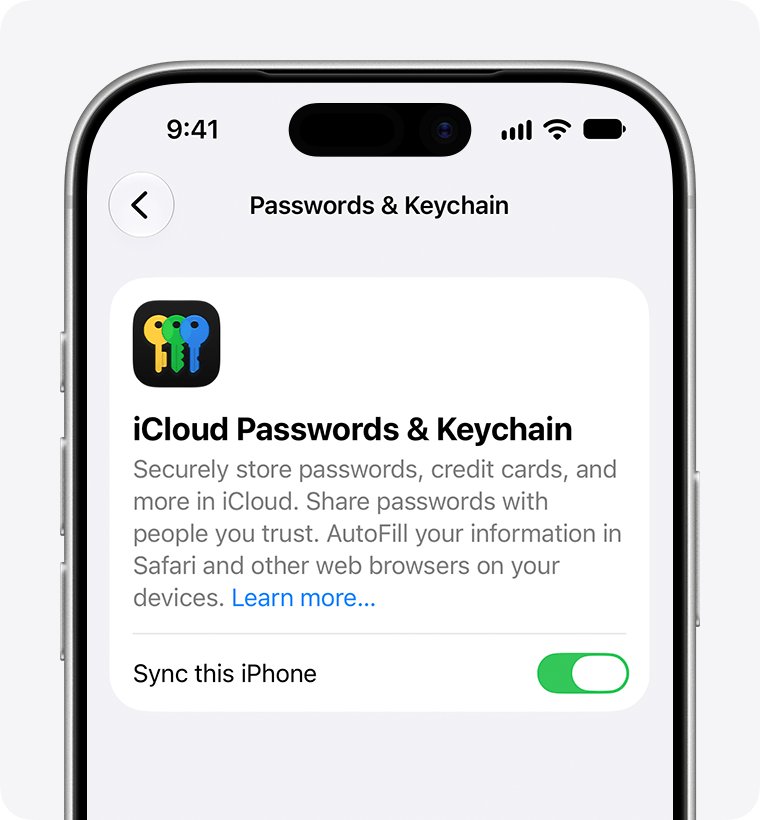
- Make sure iCloud Keychain is turned on for your Mac or iPhone.
- On your Windows PC, open iCloud for Windows.
- Turn on Passwords & Keychain, or click Approve and enter the code sent to a trusted device.
- Open the iCloud Passwords app to view and manage your passwords.
- To autofill in a browser, open iCloud for Windows, select Passwords and Keychain, click Install Extension next to your browser, then click Done.
The device receiving the security code needs iOS 14, iPadOS 14, macOS 11 or later. Either Advanced Data Protection must be on, or your Apple device must be within Bluetooth range of the PC.
What is Keychain Access on Mac?
Keychain Access is the macOS app for managing certificates, which trusted organizations issue to validate websites, digital documents and other web-based material. It works with iCloud Keychain to share keychains across your Apple devices.
| Tool | What it does | Use it when |
|---|---|---|
| Keychain Access | Views keychains, certificates, keys and keychain settings | You need a certificate, a keychain lock setting or a keychain reset |
| Passwords app | Shows passwords, passkeys, verification codes and Wi-Fi passwords | You want to read, change or share a saved password |
| iCloud Keychain | Syncs passwords, passkeys, card details and Wi-Fi info across approved devices | You want the same passwords on iPhone, iPad, Mac and Windows |
Set a login password on your Mac so the data stored in your keychain stays protected.
Check that Keychain Access opens and shows your keychains
- Open Keychain Access from Spotlight.
- Press Command-1 if the keychain list isn't showing.
- Click login in the keychains list and confirm items appear.
- Double-click any certificate or key to open its Get Info window.
- Open the Passwords app and confirm your saved accounts are listed under All.
How to fix keychain issues on Mac
Mac keeps asking for your keychain password
The keychain locks after inactivity, or your login and keychain passwords are out of sync.
- Open Keychain Access from Spotlight.
- Click login in the keychains list.
- Choose Edit > Change Settings for Keychain "login".
- Select Lock after and enter a number of minutes, or clear it.
- Select Lock when sleeping only if you want a password after sleep, then click Save.
Keychain password no longer matches your login password
Your user password was changed or reset, so the login keychain doesn't unlock at login.
- When asked, enter your previous user password to unlock the keychain.
- If you don't remember it, open Keychain Access and choose Keychain Access > Settings.
- Click Reset Default Keychains. This deletes passwords saved in the local keychain.
- Choose Apple menu > Log Out, then log back in.
Keychain items missing on Mac
iCloud Keychain is off on this Mac, or it was reset from Keychain Access.
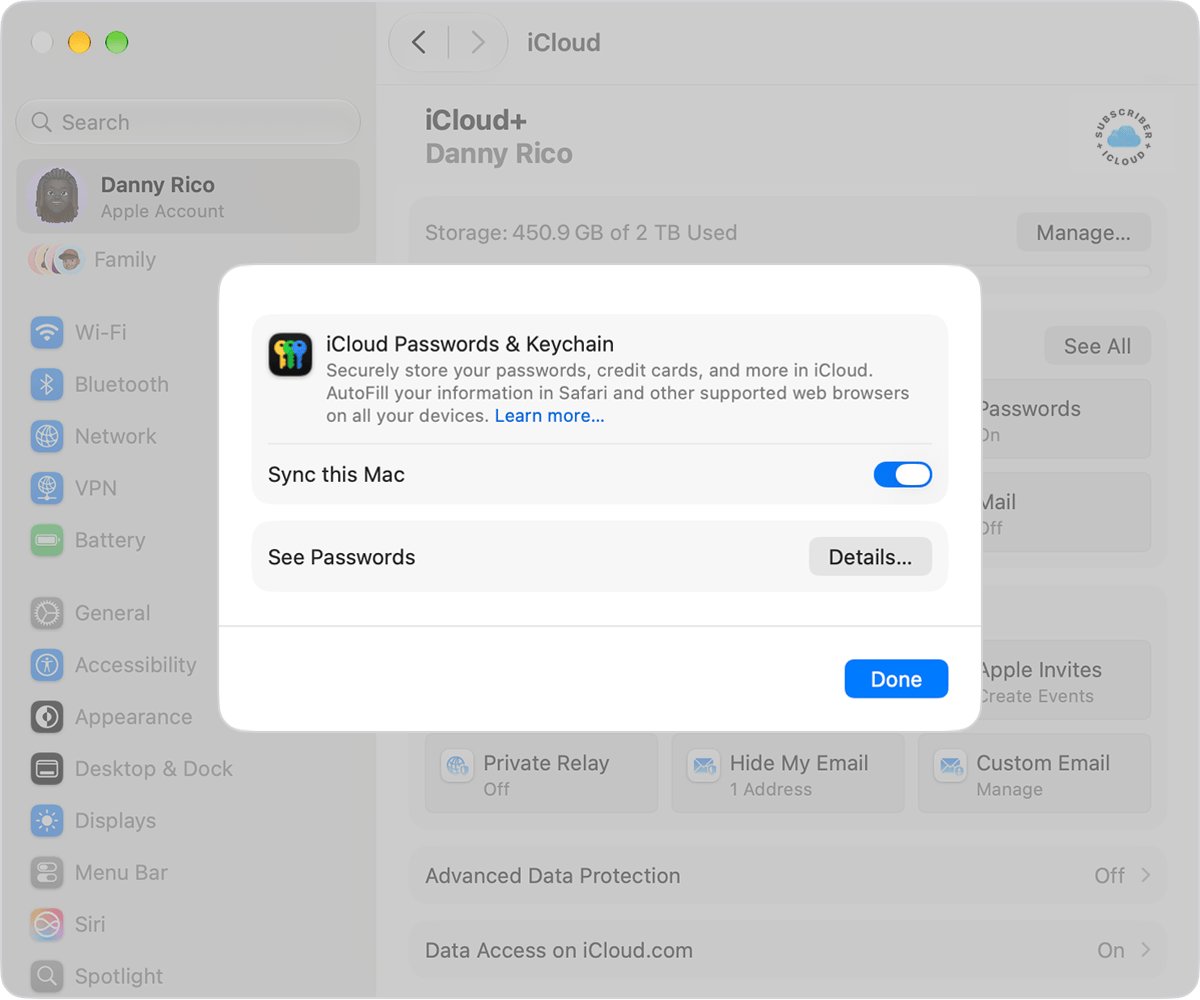
- Choose Apple menu > System Settings, click your name, then click iCloud.
- Click Passwords. In macOS Sonoma or earlier, click Passwords & Keychain.
- Turn on Sync this Mac, then click Done.
- Before any future keychain reset, turn off iCloud Keychain temporarily so the reset doesn't delete your iCloud items.
Safari won't save or autofill passwords
AutoFill is off or Private Browsing is on.
- In Safari, choose Safari > Settings, then click AutoFill.
- Select User names and passwords.
- Close any Private Browsing window, because Safari doesn't save passwords in it.
- Update macOS to the latest version if the issue continues.
Keychain Access on Mac FAQ
How do I find Keychain Access on my Mac?
Press Command-Space bar, type Keychain Access and press Return. Apple's guide for current macOS versions gives Spotlight as the way to open it, and you can hold Command on the Spotlight result to see its folder.
Where is keychain on a MacBook?
Your saved passwords, passkeys and codes are in the Passwords app on macOS Sequoia or later. Certificates and keychain settings stay in Keychain Access, which opens from Spotlight.
What is Keychain Access on Mac?
Keychain Access is a built-in macOS app that manages certificates, keys and keychain settings. It works with iCloud Keychain, while day-to-day passwords now appear in the Passwords app.
How do I access my keychain passwords on Mac?
Open the Passwords app, search for the account, select it and hold the pointer over the dots next to Password. In Keychain Access, double-click an item and select Show password, then enter your keychain password.
Can I download Keychain Access again?
No. Keychain Access ships with macOS and isn't on the App Store. If it's truly gone, reinstall macOS from macOS Recovery, which keeps your apps and personal data.
How do I access Apple keychain on a Windows PC?
Install iCloud for Windows, turn on Passwords & Keychain and approve the PC from a trusted device. Then use the iCloud Passwords app or the iCloud Passwords browser extension.
How do I fix keychain issues on Mac?
Change the login keychain's lock settings if it keeps asking for a password. If the keychain password no longer matches your login password, use Reset Default Keychains in Keychain Access settings, then log out and back in.
Does resetting the keychain delete my passwords?
Yes. Reset Default Keychains deletes the passwords saved in the local keychain. Turn off iCloud Keychain before resetting so the reset doesn't also remove your iCloud Keychain items.