The Windows SSH error "Could not resolve hostname: No such host is known" means your PC could not turn the server name you typed into an IP address, so ssh never reached the server.
This guide covers the fastest fix, the correct ssh syntax, DNS and network tests, the hosts file, the SSH config file, and the cases where the problem sits on the server side.
Fix ssh could not resolve hostname on Windows
Most cases come down to a mistyped name or a stale DNS answer. Open PowerShell or launch Command Prompt and work through these steps.
- Read the error line and compare the name after Could not resolve hostname with the server's real name, letter by letter.
- Run
Resolve-DnsName -Name <hostname>to see whether Windows can look the name up at all. - If the lookup fails, run
ipconfig /flushdnsto clear cached failures, then runResolve-DnsNameagain. - If the name still fails, connect with the server's IP address instead:
ssh user@<IP address>. - If the IP address works, fix the name side: the DNS record, the hosts file or your SSH config entry.
If the IP address also fails, the problem is the network path or the server, not name resolution.
What does the error actually mean?
Before ssh can open a connection, Windows must translate the host name into an IP address. The error appears when that lookup returns nothing, so no packet ever reaches port 22.
| Part of the message | What it tells you |
|---|---|
| ssh: | The OpenSSH client produced the error, not the remote server. |
| Could not resolve hostname <name> | The exact string ssh tried to look up. A typo or stray character shows up here. |
| No such host is known | Windows name resolution (DNS cache, hosts file and DNS servers) found no address for that string. |
| What it does not mean | It is not a password, key or firewall-port failure. Those errors appear only after the name resolves. |
How to correctly connect to an SSH server
The built-in Windows client uses the form ssh user@machine. Everything after the @ is treated as the host name, so extra characters there become part of the lookup.
- Open Windows Terminal, PowerShell or Command Prompt.
- Type
sshfollowed by your user name, @ and the server name, for examplessh [email protected]. - Check that there are no spaces around the @ sign and no
ssh://orhttps://prefix. - For a domain account on a Windows server, use the documented form
ssh domain\username@servername. - For key sign-in, add the key path with
-i, for examplessh -i C:\Users\User\.ssh\id_rsa [email protected]. - Press Enter. On a first connection, type yes at the host key prompt to add the server to your known hosts.
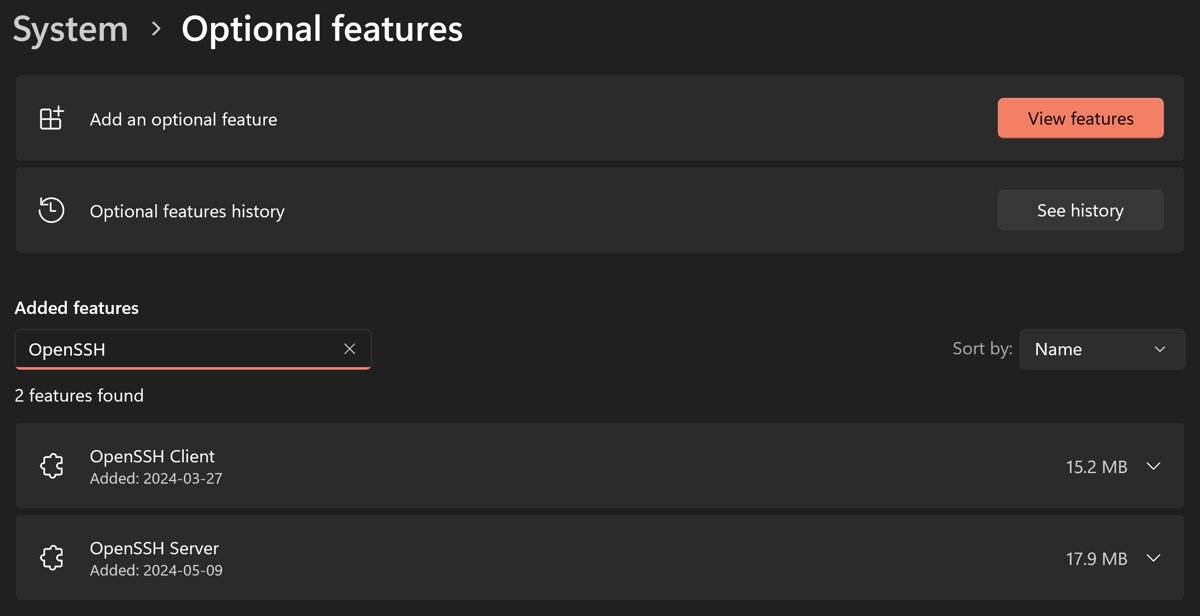
The OpenSSH client lives in C:\Windows\System32\OpenSSH. If ssh is not recognized at all, add OpenSSH Client under Settings > System > Optional features.
Check the DNS resolution
Test the name outside ssh. If Windows cannot resolve it here, ssh cannot either. nslookup works too, but it queries DNS servers directly and skips the hosts file.
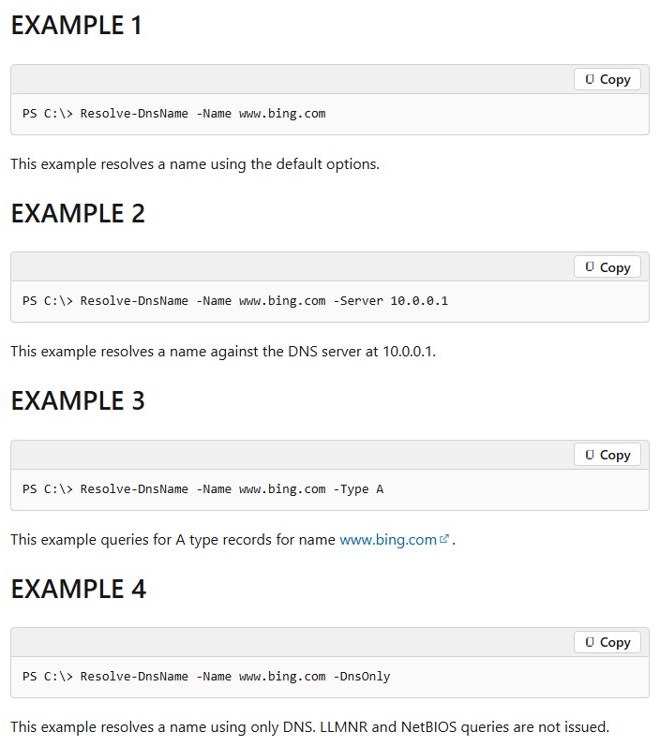
Resolve-DnsName -Name server01.contoso.comLooks up the name through the Windows DNS client, including the cache and hosts file. Add -Server <DNS server IP> to test a different resolver, -DnsOnly to skip the hosts file, or -Type A to ask only for IPv4 records.
You should see: A table with the name, record type and an IP address. An error such as "DNS name does not exist" confirms the lookup itself is failing.
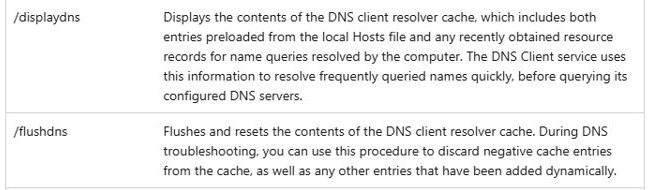
If the lookup worked earlier and stopped, run ipconfig /flushdns. Microsoft documents it as the way to discard negative cache entries during DNS troubleshooting.
Run ipconfig /displaydns to see what the resolver cache currently holds, including entries preloaded from the hosts file.
Check your network connectivity
A dropped Wi-Fi connection, a disconnected VPN or a captive portal can all stop DNS from answering. Test the name and the SSH port in one step.
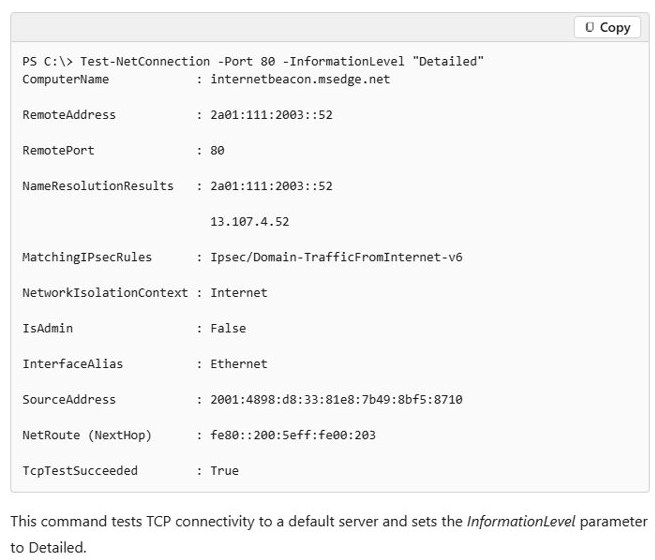
Test-NetConnection -ComputerName server01.contoso.com -Port 22Resolves the name, then tries a TCP connection to port 22, the default OpenSSH port. Use the server's real port if it listens elsewhere.
You should see: NameResolutionResults shows an IP address and TcpTestSucceeded : True. A name failure here matches the ssh error; a resolved name with False points to a blocked port instead.
You can also run ping server01.contoso.com. If ping reports that it could not find the host, the problem is name resolution, not ssh.
Internal names often resolve only on the company network. Connect the VPN first, then retry.
Look at the “hosts” file in Windows
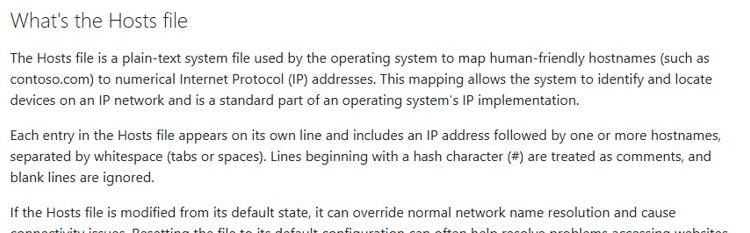
The Windows hosts file maps names to IP addresses before DNS is asked. A wrong or missing line there can send a name nowhere, and a correct line can fix a name your DNS server does not know.
- Select Start, type Notepad, right-click it and select Run as administrator.
- Select File > Open and go to
C:\Windows\System32\drivers\etc(%WinDir%\System32\Drivers\Etc). - Change the file type filter to All files (*.*) and open hosts.
- Look for a line that mentions your server name. Each entry is an IP address, at least one space, then the host name.
- Correct a wrong address, or add a line such as
192.168.1.20 server01if the server has a fixed address. - Save the file, then run
ipconfig /flushdnsand test withResolve-DnsNameagain.
A hosts file entry overrides DNS, so remove it once the real DNS record exists. Microsoft's reset procedure renames the old file to Hosts.old and saves a clean default copy in the same folder.
Check your firewall and security app
A firewall rarely causes this exact error, because the failure happens before ssh opens port 22. Security suites with web or DNS filtering can still block the lookup or the connection that follows.
- Open your security app and check its protection log or history for a blocked entry that names the server or ssh.exe.
- If it blocked the server, add an exception for that host in the app's own settings rather than switching protection off.
- On the server, check that an inbound SSH rule exists:
Get-NetFirewallRule -DisplayName "*SSH*"in an elevated PowerShell window. - Installing OpenSSH Server creates a rule named OpenSSH-Server-In-TCP for port 22. If it is missing, an administrator can recreate it with
New-NetFirewallRule. - Run
Test-NetConnection -ComputerName <server> -Port 22again to confirm the port answers.
Use IP addresses directly
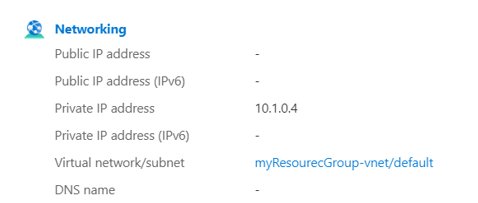
Connecting by IP address skips name resolution entirely. It is the quickest way to prove the server and network are fine and the name is the only problem.
- Get the server's IP address from its console, your router's device list or the cloud provider's portal.
- Run
ssh user@<IP address>, for examplessh [email protected]. - If this connects, keep using the IP address for now and fix the DNS record, hosts file or config entry later.
- If this fails too, read the new error: a timeout or refused connection means a network, port or service problem.
An IP address can change when a server restarts with a dynamic address. Treat it as a test, not a permanent fix.
Check the SSH client configuration and logs
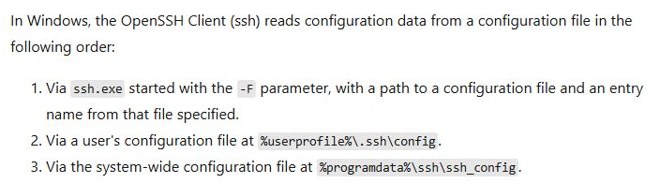
A short name such as ssh web often comes from a Host entry in your SSH config file. If that entry is missing or misspelled, ssh tries to resolve web as a real host name and fails.
- Open
%userprofile%\.ssh\configin Notepad. This is the per-user file the Windows client reads. - Find the Host line that matches the name you typed. Patterns are case sensitive.
- Check the address the entry points to for typos, old names or a missing domain suffix.
- Also check the system-wide file at
%programdata%\ssh\ssh_config, which ssh reads after your own file. - Run the connection with verbose output, for example
ssh -v user@server01, and read which config lines were applied and which name ssh tried to resolve.
If you start ssh with -F and a file path, that file is read instead of your user config. Remove -F from scripts and shortcuts when testing.
It might just be a server-side issue
If the name fails from every device and network, the record itself is the problem. These cases need a fix from whoever manages the server or the domain.
| Server-side cause | What you see | Who fixes it |
|---|---|---|
| DNS record never created or deleted | Name fails everywhere, IP address works | DNS or domain administrator |
| Server renamed or moved | Old name fails, new name or IP works | Use the new name, or ask for an alias record |
| Internal-only name | Works on the office network or VPN, fails at home | Connect the VPN, or ask for a public record |
| Cloud VM with a changing public IP | Saved IP or name stops working after a restart | Assign a static IP or DNS label in the portal |
| New record still propagating | Works on some networks, not others | Wait, then flush your DNS cache |
How to confirm ssh resolves the hostname again
- Run
Resolve-DnsName -Name <hostname>and confirm it returns the server's IP address. - Run
Test-NetConnection -ComputerName <hostname> -Port 22and confirm TcpTestSucceeded : True. - Run
ssh user@<hostname>. The error is gone when you see the host key prompt or a password prompt. - On a first connection, check that the IP shown in The authenticity of host 'servername (IP)' matches the address you expect.
SSH hostname still not resolving on Windows
The IP address works but the hostname does not
Name resolution fails on this PC while the server and network are fine.
- Run
Resolve-DnsName -Name <hostname> -Server <other DNS server IP>to compare your DNS server with another one. - If only your DNS server fails, ask its administrator to add the record or switch to the correct DNS server.
- As a stopgap, add the name and IP to the hosts file and flush the cache.
The hostname works on one network or VPN only
The name exists only in an internal DNS zone.
- Connect the company VPN before running ssh.
- Use the full name with its domain suffix, such as
server01.contoso.com, instead ofserver01. - Run
ipconfig /flushdnsafter connecting so old failures are not reused.
Double-check to make sure the hostname is correct
A typo, a stray space or a protocol prefix became part of the name.
- Copy the name exactly as shown after Could not resolve hostname in the error.
- Remove spaces around the @ and any
ssh://prefix. - Retype the command by hand instead of pasting it from a chat or document.
A short alias from the SSH config file fails
The Host entry is missing, misspelled or in a file ssh is not reading.
- Open
%userprofile%\.ssh\configand confirm the alias matches the Host line exactly, including case. - Run
ssh -v <alias>and check which configuration file the output says it read. - Remove any
-Foption that points ssh at a different file.
Windows SSH could not resolve hostname FAQ
What causes "ssh: Could not resolve hostname" on Windows?
Windows could not translate the host name into an IP address. The usual causes are a typo, a name that exists only on an internal network, a stale DNS cache, a wrong hosts file entry or a missing alias in the SSH config file.
How do I check DNS resolution for an SSH server in Windows?
Run Resolve-DnsName -Name <hostname> in PowerShell. If it returns an IP address, the name resolves. If it returns an error, ssh will fail too. nslookup <hostname> works as well but skips the hosts file.
Does flushing DNS fix the SSH hostname error?
It fixes the error when Windows cached a failed lookup. Run ipconfig /flushdns to discard negative cache entries, then test the name again. It does not help when the DNS record is missing or the name is wrong.
Can I use an IP address instead of a hostname with ssh?
Yes. Run ssh user@<IP address>. This skips name resolution and confirms whether the server is reachable. Keep it as a test, because a dynamic IP address can change after the server restarts.
Where is the SSH config file on Windows?
The per-user file is %userprofile%\.ssh\config, and the system-wide file is %programdata%\ssh\ssh_config. The Windows OpenSSH client reads the user file first, unless you start ssh with -F and a different file.
Can a firewall cause "No such host is known"?
Rarely. A firewall blocks connections after the name resolves, which produces a timeout or refusal. Security apps with DNS or web filtering can block the lookup, so check their logs and add an exception for the server.
Where is the hosts file in Windows 11 and Windows 10?
It is in C:\Windows\System32\drivers\etc, also written as %WinDir%\System32\Drivers\Etc. Open it in Notepad as administrator, and save it without a file extension.