To view every user account on Windows 11, open Command Prompt and run net user, which lists all local accounts, including built-in ones that Settings hides.
This guide covers five ways to list accounts, which tool shows disabled and system accounts, and what each built-in account is for.
List all user accounts on Windows 11 with net user
- Press Win + R, type
cmdand press Enter. - Type
net userand press Enter. - Read the names under User accounts for \\<computer name>.
To see the details of one account, such as whether it is active and when the password was last set, run net user followed by the account name.
Windows 11 user account list tools compared
| Tool | Shows built-in and disabled accounts | Best for |
|---|---|---|
| Settings | No, only people who sign in | Changing account type or removing a person |
| Computer Management | Yes, with a disabled icon | Seeing every local account with descriptions |
| Control Panel | No, only sign-in accounts | Classic account management |
Command Prompt (net user) |
Yes | A quick full list on any edition |
PowerShell (Get-LocalUser) |
Yes, with an Enabled column | Filtering and exporting the list |
Check all Windows 11 accounts from Settings
- Open Settings with Win + I.
- Select Accounts.
- Select Other users to see local and Microsoft accounts other than yours.
- Select Family to see family members added to the device.
- Select an account to open its options, such as Change account type or Remove.
You can jump straight to the page by pressing Win + R and running ms-settings:otherusers. The account you are signed in with appears at the top of Accounts, not in the list. To create a new one, add a user account in Windows 11 from the same page.
Check all Windows 11 accounts from Computer Management
- Right-click Start and select Computer Management.
- Expand System Tools.
- Expand Local Users and Groups.
- Select Users to see every local account with its full name and description.
- Double-click an account to see whether Account is disabled is ticked.
Local Users and Groups is not available in Windows 11 Home. Use net user or PowerShell on that edition instead.
Check all Windows 11 accounts from Control Panel
- Press Win + R, type
controland press Enter. - Select User Accounts, then User Accounts again.
- Select Manage another account.
- Review the accounts shown, including each one's type, such as Administrator or Local Account.
Check all Windows 11 accounts from Command Prompt
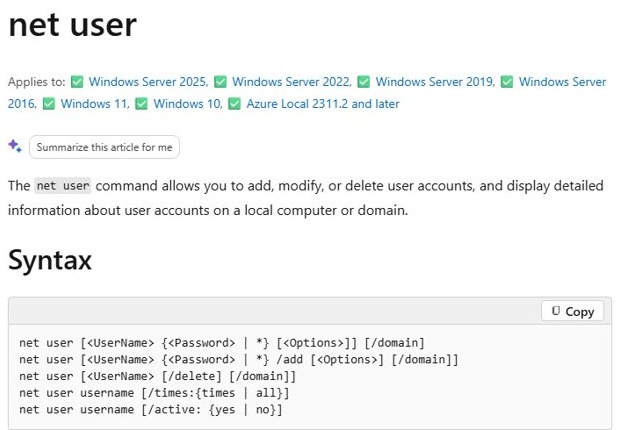
net userRun without parameters, net user displays a list of all user accounts on the local computer. It does not need an elevated Command Prompt just to list accounts.
You should see: A list headed User accounts for your computer name, followed by names such as Administrator, DefaultAccount, Guest and your own accounts, ending with The command completed successfully.
Check all Windows 11 accounts from PowerShell
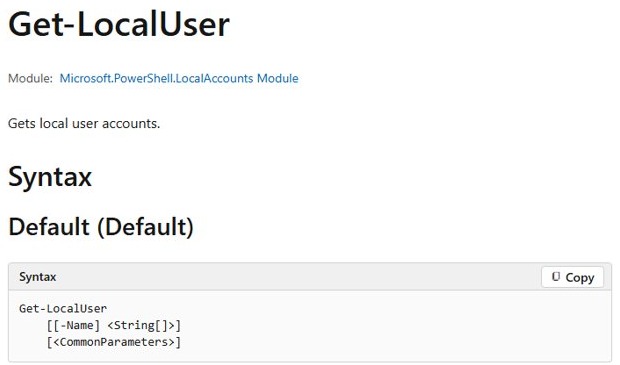
Get-LocalUserGets default built-in accounts, local accounts you created, and local accounts connected to Microsoft accounts. The output has Name, Enabled and Description columns.
You should see: A table of accounts where Enabled reads True for usable accounts and False for disabled ones.
To list only active accounts, run Get-LocalUser | Where-Object Enabled in the same window.
Built-in user accounts in Windows 11 explained
| Account | What it is | Default state |
|---|---|---|
| Administrator | The built-in account with full control of the device | Disabled; safe mode can enable it when no other admin is available |
| Guest | A limited account for temporary access; the only member of the Guests group | Disabled |
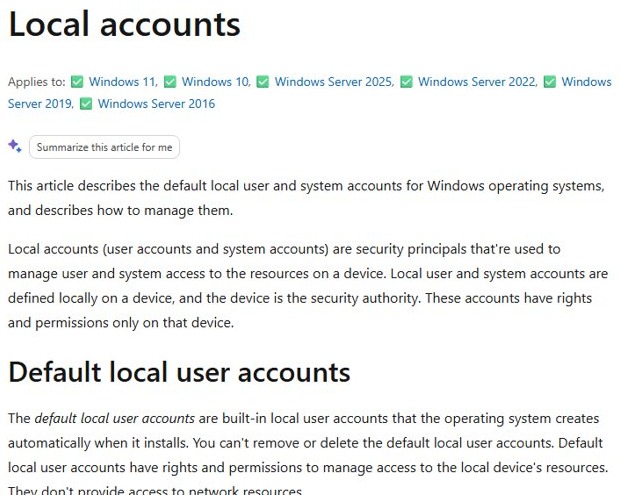
| DefaultAccount | The Default System Managed Account (DSMA), used by multi-user-aware apps | Disabled on desktop editions |
| WDAGUtilityAccount | A system account used by Windows security features | Disabled |
These accounts appear in net user, PowerShell and Computer Management, but never in Settings. Seeing them is normal and not a sign of a hidden intruder.
Windows 11 user accounts not showing
An account shows in net user but not in Settings
Settings lists only accounts people sign in with, and hides built-in or disabled accounts.
- Run
Get-LocalUserin PowerShell. - Check the Enabled column for that account.
- Treat False entries such as Guest or DefaultAccount as normal system accounts.
Local Users and Groups is missing from Computer Management
The snap-in is not included in Windows 11 Home.
- Open Command Prompt.
- Run
net userto list all accounts instead.
A work or school account does not appear in the list
Domain and Microsoft Entra accounts are not local accounts, so local tools do not list them.
- Open Settings > Accounts > Access work or school to see connected work accounts.
- Ask your IT administrator for the full list of organization accounts allowed on the PC.
Windows 11 user accounts list FAQ
What command shows all users in Windows 11?
Run net user in Command Prompt. Without parameters, it displays a list of all user accounts on the local computer, including built-in accounts such as Administrator and Guest that Settings does not show.
How do I see hidden user accounts on Windows 11?
Run Get-LocalUser in PowerShell or open Local Users and Groups in Computer Management. Both list built-in and disabled accounts, and PowerShell shows an Enabled column so you can tell active accounts from disabled ones.
How do I check if an account is an administrator on Windows 11?
Open Settings, select Accounts, then Other users, and select the account. Its type is shown there, and Change account type lets you switch between Standard User and Administrator.
Why does Windows 11 show a DefaultAccount user?
DefaultAccount is the Default System Managed Account, a built-in account that multi-user-aware apps use. It is disabled by default on desktop editions and needs no action.
Can I list user accounts on Windows 11 Home?
Yes. Settings, Control Panel, net user and Get-LocalUser all work on Windows 11 Home. Only the Local Users and Groups section of Computer Management is missing on that edition.
Does the list include Microsoft accounts?
Yes. A local account connected to a Microsoft account appears in Settings and in Get-LocalUser, where its name starts with MicrosoftAccount followed by the email address.
How do I remove a user account I found in the list?
Open Settings, select Accounts, then Other users, open the account and select Remove next to Account and data. This deletes the person's sign-in and data from the PC but keeps their Microsoft account itself.
What is the fastest way to open the Other users page?
Press Win + R, type ms-settings:otherusers and press Enter. Settings opens directly on the Other users page, where every person who can sign in to the PC is listed.
Best way to view all user accounts on Windows 11
Use Get-LocalUser in PowerShell when you need the complete picture, and Settings when you only want to manage the people who sign in. PowerShell lists every local account with its enabled state on every edition, while Settings hides built-in accounts but offers account type and removal controls.