Windows File Recovery is a free command line app from Microsoft that can restore files deleted from a local drive when the Recycle Bin no longer has them.
This article explains what the tool does, how its scan works, which mode fits your drive, the commands to run and the limits to expect on Windows 11 and Windows 10.
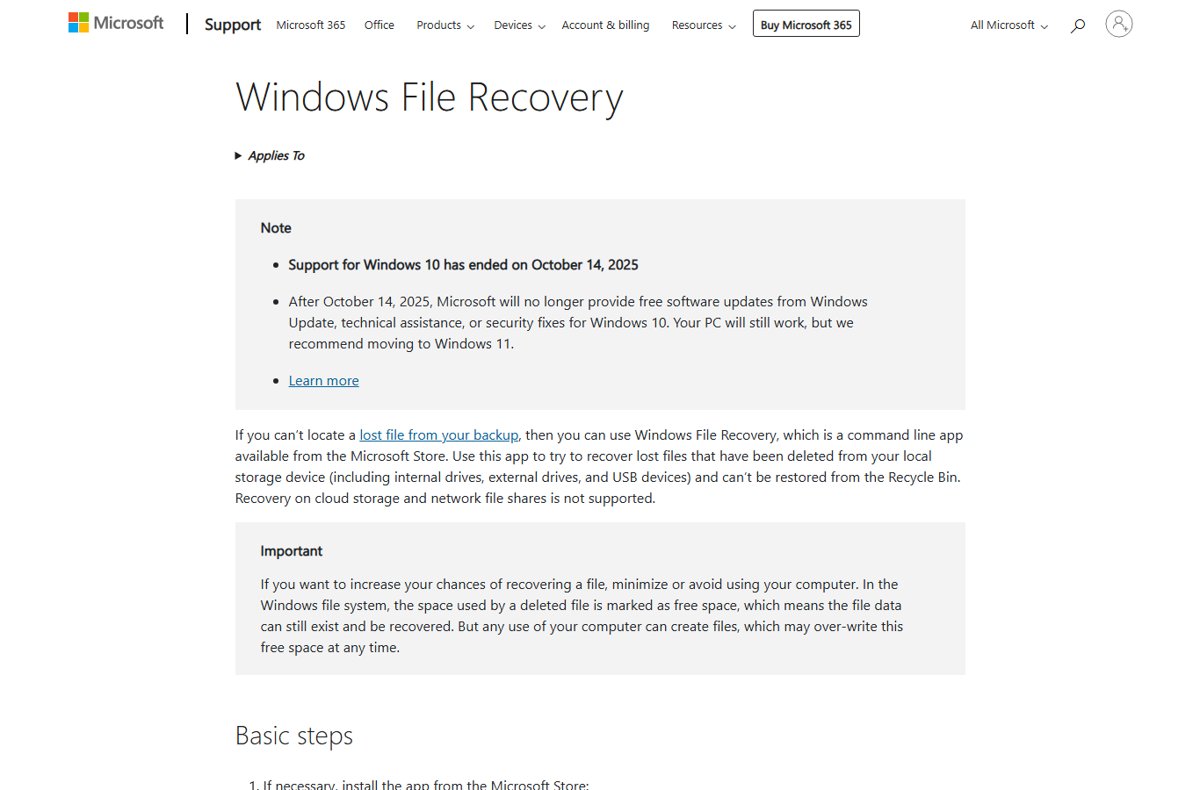
Windows File Recovery tool recovers deleted files
The app has no graphical window. You type one winfr command that names the drive to scan, the drive that receives the copies and a mode.
- Install Windows File Recovery from the Microsoft Store.
- Press the Windows key, type Windows File Recovery and select the app.
- Select Yes when Windows asks to allow the app to make changes.
- Type a command such as
winfr C: E: /regular /n *.pdf /n *.docxand press Enter. - Enter Y when asked to continue.
- Open the Recovery_ folder, named with the date and time, on the destination drive.
What does Windows File Recovery do?
When Windows deletes a file, it marks the space the file used as free. The data stays on the disk until something new is written over it, and the tool reads that leftover data back.
| Question | Answer |
|---|---|
| Who makes it | Microsoft, distributed free through the Microsoft Store |
| Interface | Command Prompt window; there is no point-and-click version |
| Supported Windows | Windows 11 and Windows 10 (Windows 10 support ended on October 14, 2025) |
| Drives it scans | Internal drives, external drives and USB devices |
| Not supported | Cloud storage and network file shares |
| Where results go | A Recovery_<date and time> folder on a different drive |
How does Windows File Recovery work?
The tool has two everyday modes and three advanced ones. Each reads the drive in a different way, which is why the right choice depends on the file system and on what happened to the drive.
| Mode | Switch | How it finds files | Works on |
|---|---|---|---|
| Regular | /regular |
Standard scan of a healthy drive | Non-corrupted NTFS drives |
| Extensive | /extensive |
Thorough scan of the whole drive | All file systems |
| NTFS (advanced) | /ntfs |
Reads the master file table | Healthy NTFS drives |
| Segment (advanced) | /segment |
Reads file record segments | NTFS drives |
| Signature (advanced) | /signature |
Looks for known file headers | All file system types |
Behind the scenes, Windows constantly creates and deletes its own files, so an unfiltered scan of the system drive returns many files you never asked for.
Windows File Recovery regular vs extensive mode
Check the file system first: in File Explorer, right-click the drive and select Properties. If you are still unsure, start with Regular mode.
| File system | What happened | Mode to use |
|---|---|---|
| NTFS (PC hard drives, SSDs, external drives, USB drives over 4GB) | Deleted recently | Regular |
| NTFS | Deleted a while ago | Extensive |
| NTFS | The disk was formatted | Extensive |
| NTFS | The disk is corrupted | Extensive |
| FAT or exFAT (SD cards, USB drives under 4GB) | Any | Extensive |
How to use Windows File Recovery tool
Always type drive letters with a colon, and leave a space between the source and the destination. The destination must be a different drive or partition from the source.
| What you want back | Command |
|---|---|
| Your Documents folder from C: to E: | winfr C: E: /regular /n \Users\<username>\Documents\ |
| PDF and Word files from C: | winfr C: E: /regular /n *.pdf /n *.docx |
| Any file with invoice in its name from E: | winfr E: C: /extensive /n *invoice* |
| JPEG and PNG photos from Pictures | winfr C: E: /extensive /n \Users\<username>\Pictures\*.JPEG /n \Users\<username>\Pictures\*.PNG |
| One file whose name has spaces | winfr C: E: /regular /n "\Users\<username>\Documents\Quarterly Statement.docx" |
Replace <username> with your account folder name. Type C:\users in the File Explorer address bar to see the account folders on the PC. End a folder filter with a backslash.
Windows File Recovery command switches
Type winfr /? for the basic switches and winfr /! for the full advanced list.
| Switch | What it does | Modes |
|---|---|---|
/n <filter> |
Limits the scan to a file name, path, type or wildcard | All |
/p:<folder> |
Saves the log file somewhere other than the recovery drive | All |
/a |
Skips user prompts, for scripts | All |
/u |
Recovers undeleted files, for example from the Recycle Bin | NTFS, Segment |
/k |
Recovers system files | NTFS, Segment |
/o:<a|n|b> |
Always overwrite, never overwrite, or keep both | NTFS, Segment |
/g |
Recovers files without primary data streams | NTFS, Segment |
/e or /e:<extension> |
Removes or adjusts the default file type filter | NTFS, Segment |
/y:<types> |
Recovers chosen extension groups, comma separated | Signature |
/# |
Lists Signature mode extension groups and their file types | Signature |
/s:<sectors> and /b:<bytes> |
Set the sector count and cluster size of the source | Segment, Signature |
By default the app filters out many system and developer file types, such as dll, exe, sys, log and ini. Run winfr /# to see which file types each Signature mode group covers.
Where does Windows File Recovery save recovered files?
- Open File Explorer and select the destination drive from the command.
- Open the folder named Recovery_ followed by the date and time of the scan.
- Look in $RECYCLE.BIN for files named like $files.xxx, which NTFS and Segment modes recover from the Recycle Bin.
- Open several recovered files to confirm they are complete and readable.
- Copy the good files to their final folder, then delete the Recovery folder.
Windows File Recovery not working
"Source and Destination cannot refer to the same physical partition"
The command uses one drive or partition as both source and destination.
- Connect a USB drive or external hard drive.
- Use its drive letter as the destination in the command.
- Do not create a new partition to work around it, because that lowers the chance of recovery.
The file was not recovered
Regular mode missed it, or the free space was already overwritten.
- Run the same command with
/extensiveinstead of/regular. - Loosen the filter, for example
*invoice*instead of the full name. - Restore from File History, OneDrive or another backup if the scan still finds nothing.
Recovery takes a very long time
Extensive mode reads the whole disk, so large drives take a while.
- Leave the scan running and keep the PC awake.
- Press Ctrl + C to stop it if you need a narrower search.
- Add
/nfilters for the folder or file type you need and start again.
"Destination disk is full, please free up space before resuming"
The destination drive ran out of room for recovered files.
- Free up disk space on the destination drive.
- Press R to resume, S to skip the file or A to abort.
How to improve your chances of recovering deleted files
| Do this | Why |
|---|---|
| Stop using the PC as soon as you notice the loss | Any new file can overwrite the free space that still holds your data |
| Scan as early as possible on an SSD | Solid-state drives often overwrite free space quickly |
| Send results to a separate USB or external drive | Writing to the source drive can destroy what you are trying to save |
Filter the system drive with /n |
It keeps out the temporary files Windows creates and deletes |
| Check the Recycle Bin and backups first | The app is meant for files those cannot restore |
Microsoft Windows File Recovery tool FAQ
How do you use the Windows File Recovery tool?
Install it from the Microsoft Store, open it and approve the prompt. Then type a command in the format winfr source-drive: destination-drive: /mode /switches, press Enter and confirm with Y. Recovered files land in a Recovery folder on the destination drive.
What does Windows File Recovery do?
It scans a local drive for files that were deleted and cannot be restored from the Recycle Bin. Deleted files leave data in space Windows marks as free, and the tool copies that data to another drive.
How does Windows File Recovery work?
It reads the source drive in Regular or Extensive mode, or in the advanced NTFS, Segment or Signature modes. Regular mode suits healthy NTFS drives. Extensive mode scans deeper and works on every file system, including FAT and exFAT.
Is the Microsoft Windows File Recovery tool free?
Yes. Windows File Recovery is a free Microsoft app available from the Microsoft Store for Windows 11 and Windows 10. It runs from a Command Prompt window and has no graphical interface.
Can Windows File Recovery recover files from OneDrive or a network drive?
No. Recovery on cloud storage and network file shares is not supported. The tool works on internal drives, external drives and USB devices only. Use the cloud service's own recycle bin for files deleted there.
Can Windows File Recovery restore files from an SD card?
Yes, in Extensive mode. SD cards normally use FAT or exFAT, and recovering from non-NTFS file systems is supported only by Extensive mode, for example winfr E: C: /extensive /n *.jpg.
Why did Windows File Recovery not find my file?
Regular mode may have missed it, or the space was already overwritten, which happens often on SSDs. Run the command again in Extensive mode and loosen the file name filter before giving up.
Is Windows File Recovery worth using?
Use Windows File Recovery when a file is gone from the Recycle Bin and every backup, and run it with a filter as soon as you notice the loss. It is free and made by Microsoft, but success depends on how little the drive has been written to since the deletion, so speed and a separate destination drive matter most.