If your iPhone 11 won't turn on or respond, force restart it: press and release volume up, press and release volume down, then hold the side button until the Apple logo appears.
If that fails, charge it for an hour, check the cable and port, and use recovery mode on a computer as the last step before service.
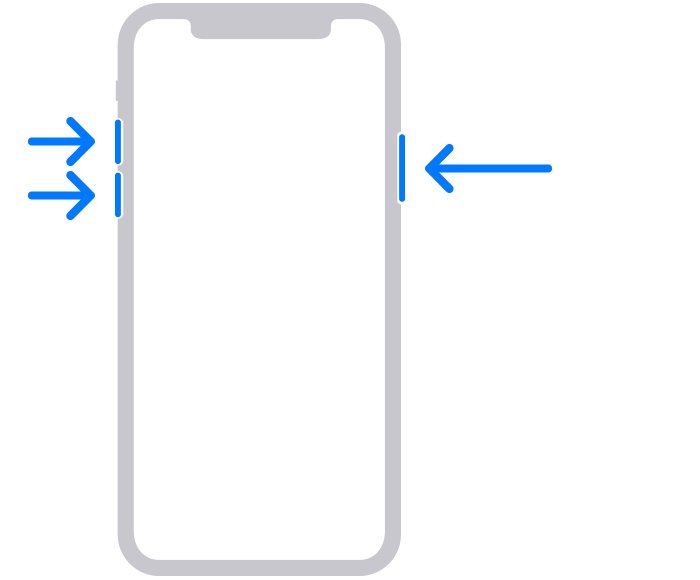
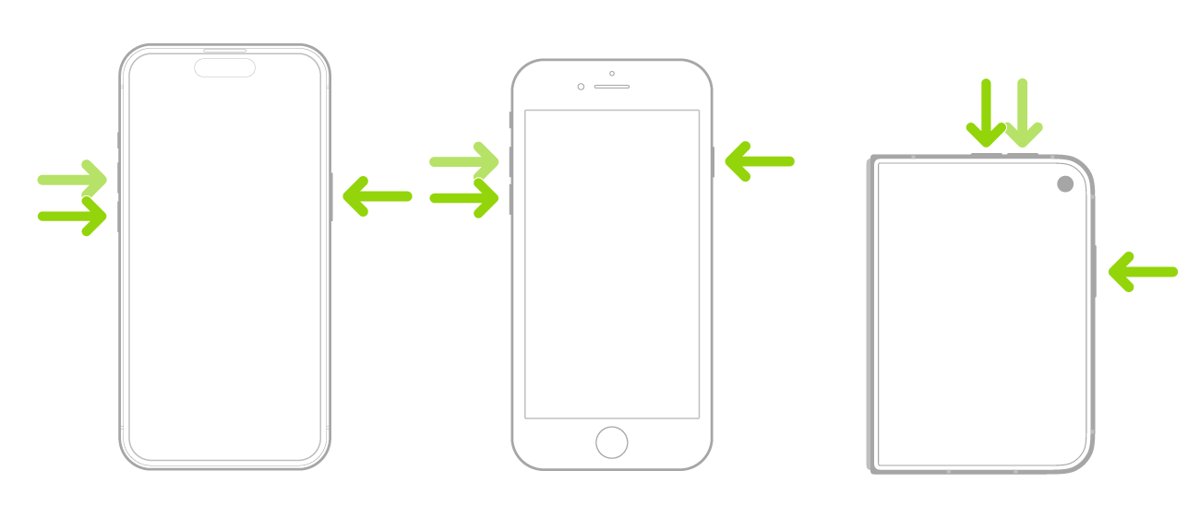
Force restart an iPhone 11 that won't respond
iPhone 11 uses Face ID, so it follows the force restart sequence for iPhone models from iPhone 8 and later. A force restart does not erase anything.
- Press and quickly release the volume up button.
- Press and quickly release the volume down button.
- Press and hold the side button.
- Keep holding until the Apple logo appears, which can take longer than 10 seconds, then release it.
Press the three buttons in quick succession. A pause between them starts a screenshot or the volume control instead.
Charge an iPhone 11 that won't turn on
A fully drained battery leaves the iPhone screen black until it has enough charge to start.
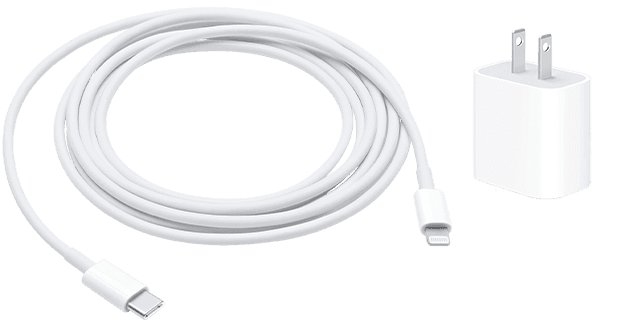
- Plug the iPhone into a wall power outlet with an Apple or certified cable and USB adapter.
- Leave it charging for one hour, then try the force restart again.
- If the screen shows a low-charge battery icon, keep it charging for 30 minutes or until it starts.
- If nothing appears after an hour, force restart it while it is still plugged in.
- Let it charge for another half hour before moving on.
iPhone 11 not charging: check the cable, adapter and port
| Check | What to do |
|---|---|
| Power source | Try a wall outlet, a computer and another power accessory |
| Cable and adapter | Look for breaks or bent prongs; never use a damaged accessory |
| Connections | Push the cable firmly into the adapter and the adapter into the outlet, or try another outlet |
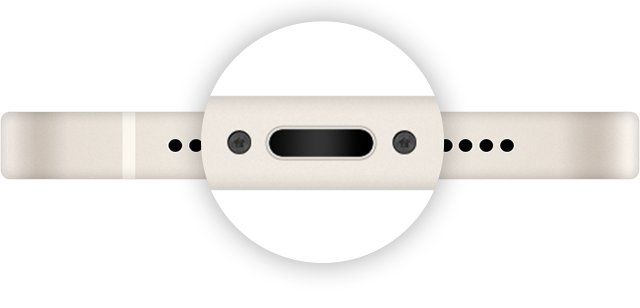
| Lightning port | Remove lint or debris from the port on the bottom, then plug in firmly |
| Accessory alert | If "accessory not supported" appears, connect directly to the charger and try a different cable, or work through why the iPhone is not charging |
Put iPhone 11 in recovery mode to update or restore it
Use this when the iPhone shows the Apple logo for several minutes, shows the Connect to computer screen, or still will not start. Try Update first; Restore erases all data.
- Update macOS on a Mac, or install the latest Apple Devices app on a Windows PC.
- Connect the iPhone to the computer with a USB cable.
- Open Finder on the Mac, or the Apple Devices app on the PC.
- Press and quickly release volume up, then press and quickly release volume down.
- Press and hold the side button until the Connect to computer screen appears.
- Select the iPhone on the computer and choose Update when the Update or Restore options appear.
- If the update does not fix it, repeat the steps and choose Restore, then set up the iPhone again.
If the download takes more than 15 minutes, the iPhone can leave the recovery screen. Let the download finish, then press the buttons again.
Why isn't my iPhone 11 turning on? Fixes by symptom
Black screen, no response to touch or buttons
The iPhone has frozen or the battery is fully drained.
- Force restart it with volume up, volume down, then hold the side button.
- Charge it for one hour and force restart again.
Red or low-battery icon on the screen
The battery is too low to start iOS.
- Check the cable, adapter and port.
- Charge for 30 minutes or until it starts.
Stuck on the Apple logo
iOS cannot finish starting up.
- Connect it to a computer and put it in recovery mode.
- Choose Update to reinstall iOS without erasing data.
"Connect to computer" screen
The iPhone is already in recovery mode.
- Open Finder or the Apple Devices app with the iPhone connected.
- Choose Update, or Restore if update fails.
Recovery mode does not work, or a button sticks
A hardware fault the computer cannot fix.
- Stop trying further resets.
- Contact Apple Support or an Apple Authorized Service Provider for service.
Check your iPhone 11 is working again
- Wait for the Lock Screen after the Apple logo and unlock it with Face ID or your passcode.
- Plug in the charger and confirm the battery icon shows a charging bolt.
- Open a few apps and check that touch input responds normally.
iPhone 11 won't turn on FAQ
Why isn't my iPhone 11 turning on?
It is usually frozen or out of battery. Force restart it with volume up, volume down and a long press of the side button, then charge it for an hour if the screen stays black.
What do I do if I can't turn off my iPhone 11?
Force restart it. Press and release volume up, press and release volume down, then hold the side button until the Apple logo appears. This works when the screen does not respond.
Does a force restart erase my iPhone 11?
No. A force restart only reboots the iPhone and keeps your data. Only choosing Restore in recovery mode erases the iPhone.
How long should I charge a dead iPhone 11 before it turns on?
Charge it for one hour, then try again. If it shows a low-charge battery icon, leave it on charge for 30 minutes or until it starts.
Will updating in recovery mode delete my data?
No. Update reinstalls iOS and keeps your data. Restore reinstalls iOS and erases everything, so choose Update first.
When does an iPhone 11 need repair?
When charging, a force restart and recovery mode all fail, or a button is stuck and recovery mode cannot be entered. At that point, Apple says the iPhone might need service.