Most missing push notifications after an iOS 18 update come from an active Focus, an app with Allow Notifications off, a muted app, or the new notification summary features holding alerts back.
This guide covers each setting in the order that fixes the most iPhones, how to confirm alerts arrive again, and fixes for Messages, Apple Watch and silent alerts.
Fix iPhone push notifications not working after iOS 18 update
Work through these checks in order. Each one takes under a minute, and the first two solve most cases.
- Open Control Center and check for an active Focus such as Do Not Disturb. Tap it to turn it off.
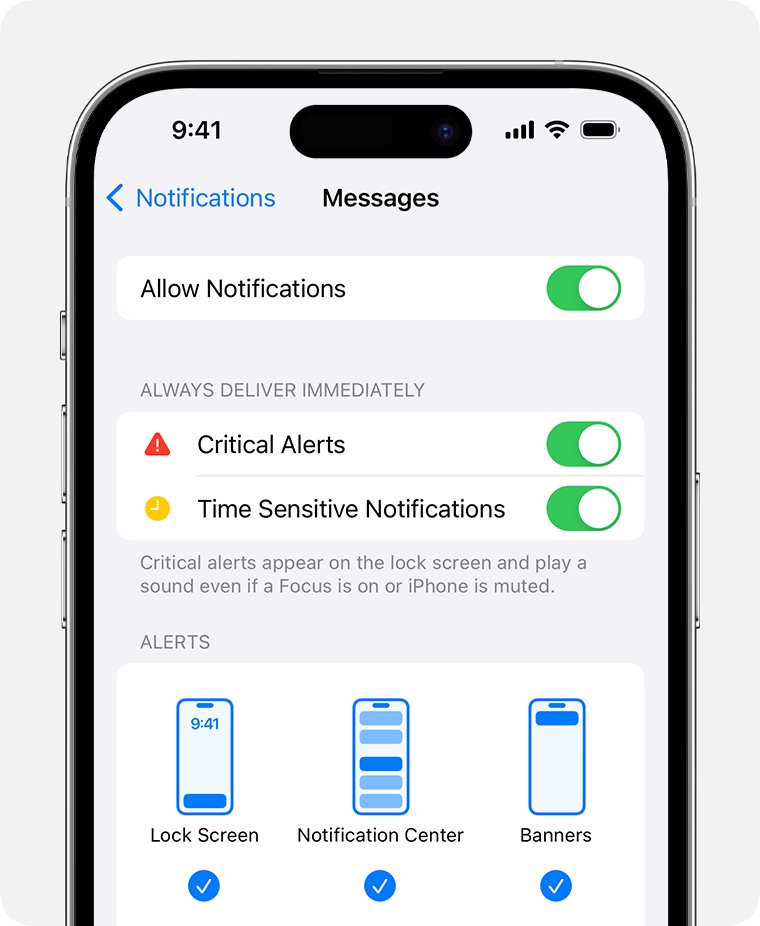
- Open Settings > Notifications, tap the app that stays silent, and turn on Allow Notifications.
- On the same app screen, under Alerts, choose at least one style and turn on Sounds if you expect a tone.
- Go back to Settings > Notifications and check Summarize Notifications and Priority Notifications if your iPhone shows them.
- Check that the iPhone is not in silent mode and that the volume is not all the way down.
- Open Settings > General > Software Update and install any newer iOS 18 release.
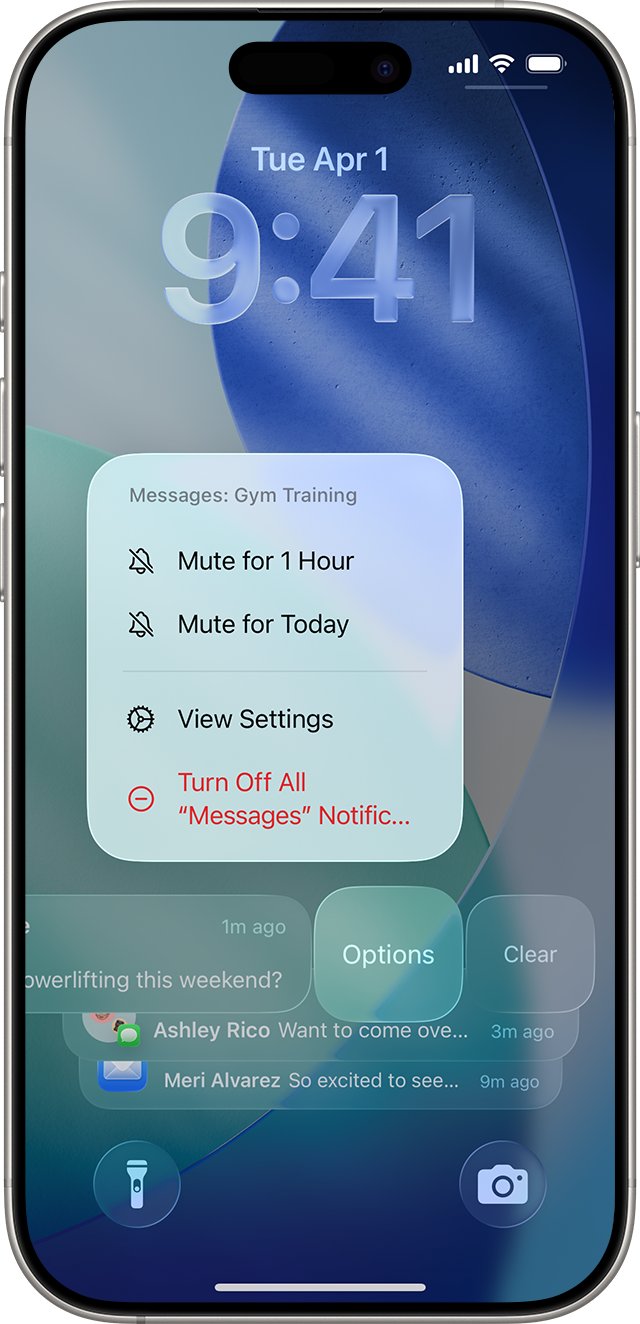
If one app still stays quiet, swipe left on one of its old notifications, tap Options, and check whether it was muted.
Why are my push notifications not working on iPhone?
| What you notice | Likely cause | Setting to check |
|---|---|---|
| No alerts from any app | A Focus or Do Not Disturb is on | Control Center, then Settings > Focus |
| One app never alerts | Allow Notifications is off for that app | Settings > Notifications > the app |
| One app went quiet after you swiped a notification | The app was muted for 1 hour, for today, or turned off | Swipe left > Options on its notification |
| Alerts arrive late or bundled, in italics | Summarize Notifications is condensing them | Settings > Notifications > Summarize Notifications |
| Alerts appear but make no sound | Silent mode, low volume or Sounds off for the app | Ringer switch or Action button, volume, app Sounds |
| Lock Screen shows the app name but no text | Show Previews is not set to Always | Settings > Notifications > Show Previews |
| Alerts go to your Apple Watch, not the iPhone | Notifications go to only one device at a time | Apple Watch app > My Watch > Notifications |
Turn off Focus and Do Not Disturb on iPhone
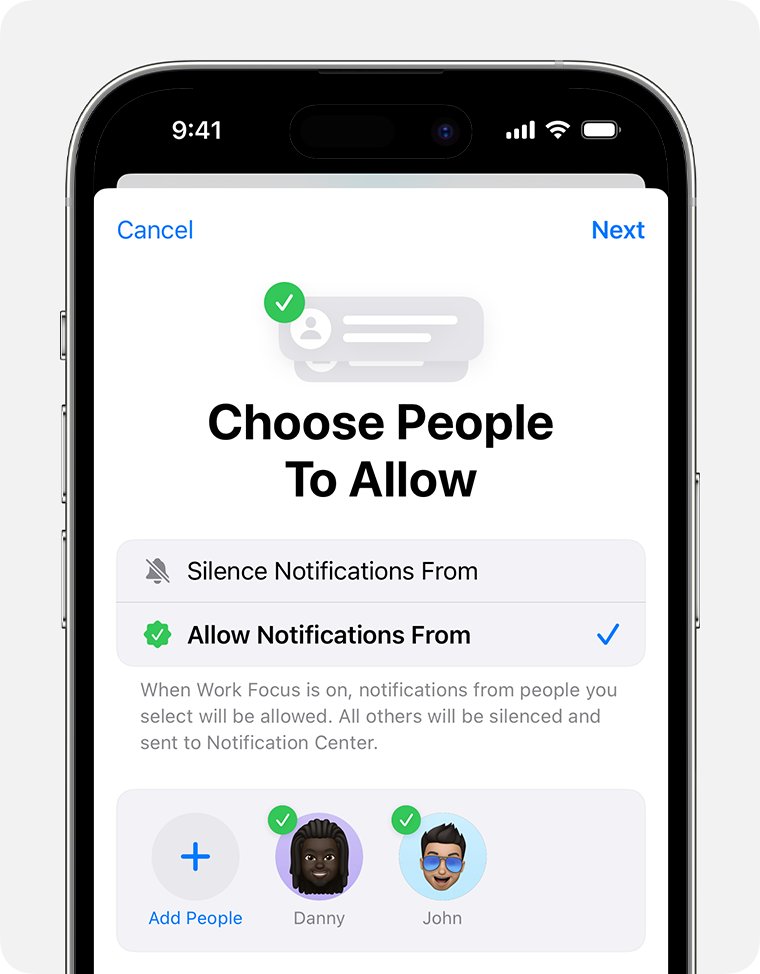
A Focus silences notifications from everyone except the people and apps you allow. With Share Across Devices on, a Focus started on your iPad or Apple Watch also applies to your iPhone.
- Swipe down from the top-right corner of the screen to open Control Center.
- Look at the Focus button. If it shows a Focus name such as Do Not Disturb, Sleep or Work, a Focus is on.
- Tap the active Focus to turn it off.
- Check your iPad and Apple Watch for an active Focus too, and turn it off there.
- To keep a Focus but let an app through, open Settings > Focus and tap that Focus.
- Tap People or Apps, select Allow Notifications From, add the app or contact, and tap Done.
The Driving Focus does not allow notifications from apps, so app alerts stay silent while it runs.
How to turn on push notifications on iPhone for an app
- Open Settings and tap Notifications.
- Under Notification Style, tap the app that is not sending alerts.
- Turn on Allow Notifications.
- Under Alerts, select Lock Screen, Notification Center and Banners as you prefer.
- Turn on Sounds if you want a tone, and Badges if you rely on the red count on the app icon.
- Open the app itself and check its own notification settings, since many apps have a separate in-app switch.
Apps that support Critical Alerts can show a separate switch for them. Critical Alerts get through even when the iPhone is muted or a Focus is on.
Turn off Summarize Notifications and Priority Notifications in iOS 18
iOS 18.1 added Summarize Notifications and iOS 18.4 added Priority Notifications on supported models. Summaries condense alerts, and they appear in italics, which can look like a missing notification.
- Open Settings > Notifications.
- Tap Summarize Notifications and turn it off, or turn it off only for the apps whose alerts you need in full.
- Go back and tap Priority Notifications.
- Turn the feature off, or use Prioritize Notifications to change how a single app is handled.
- Tap any italic summary on the Lock Screen to read the full notification behind it.
If your iPhone does not show either option, the model or iOS version does not support it, and this step does not apply.
Unmute an app's notifications from the iPhone Lock Screen
A swipe on a notification makes it easy to mute an app by accident. Muted apps stay silent until the mute ends or you change it back.
- Find a notification from the app on the Lock Screen or in Notification Center.
- Swipe left on the notification or its group, then tap Options.
- Check whether Mute for 1 Hour, Mute for Today or Turn Off was chosen earlier.
- Tap View Settings to open the app's notification settings.
- Turn on Allow Notifications and the alert styles you want.
Show notification previews and sounds on iPhone
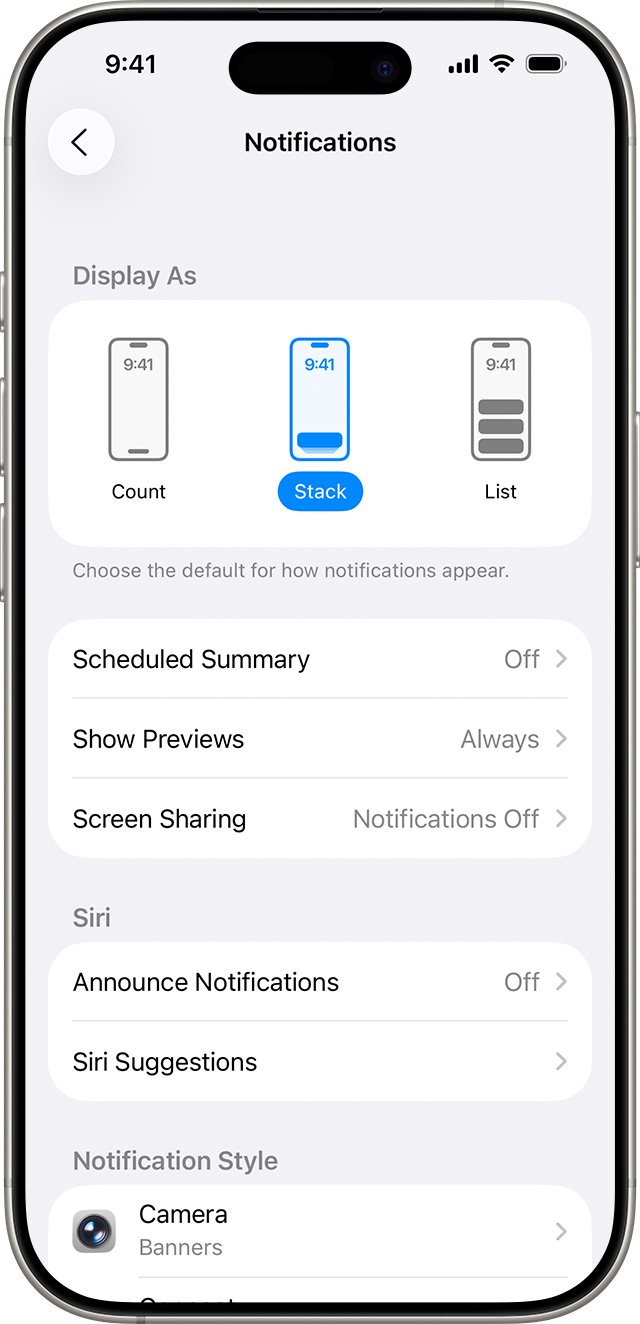
- Open Settings > Notifications and tap Show Previews.
- Choose Always to see notification text on the Lock Screen without unlocking.
- Under Display As, pick Count, Stack or List. This changes how alerts look, not whether they arrive.
- Turn off silent mode and raise the volume, because notification sounds do not play while the iPhone is silenced.
Count shows only a number at the bottom of the Lock Screen. If you switched to it, new alerts can look like they never came.
Update iPhone to the latest iOS 18 version
Point releases fix bugs found after a major update. Install the newest one before you reset any settings.
- Back up the iPhone with iCloud or a computer.
- Connect the iPhone to power and join a Wi-Fi network.
- Open Settings > General > Software Update.
- If an update is listed, tap to download and install it, then follow the on-screen prompts.
- Turn off a VPN or proxy if the update cannot reach the update server.
Test that iPhone push notifications arrive again
- Lock the iPhone with no Focus showing in Control Center.
- Ask someone to send you a message, or trigger an alert from the app that was silent.
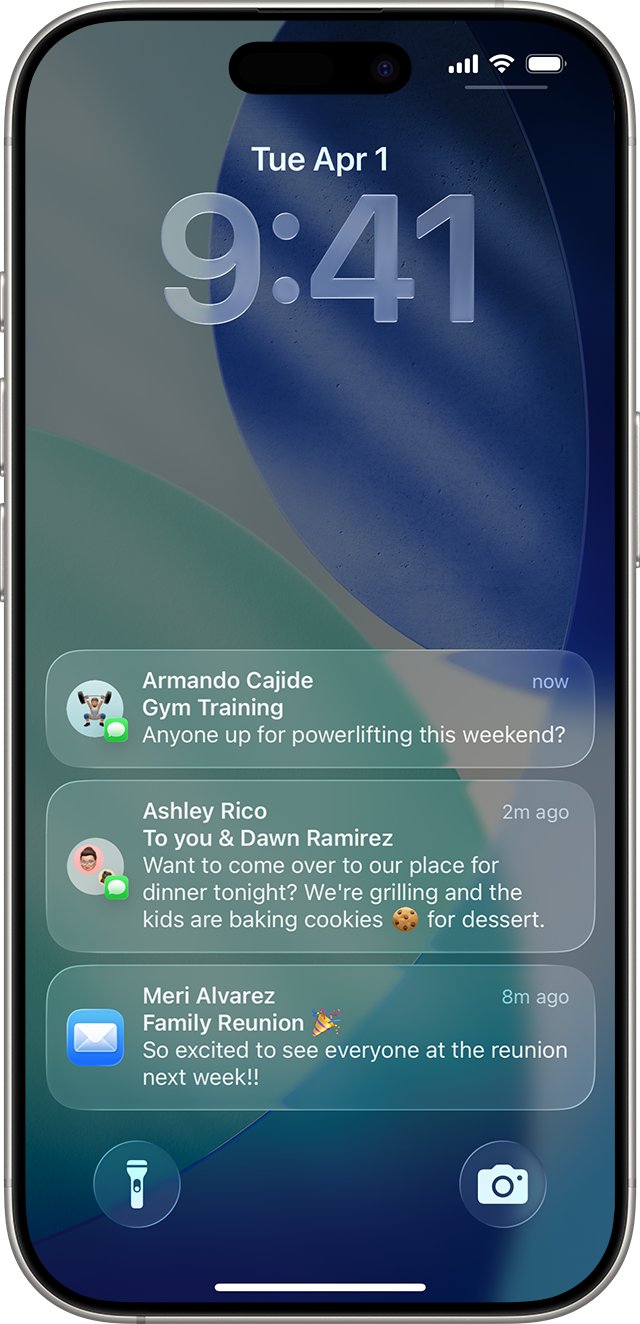
- Confirm a banner or Lock Screen notification appears, with text if Show Previews is set to Always.
- Confirm you hear the alert tone, which shows silent mode and the app's Sounds switch are set correctly.
- Open Notification Center by swiping down from the top of the screen and check the alert is listed there.
Push notifications not working on iPhone: more fixes
Notifications go to Apple Watch instead of the iPhone
Notifications are delivered to either the Watch or the iPhone, not both. A locked iPhone with a worn Watch sends them to the Watch.
- Unlock the iPhone and use it; alerts then arrive on the iPhone.
- To change a Watch app, open the Apple Watch app on the iPhone and tap My Watch > Notifications.
- Choose the app and select Mirror my iPhone or a custom setting.
Messages notifications not arriving
Settings for a single conversation or message filtering can hide alerts.
- Open the conversation in Messages and check whether alerts are hidden for it.
- Check the unknown senders and spam lists in Messages for the missing texts.
- Open Settings > Notifications > Messages and confirm Allow Notifications is on.
Mail app not giving push notifications
Mail has its own notification switch, and it can be off after setup or a restore.
- Open Settings > Notifications > Mail.
- Turn on Allow Notifications and choose the alert styles you want.
- Check that no Focus is filtering the Mail app.
Alerts arrive but without any sound
The iPhone is silenced, the volume is down, or Sounds is off for the app.
- Turn off silent mode and raise the volume.
- Open Settings > Notifications, tap the app, and turn on Sounds.
iPhone push notifications after iOS 18 FAQ
Why am I not receiving push notifications on my iPhone?
The usual causes are an active Focus, Allow Notifications turned off for the app, an app muted from the Lock Screen, or Summarize Notifications condensing alerts. Check Control Center first, then Settings > Notifications for the app.
How do I turn on push notifications on iPhone?
Open Settings > Notifications, tap the app, and turn on Allow Notifications. Then choose Lock Screen, Notification Center or Banners under Alerts, and turn on Sounds if you want a tone.
How do I stop push notifications on iPhone?
Open Settings > Notifications, tap the app, and turn off Allow Notifications. For a quick break, swipe left on a notification, tap Options and pick Mute for 1 Hour or Mute for Today.
Why might push notifications stop working after an update?
An update can introduce new features such as Summarize Notifications in iOS 18.1 and Priority Notifications in iOS 18.4, which change how alerts appear. Check both under Settings > Notifications and install the latest iOS point release.
Where do I find a push notification I missed?
Swipe down from the top of the screen to open Notification Center. Missed alerts stay listed there until you clear them, and summaries in italics open the full notification when tapped.
Should push notifications be on or off?
Keep them on for apps where timing matters, such as Messages, Mail, banking or calendar apps. Turn them off for apps that only send promotions, using Settings > Notifications per app.
Are push notifications safe?
Notifications themselves cannot change your iPhone settings. Set Show Previews to When Unlocked or Never if you do not want message text visible on the Lock Screen to anyone who picks up the phone.
Can a Focus on my iPad block notifications on my iPhone?
Yes. With Share Across Devices on, a Focus started on your iPad or Apple Watch also turns on for your iPhone. Turn it off on the device where it started, or in Control Center on the iPhone.