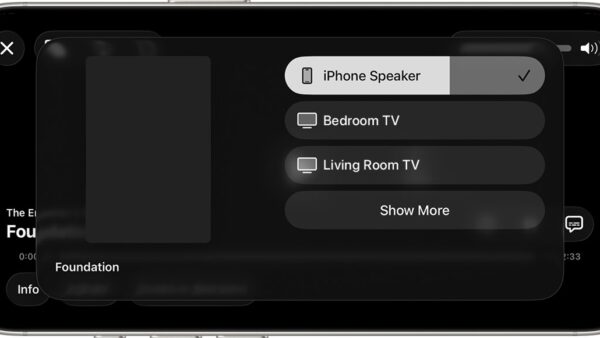
The speaker phone icon on an iPhone 7 has not vanished: when a Bluetooth headset, car kit or speaker is connected, the Speaker button on the call screen becomes an Audio button, and you tap it to choose Speaker Phone.
This guide shows how to switch a call to the loudspeaker from that button, how to make calls skip a Bluetooth device, how to set calls to start on the speaker, and what to do when speakerphone has no sound.
How to turn on speaker phone on iPhone 7 when the icon is missing
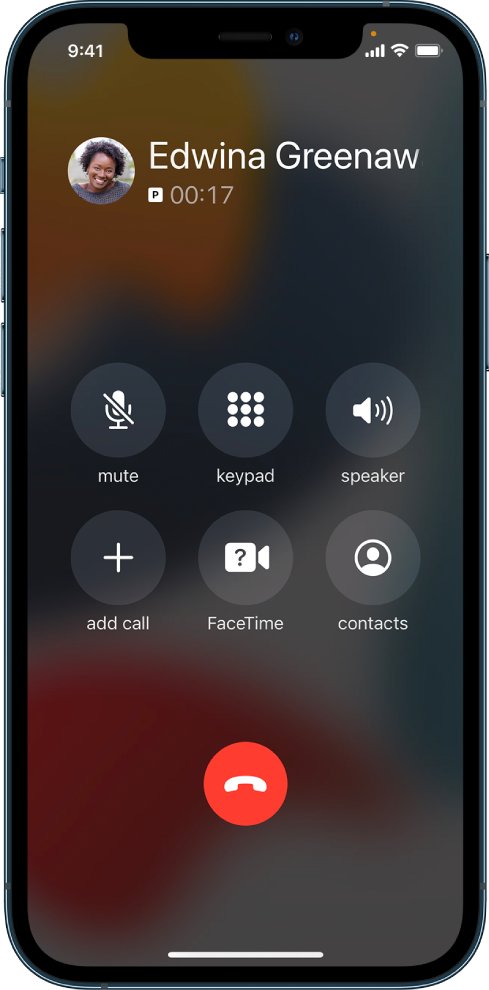
Start a call from your recent calls list or answer one first. The speaker control only appears on the in-call screen, never on the Home Screen.
- During the call, look at the grid of buttons on the call screen.
- If you see Audio where Speaker used to be, tap Audio.
- Choose Speaker Phone from the list of audio destinations.
- If you left the call screen to use another app, tap the green call indicator at the top of the screen to return to the call first.
- To switch back to the earpiece, tap Audio again and choose iPhone.
The list also shows each connected Bluetooth device by name, so you can move the call to your headphones or car from the same menu.
Why the iPhone speaker button changes to Audio
| What you see on the call screen | What it means | What to do |
|---|---|---|
| Speaker button | No Bluetooth audio device is connected | Tap Speaker to turn the loudspeaker on or off |
| Audio button | A Bluetooth headset, car kit, AirPods or speaker is connected | Tap Audio, then choose Speaker Phone, iPhone or the device |
| Only a small green call banner | You left the call screen during the call | Tap the green call indicator or swipe down on the banner to see the controls |
| No speaker sound after choosing Speaker Phone | Silent mode, Do Not Disturb, a blocked speaker or a hardware fault | Work through the troubleshooting steps below |
A car stereo or an old Bluetooth speaker you forgot about is the usual reason the button changes. The iPhone stays connected to it while it is within about 33 feet (10 meters).
Stop a Bluetooth device from taking over iPhone calls
If you never want calls on that device, take it out of the picture. Any of these brings the plain Speaker button back.
- Answer the call by tapping the iPhone screen instead of the headset or car button, so the call starts on the iPhone.
- To drop every Bluetooth connection without turning Bluetooth off, open Control Center and tap the Bluetooth button.
- To turn Bluetooth off completely, go to Settings > Bluetooth and turn off Bluetooth.
- To remove one device for good, go to Settings > Bluetooth, tap the information button next to its name, then tap Forget This Device.
- Switch off the device itself, or move it out of range, if you want to keep it paired for later.
Forgetting AirPods on the iPhone also removes them from other devices signed in with the same Apple ID.
Make iPhone calls always start on speaker phone
Call Audio Routing sets where call audio goes by default, so you do not need the speaker button at all.
- Open Settings.
- Tap Accessibility, then tap Touch.
- Tap Call Audio Routing.
- Choose Speaker to send phone and FaceTime calls to the loudspeaker every time.
- Come back to this screen later to pick a different default destination.
The same screen can route calls to a Bluetooth headset by default and holds the Auto-Answer Calls option.
Test the iPhone 7 speaker after switching
- Open Settings and tap Sounds & Haptics.
- Drag the Ringtone and Alerts slider back and forth a few times and listen for the ringtone from the bottom speaker.
- Make a short test call and turn on speakerphone from the Speaker or Audio button.
- If the slider plays sound but the call does not, call again later or from another place, because weak reception can cause it.
If you hear nothing from the slider, or the speaker button on that slider is dimmed, the speaker needs service.
iPhone speaker phone not working on calls
Why did my iPhone speaker stop working?
Silent mode or Do Not Disturb is on, or the speaker opening is blocked.
- Move the Ring/Silent switch toward the screen so no orange shows.
- Open Settings > Focus > Do Not Disturb and make sure it is off.
- Remove the case, film or screen protector.
- Clean the speaker and receiver openings with a small, soft, clean and dry brush.
Speaker phone has no sound but music plays
Call audio is still going to a paired Bluetooth device.
- Tap Audio during the call and choose Speaker Phone.
- Open Control Center and tap the Bluetooth button to disconnect accessories.
- Check Settings > Accessibility > Touch > Call Audio Routing does not send calls to a Bluetooth headset by default.
iPhone speaker phone keeps turning off
A car kit or headset reconnects and pulls the call away from the speaker.
- Go to Settings > Bluetooth.
- Tap the information button next to the device that keeps connecting.
- Tap Forget This Device.
- Set Call Audio Routing to Speaker if you want every call on the loudspeaker.
The speaker button is dimmed or the call screen freezes
A software glitch on the phone.
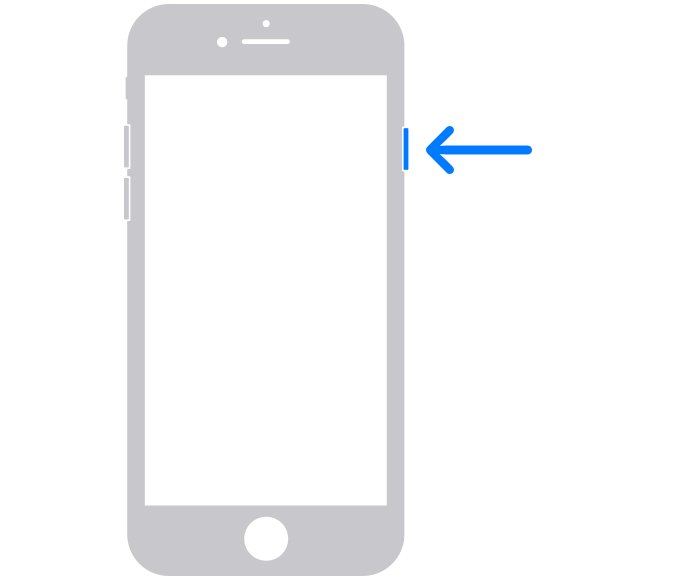
- Press and hold the side button until the power-off slider appears.
- Drag the slider and wait 30 seconds.
- Press and hold the side button until the Apple logo appears.
- If the screen will not respond, press and hold the side button and the volume down button together until the Apple logo appears.
- Update iOS in Settings > General > Software Update.
Why is my iPhone speaker so low?
Call volume is set separately while you are on the call, or the grille is clogged.
- Press the volume up button on the side of the iPhone during the call.
- Clean the speaker opening with a dry, soft-bristled brush.
- Retest with the Ringtone and Alerts slider in Sounds & Haptics.
If the speaker still fails after these checks, contact Apple for service.
iPhone 7 speaker phone icon FAQ
Why is the speaker icon not showing on my iPhone during calls?
A Bluetooth audio device is connected, so the Speaker button is labeled Audio instead. Tap Audio during the call and choose Speaker Phone to use the loudspeaker. The button returns to Speaker when no Bluetooth audio device is connected.
How do I get off speaker on iPhone?
Tap the Speaker button again during the call to turn the loudspeaker off. If the button reads Audio, tap it and choose iPhone to move the call back to the earpiece.
How do I turn off speaker on iPhone for every call?
Go to Settings > Accessibility > Touch > Call Audio Routing and choose a destination other than Speaker. While it is set to Speaker, every phone and FaceTime call starts on the loudspeaker until you change it.
How do I take my iPhone off speaker in the car?
During the call, tap Audio and choose iPhone. The call moves from the car system to the iPhone earpiece. To stop the car taking calls at all, forget it in Settings > Bluetooth.
How do I remove speaker options on iPhone?
The Audio menu lists every connected Bluetooth device. To remove one, go to Settings > Bluetooth, tap the information button next to it and tap Forget This Device. When none remain, the plain Speaker button returns.
Why is my iPhone speaker not working?
Silent mode, Do Not Disturb, a blocked speaker opening or a Bluetooth device holding the audio are the common causes. Check each, then test with the Ringtone and Alerts slider. If the slider is silent or dimmed, the speaker needs service.
How do I clear my iPhone speaker?
Remove any case or screen protector, then brush the speaker and receiver openings with a small, soft-bristled brush that is clean and dry. Do not push anything sharp into the grille.
Why is my iPhone speaker so low?
Call volume changes only with the volume buttons while a call is active. Press volume up during the call. A clogged speaker grille also lowers volume, so clean it with a dry soft brush.
Where has my sound icon gone on iPhone?
The sound and speaker controls appear only on the in-call screen. If you left the call, tap the green call indicator at the top of the screen to bring the controls back.