To enable or disable Netflix Smart Downloads, open the Netflix app, tap My Netflix, tap your profile name, tap App Settings, then tap Smart Downloads under Downloads and flip each toggle.
This guide explains the two Smart Downloads features, which devices and plans support them, how to set storage for Downloads for You, and what to do when nothing downloads.
Turn Netflix Smart Downloads on or off
The same steps work on an iPhone, iPad, Android phone and Android tablet. Smart Downloads has two separate switches, so you can keep one on and turn the other off.
- Open the Netflix app.
- Tap My Netflix in the lower-right corner.
- Tap your profile name at the top.
- Tap App Settings.
- Under Downloads, tap Smart Downloads.
- Toggle Download Next Episode on or off.
- Toggle Downloads for You on or off.
Turning both switches off disables Smart Downloads completely. Titles you already downloaded stay on the device until you delete them or they expire.
Netflix Smart Downloads
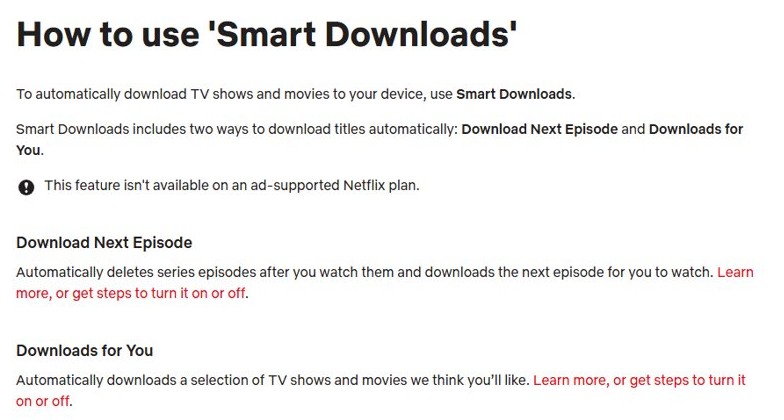
Smart Downloads is Netflix's name for two automatic download features. Each one has its own toggle in App Settings.
| Feature | What it does | Storage use |
|---|---|---|
| Download Next Episode | Deletes a downloaded episode after you finish it and downloads the next one in the series | No extra space beyond what your downloads already use |
| Downloads for You | Downloads shows and movies Netflix picks for you, so you always have something offline | The amount of storage in GB you set for each profile |
| Last episode of a series | Not deleted automatically after you watch it | Stays until you delete it |
Netflix Smart Downloads requirements and supported devices
| Requirement | Detail |
|---|---|
| Device | iPhone, iPad, Android phone or Android tablet |
| App version | The latest version of the Netflix app |
| Plan | Any plan except an ad-supported plan |
| Connection | Wi-Fi; Smart Downloads does not use mobile data |
| Storage | Free space on the device for Downloads for You |
On a computer there is no Smart Downloads setting, and the ways to download Netflix movies on a laptop work differently.
Enable Download Next Episode on Netflix
- Open the Netflix app and tap My Netflix.
- Tap your profile name, then App Settings.
- Under Downloads, tap Smart Downloads.
- Turn on the switch next to Download Next Episode.
- Download one episode of a series, watch it to the end while on Wi-Fi, and the next episode replaces it.
Change Netflix downloads storage per profile
- Open My Netflix > your profile name > App Settings.
- Tap Smart Downloads under Downloads.
- Turn on Downloads for You.
- Use the minus and plus buttons to set how many GB Netflix may download for each profile.
- Stay on Wi-Fi so the app can fill that space with suggested titles.
See what Netflix Smart Downloads saved on your phone
- Tap My Netflix in the Netflix app.
- Open your downloads list on that page.
- Look for the next episode of the series you just finished, which confirms Download Next Episode is working.
- Look for titles you did not pick yourself, which confirms Downloads for You is working.
Netflix Smart Downloads not working
The next episode does not download
Download Next Episode is off, the device is not on Wi-Fi, or the series has no more episodes.
- Check Download Next Episode is turned on in Smart Downloads.
- Connect the device to a Wi-Fi network.
- Confirm the series has another episode available to download.
Downloads for You adds nothing
The toggle is off, there is no Wi-Fi, or the device is short of storage.
- Check Downloads for You is toggled on.
- Connect to Wi-Fi.
- Free up storage on the phone or tablet, or lower the GB amount set for the profile.
The Smart Downloads option is missing
The account is on an ad-supported plan, or the app is out of date.
- Update the Netflix app from the App Store or Google Play.
- Check your plan in your Netflix account; Smart Downloads needs a plan without ads.
- Reopen App Settings and look under Downloads again.
Netflix Smart Downloads FAQ
What are Netflix Smart Downloads?
Smart Downloads is a Netflix app setting that downloads titles automatically. It has two parts: Download Next Episode, which swaps a watched episode for the next one, and Downloads for You, which saves titles Netflix suggests.
How do I turn off Smart Downloads on Netflix?
Open the Netflix app, tap My Netflix, tap your profile name, then App Settings. Under Downloads, tap Smart Downloads and turn off both Download Next Episode and Downloads for You.
Does Netflix Smart Downloads use mobile data?
No. Both Download Next Episode and Downloads for You work only when the device is connected to Wi-Fi, so they never use your cellular data allowance.
Is Smart Downloads available on the ad-supported Netflix plan?
No. Netflix says Smart Downloads, including Download Next Episode and Downloads for You, is not available on an ad-supported plan. Switch to a plan without ads to use it.
Which devices support Netflix Smart Downloads?
Smart Downloads works on iPhone, iPad, and Android phones and tablets running the latest version of the Netflix app. Netflix lists no other devices for the feature.
Does Download Next Episode delete the last episode?
No. The very last episode of a series is not deleted automatically after you watch it. Every earlier downloaded episode is removed once you finish it and the next one downloads.