To add multiple time zone clocks on Windows 11, open Settings > Time & language > Date & time, add up to two additional clocks, and hover over the taskbar clock to see them.
This guide covers the Settings, Control Panel and Clock app routes, how to tell which one your build uses, and fixes when the extra clocks do not show.
Add multiple clocks on Windows 11 from Settings app
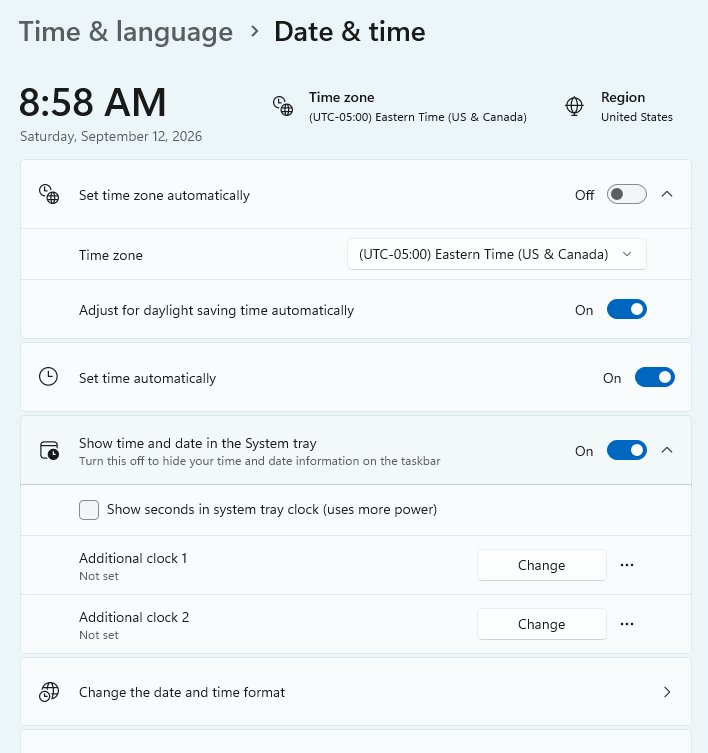
Windows 11 version 24H2 and 25H2 builds from September 2025 onward moved the additional clocks option from Control Panel into Settings. Microsoft rolled the change out gradually, so some PCs still hand off to Control Panel.
- Press Win + I to open Settings.
- Select Time & language > Date & time.
- Find the Additional clocks option and open it.
- Turn on the first extra clock, pick its time zone and type a display name such as London.
- Repeat for the second clock if you need one.
- Save the change, then hover over the clock at the right end of the taskbar.
If selecting Additional clocks opens a small Date and Time window instead, your build still uses the Control Panel dialog. Follow the next section from step 4.
Settings, Control Panel or Clock app for world time on Windows 11
| Your situation | Use this | Why |
|---|---|---|
| You want other time zones on the taskbar | Settings or Control Panel additional clocks | They appear when you hover over or select the taskbar clock |
| You need more than two extra time zones | Clock app World clock | Additional clocks are limited to two; the Clock app takes many cities |
| You plan a call across zones | Clock app Compare | The slider shows every city's time at a chosen moment |
| Your Windows 11 build is older than 24H2 | Control Panel | The Settings page there still links to the classic dialog |
Add multiple clocks on Windows 11 from Control Panel
The classic Date and Time dialog still works on Windows 11 and Windows 10. Each extra clock gets its own time zone and a name of your choice.
- Select Start, type Control Panel and open it.
- Select Clock and Region, then Date and Time.
- Open the Additional Clocks tab.
- Check Show this clock under the first clock.
- Choose a zone from Select time zone and type a name in Enter display name.
- Check Show this clock under the second clock and set it the same way if you need it.
- Select Apply, then OK.
Add multiple clocks on Windows 11 from Clock app
The Clock app's World clock page has no two-clock limit and shows each city on a map. It does not add the cities to the taskbar, though you can pin the Clock app to the taskbar.
- Select Start and open Clock from the app list, or type Clock in the search box.
- Select World clock. If the menu is hidden, select Toggle navigation in the upper-left corner first.
- Select Add a new city at the bottom.
- Type the first few letters of a location, select it in the list, and select Add.
- Repeat for each city you want to track.
If your city is not listed, add another city in the same time zone. The time shown is identical.
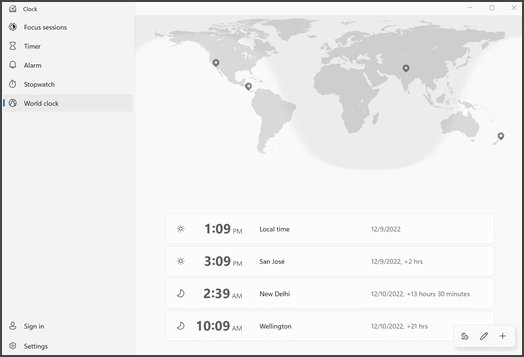
Compare time zones in the Windows 11 Clock app
- Open Clock and select World clock.
- Select Compare at the bottom of the page.
- Drag the slider to a time to see what time it will be in every city you added.
- Select the back arrow in the upper-left corner to stop comparing.
See additional clocks on the Windows 11 taskbar
- Move the pointer over the date and time at the right end of the taskbar.
- Wait for the tooltip; it lists your local time plus each additional clock by its display name.
- Check each name shows the hour you expect for that zone.
- If the tooltip shows only one time, reopen the additional clocks setting and confirm each clock is turned on.
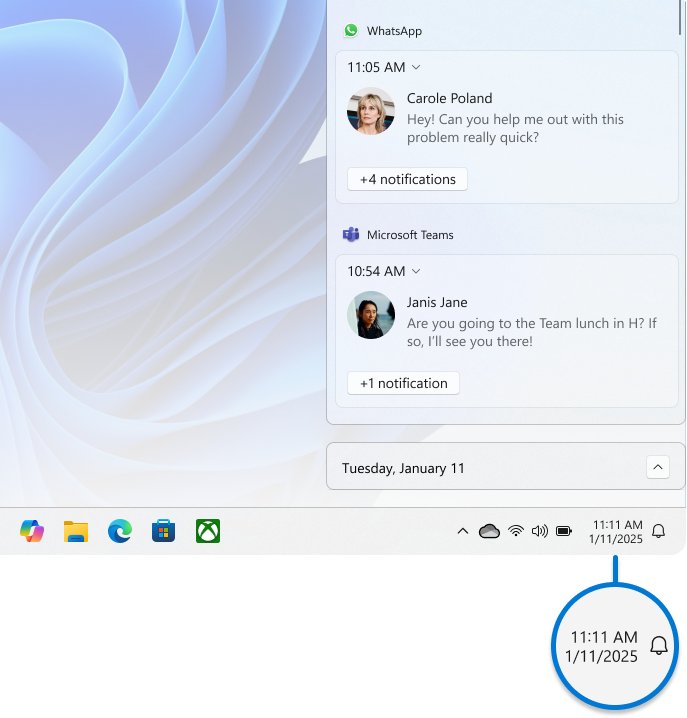
Change the time zone on Windows 11 for accurate extra clocks
Additional clocks are calculated from your PC's own time zone, so a wrong local zone makes every extra clock wrong. You can also set the time and zone manually when automatic detection picks the wrong one.
- Open Settings > Time & language > Date & time.
- Turn off Set time zone automatically if the zone shown is wrong.
- Pick the right zone from the Time zone drop-down menu.
- Check the taskbar clock shows your correct local time.
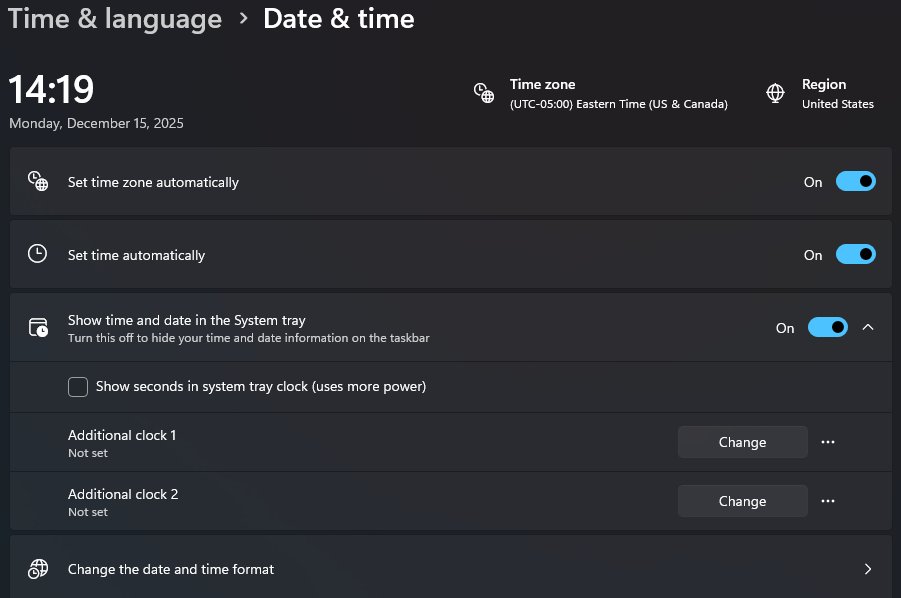
Windows 11 additional clocks not showing
Additional clocks show twice in the taskbar tooltip
A known taskbar bug in some Windows 11 builds duplicated the clocks in the date and time tooltip; Microsoft fixed it in a later update.
- Open Settings > Windows Update.
- Select Check for updates and install everything offered.
- Restart the PC and hover over the clock again.
The time and date are missing from the taskbar
The system tray clock is turned off, so there is nothing to hover over.
- Open Settings > Time & language > Date & time.
- Turn on Show time and date in the System tray.
- Hover over the clock to see the additional clocks.
An extra clock shows the wrong hour
The local time zone or the zone picked for that clock is wrong.
- Correct your own time zone in Date & time first.
- Reopen the additional clocks setting and pick the right zone for that clock.
- Save and check the tooltip again.
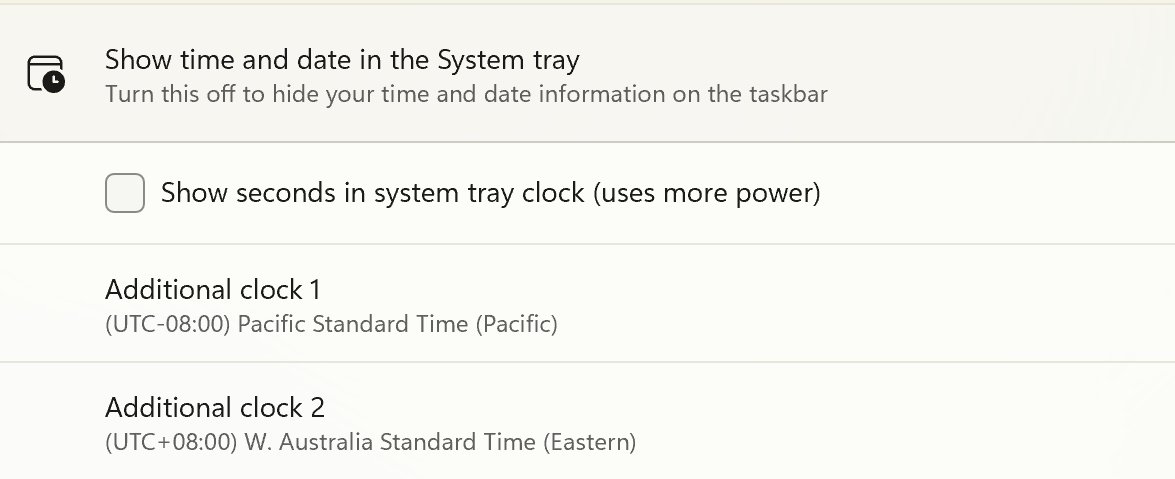
Windows 11 multiple time zone clocks FAQ
How many time zone clocks can I add to the Windows 11 taskbar?
You can add two additional clocks to the taskbar, plus your local time, for three in total. For more cities, use the World clock page in the Clock app, which has no comparable limit but stays inside the app.
Where are additional clocks in Windows 11 Settings?
They are in Settings > Time & language > Date & time on Windows 11 version 24H2 and 25H2 builds that received the September 2025 update. On older builds the same page opens the classic Control Panel Date and Time dialog.
Can I show two clocks on the Windows 11 taskbar at the same time?
Not side by side. Windows 11 shows the additional clocks in a tooltip when you hover over the taskbar clock. The taskbar itself always displays only your local time and date.
How do I add a world clock in Windows 11?
Open the Clock app, select World clock, select Add a new city, type the location and select Add. The city then appears on the world map with its current local time.
How do I compare time zones in Windows 11?
Open Clock, select World clock, then select Compare and move the slider to a time. Every added city shows its matching local time. Select the back arrow to leave compare mode.
Do additional clocks work in Windows 10 too?
Yes. Windows 10 has the same Additional Clocks tab in the Control Panel Date and Time dialog and the same Clock app steps. Windows 10 support ended on October 14, 2025, so Microsoft recommends moving to Windows 11.