When System Restore is not working or restore points are missing, System Protection is usually turned off for drive C: or has no disk space, so Windows deletes or never makes restore points.
The ten steps below turn protection back on, check the Volume Shadow Copy service, disk space and system files, run System Restore from Safe Mode or recovery, and stop points vanishing again on Windows 11 and Windows 10.
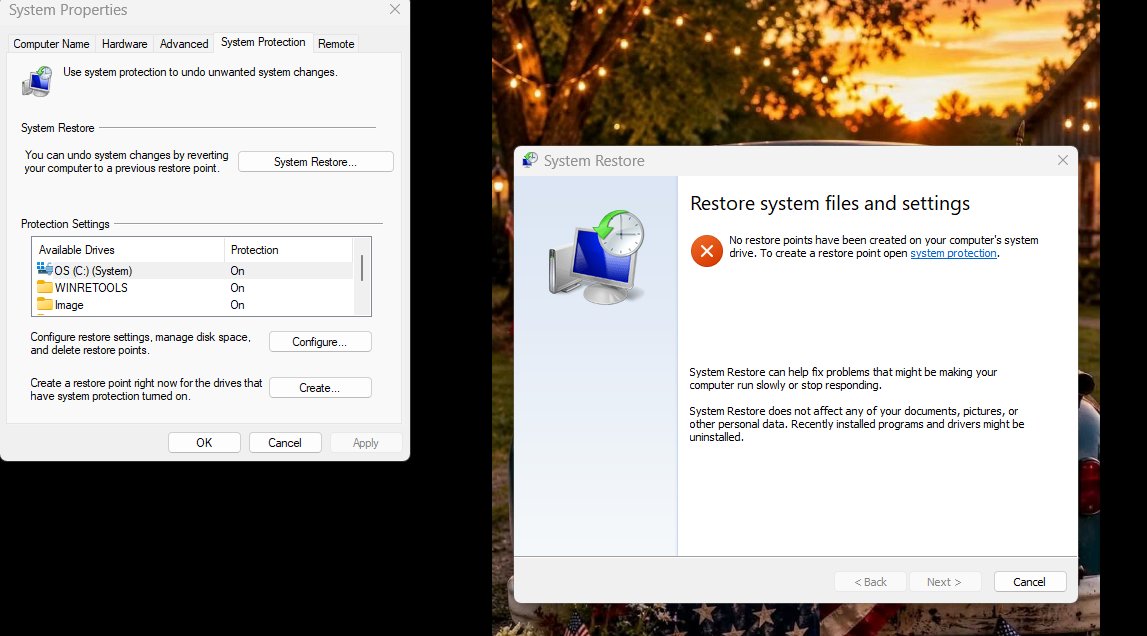
Fix Windows 10/11 System Restore not working and restore points missing
Most missing restore points are hidden or were never created. Check both in under a minute.
- Press Win + R, type
rstrui.exeand press Enter. - Select Next, then tick Show more restore points. Older points often appear here.
- If the list is empty, press Win + R again, type
systempropertiesprotection.exeand press Enter. - Under Protection Settings, check that your Windows drive shows On.
- If it shows Off, select the drive, choose Configure…, select Turn on system protection, set the slider to at least a few percent and select Apply.
- Select Create…, name the restore point and select Create.
Prerequisites
| What you need | Why |
|---|---|
| An administrator account | System Protection settings, services and repair commands need admin rights |
| Your BitLocker recovery key, if the drive is encrypted | Windows Recovery Environment asks for it before System Restore runs |
| Free space on the Windows drive | Restore points live on the drive they protect; with no space, Windows deletes the oldest |
| Backups of new personal files | System Restore leaves personal files alone, but point-in-time restore rolls back files too |
| Mains power on a laptop | A restore interrupted by a flat battery can leave Windows unusable |
Step 1: Check whether System Protection is enabled
Microsoft states that System Protection is not enabled by default. With it off, Windows creates no restore points at all.
- Select Start, type Create a restore point and open the result.
- On the System Protection tab, read the Protection column for each drive.
- Select the drive marked (System) and choose Configure….
- Select Turn on system protection.
- Drag the disk space slider above zero; a small value means few points survive.
- Select Apply, then OK.
Step 2: Create a manual restore point
A manual point proves System Restore can write snapshots. If this fails, the error message tells you which step to work on next.
- Open Create a restore point from Start.
- On the System Protection tab, select Create….
- Type a description such as
Test pointand select Create. - Wait for Windows to confirm the point was created.
- Open
rstrui.exeand confirm the new point is listed.
Step 3: Make sure required services are running
System Restore depends on the Volume Shadow Copy service (VSS). Microsoft warns that disabling VSS breaks System Restore.
- Press Win + R, type
services.mscand press Enter. - Double-click Volume Shadow Copy.
- If Startup type shows Disabled, change it to a non-disabled type.
- Select Apply, then Start to test that it starts without an error.
- Select OK, then repeat Step 2.
Step 4: Check available disk space
When the shadow copy storage area runs out of space, Windows deletes restore points beginning with the oldest. Check how much space they are allowed, then raise it if needed. Run both commands in an elevated Command Prompt.
vssadmin list shadowstorage /on=C:Shows used, allocated and maximum shadow copy storage on drive C:. To raise the limit, run vssadmin resize shadowstorage /For=C: /On=C: /MaxSize=10% (any value of 1 MB or more, or a percentage).
You should see: Maximum Shadow Copy Storage space shows a size larger than the used space, and new restore points stop disappearing.
The disk space slider in System Protection > Configure… changes the same limit without a command.
Step 5: Run System File Checker and DISM
Corrupt system files can make System Restore fail to start or stop partway. Microsoft recommends running DISM first, then the SFC system file scan.
- Select Start, type
cmd, right-click Command Prompt and select Run as administrator. - Run
DISM.exe /Online /Cleanup-image /Restorehealthand wait for it to finish. - Run
sfc /scannow. - Keep the window open until verification reaches 100%.
- Restart, then try System Restore again.
Step 6: Check the disk for file system errors
File system errors on the Windows drive can corrupt the shadow copies that hold restore points. chkdsk /f fixes errors; /r also finds bad sectors.
- Open Command Prompt as administrator.
- Run
chkdsk C: /f. - When chkdsk says it cannot lock the drive, type Y to schedule the check for the next restart.
- Restart the PC and let the check finish without interrupting it.
- If you suspect a failing drive, run
chkdsk C: /rthe same way. It takes much longer.
Step 7: Try System Restore from Safe Mode
Safe Mode loads only essential drivers and services, so a program that blocks the restore in normal startup cannot interfere. Boot into Safe Mode from the Windows Recovery Environment.
- Hold Shift and select Start > Power > Restart.
- Select Troubleshoot > Advanced options > Startup Settings > Restart.
- After the restart, press 4 or F4 for Enable Safe Mode.
- Sign in, press Win + R, type
rstrui.exeand press Enter. - Select a restore point, then Next and Finish.
- Windows restarts and applies the point. Restart again normally to leave Safe Mode.
Step 8: Check for antivirus interference
Some third-party security suites protect their own files in a way that conflicts with a restore. Keep protection on; use a clean boot to test whether third-party software is the cause.
- Update your third-party antivirus and check its vendor's help pages for System Restore or shadow copy notes.
- Select Search, type
msconfigand open System Configuration. - On Services, select Hide all Microsoft services, then Disable all and Apply.
- On Startup, select Open Task Manager and disable each enabled startup app.
- Restart and create a restore point or run System Restore.
- If it works, re-enable services in small groups to find the conflict, and report it to that vendor.
Step 9: Understand why restore points may vanish
| Cause | What happens | Fix |
|---|---|---|
| System Protection off | No points are created, and turning it off deletes existing ones | Step 1 |
| Storage limit reached | Windows deletes the oldest shadow copies to make room | Step 4 |
| Low free disk space | There is no room to keep points on the Windows drive | Free space, then Step 4 |
| Point-in-time restore confused with System Restore | Point-in-time restore points are deleted after 72 hours by design | Use System Restore for older points |
| Disk errors | Shadow copies become unreadable | Step 6 |
Windows 11 also offers point-in-time restore under Settings > System > Recovery. It snapshots the whole system about every 24 hours and keeps points for up to 72 hours, so its points always expire quickly.
Step 10: Create a fresh restore baseline
Once restore points work, make a named point while Windows is healthy, so you always have a known-good state to return to.
- Install pending updates and restart so the baseline includes them.
- Open Create a restore point and confirm protection is On for the system drive.
- Select Configure… and set the disk space slider high enough to hold several points.
- Select Create…, name it with today's date, such as
Baseline 2026-10-30, and select Create. - Create another named point before installing drivers or system tools.
Check that restore points are being saved
- Press Win + R, type
rstrui.exeand press Enter. - Select Next and tick Show more restore points.
- Confirm your baseline point appears with today's date and its name.
- Optionally select Scan for affected programs to see what a restore would change, then select Cancel.
- After a few days, check again that automatic points still appear and the baseline is still listed.
Tips and troubleshooting notes
If there are still no restore points
Protection is on, but points cannot be stored or are cleared at once.
- Re-check Protection Settings: protection can be On for a data drive but Off for the system drive.
- Run
vssadmin list shadowstorage /on=C:and raise the maximum if it is tiny. - Free disk space on C: and create a manual point again.
- On a work or school PC, ask the IT administrator whether System Protection is managed centrally.
If System Restore says it failed
A file was in use, a program blocked the restore, or system files are damaged.
- Run System Restore from Safe Mode (Step 7).
- Try a different, older restore point.
- Run DISM and SFC (Step 5) and chkdsk (Step 6), then retry.
- If the error says System Restore does not appear to be functioning correctly, work through the fixes for the System Restore not functioning error on that message.
If Windows will not start
Windows cannot load far enough to run rstrui.exe, so use the Windows Recovery Environment.
- Turn the PC on and hold the power button as soon as the Windows logo appears. Do this twice; the third start opens Automatic Repair.
- Select Advanced options > Troubleshoot > Advanced options > System Restore.
- Enter your BitLocker recovery key if asked.
- Pick a restore point, select Next and Finish, then Restart.
- On Windows 11 with point-in-time restore on, select Troubleshoot > Point-in-time restore instead for a point less than 72 hours old.
Best practice for System Restore points
Keep System Protection on for the system drive with a generous disk space limit, and create a named restore point before every driver install or major change. Nearly every missing-point case traces to protection being off or the storage limit purging old points, and a manual point made while Windows is healthy is the one you can trust.
System Restore and restore points FAQ
Why are my restore points missing in Windows 11?
System Protection is usually off for drive C:, or its storage limit is so small that Windows deletes the oldest points to make room. Open Create a restore point, check that Protection is On for the system drive, and raise the disk space slider under Configure.
Is System Protection turned on by default?
No. Microsoft states that System Protection is not enabled by default, though it recommends turning it on. Without it, Windows creates no automatic restore points, so there is nothing for System Restore to list.
Does System Restore delete my personal files?
No. System Restore reverts system files, registry settings and installed programs, but leaves documents, photos and other personal files alone. Apps installed after the restore point are removed, so use Scan for affected programs to see which ones first.
How do I run System Restore if Windows won't boot?
Open the Windows Recovery Environment by interrupting startup twice, then select Troubleshoot, Advanced options, System Restore. Enter your BitLocker recovery key if prompted, choose a restore point and select Finish.
What is the difference between point-in-time restore and System Restore?
Point-in-time restore rolls back the entire system drive, including personal files, using automatic snapshots kept for up to 72 hours. System Restore rolls back only system files and settings, and its points are kept as long as disk space allows.
Why does System Restore fail with an error?
A program locking files, corrupt system files or disk errors are the usual causes. Retry from Safe Mode, pick a different restore point, and run DISM, sfc /scannow and chkdsk before trying again.