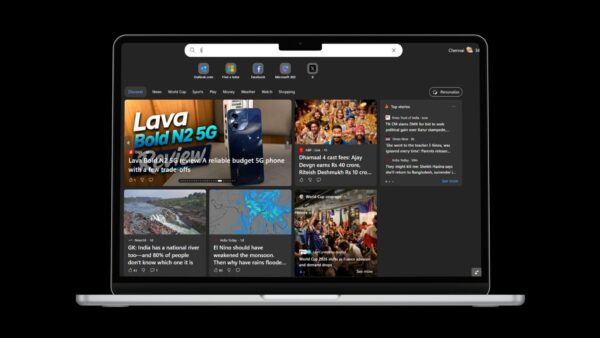
Microsoft’s new Chromium-based Edge now has a taskbar pinning wizard. The feature showed up in Edge Insider Canary version 81.0.367.0, reported on Microsoft’s Tech Community forum on December 17, 2019. It walks you through pinning your favorite sites, and a few Microsoft web apps, to the Windows taskbar in one go.
How to launch the taskbar pinning wizard in Edge
- Open Microsoft Edge.
- Click the Settings and more (…) menu at the top right.
- Go to More tools and select Launch taskbar pinning wizard.
- Edge shows suggestions based on the sites you use. Tick the ones you want and click Continue.
- Edge then offers some popular Microsoft sites. Select them or skip this step.
- On the You’re all set screen, finish the wizard.
The selected sites are added to the taskbar and the Start menu as apps. You can remove them later from Edge’s Apps page, or right-click a taskbar icon and choose Unpin from taskbar.
Pin a single site without the wizard
If you only want one site on the taskbar, you don’t need the wizard:
- Open the website in Edge.
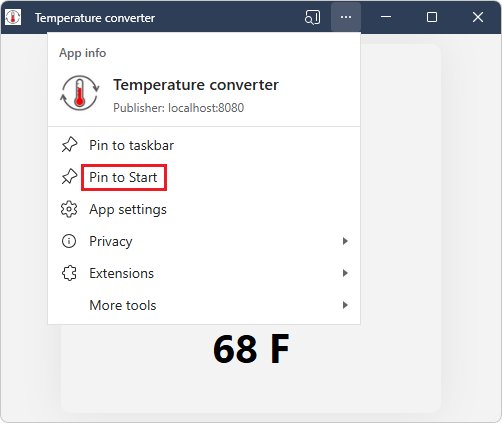
- Select Settings and more > More tools > Pin to taskbar.
Edge adds a shortcut that opens the site in one click. This works for web apps as well as ordinary websites. For other ways to reach programs quickly, you can also add shortcuts to the Windows desktop.
Turn off the wizard with Group Policy
Administrators can control the wizard with the PinningWizardAllowed policy (“Allow Pin to taskbar wizard”), supported on Windows from Edge 80. It is enabled by default. If you disable it, the wizard disappears from the menu and can’t be started through a protocol launch either; users have no setting to override it.
- Group Policy: Administrative Templates > Microsoft Edge > Allow Pin to taskbar wizard.
- Registry: HKLM\SOFTWARE\Policies\Microsoft\Edge, DWORD PinningWizardAllowed = 0 to disable.
The change needs a browser restart to take effect.
If the wizard doesn’t work
- Some users on the Tech Community thread later reported the wizard hanging on a loading circle. Pinning sites one at a time with Pin to taskbar is the simplest workaround.
- If pinning is blocked, check edge://policy for a PinningWizardAllowed value set by your organization.
- Make sure you update Edge to the latest version, since Microsoft notes availability can vary by device, market and browser version.
Today
The wizard has stayed in Edge on Windows since it left Canary, and Microsoft still documents both the wizard policy for businesses and the one-site Pin to taskbar option for everyone.