Mozilla took down a family privacy post from its Internet Citizen blog after readers criticised parts of the advice. The post, published on November 25, 2018 under the title The bare minimum you should do to protect your family’s data, was a list of security habits for parents, written alongside Mozilla’s IRL podcast, whose fourth season was produced in partnership with Common Sense Media.
Critics said some of the tips were impractical for ordinary families, and Mozilla pulled the post so it could be reworked. The article is available again today on the Mozilla blog under the same title.
What the pulled Mozilla post recommended
The post listed ten basic steps. Most of them are still standard advice:
- Set strict privacy settings on new apps and websites right away instead of keeping the defaults.
- Turn on two-factor authentication wherever a service offers it.
- Watch for phishing emails, especially unexpected or oddly worded ones.
- Avoid unsecured Wi-Fi, and consider a VPN from a provider with sound privacy practices.
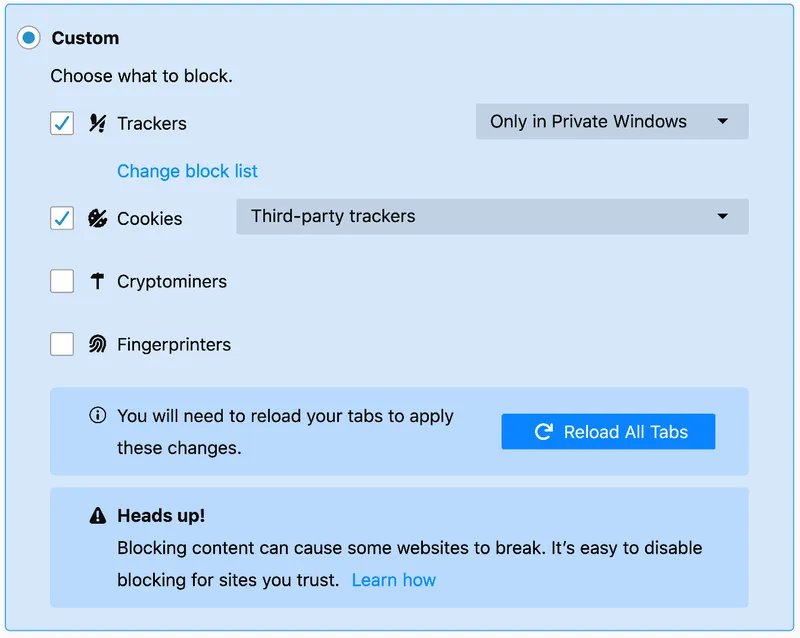
- Change browser settings to limit tracking cookies, with tools such as Privacy Badger or HTTPS Everywhere.
- Turn off location services unless you need them, for example for a child-safety app.
- Be careful with social logins and check what a “log in with” button shares.
- Run regular privacy checks, download your data from big platforms, and use a password manager.
- Mute home assistants when you don’t use them and delete stored recordings.
- Cover your webcam.
Why the post drew criticism
The objections were about practicality rather than intent: a checklist that asks parents to audit every app, review every social login and run a VPN is a lot to ask of a non-technical family. Mozilla’s response was to take the post offline instead of defending it, saying it needed more work. Removing a post from a company blog is unusual, and it showed how closely Mozilla’s privacy messaging was being watched at the time.
How to apply the basics in Firefox
If you want the useful part of that advice without the long checklist, a few settings in Firefox cover most of it:
- Open the menu and choose Settings, then Privacy & Security.
- Under Enhanced Tracking Protection, pick Strict if the sites you use still work with it.
- In Logins and Passwords, protect saved passwords with a primary password, or use a dedicated password manager.
- In Permissions, review which sites can use your location, camera and microphone.
Two-factor authentication is set up on each account, not in the browser. On Windows, the built-in Windows Security tools handle malware and firewall protection, so a family PC doesn’t need extra software for the basics.
Today
The post is back on the Mozilla blog, dated November 25, 2018, with the same ten tips. Mozilla also keeps a family page on mozilla.org, “The Tech Talk”, that quotes Common Sense Media on parental controls and family tech agreements and covers the same ground in a less demanding way.