To make labels in Apple Pages, start a Blank document, set the paper size and margins to match your label sheet, and add a table whose rows and columns equal the label height and width; for address labels, the Contacts app prints straight onto Avery Standard and A4 label layouts.
This guide covers both routes, filling labels with mail merge from Contacts or a Numbers spreadsheet, saving the layout as a reusable template, and fixing labels that print out of line.
Make a sheet of labels in Pages with a table
Pages has no dedicated label templates, so a table that mirrors the label sheet does the job. Take the measurements from your label packet: page margins, label height, label width and the number of labels across and down.
- Open Pages on your Mac, choose File > New and double-click the Blank template.
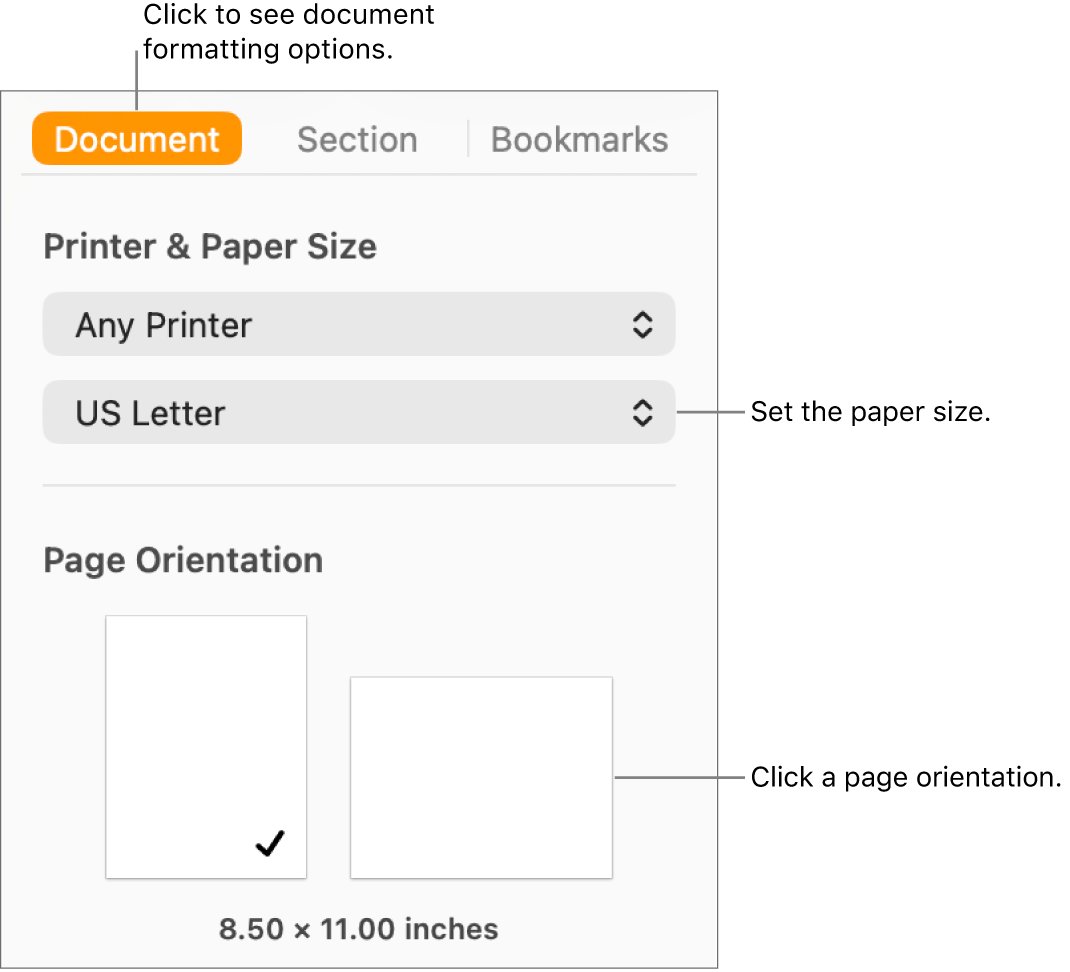
- Click Document in the toolbar, then the Document tab, and choose your paper size from the paper size pop-up menu.
- In Document Margins, enter the sheet's Top, Bottom, Left and Right margins.
- Click Table in the toolbar and add a table, then add or remove rows and columns until they match the labels across and down.
- Select the whole table, open the Format sidebar, click the Table tab and set Height and Width under Row & Column Size to one label's size.
- Click a cell and type the first label. Copy and paste it into the other cells.
- Choose File > Print, pick your printer and print a test page on plain paper.
Hold the test page against a label sheet up to a light. If the text sits inside every label, load the label sheet and print again.
Pages or Contacts: which way to make labels on a Mac?
| What you are making | Use this | Why |
|---|---|---|
| Mailing labels with a different address on each label | Contacts app, File > Print > Mailing Labels | It fills a whole sheet from many contacts and includes Avery Standard and A4 layouts |
| A full sheet of your own return address | Contacts with your card repeated in a list, or a Pages table | Both repeat one address across the sheet |
| Product, jar or file labels with your own design | Pages table | You control fonts, images, colours and borders in each cell |
| One personalised label page per person | Pages mail merge | Merge creates one customised copy of the document for each record |
| Labels you will print again | Pages table saved as a template | Save as Template keeps the measured layout |
What you need before making labels in Pages
| Item | Why you need it |
|---|---|
| Pages on your Mac | The table, margin and mail merge tools all live in Pages |
| The label sheet's measurements | Margins, label size and labels across and down come from the packet or the manufacturer |
| A printer set up on the Mac | Pages uses printers you add in System Settings |
| Contacts or a Numbers spreadsheet (optional) | Mail merge fills fields from either source |
| Plain paper for a test print | Lets you check alignment before using label stock |
If Pages is not on your Mac yet, download Apple Pages for Mac before you start.
Print mailing labels from Contacts on Mac
For address labels, Contacts is faster than building a sheet by hand. Only contact cards that have an address are printed.
- Open the Contacts app and select the contacts, or a list of contacts, you want on labels.
- Choose File > Print.
- Click the Style pop-up menu and choose Mailing Labels. If you do not see it, click the arrow next to Contacts to show more options.
- Click Layout and choose a page type such as Avery Standard or A4, or choose Define Custom to enter your own label size.
- Click Label to set the sort order, add the company name or an image, and change the font and font colour.
- Click Print.
For a sheet of your own return address, create a list, paste your contact card into it as many times as you need, then select the list and print.
Size table cells to match your label sheet in Pages
Pages resizes whole rows and columns, not single cells, which suits label sheets because every label is the same size.
- Click the table, then click the handle in its top-left corner to select the whole table.
- Choose Format > Table > Distribute Rows Evenly, then Distribute Columns Evenly.
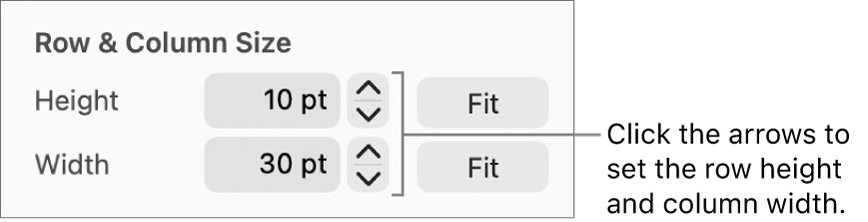
- In the Format sidebar, click the Table tab and type exact values in Height and Width under Row & Column Size.
- Click the Arrange tab and choose Stay on Page so the table does not move as you type.
- Drag the table so its top-left corner sits on the top and left margins.
If the sheet has gaps between labels, add a narrow empty column or row for each gap and leave it blank.
Design label text, borders and images in Pages
- Select the table and, in the Format sidebar Table tab, use Gridlines to hide the lines so they do not print.
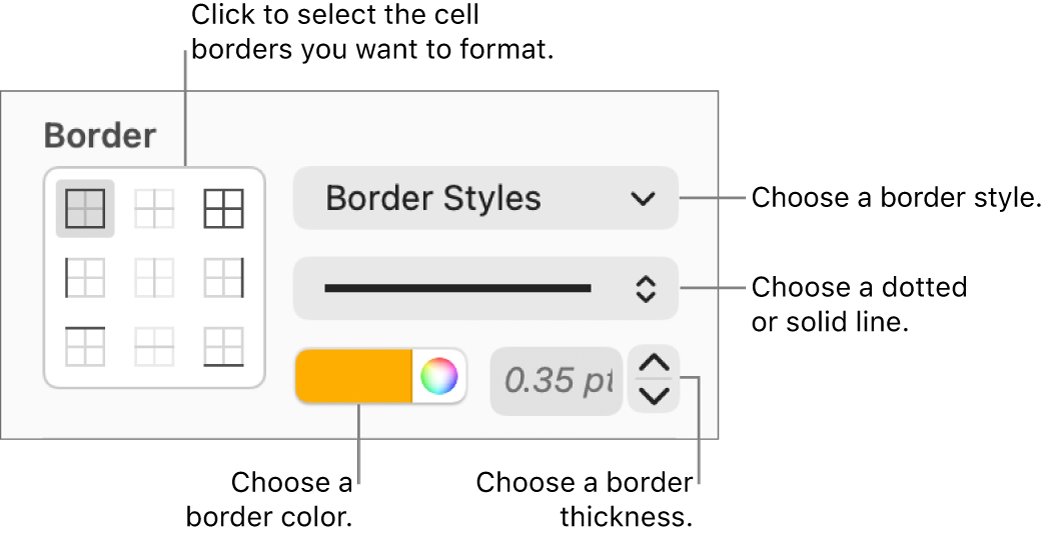
- To print a border around each label, select the cells, click the Cell tab and choose a style under Border.
- To colour a label, select the cell and choose a colour under Fill in the Cell tab.
- Select the text in a cell and set the font, size and alignment in the Format sidebar.
- Finish one label first, then copy that cell and paste it into the rest so every label matches.
Fill labels with mail merge in Pages
Mail merge fills fields from Contacts or an Apple Numbers spreadsheet and creates one customised copy of the document per record. In a label sheet, all fields of the same type show the same record, so each merged page becomes a full sheet for one person.
- Click inside a label cell where the name or address should go.
- Click Document in the sidebar, click the Document tab, then click Mail Merge.
- Choose Add Merge Field and pick a field such as name or address. Click More Fields for the full Contacts list.
- To use a spreadsheet instead, click Add Merge Field > Add from Spreadsheet, open the Numbers file, choose a table and click Add as Fields.
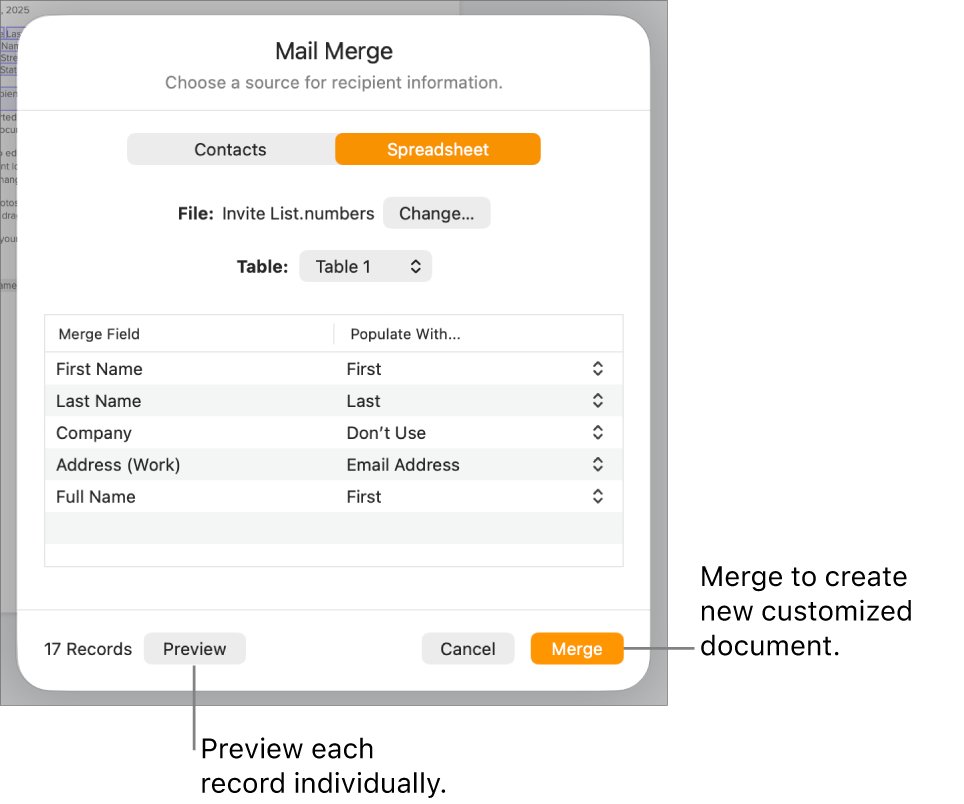
- Click Merge, check the source under Populate With, and click Preview to step through the records.
- Click Merge at the bottom right. A new document opens with one customised copy per record.
Mail merge is also available in Pages on iPhone and iPad. If you need many different addresses on one sheet, print from Contacts instead.
Save your label layout as a Pages template
- Open the finished label document and delete any sample text you do not want to keep.
- Choose File > Save as Template.
- Click Add to Template Chooser, type a name such as the label sheet's product number, and press Return.
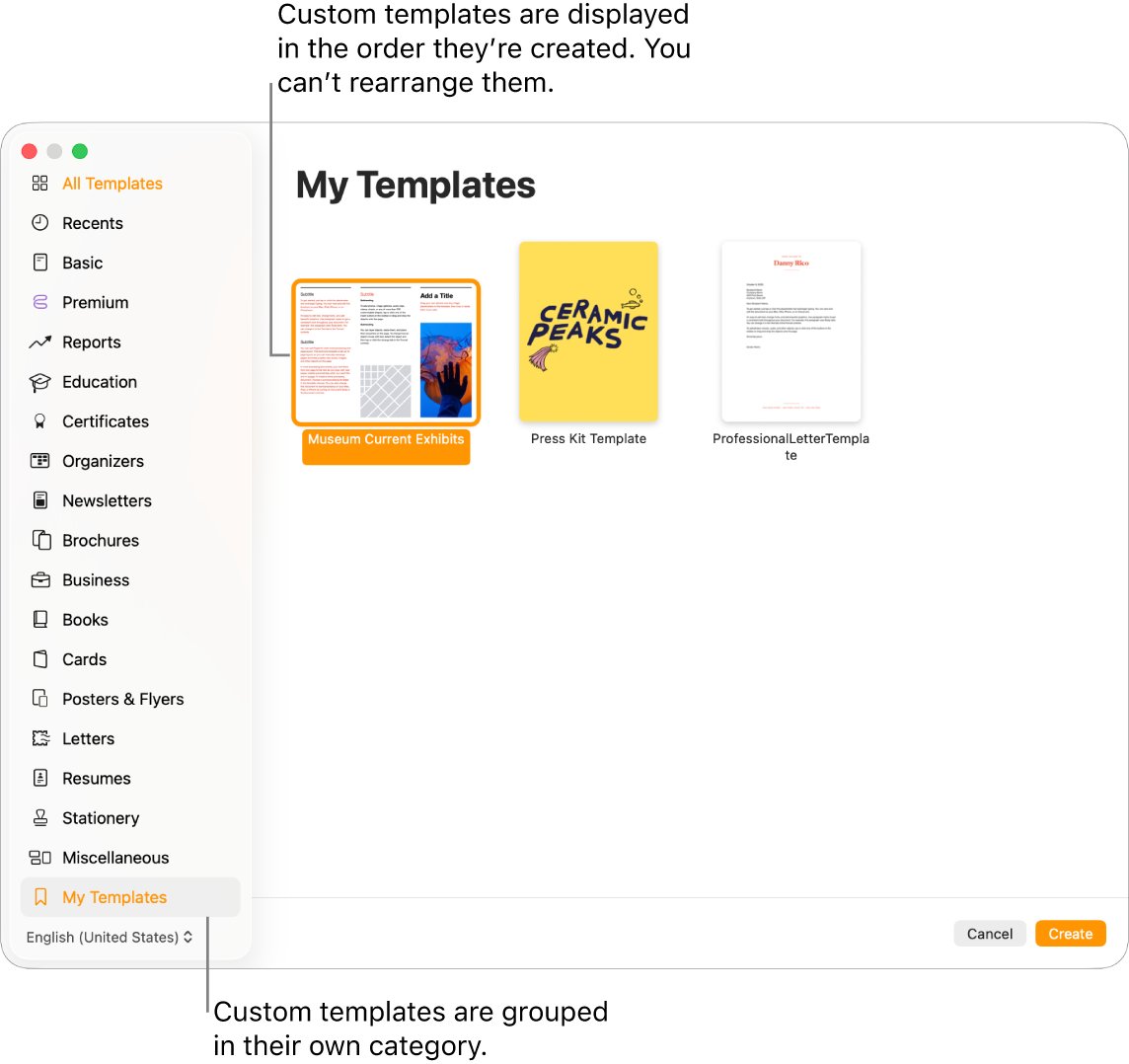
- Next time, choose File > New and open the template from My Templates.
Saving the template to iCloud makes it available as a downloadable file in Pages on your iPhone or iPad.
Check that your Pages labels line up before printing
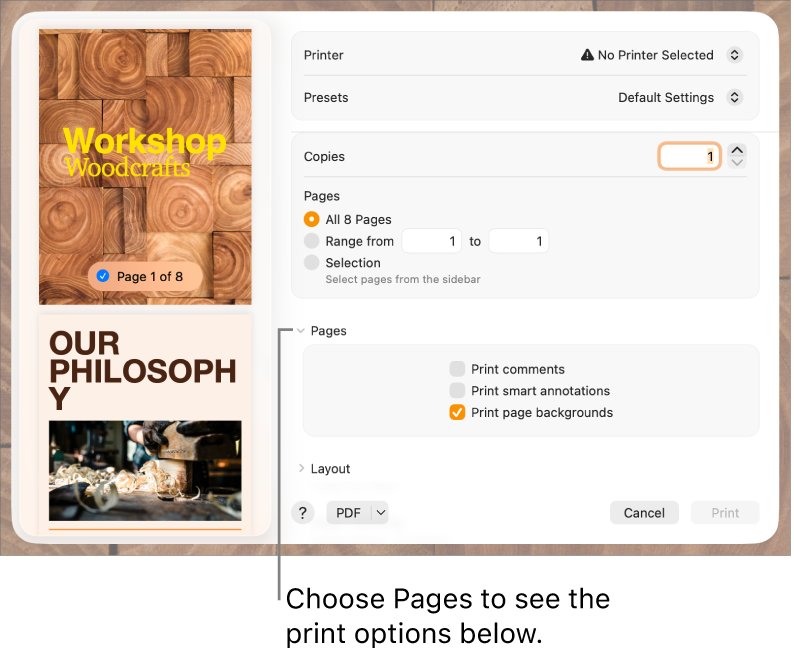
- Choose File > Print and look at the preview: the table should start at the top and left margins.
- Under Pages, select Range and print only page 1 on plain paper.
- Lay the test print over a label sheet and hold both up to a light.
- Confirm every line of text sits inside its label with space on all sides.
- Load the label sheet the way your printer's documentation shows, then print.
Fix Apple Pages labels that print out of alignment
Labels drift lower down the page
Row height is slightly larger than the label height, so the error adds up on each row.
- Select the whole table.
- Re-enter the exact label height under Row & Column Size in the Table tab.
- Reduce the font size if text forces rows to grow.
The whole sheet is shifted left, right, up or down
The document margins or the table's position do not match the sheet.
- Click Document > Document tab and re-enter the margins.
- Make sure the table is set to Stay on Page and sits on the margin corner.
- Print a new test page.
The label sheet size is not in the paper list
The sheet uses a non-standard paper size.
- Choose File > Page Setup.
- Click the Paper Size pop-up menu and choose Manage Custom Sizes.
- Click the add button, name the size and enter Width and Height, then click OK.
- Pick the new size at the bottom of the paper size menu in the Document sidebar.
Table gridlines print on the labels
Gridlines or cell borders are still turned on.
- Select the table and open the Table tab.
- Hide the body, header and footer gridlines in the Gridlines section.
- Select all cells, open the Cell tab and remove any borders.
Making labels in Apple Pages FAQ
What do I use to make labels on a Mac?
Use the Contacts app for address labels, because it prints straight onto Avery Standard and A4 layouts. Use a table in Pages for product, file or custom-designed labels, sized to your label sheet's measurements.
Does Apple Pages have label templates?
Pages has business card and envelope templates under Stationery, but Apple documents no dedicated label templates. Build a label sheet with a table sized to your labels, then save it with File > Save as Template.
What is the easiest way to make labels on a Mac?
For addresses, select contacts in the Contacts app, choose File > Print, set Style to Mailing Labels and pick your label layout. It takes a minute and needs no measuring.
How do I make product labels in Pages?
Add a table matching the label sheet, set row height and column width to the label size, then design one cell with text, colour and an image. Copy that cell into the rest and print a test page first.
Can Pages make labels from a spreadsheet list?
Yes, through mail merge. Choose Add Merge Field > Add from Spreadsheet, open a Numbers file and add its columns as fields. Merge then creates one customised copy of the document for each row.
How do I print labels from Pages?
Choose File > Print, select your printer, and print page 1 on plain paper to check alignment. When the text lines up with the labels, load the label sheet and print the full document.
Can I use Pages business card templates for labels?
The business card templates are designed for commercial business card paper, and the number at the bottom of each page names that paper. For label stock, a table sized to the label sheet is more reliable.