To back up an iPhone to a PC, connect it to the Apple Devices app, select General, choose Back up all of the data on your iPhone to this computer, then select Back Up Now.
This guide covers installing the app, encrypted backups, where the backup files live, restoring from them, and fixes when the iPhone does not appear.
Back up iPhone to PC with the Apple Devices app
The same steps work for an iPad or iPod touch. Keep the device connected until the backup finishes.
- Open the Apple Devices app on your Windows PC.
- Connect the iPhone with a USB or USB-C cable.
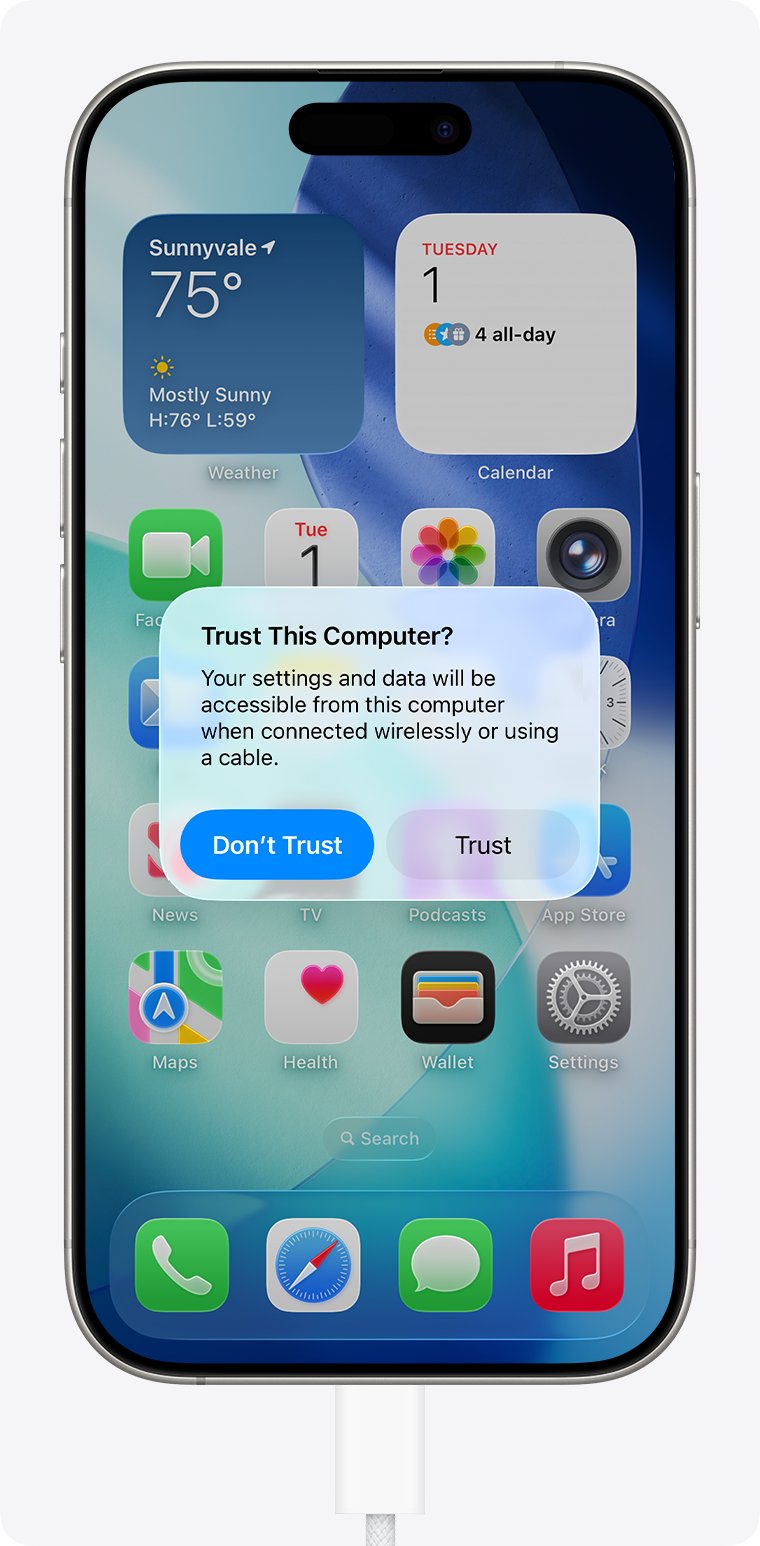
- Unlock the iPhone, and if asked, tap Trust and enter your passcode.
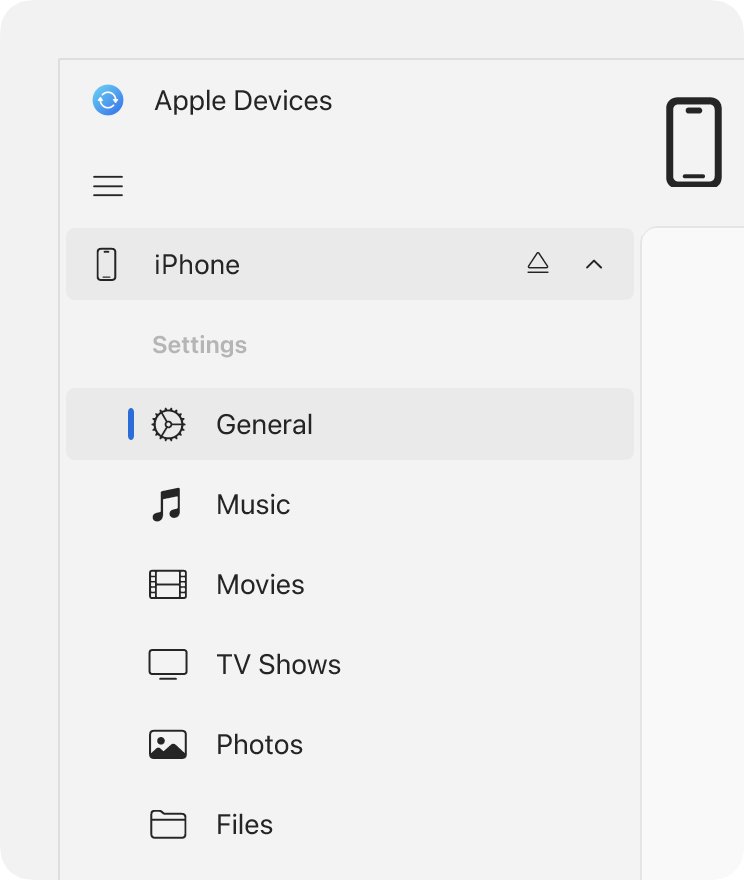
- Select the iPhone in the app's sidebar, then select General.
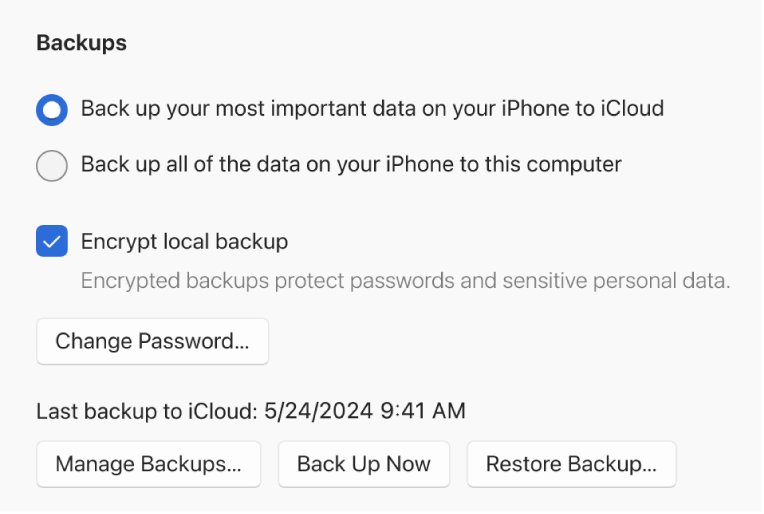
- Choose Back up all of the data on your iPhone to this computer.
- Select Encrypt local backup if you want Health, Activity and saved passwords included.
- Select Back Up Now and wait for the backup to finish.
Install the Apple Devices app on Windows before backing up
Apple Devices is Apple's Windows app for managing, backing up, updating and restoring an iPhone. It comes from the Microsoft Store app.
- Open the Microsoft Store on your PC.
- Search for Apple Devices.
- Select the Apple Devices app, then select Get.
- Open the app once the install finishes.
You can also download Apple Devices for PC from its Microsoft Store listing in a browser. If your PC has no Apple Devices app, Apple's fallback is iTunes, where the same options sit under Summary.
Apple Devices backup vs iCloud backup
Both options sit on the same General page, and you can use both for a second copy.
| Question | Back up to this computer | Back up to iCloud |
|---|---|---|
| Where the backup lives | On your PC's drive | In iCloud |
| Storage limit | Your PC's free space | Your iCloud plan, up to 12TB |
| Encryption | Optional, off by default | Always encrypted |
| When it runs | Back Up Now, or the next automatic backup while connected | On the iPhone, during the next automatic backup over Wi-Fi |
| Best for | Large phones, no iCloud space, offline copy | Backing up from anywhere without a computer |
What an Apple Devices backup includes on PC
A computer backup holds almost all of the iPhone's data and settings. It is not the same as a sync, which copies media between the PC and the phone.
| Item | In a standard backup | In an encrypted backup |
|---|---|---|
| App data, settings, Home Screen | Yes | Yes |
| Saved passwords, Wi-Fi settings, website history, call history | No | Yes |
| Health, Activity and Keychain data | No | Yes |
| Messages and photos already in iCloud | No | No |
| Face ID, Touch ID and device passcode | No | No |
| Apple Pay, Apple Mail data, offline maps | No | No |
| iTunes and App Store content, synced MP3s and videos | No | No |
Encrypt iPhone backups in the Apple Devices app
Backups are not encrypted by default. Once you turn encryption on, every later backup for that iPhone is encrypted too.
- Connect the iPhone and select it in the Apple Devices sidebar.
- Select General.
- Check Encrypt local backup.
- Create a password when asked and store it somewhere safe.
- Let the backup run, which overwrites and encrypts your previous backups.
Encrypted backups cannot be opened without this password. The PC's drive can also be protected with device encryption in Windows 11, which guards every file, not only the backup.
Check the iPhone backup finished on your PC
- Keep the iPhone connected and selected in Apple Devices.
- Select General, then Manage Backups.
- Find your iPhone in the list and check the date and time match the backup you just made.
- Look for a lock next to the name if you chose encryption.
- Select OK to close the list.
Where Apple Devices stores backups on PC
Apple Devices and the Microsoft Store version of iTunes store backups under your user profile. The older iTunes from Apple's website uses AppData instead.
- In Apple Devices, select your iPhone, then General > Manage Backups.
- Right-click the backup you want.
- Select Show in Explorer to open its folder in File Explorer.
- Or press Windows + R, type
%USERPROFILE%, and press Enter to browse from your profile folder. - On a PC with the older iTunes and no Apple Devices app, type
%AppData%instead.
Do not rename or edit files inside a backup folder. To keep an extra copy, copy the whole folder to another drive, or include it in a Windows 11 backup.
Back up iPhone to PC over Wi-Fi
Wi-Fi backups need a one-time cable setup. Both devices must be on the same Wi-Fi network, and the iPhone needs iOS 5 or later.
- Connect the iPhone with a cable and select it in the Apple Devices sidebar.
- Select General.
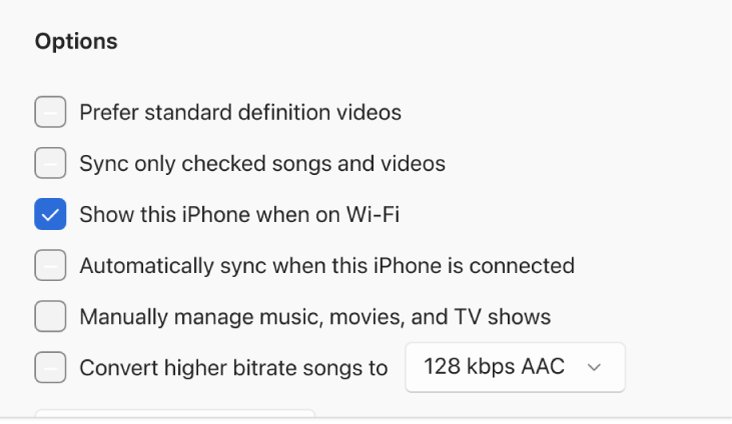
- Check Show this iPhone when on Wi-Fi.
- Select Apply, then unplug the cable.
- Next time both devices share the network, select the iPhone in the sidebar and choose Back Up Now.
Restore iPhone from a PC backup in Apple Devices
Restoring replaces the data on the iPhone with the backup. A new iPhone that is already set up has to be erased first.
- Connect the iPhone and select it in the Apple Devices sidebar.
- Select General, then Restore Backup.
- Open the Restore Backup pop-up menu and choose a backup by its date and size.
- Select Restore.
- Enter the backup password if the backup is encrypted.
- Keep the iPhone connected until it restarts and finishes setup.
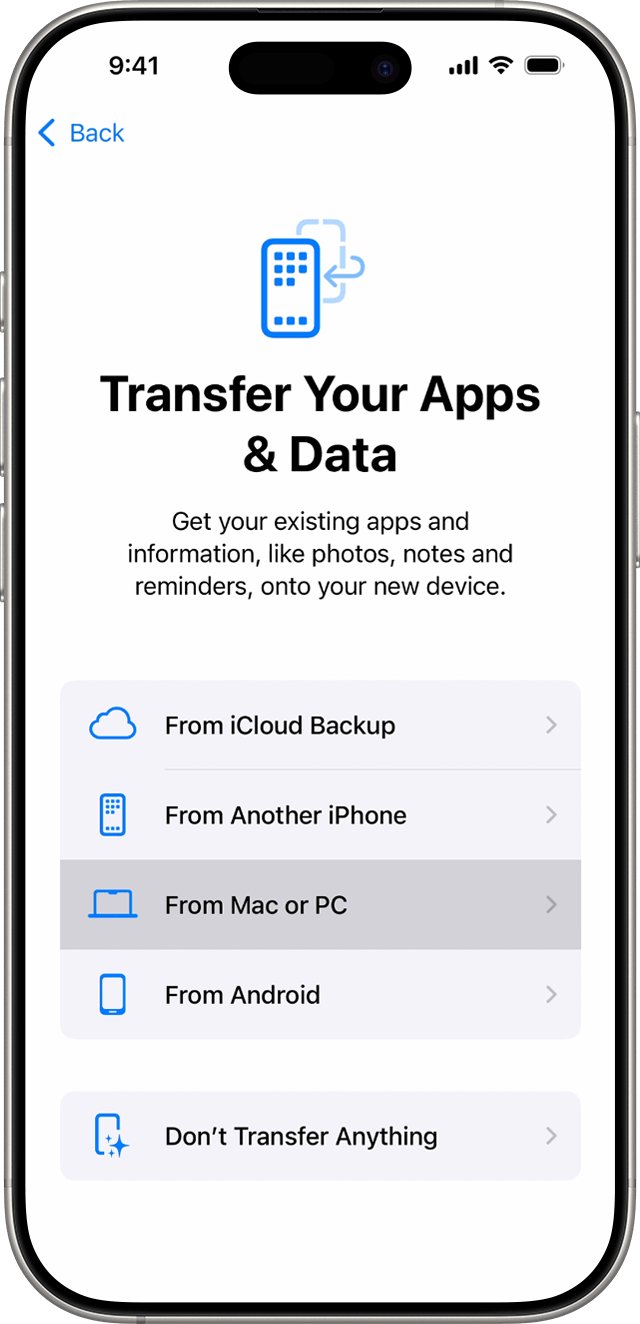
On a new iPhone, follow setup until Apps & Data, tap Restore from Mac or PC, then connect it to the same PC. An unencrypted backup does not transfer Health and Activity data.
Delete or archive old iPhone backups on PC
Old backups take up drive space. Archiving keeps one from being overwritten by the next backup.
- Connect the iPhone and open it in Apple Devices.
- Select General, then Manage Backups.
- Right-click the backup.
- Select Delete to remove it, or Archive to keep it alongside future backups.
- Select OK to return to the app.
Apple Devices backup problems on Windows
iPhone does not appear in the Apple Devices sidebar
The cable, a locked screen or a missing Trust approval blocks the connection.
- Check the iPhone shows it is charging, which confirms the cable is connected.
- Unlock the iPhone and leave the Home Screen visible.
- Tap Trust when the Trust This Computer? alert appears.
- Try another cable that supports data and charging, then another USB port.
- Update Windows and iOS to the latest versions.
The Trust This Computer alert never appears
You tapped Don't Trust earlier, so the iPhone remembers the choice.
- On the iPhone, open Settings > General.
- Tap Transfer or Reset iPhone, then Reset.
- Tap Reset Location & Privacy.
- Reconnect to the PC and tap Trust.
Forgot the encrypted backup password
Apple cannot recover it, and old encrypted backups stay locked without it.
- On the iPhone, open Settings > General > Transfer or Reset iPhone > Reset.
- Tap Reset All Settings and enter your passcode.
- Reconnect to Apple Devices and make a new encrypted backup with a new password.
Backup stops because the PC is out of space
Computer backups are limited by free space on the PC's drive.
- Open Manage Backups and delete backups you no longer need.
- Free space on the Windows drive, then select Back Up Now again.
- Use iCloud backup as well if the PC drive is too small.
Resetting all settings keeps your data and passwords but resets brightness, Home Screen layout and wallpaper.
Apple Devices iPhone backup FAQ
Can you back up an iPhone to a PC?
Yes. Install the Apple Devices app from the Microsoft Store, connect the iPhone, open General and choose to back up all data to this computer. Select Back Up Now to start immediately.
How do I back up my Apple phone to a computer without iTunes?
Use the Apple Devices app on Windows, which handles backups, updates and restores. Older PCs without the Apple Devices app can still use iTunes, where the backup options sit under Summary.
Where is the Apple backup stored on a PC?
Apple Devices stores backups inside your Windows user profile folder. The quickest way to open it is General, Manage Backups, then right-click a backup and choose Show in Explorer.
How do I access an Apple backup on PC?
Open Manage Backups in Apple Devices to see every backup with its date. You can delete, archive or open its folder from there. To use the data, restore the backup to an iPhone with Restore Backup.
Does Apple Devices back up photos?
Photos on the iPhone are included unless iCloud Photos is on, because data already stored in iCloud is not duplicated. Photos synced from the PC to the iPhone are also left out.
Should I encrypt my iPhone backup on PC?
Encrypt it if you want saved passwords, Wi-Fi settings, call history, Health and Activity data kept. Write the password down, because Apple cannot recover it and the backup is unusable without it.
Can I back up an iPhone to a PC over Wi-Fi?
Yes, after a one-time cable setup. Check Show this iPhone when on Wi-Fi under General, select Apply, and the iPhone appears in the Apple Devices sidebar whenever both share a network.
How do I back up an Apple computer?
A Mac is backed up with Time Machine to a USB or other external drive, not with Apple Devices. Apple Devices on Windows backs up iPhone, iPad and iPod touch only.
Bottom line: is Apple Devices the best way to back up iPhone on PC?
Yes. Use Apple Devices with Encrypt local backup turned on, and keep an iCloud backup as a second copy if you have the space. It is Apple's own Windows tool, it saves almost everything on the iPhone, and an encrypted backup adds passwords and Health data that a standard backup leaves out.

![How do I find saved passwords on my computer [Windows 11/10]](https://techdows.com/wp-content/uploads/2026/10/How-Do-I-Find-Saved-Passwords-on-My-Computer-Windows-1110.jpg)