To open a PNG file in Windows 11, double-click it in File Explorer and it opens in the built-in Microsoft Photos app, or right-click it, select Open with and choose Paint to edit it.
This guide covers Photos, Paint and Windows 10, how to make one app the default for PNG files, how to confirm a file really is a PNG, and fixes for PNG files that will not open.
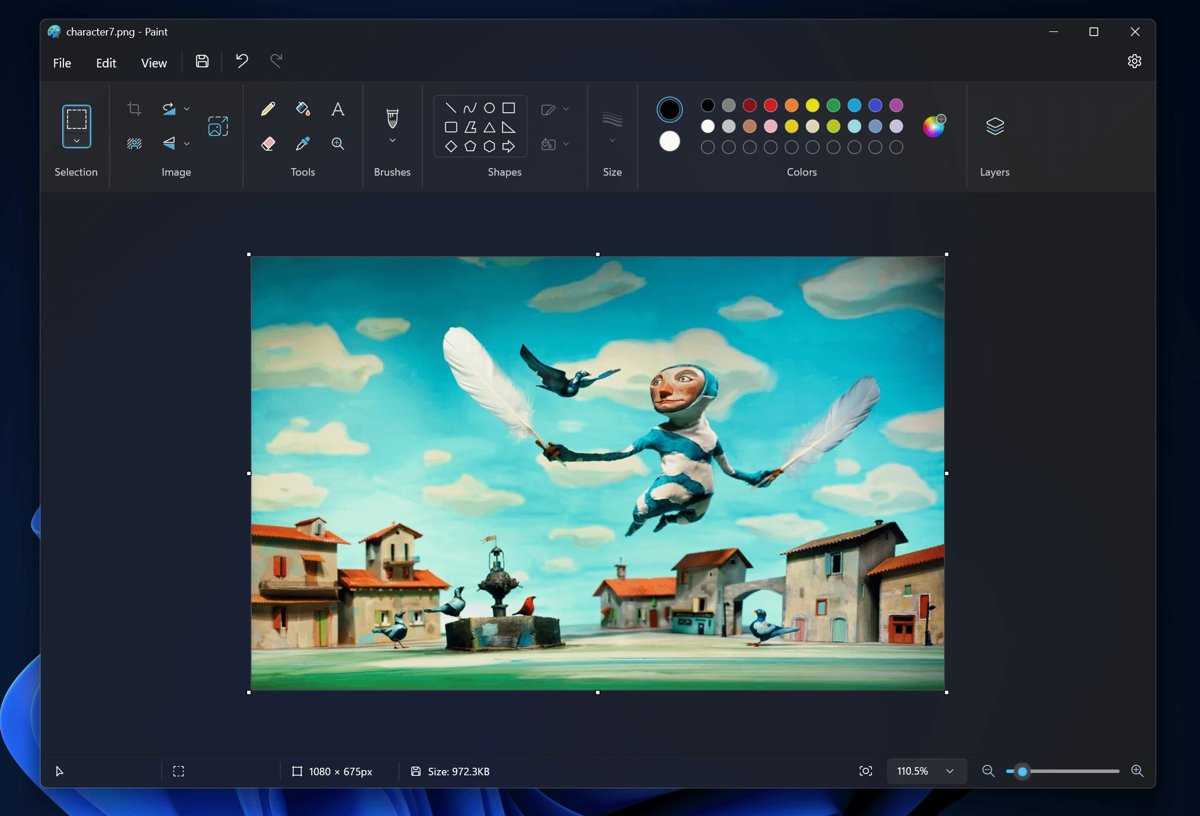
Step-by-step tutorial: How to open PNG file in Windows 11
No extra software is needed, because Windows 11 ships with two apps that open PNG files: Photos and Paint.
- Press Windows logo key + E to open File Explorer.
- Go to the folder that holds your PNG file, such as Pictures, Downloads or Desktop.
- Right-click the PNG file.
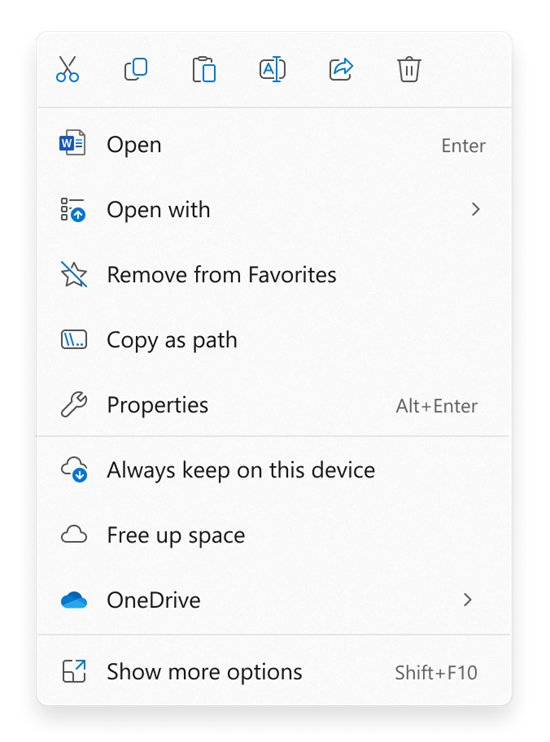
- Select Open with.
- Choose Photos to view the image or Paint to edit it.
- View the image in the app that opens; double-clicking the file next time opens it in your default app.
If the PNG arrived inside an archive, extract the ZIP file first, then open the PNG from the extracted folder.
Which app should open PNG files in Windows 11
| What you want to do | Open the PNG with | Why |
|---|---|---|
| Look at the image or flick through a folder of images | Microsoft Photos | Photos supports PNG along with JPEG, GIF, BMP and TIFF, and lists every photo in the folder |
| Crop, draw on or resize the image | Paint | Microsoft Paint opens PNG files for editing |
| Keep a transparent background intact | Paint | Paint can open and save transparent PNGs and shows transparency as a checkerboard |
| Check an image quickly without an image app | A web browser | Drag the PNG onto an open browser tab to display it |
Open a PNG file with the Photos app in Windows 11
The Windows 11 Photos app is the default image viewer, so double-clicking a PNG usually opens it here.
- Select Start, type Photos and open the app.
- Scroll the list, which shows the photos in your Pictures folder by default.
- To view PNG files stored elsewhere, select Gallery in the folders tab on the left.
- Select Add folder and choose the folder that holds your PNG files.
- Select the PNG file to open it full size.
Open a PNG file in Paint to edit it
- In File Explorer, right-click the PNG file.
- Select Open with > Paint.
- Make your edits; transparent areas appear as a checkerboard pattern.
- Save the file as PNG to keep the transparency.
You can also open Paint first from Start and use its File menu to browse to the PNG file.
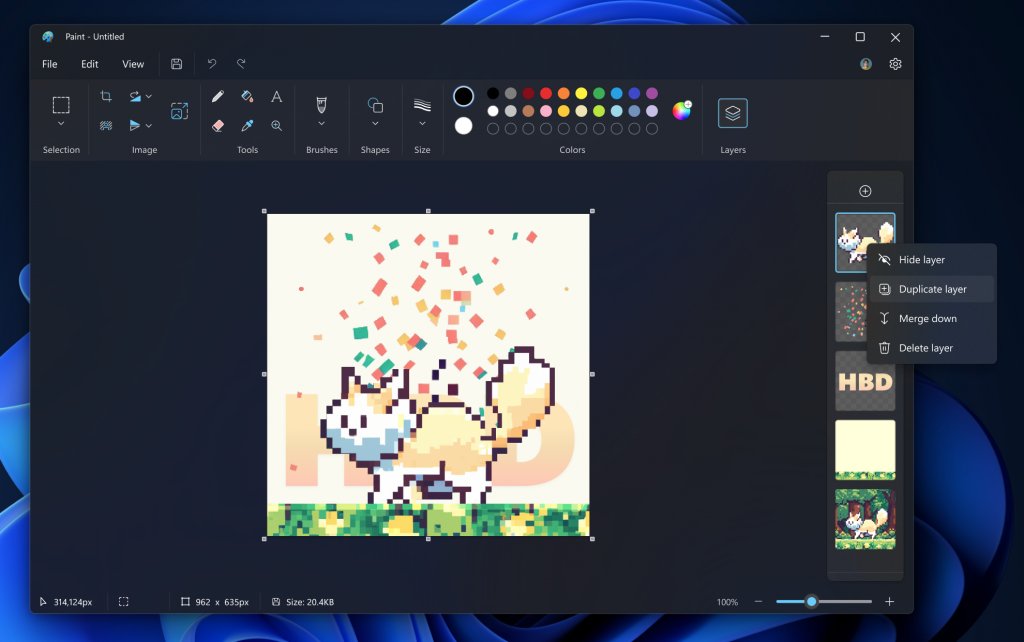
How to open PNG file in Windows 10
Windows 10 uses the same apps and the same right-click menu. Windows 10 support ended on October 14, 2025, but the steps still work.
- Press Windows logo key + E to open File Explorer.
- Find the PNG file and double-click it to open it in Photos.
- To use a different app, right-click the file and select Open with.
- Choose Photos, Paint or another image app from the list.
Make Photos the default app for PNG files in Windows 11
The default app decides what opens when you double-click a PNG. The path is the same in Windows 11 and Windows 10.
- Open Settings and select Apps > Default apps.
- In the search bar, type .png.
- Select the .png result from the list.
- Choose Photos, Paint or another app from the options.
To check every file type one app handles, select the app under Set defaults for applications and change any file type there.
Check that a file is really a PNG in File Explorer
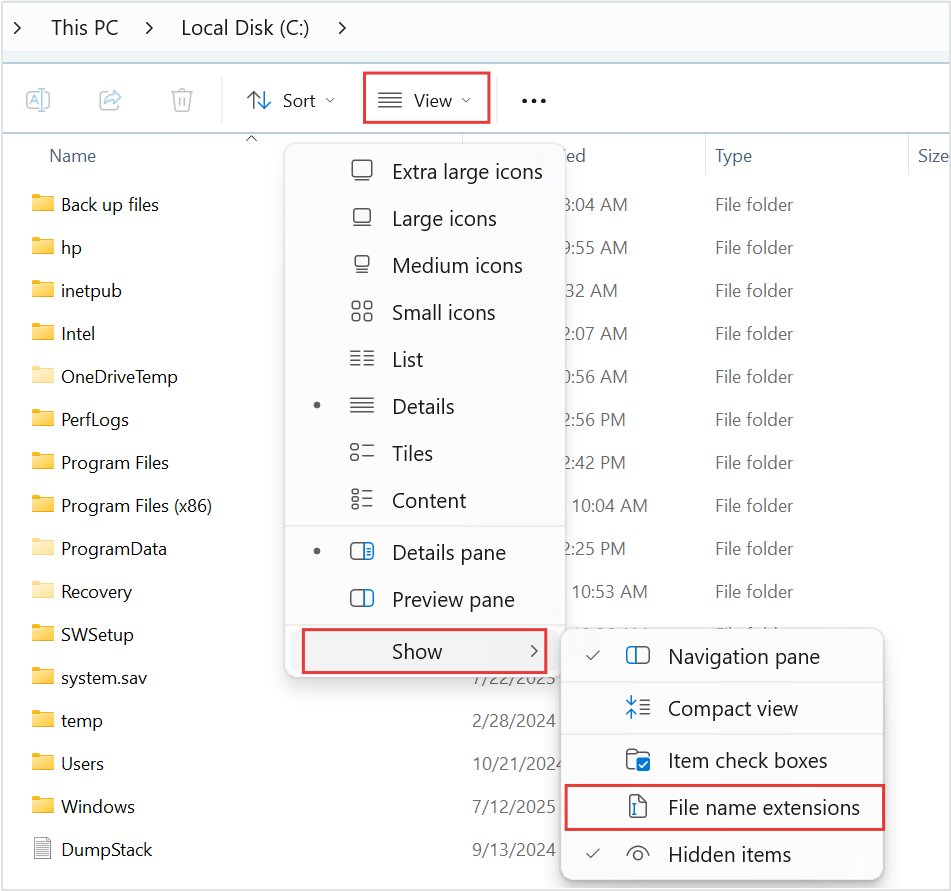
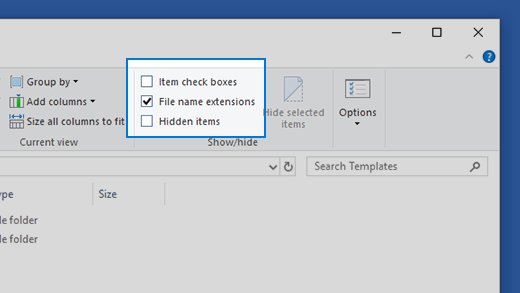
A file named photo.png.jpg or one missing its extension will not behave like a PNG. Turning on file name extensions shows the real ending.
- Open File Explorer with Windows logo key + E.
- In Windows 11, select View > Show and turn on File name extensions.
- In Windows 10, open the View tab and select the File name extensions check box in the Show/hide group.
- Confirm the file name ends in .png.
- Double-click the file and confirm it opens in your chosen app.
What is a PNG file?
| Fact | Detail |
|---|---|
| Extension | .png |
| Full name | Portable Network Graphics file |
| Transparency | Supported; Paint opens and saves transparent PNGs |
| Built-in apps that open it in Windows 11 | Microsoft Photos and Paint |
| Extra software needed | None for viewing or basic editing |
PNG is common for Windows 11 screenshots, logos and graphics with transparent backgrounds.
Tips for opening PNG files in Windows 11
| Tip | How to do it |
|---|---|
| Open File Explorer fast | Press Windows logo key + E |
| Pick an app for one file only | Right-click the file and use Open with instead of changing the default |
| Change the app for every PNG | Settings > Apps > Default apps, search .png |
| Browse many PNGs in one place | Add the folder in Photos with Gallery > Add folder |
| Keep transparent backgrounds | Edit in Paint and save as PNG |
| Spot fake extensions | Turn on File name extensions in File Explorer |
Can't open PNG file in Windows 11 or Windows 10
Double-clicking the PNG opens the wrong app
Another app is set as the default for .png files.
- Open Settings > Apps > Default apps.
- Type .png in the search bar and select the result.
- Choose Photos or Paint.
Photos won't open or crashes on PNG files
The Photos app itself is damaged.
- Select Start > Settings > Apps > Installed apps.
- Select the More icon next to Microsoft Photos.
- Select Advanced options.
- Select Repair; if that does not help, select Reset.
- Try opening the PNG again.
Why can't I open a PNG file in Windows 11 when other PNGs open fine?
The file is not really a PNG, or it is damaged or incomplete.
- Turn on File name extensions and check that the name ends in .png.
- Right-click the file, select Open with > Paint to test it in a second app.
- If neither app opens it, download or copy the file again from its source.
The PNG opens but the background looks white or black
The viewer is not showing the transparent areas as transparent.
- Open the file in Paint, which shows transparency as a checkerboard.
- Edit and save it as PNG to keep the transparent background.
Open PNG file in Windows 11: frequently asked questions
How do I open a PNG file in Windows 11?
Double-click the PNG file in File Explorer to open it in the Photos app. To use a different app, right-click the file, select Open with and choose Paint or another image app.
How do I open a PNG file in Windows 10?
Double-click the file in File Explorer to open it in Photos, or right-click it and select Open with to pick Paint. The apps and the right-click menu work the same way as in Windows 11.
Can I open PNG files without additional software?
Yes. Windows 11 and Windows 10 include Microsoft Photos and Paint, and both open PNG files. Photos handles viewing, and Paint handles cropping, drawing and resizing.
Are PNG files easy to open?
Yes. PNG is a standard image format, so Photos, Paint and web browsers all display it. A PNG that will not open is usually mislabeled, damaged or tied to the wrong default app.
How do I make Photos the default app for PNG files?
Open Settings > Apps > Default apps, type .png in the search bar and select the result. Choose Photos from the list, and every PNG then opens in Photos when you double-click it.
Can I open PNG files in a web browser?
Yes. Drag the PNG file onto an open browser tab and the browser displays it. This is handy for a quick look, but use Photos or Paint if you want to edit or browse a folder.
Why can't I open a PNG file in Windows 11?
The usual causes are a wrong default app, a damaged Photos app, or a file that is not really a PNG. Reset the default under Default apps, repair Photos from Installed apps, and check the extension with File name extensions turned on.
Can a PNG file be opened in Paint?
Yes. Right-click the file and select Open with > Paint. Paint can open and save transparent PNGs and shows the transparent areas as a checkerboard pattern.
Conclusion: the quickest way to open PNG files in Windows 11
Double-click the PNG to view it in Photos, and use right-click > Open with > Paint when you need to edit it. Both apps are built into Windows 11, so no download is needed, and setting the .png default once makes every future double-click open the app you want.



![HDMI port not working in Windows 11 [Easy fixing]](https://techdows.com/wp-content/uploads/2026/10/HDMI-Port-Not-Working-in-Windows-11-Easy-Fixing-600x338.jpg)