Open Settings > Network & internet, select your Wi-Fi or Ethernet connection, and choose Public network or Private network under Network profile type; network discovery is then switched on or off per profile in Advanced sharing settings.
This guide gives the exact Windows 11 and Windows 10 paths for both settings, the PowerShell command, which profile suits each situation, and fixes when discovery turns itself off or another PC stays hidden.
How to set public or private network profiles and network discovery in Windows 10/11
These two changes work together: a private profile makes the PC discoverable, and network discovery controls whether it sees and is seen by other devices on that profile.
- Select Start > Settings > Network & internet.
- Select Wi-Fi and then the network you are connected to, or select Ethernet.
- Under Network profile type, select Private network for a trusted home network or Public network (Recommended) everywhere else.
- Go back to Network & internet, select Advanced network settings, then Advanced sharing settings.
- Expand Private networks and switch Network discovery and File and printer sharing to On.
- Confirm the User Account Control prompt with an administrator account if it appears.
Recommended settings for common situations
| Situation | Network profile | Network discovery |
|---|---|---|
| Coffee shop, hotel, airport or other public Wi-Fi | Public network (Recommended) | Off; the PC stays hidden and cannot share files or printers |
| Home network where you share folders or a printer | Private network | On, with File and printer sharing on |
| Home network where you never share anything | Public network (Recommended) | Off; Microsoft recommends public in most cases |
| Office network at a small business you trust | Private network | On only if you need to browse shared PCs and printers |
| Work or school PC joined to a domain | Domain network, set automatically | Managed by your organization's IT settings |
Prerequisites for changing a network profile in Windows
| Requirement | Why it matters |
|---|---|
| An active Wi-Fi or Ethernet connection | The profile setting appears only on the screen for the network you are connected to |
| An administrator account or its password | Changing advanced sharing settings can raise a User Account Control prompt |
| Elevated PowerShell for the command method | Set-NetConnectionProfile changes a system-wide connection setting |
| A network you know and trust | A private profile makes your PC discoverable to every device on that network |
| All PCs on the same network | Discovery works only between devices connected through the same router or switch |
Method 1: Change network profile in Windows 11
Windows 11 sets every new network to public by default, which is the recommended setting.
- Right-click the Network or Wi-Fi icon on the taskbar and select Network and internet settings.
- For Wi-Fi, select Wi-Fi, then select the network you are connected to.
- For a wired connection, select Ethernet instead.
- Under Network profile type, select Private network or Public network (Recommended).
- Close Settings; the change applies immediately.
The Properties link next to the connected network on the Network & internet page opens the same screen in one click, and that screen also lists the IP address and DNS servers Windows is using.
Method 2: Change network profile in Windows 10
- Select Start > Settings > Network & Internet.
- Select Wi-Fi and then the network you are connected to, or select Ethernet and then your connection.
- Under the network profile setting, select Private for a trusted network or Public for any other network.
- Close Settings.
If the profile options are missing, the connection may be managed by an organization; use the PowerShell method from an administrator account or ask your IT team.
Method 3: Turn network discovery on or off in Windows 11
- Select Start > Settings > Network & internet.
- Select Advanced network settings.
- Select Advanced sharing settings.
- Expand Private networks (or Public networks if you need it there).
- Switch Network discovery to On or Off.
- Switch File and printer sharing to match if you share folders or a printer.
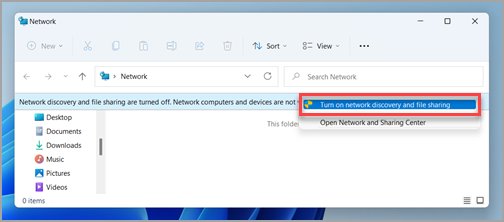
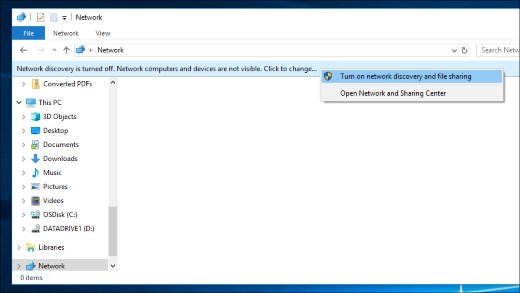
In File Explorer, selecting the Network discovery is turned off banner on the Network page and choosing Turn on network discovery and file sharing does the same job.
Method 4: Turn network discovery on or off in Windows 10
- Select Start > Settings > Network & Internet.
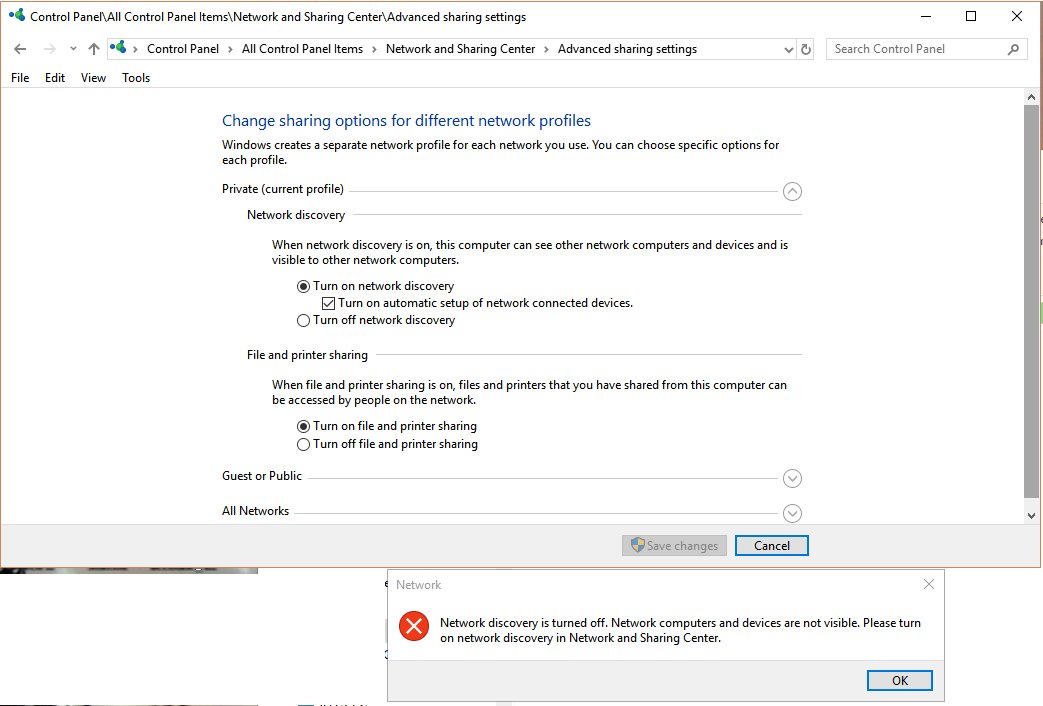
- In the Status window, under Advanced network settings, select Network and Sharing Center.
- Select Change advanced sharing settings on the left.
- Expand the Private section.
- Select Turn on network discovery or Turn off network discovery.
- Select Turn on file and printer sharing if you share folders or a printer.
- Select Save changes.
Optional: Change the network profile with PowerShell
PowerShell is the quickest route when Settings hides the profile option or you manage several PCs. First run PowerShell as administrator, or open Terminal as administrator.
Set-NetConnectionProfile -InterfaceAlias "Wi-Fi" -NetworkCategory PrivateRun Get-NetConnectionProfile first to see each connection's InterfaceAlias and current NetworkCategory. Replace Wi-Fi with your alias, such as Ethernet, and use Public or Private as the category. DomainAuthenticated cannot be set this way; Windows applies it when the PC authenticates to a domain controller.
You should see: Running Get-NetConnectionProfile again shows the new value in the NetworkCategory line.
Check the network profile and network discovery are set
- Open Settings > Network & internet and confirm the connected network shows Private network or Public network as intended.
- Open File Explorer and select Network in the left pane.
- Confirm other PCs, printers or media devices appear and no Network discovery is turned off banner shows.
- Type
\\localhostin the File Explorer address bar to see which folders this PC is sharing.
Understanding public vs. private network profiles
| Profile | What Windows does | Use it for |
|---|---|---|
| Public network (Recommended) | Hides the PC from other devices; file and printer sharing is unavailable | Most networks, including home, work and public places when you do not share |
| Private network | Makes the PC discoverable and allows file and printer sharing | Networks where you know and trust the people and devices |
| Domain network | Set automatically when the PC authenticates to a domain controller | Work or school PCs joined to a domain |
Network discovery has a separate switch for each profile in Advanced sharing settings, so a PC can be discoverable at home and hidden on public Wi-Fi without changing anything when you move.
Troubleshooting tips
Network Discovery keeps turning off
Its dependency services are not running, a firewall blocks it, or the network is set to public.
- Confirm the connection uses Private network under Network profile type.
- Press Win + R, type
services.mscand select OK. - Open each of DNS Client, Function Discovery Resource Publication, SSDP Discovery and UPnP Device Host, select Start if stopped, and set Startup type to Automatic.
- In Control Panel, open Windows Defender Firewall > Allow an app or feature through Windows Defender Firewall, select Change settings, tick Network discovery and select OK.
- Turn network discovery on again in Advanced sharing settings.
You still cannot see another PC
The PCs are on different networks, one is on a public profile, or sharing services are stopped on the other PC.
- Make sure both PCs connect through the same router.
- Set the network to Private on every PC involved.
- Turn on Network discovery and File and printer sharing under Private networks on each PC.
- Start Function Discovery Provider Host, Function Discovery Resource Publication, SSDP Discovery and UPnP Device Host on each PC and set them to Automatic.
- Install pending updates from Windows Update on every PC.
You are on a work or school device
Domain-joined PCs get the domain profile automatically, and the organization controls sharing settings.
- Run
Get-NetConnectionProfileand check whether NetworkCategory showsDomainAuthenticated. - If it does, leave the profile alone; it cannot be changed with
Set-NetConnectionProfile. - Ask your IT team to enable discovery or sharing if your work needs it.
Windows network profile and network discovery FAQ
Should my home network be public or private in Windows 11?
Choose private only if you share files or a printer with other PCs at home and trust every device on the network. Microsoft recommends public in most cases, because it hides your PC and blocks file and printer sharing.
What is the default network profile in Windows 11?
Public. Windows 11 sets every network to public when you first connect, and Microsoft labels it Public network (Recommended) on the network's settings page.
How do I change a network from public to private in Windows 10?
Open Settings > Network & Internet, select Wi-Fi or Ethernet, select your connection and choose Private. Early Windows 10 builds used a different route to make a network private.
Does turning on network discovery make my PC unsafe?
It makes your PC visible to other devices on that network, so turn it on only for a private profile on a network you trust. Leave it off for public networks, where the public profile keeps the PC hidden.
Why does network discovery turn itself off?
Usually because a dependency service such as SSDP Discovery or UPnP Device Host is stopped, a firewall blocks discovery, or the network is set to public. Start the services, allow Network discovery through the firewall and set the profile to private.
How do I change the network profile with PowerShell?
Run Get-NetConnectionProfile in an elevated PowerShell window to find the interface alias, then run Set-NetConnectionProfile -InterfaceAlias "Wi-Fi" -NetworkCategory Private, replacing the alias and using Public or Private as needed.
Can I set a network profile to Domain manually?
No. The DomainAuthenticated category cannot be set with Set-NetConnectionProfile; Windows applies it automatically when the PC authenticates to a domain controller.