To activate Windows 11, open Settings > System > Activation, select Change product key and enter your 25-character key, or simply connect to the internet if the PC has a digital license.
This guide covers the three ways to activate: from Settings after installation, from setup during installation, and after a hardware change, plus offline activation and fixes for common activation errors.
Activate Windows 11 from Settings (after install)
Use this route when Windows 11 is already installed and the Activation page says it is not activated. You need an administrator account and an internet connection.
A PC with a digital license activates by itself once it is online, so check the status first before you type a key.
- Select Start > Settings > System > Activation.
- Read the line next to Activation status. If it says Windows is activated, you are done.
- If it says Windows is not activated, select Change product key.
- Type the 25-character product key in the format XXXXX-XXXXX-XXXXX-XXXXX-XXXXX.
- Follow the on-screen prompts to activate, approving the administrator prompt if one appears.
- Return to the Activation page and check that Activation status now says Windows is activated.
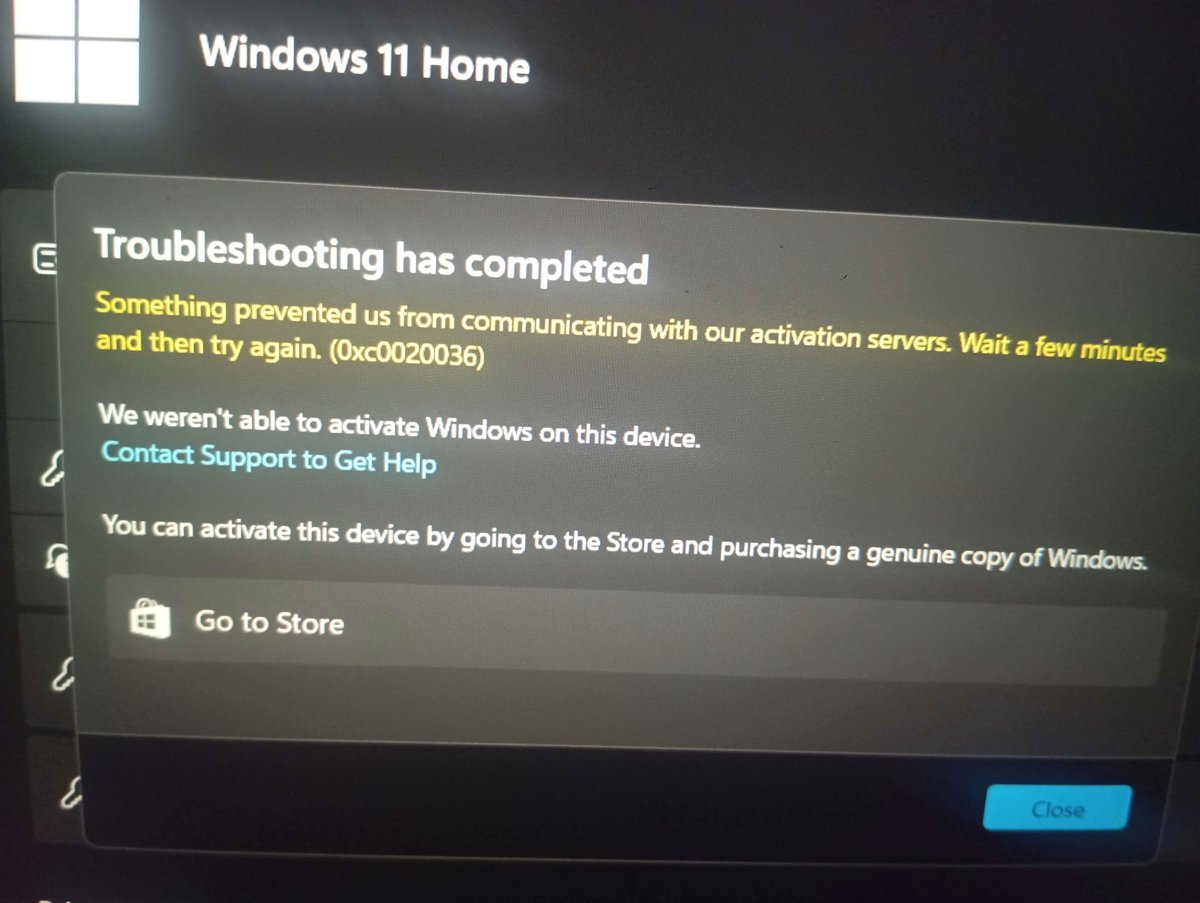
No key and no digital license? On the same page select Go to Store to buy a Windows 11 digital license in the Microsoft Store app.
Digital license or product key: which Windows 11 activation method you use
How you got Windows 11 decides whether you activate with a digital license or a product key. Find your case in the table, then use the method in the last column.
| How you got Windows 11 | Activation method | Where the license or key is | Method to use |
|---|---|---|---|
| Free upgrade from a genuine, activated Windows 10, 8.1 or 7 PC | Digital license | Tied to the hardware and, if linked, your Microsoft account | Connect to the internet; no key needed |
| Windows 11 or a Pro upgrade bought in the Microsoft Store app | Digital license | The Microsoft account that got the purchase email | Sign in with that account and go online |
| New or refurbished PC that came with Windows 11 | Product key | Preinstalled, in the packaging, or on the Certificate of Authenticity (COA) | Usually automatic; otherwise Settings with the COA key |
| Boxed copy from an authorized retailer | Product key | Label or card inside the box | Setup or Settings |
| Digital copy from a retailer or the Microsoft online store | Product key | Confirmation email or the retailer's digital locker | Setup or Settings |
| Volume Licensing or MSDN subscription | Product key | Your program's web portal | Setup, Settings or your organization's activation service |
| Replaced the motherboard or other major hardware | Digital license or product key | Linked Microsoft account, or the original key | Activation troubleshooter or Change product key |
Microsoft keeps a record of a product key only when you bought it from the Microsoft online store. Check the Order history of your Microsoft account if you think that is where it came from.
Activate Windows 11 from setup (during install)
Windows 11 Setup asks for a product key early in a clean install. Enter it there and Windows activates online automatically after installation finishes.
If you reinstall the same edition on a PC that already has a digital license, skip the key instead.
- Boot the PC from your Windows 11 installation media and start setup.
- When setup asks for a product key, type the 25-character key and select Next.
- If the PC already has a digital license, or you plan to buy a license later, select I don't have a product key instead.
- Choose the edition your license covers, such as Windows 11 Home or Windows 11 Pro, when setup asks.
- Finish setup and sign in with the Microsoft account linked to your digital license, if you have one.
- Connect to the internet and let Windows activate online.
- Open Settings > System > Activation to confirm the status.
Picking the wrong edition is the most common setup mistake: a Home license does not activate Pro, and the reverse is also true. When you create installation media, choose the edition already licensed on the device.
Activate Windows 11 after hardware change
A significant hardware change, such as a new motherboard, can stop Windows 11 from finding a license that matches the device. The fix depends on whether you have a digital license linked to your Microsoft account or a product key.
The Activation troubleshooter only appears while Windows is not activated, and it only works with the Microsoft account that was linked before the change.
- Sign in with an administrator account and connect to the internet.
- Select Start > Settings > System > Activation > Troubleshoot.
- When the troubleshooter reports that Windows cannot be activated, select I changed hardware on this device recently, then Next.
- Enter the Microsoft account and password linked to the digital license, then select Sign in.
- In the list of devices, tick This is the device I'm using right now.
- Select Activate.
- If you used a product key instead of a linked digital license, select Change product key on the Activation page and enter that same key.
If the device manufacturer replaced the motherboard, Windows usually reactivates by itself. If it does not, look for a COA card with a 25-character key under a grey scratch-off coating, then enter it through Change product key.
If Windows came preinstalled and you replaced the motherboard yourself, you may need to buy a new license.
Link your Microsoft account to the Windows 11 digital license
Linking is what makes the hardware-change method work later. Do it now, while Windows is still activated.
- Open Settings > Accounts > Your info and confirm the word Administrator appears under your name.
- Check that an email address shows above Administrator; that means you use a Microsoft account, not a local account.
- Go to Settings > System > Activation.
- Select Add an account, enter your Microsoft account and password, then select Sign in.
- Confirm the status now reads Windows is activated with a digital license linked to your Microsoft account.
Protect that account well, since it now holds your Windows license. Turning on two-step verification for your Microsoft account keeps someone else from signing in with a stolen password.
Activate Windows 11 with slmgr in Command Prompt
The Software Licensing Management Tool installs a key and triggers online activation from the command line. Use it when the Settings page will not accept the key or you prefer a terminal.
Search for Command Prompt, right-click it and select Run as administrator, because installing a key and online activation both need administrator rights.
slmgr /ipk XXXXX-XXXXX-XXXXX-XXXXX-XXXXX
slmgr /ato
slmgr /dli
/ipk installs the product key you type in place of the X characters, after checking that it is valid for the installed edition. /ato asks Windows to activate online. /dli shows the license information for the active edition.
You should see: A Windows Script Host dialog confirms the key was installed, a second dialog confirms the product activated successfully, and /dli shows a license status of Licensed.
Activate Windows 11 offline with an Installation ID and Confirmation ID
When the PC has no internet connection or online activation fails, you can activate offline through Microsoft's Product Activation Portal. Microsoft says not to call the phone number Windows may show; use the portal instead.
Windows 11 Pro for Workstations and Windows 11 Pro EDU must activate over the internet; offline phone-style activation does not apply to them.
| Step | Using Settings (builds 26100.8973, 26200.8973 and newer) | Using an administrator Command Prompt |
|---|---|---|
| Find your Installation ID | Settings > System > Activation > Automated Help | Run slmgr /dti; a dialog shows the ID |
| Get your Confirmation ID | On the Product Activation Portal, sign in and select Activate a Microsoft Product > Windows > Windows 11, enter the Installation ID and select Submit | Same portal steps |
| Activate | Back on the Activation page, select Enter Confirmation ID, type it and select Activate Windows | Run slmgr /atp followed by the Confirmation ID, with no hyphens or spaces |
| Check the result | Activation status shows Windows is activated | Run slmgr /dli |
On earlier Windows 11 builds the Settings route is Activate by Phone instead of Automated Help: pick your country or region and select Next to see the Installation ID.
Check Windows 11 activation status
Open Settings > System > Activation and read the status line. The same page shows your edition, which must match your license.
- Select Start > Settings > System > Activation.
- Read the message next to Activation status.
- Windows is activated means you are activated but no Microsoft account is linked; link one before any hardware change.
- Windows is activated with a digital license means the license is not linked yet; select Add an account.
- Windows is activated with a digital license linked to your Microsoft account means nothing else is needed.
- Windows is not activated shows an error message; match its code in the troubleshooting section below.
- Check the edition shown on the same page matches the edition your license covers.
To check from a terminal, run slmgr /dli in Command Prompt; it does not need administrator rights.
Fix Windows 11 activation errors
Run the troubleshooter first: Settings > System > Activation > Troubleshoot. If the error code changes after it runs, look up the new code.
Error 0xC004F211 or 0xC004F213 after replacing the motherboard
Windows cannot find a license that matches the changed hardware.
- Open Settings > System > Activation and select Troubleshoot.
- Select the link to reactivate after a hardware change if the troubleshooter offers it.
- If you have the product key used before the change, select Change product key and enter it.
- If Windows came preinstalled and nothing works, select Go to Microsoft Store to buy a new license.
Error 0xC004F212, 0xC004F210 or 0xC004F034: key or edition does not match
The installed edition differs from the edition your key or digital license covers.
- Check your edition on the Activation page.
- Run Troubleshoot; if it finds a digital license for another edition, follow its instructions to install that edition.
- Or enter a product key that matches the installed edition through Change product key.
Error 0x803F7001 or 0x800704CF: no valid license found
The device has no digital license and no valid key has been entered.
- Find your key in the purchase email, the device packaging or the COA sticker.
- Select Change product key and enter the 25-character key.
- If you have no key, select Go to Microsoft Store and buy a digital license.
Error 0xC004C008, 0xC004C770 or 0x803FA071: key already used
The product key is in use on another device or on more devices than the license terms allow.
- Buy a separate license for this device from Go to Microsoft Store.
- If you only changed hardware on the same PC, use the offline activation steps with the Product Activation Portal.
Error 0xC004FC03, 0x8007267C or 0x80072F8F: cannot reach the activation server
No internet connection, a firewall blocking activation, or a wrong system date and time.
- Open Settings > Time & language > Date & time and correct the date and time.
- Confirm the PC is online and restart it.
- Select Activate again, or use offline activation if the PC must stay offline.
"Your Windows license will expire soon" warning
A volume license client is installed, so your organization manages activation.
- Contact your organization's IT administrator.
- On a work PC, connect to the workplace network so it can reach the activation service.
Windows 11 activation FAQ
These answers cover the questions readers raise most about Windows 11 activation.
Do I need a product key to activate Windows 11?
Not always. A free upgrade from genuine Windows 10, 8.1 or 7, or a purchase in the Microsoft Store app, gives you a digital license that activates without a key. Retail copies, new PCs and volume licenses use a 25-character product key.
Where do I enter a product key in Windows 11?
Open Settings > System > Activation and select Change product key. You can also type the key on the product key screen during setup, or install it with slmgr /ipk in an administrator Command Prompt.
Will Windows 11 activate again after a clean reinstall?
Yes, if the device already had an activated Windows 11 digital license and you install the same edition. Select I don't have a product key during setup, and Windows activates online once installation finishes and the PC is connected.
How do I find my Windows 11 product key?
Look in the confirmation email from the retailer, on the label inside a boxed copy, or on the Certificate of Authenticity attached to a PC. Microsoft only keeps a record of keys bought from the Microsoft online store, listed in your account's order history.
Can I activate Windows 11 Pro with a Windows 11 Home key?
No. Your license must match the edition installed. A Home key or license only activates Windows 11 Home, so moving to Pro needs a valid Pro key or a Pro upgrade bought from the Microsoft Store app.
Can I activate Windows 11 without an internet connection?
Yes. Get the Installation ID from Automated Help on the Activation page or with slmgr /dti, submit it on Microsoft's Product Activation Portal from another device, then enter the Confirmation ID you get back.
How do I activate Windows 11 if I have no key or license?
Buy one. Open Settings > System > Activation and select Go to Store, which opens the Microsoft Store app on the Windows 11 license page. The purchase gives the device a digital license tied to your Microsoft account.
Does a refurbished PC with Windows 11 need its own key?
Yes. The refurbisher, not Microsoft, must supply the product key, usually on the COA attached to the device. If Windows is not activated when you get it, enter that key through Change product key in Settings.
What should I do if my PC still runs Windows 10?
Activate Windows 10 first, because a free upgrade only carries a digital license over from an activated copy. You can enter a Windows 10 product key from its own Activation page, then upgrade to Windows 11.