When the HDMI port stops working in Windows 11, press Windows logo key + P, choose Extend, and then check the cable, the TV or monitor input, and the graphics driver.
This guide covers the quick fixes first, then eleven numbered checks, the Windows 10 equivalents, sound over HDMI, and how to confirm the external screen works again.
How to fix HDMI port not working on Windows 11?
Most HDMI failures are a wrong projection mode, an undetected display or a stuck graphics driver. These five steps clear all three in about two minutes.
- Unplug any dock, dongle or adapter and connect the HDMI cable straight from the PC to the monitor or TV.
- Press Windows logo key + P and select Extend.
- Open Start > Settings > System > Display, expand Multiple displays and select Detect.
- Press Windows logo key + Ctrl + Shift + B to reset the graphics driver.
- If the screen still shows nothing, select Start > Power > Restart with the HDMI cable still connected.
If the external screen now shows your desktop, stop here. If not, the numbered checks below isolate whether the cable, the port, the display or the driver is at fault.
Common issues with HDMI ports in Windows 11
Match what you see to the likely cause, then jump to the check that fixes it.
| What you see | Most likely cause | Check to run |
|---|---|---|
| Monitor or TV says No signal | Wrong input on the display, loose cable or wrong projection mode | Checks 2, 6 and 7 |
| Display is not listed in Settings at all | Cable, port or adapter fault, or the graphics driver has not detected it | Checks 3, 4 and 5 |
| Picture is black, cut off, stretched or flickers | Resolution or refresh rate the display does not support | Check 8 |
| Picture works but no sound comes from the TV | Windows is still sending audio to the laptop speakers | Check 9 |
| HDMI worked until a recent update | New graphics driver or a pending Windows update | Check 10 |
| One external screen works, a second one does not | The graphics card supports fewer outputs, or a splitter is in use | Hardware compatibility table below |
| Works only without the dock or adapter | Dock, dongle or adapter conflict | Check 3 |
Hardware compatibility matters as much as settings. An HDMI splitter cannot extend the desktop to two screens because it duplicates one signal instead of creating two. A PC with a single video output supports one external monitor unless you add a docking station or a USB-C display adapter.
1. Use another output temporarily
If the external screen is your only display, you need a working picture before you can change settings. Another output gives you that while you troubleshoot HDMI.
- Check the back of the PC or the sides of the laptop for another video port: DisplayPort, DVI, VGA or a USB-C port that carries video.
- Connect the monitor to that port with a matching cable.
- On a laptop, use the built-in screen and press Windows logo key + P, then select PC screen only to make sure you can see the desktop.
- Keep that connection in place while you work through the remaining checks.
- Switch back to the HDMI cable once you have a fix to test.
2. Inspect the cable and ports for damage
- Shut down the PC and unplug the HDMI cable at both ends.
- Look inside the HDMI port on the PC and on the display for bent pins, debris or a loose housing.
- Check the cable plugs for bent metal shells and the cable itself for kinks or crushed sections.
- Plug the cable firmly back in at both ends until it seats fully.
- Turn the display on first, then start the PC, and check for a picture.
A port that wobbles or has visible damage needs a repair from the PC or monitor manufacturer. No setting in Windows works around a broken connector.
3. Try swapping out stuff
Swapping one part at a time tells you exactly which piece is faulty. Microsoft lists the same order for external monitor problems.
- Disconnect every dock, dongle, adapter and HDMI switch, and connect the PC directly to the display.
- Replace the HDMI cable with another one. If the new cable works, the old one was faulty.
- Connect the same display to a different PC, console or streaming box. If it still shows nothing, the display or its port is the problem.
- Connect your PC to a different monitor or TV. If that works, the original display is the problem.
- Reconnect your dock or adapter last, and only after the direct connection works.
![HDMI Port Not Working in Windows 11 [Easy Fixing]](https://techdows.com/wp-content/uploads/2026/10/HDMI-Port-Not-Working-in-Windows-11-Easy-Fixing.jpg)
4. Choose the right HDMI port on your PC
A desktop with a graphics card often has two sets of video ports: one on the motherboard and one on the graphics card lower down. You can check which graphics card you have if you are not sure.
- Look at the rear of the desktop for a separate graphics card with its own row of ports.
- Move the HDMI cable to the HDMI port on the graphics card instead of the motherboard port.
- If your PC has more than one HDMI or video output, try each one in turn.
- If the PC has two graphics adapters, right-click the desktop and open the software for the additional adapter to check which one is the default.
- Contact the PC manufacturer if you are not sure which adapter should drive the HDMI port, because the steps vary by device.
5. Reboot with the cable connected
- Connect the HDMI cable to both the PC and the display.
- Turn the monitor or TV on.
- Select Start > Power > Restart.
- If a restart does not help, select Start > Power > Shut down, wait until the PC is fully off, and turn it back on.
- Wait at the sign-in screen for a few seconds to see whether the display wakes up.
Microsoft lists a restart, then a full shutdown, as the first step when an existing display setup suddenly stops working.
6. Select the correct HDMI input
Monitors and TVs with more than one HDMI port only show the input that is currently selected. A cable in HDMI 2 shows nothing while the TV is set to HDMI 1.
- Note the number printed next to the HDMI port the cable is plugged into on the display.
- Press the Input or Source button on the TV remote or on the monitor.
- Select the HDMI input that matches the port number.
- Wait a few seconds for the display to lock on to the signal.
- If your display has an automatic input search option in its on-screen menu, turn it off while testing so it does not switch away.
7. Select the correct multi-monitor mode in Windows
Windows can send the picture to the laptop screen only. The projection menu decides which screens show anything.
| If you want to | Press Windows logo key + P and choose |
|---|---|
| See things on one display only | PC screen only |
| See the same picture on every display | Duplicate |
| Spread the desktop across both screens and move windows between them | Extend |
| Show everything on the HDMI display only | Second screen only |
PC screen only turns the HDMI output off, which is the most common reason an HDMI screen stays black. After you pick a mode, open Settings > System > Display and select Identify to see which number belongs to each screen.
8. Manually choose a supported resolution and refresh rate
A resolution or refresh rate the TV cannot handle leaves the screen blank, cut off or flickering, so change the monitor refresh rate to one it supports.
- Open Start > Settings > System > Display and select the HDMI display at the top of the page.
- In the Display resolution row, choose the option marked (Recommended).
- Select Advanced display to open the panel that shows the current resolution and refresh rate.
- Next to Choose a refresh rate, select a lower rate such as 60 Hz to test.
- Avoid rates marked with an asterisk (*), because they force a resolution change to reach that rate.
Resolutions below the display's native one still work, but text looks softer and the picture can appear small, centred or stretched.
9. Video works fine, but there’s no audio
HDMI carries sound as well as video, but Windows does not always switch audio to the TV when you connect it.
- Select Start > Settings > System > Sound.
- Under Output, select the TV or monitor. It is usually listed by its model name or as a display audio device.
- Make sure the volume is not muted and the slider is turned up, then check the TV volume too.
- If audio still plays elsewhere, select More sound settings > Playback, right-click the TV and select Set as default.
- Select the TV again under Output, scroll to Advanced settings and set Audio enhancements to Off.
- Run the Audio troubleshooter in the Get Help app if sound is still missing.
10. Update Windows and your GPU drivers
The graphics driver controls the HDMI output. Update the graphics driver if it is old, and roll it back if HDMI broke right after an update.
- Select Start > Settings > Windows Update > Check for updates, install what is offered and restart.
- Type device manager in the taskbar search box and open Device Manager.
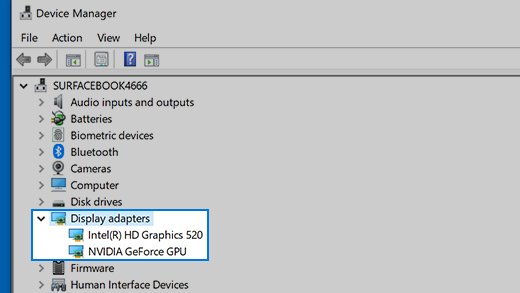
- Expand Display adapters, right-click your graphics adapter and select Properties.
- On the Driver tab, select Roll Back Driver if HDMI stopped working after a driver update.
- If there is no roll back option, close the window, right-click the adapter and select Uninstall device.
- Tick Attempt to remove the driver for this device, select Uninstall and restart if prompted.
- Open Device Manager again, right-click the adapter, select Update driver and choose Search automatically for updated driver software.
The Display adapters list shows the manufacturer of your graphics adapter. Use that name to get the latest driver from the PC maker or graphics card maker's own support site.
11. Use the System File Checker
Damaged Windows files can break display detection along with other features. Run the DISM image repair first so System File Checker has good copies to restore from.
Type cmd in the search box, right-click Command Prompt and select Run as administrator. Run DISM.exe /Online /Cleanup-image /Restorehealth and wait for it to finish, then run the command below.
sfc /scannowScans every protected system file and replaces corrupted ones with a cached copy. Keep the window open until verification reaches 100%.
You should see: Windows Resource Protection did not find any integrity violations, or Windows Resource Protection found corrupt files and successfully repaired them.
If the result says Windows Resource Protection could not perform the requested operation, run the same scan again in safe mode.
Fix HDMI problems in Windows 10
The same fixes work on Windows 10, but a few settings sit in different places. If the port is turned off in the first place, you can also enable the HDMI port on Windows 10 before testing.
| Task | Windows 11 | Windows 10 |
|---|---|---|
| Choose the display mode | Windows logo key + P | Windows logo key + P |
| Detect a missing display | Settings > System > Display > Multiple displays > Detect | Settings > System > Display > Multiple displays > Detect |
| Identify each screen | Settings > System > Display > Identify | Settings > System > Display > Rearrange your displays > Identify |
| Change the refresh rate | Settings > System > Display > Advanced display > Choose a refresh rate | Settings > System > Display > Advanced display settings > Refresh rate |
| Send sound to the TV | Settings > System > Sound > Output | Settings > System > Sound > Output |
| Reset the graphics driver | Windows logo key + Ctrl + Shift + B | Windows logo key + Ctrl + Shift + B |
How to check the HDMI display is working in Windows 11
- Open Settings > System > Display and confirm two numbered screens appear at the top.
- Select Identify and check that a number appears on the HDMI display.
- Drag a window across to the HDMI screen to confirm Extend mode works.
- Select Advanced display and confirm the HDMI display shows the resolution and refresh rate you chose.
- Play a video and confirm sound comes from the TV or monitor speakers.
HDMI port not working on Windows 11 FAQ
Why does my HDMI monitor say no signal on Windows 11?
The display is usually set to the wrong input, or Windows is in PC screen only mode. Press the Input or Source button to pick the HDMI port the cable uses, then press Windows logo key + P and choose Extend or Duplicate.
How do I get Windows 11 to detect my HDMI monitor?
Open Start, Settings, System, Display, expand Multiple displays and select Detect. If nothing appears, reconnect the cable directly without a dock, restart the PC with the cable connected and try a different HDMI cable.
How do I reset my graphics driver in Windows 11?
Press Windows logo key + Ctrl + Shift + B. If that does not help, restart the PC, then roll back or reinstall the driver in Device Manager under Display adapters.
Why is there no sound over HDMI on Windows 11?
Windows is probably still sending audio to the laptop speakers. Open Settings, System, Sound and select the TV or monitor under Output. Then check that neither Windows nor the TV is muted.
Can I use an HDMI splitter to extend my desktop to two monitors?
No. A splitter duplicates one signal to both screens, so both show the same picture. To extend the desktop to a second external monitor, use a second video port, a docking station or a USB-C display adapter.
Can a Windows update stop HDMI from working?
Yes, a new graphics driver can cause it. Open Device Manager, expand Display adapters, open your adapter's Properties and select Roll Back Driver on the Driver tab. If the option is missing, uninstall the device and reinstall the driver.
How do I know if my HDMI port is broken?
Test with a known good cable and a second display. If both work with another computer but not with your PC on any setting, and a different video port on the PC works, the HDMI port itself needs repair.
The verdict on fixing HDMI in Windows 11
Start with Windows logo key + P, Detect and the display's input button, then swap the cable before you touch drivers. Projection mode, input selection and cables cause most HDMI failures and take seconds to rule out. Driver rollback and reinstalling come next, and a port that fails with every cable and display needs a hardware repair.