Control fan speed on a Windows computer through your PC maker's app or the fan settings in BIOS/UEFI, because Windows itself only offers a System cooling policy that chooses between faster fans and a slower processor.
This guide covers the Windows cooling policy, BIOS/UEFI fan curves, the Dell, Lenovo and ASUS laptop tools, NVIDIA graphics card fan targets, and what to do when the fan speeds up on its own.
How to control fan speed on Windows 11/10
Fan speed is decided by the firmware and the manufacturer's software, so the right control depends on who made the PC. Find your brand below and open the tool it names.
| Your PC | Where fan speed is controlled | What you can change |
|---|---|---|
| Dell laptop (Latitude, Precision, XPS, Inspiron) | Dell Optimizer > Power > thermal management (replaces Dell Power Manager) | Optimized, Cool, Quiet or Ultra performance; Fn + T toggles Ultra performance |
| Lenovo laptop | Fn + Q on supported models | Cycles Intelligent Cooling, Battery Saving and Extreme Performance |
| ASUS ROG or TUF gaming laptop | Armoury Crate > Operating Mode | Windows, Silent, Performance, Turbo, or Manual with an 8-point fan curve |
| Desktop PC with an ASUS motherboard | UEFI BIOS > Q-Fan Control | Standard, Silent, Turbo, Full Speed, or a Manual curve per fan header |
| NVIDIA GeForce RTX graphics card | NVIDIA app > System > Performance | A fan speed target used by automatic GPU tuning |
| Any Windows PC | Power Options > System cooling policy | Active (fans first) or Passive (slow the processor first) |
Which fan speed control method should you use?
| Your situation | Use this | Why |
|---|---|---|
| You want a quieter laptop with no extra software | System cooling policy set to Passive | Windows slows the processor before it raises fan speed |
| The laptop runs hot under load | System cooling policy set to Active, or the maker's Cool or Turbo mode | Fans ramp up before the processor is slowed |
| You want a custom fan curve on a desktop | BIOS/UEFI fan profile | Each fan header gets its own temperature-to-speed curve that works in any operating system |
| You own a gaming laptop | The maker's app (Armoury Crate, Dell Optimizer, Fn + Q modes) | Only the manufacturer's tool can change the fan table built into the laptop |
| The noise comes from the graphics card | NVIDIA app performance tuning | Sets a fan speed target for GeForce RTX cards |
Control CPU fan speed with the System cooling policy in Control Panel
Microsoft documents System cooling policy as the setting that decides how Windows reacts to high temperatures on PCs with fans. Active turns the fans up before the processor slows; Passive slows the processor before turning the fans up.
- Select Start, type
Power Optionsand open it. - Next to your active plan, select Change plan settings.
- Select Change advanced power settings.
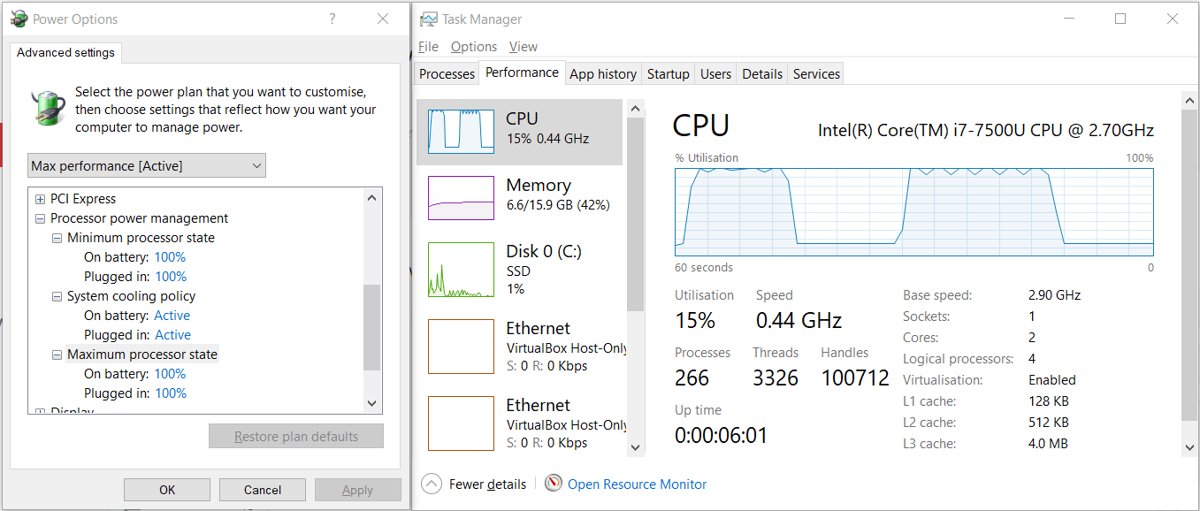
- Expand Processor power management, then expand System cooling policy.
- Set Plugged in and On battery to Active for more cooling, or Passive for less fan noise.
- Select Apply, then OK.
Microsoft marks this setting as hidden by default, so many PCs do not list it. If System cooling policy is missing, use the powercfg command in the next section instead.
Set the system cooling policy with powercfg
powercfg changes the same setting even when Power Options hides it. The setting GUID is 94d3a615-a899-4ac5-ae2b-e4d8f634367f, where 0 means Passive and 1 means Active. First run powercfg /getactivescheme in an administrator Terminal and copy the GUID it prints for your current plan, then use it in place of PLAN_GUID below.
powercfg /setacvalueindex PLAN_GUID SUB_PROCESSOR 94d3a615-a899-4ac5-ae2b-e4d8f634367f 1/setacvalueindex sets the plugged-in value for one power setting. SUB_PROCESSOR is the processor power management subgroup. The final 1 selects Active cooling; use 0 for Passive. Repeat with /setdcvalueindex for the on-battery value, then run powercfg /setactive PLAN_GUID so the plan reloads with the new value.
You should see: The commands return no error, and powercfg /query PLAN_GUID SUB_PROCESSOR lists the cooling policy with the index you chose as its current AC or DC setting.
Use BIOS/UEFI to control the CPU fan speed
The fan profiles in BIOS/UEFI settings work on most desktop motherboards and on some laptops. The steps below use the ASUS UEFI BIOS EZ Mode; other motherboard makers use different menu names for the same curve.
- Restart the PC and press Delete or F2 when the ASUS logo appears to enter the UEFI BIOS.
- Open Q-Fan Control (Fan Profile) to see each header: CPU FAN, CHA1 FAN, CHA2 FAN, AIO PUMP and so on.
- Select the fan you want to change and choose PWM for a 4-pin fan or DC for a 3-pin fan.
- Pick Standard, Silent, Turbo or Full Speed, or choose Manual and drag the points on the curve to set speed against temperature.
- Select Apply to confirm the change for that fan.
- Press F10 (Save & Exit) to save and restart.
Optimize All tests every fan and sets profiles automatically. ASUS says it takes 2-5 minutes, and the PC must not be turned off while it runs.
Control fan speed on a Dell laptop with Dell Optimizer
Dell Power Manager has been replaced by Dell Optimizer, which carries the same four thermal modes.
- Open Dell Optimizer from the Start menu.
- Select Power on the home screen and open the thermal management section.
- Choose Optimized to balance performance, noise and temperature.
- Choose Cool to raise fan speed and keep the surface cooler, or Quiet to lower fan and processor speed for less noise.
- Choose Ultra performance to raise both processor and fan speeds, or press Fn + T to toggle it.
- Tick the Preferences box only if you want the mode to follow the Windows power slider.
Control fan speed on a Lenovo laptop with Fn + Q
- Press Fn + Q on the keyboard.
- Press it again to cycle to the next mode, watching the on-screen indicator.
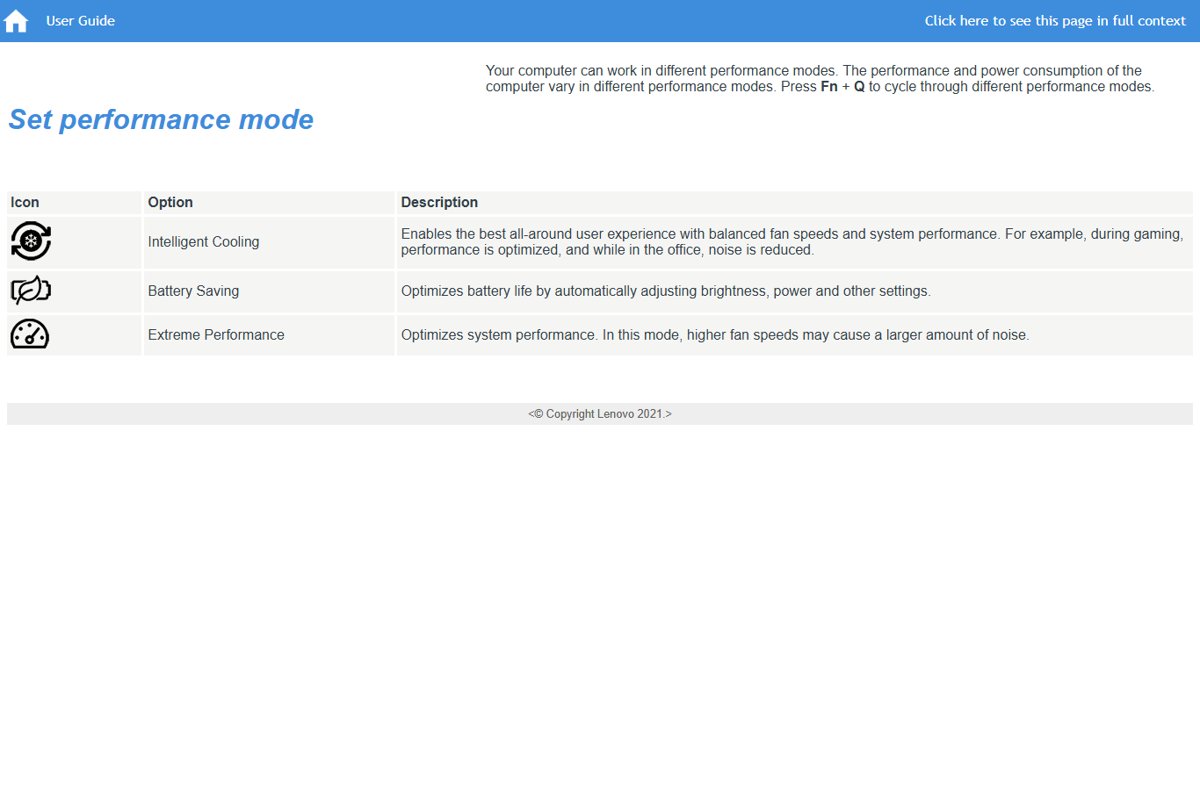
- Stop on Intelligent Cooling for balanced fan speed and performance.
- Stop on Extreme Performance for higher fan speed and more noise, or Battery Saving to lower power use.
Lenovo lists these modes for models such as the ThinkBook 14s Yoga. Legion models also switch modes with Fn + Q and set a different fan speed limit for each mode.
Control fan speed on an ASUS ROG or TUF laptop with Armoury Crate
- Plug the laptop into AC power, because Turbo and Manual mode need it on most ROG models.
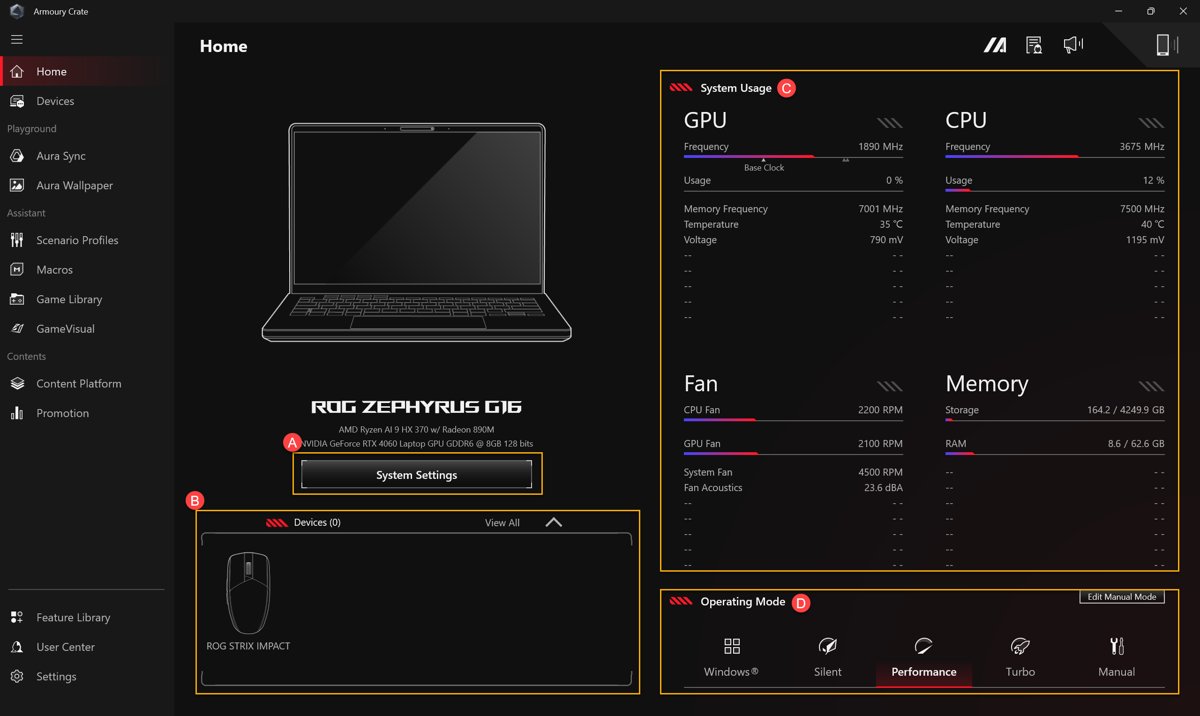
- Open Armoury Crate and find the Operating Mode panel on the Home page.
- Select Silent for low noise, Performance for a balance, or Turbo for maximum fan airflow.
- For your own curve, select Manual and open Edit Manual Mode.
- Drag the 8 points on the Fan Curve, where the X-axis is temperature and the Y-axis is fan speed percentage.
- Save the profile so you can switch back to it quickly.
Control fan speed on an NVIDIA GPU with the NVIDIA app
- Open the NVIDIA app on a PC with a GeForce RTX desktop card or laptop GPU.
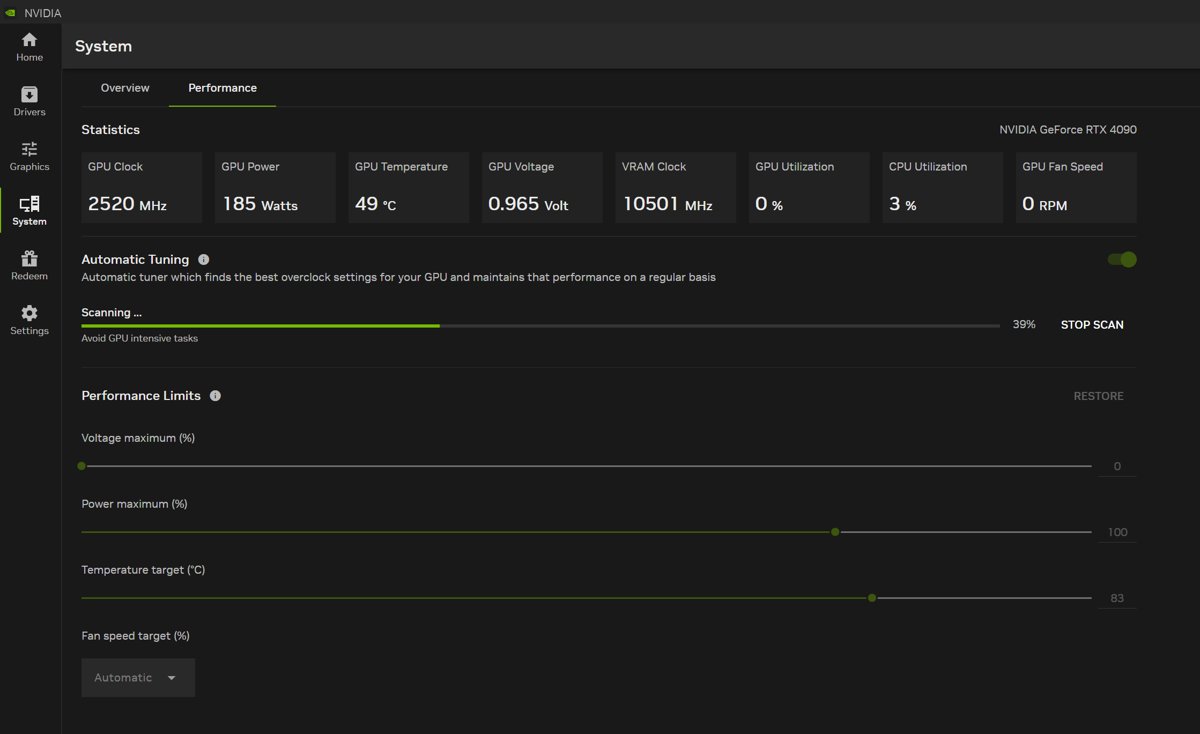
- Select System in the left navigation and open the Performance tab.
- Set the fan speed target, for example a 70% maximum, along with any voltage, power or temperature targets.
- Start Automatic Tuning and leave the PC idle for the 10-20 minutes the test takes.
The fan target guides NVIDIA's tuning algorithm; it is not a full manual fan curve.
How to check your fan speed in Windows
- Restart into the UEFI BIOS and open Q-Fan Control or the fan profile page, which shows the current status of each fan.
- On a laptop, reopen the maker's app and confirm the mode you picked is still selected.
- Run a demanding app or game for a few minutes and listen for the fan to follow your new profile.
- If you changed the cooling policy, run
powercfg /query PLAN_GUID SUB_PROCESSORand check the current AC and DC index for the cooling policy.
Why is it important to monitor CPU fan speed in Windows?
| What you notice | What it usually means | What to do |
|---|---|---|
| Fan is loud all the time | A Cool, Turbo or Full Speed profile is active | Switch to Optimized, Performance or Standard |
| Laptop is quiet but slow when hot | Quiet, Silent or Passive cooling slows the processor to limit heat | Use a balanced mode or Active cooling for heavy work |
| Thermal options are unavailable in Dell software | Dell disables thermal management when a cooling fan has failed | Contact Dell support to have the fan checked |
| A fan never changes speed in BIOS | The header is set to the wrong control type for the fan | Choose PWM for a 4-pin fan or DC for a 3-pin fan |
Fix fan speed problems on Windows laptops and PCs
PC fan speed increases automatically in Windows 11
Active cooling policy or a performance mode tells the PC to raise fan speed before slowing the processor.
- Open the maker's app and choose a quieter mode: Quiet in Dell Optimizer, Silent in Armoury Crate, or Intelligent Cooling with Fn + Q.
- Set System cooling policy to Passive in Power Options, or with powercfg if the setting is hidden.
- Check that Dell Optimizer's Preferences box is not syncing the thermal mode to a performance power slider you do not want.
Can't control fan speed on a laptop: no fan or thermal options
The model does not expose fan settings, or a fan fault has disabled them.
- Confirm your model supports thermal modes in the maker's documentation; Lenovo, Dell and ASUS all limit some options to specific models.
- On Dell, remember that thermal management is unavailable on unsupported systems and disabled after a fan failure.
- On ASUS ROG laptops, connect the charger before looking for Turbo or Manual mode.
- Use System cooling policy as the fallback, since it is part of Windows power plans on every PC.
Fan curve changes in BIOS do not stick
Changes were applied but not saved, or a preset mode locks the curve.
- Choose Manual mode, because Standard, Silent, Turbo and Full Speed use fixed ASUS curves.
- Select Apply after editing each fan.
- Press F10 and confirm Save & Exit.
Windows fan speed control FAQ
Can I control fan speed on a laptop?
Yes, within the limits the manufacturer allows. Most laptops offer preset thermal modes in the maker's app or a key combination, and some gaming laptops add a manual fan curve. Windows adds the System cooling policy, which chooses Active or Passive cooling.
How do I control fan speed on a PC running Windows 11?
Use the fan profile in your motherboard's BIOS/UEFI for a custom curve, or the System cooling policy in Power Options to choose between fans first and processor slowdown first. Windows 11 has no fan speed slider of its own.
How do I control CPU fan speed?
Set the CPU FAN header in the BIOS/UEFI fan profile. On ASUS boards, open Q-Fan Control, pick the CPU fan, select PWM or DC to match the fan, and choose a preset or a Manual curve, then save with F10.
How do I control fan speed on a Dell laptop?
Open Dell Optimizer, select Power and choose a thermal management mode: Optimized, Cool, Quiet or Ultra performance. Fn + T turns Ultra performance on or off. Dell Optimizer replaces the discontinued Dell Power Manager.
How do I control fan speed on a Lenovo laptop?
Press Fn + Q to cycle the performance modes on supported Lenovo laptops. Intelligent Cooling balances fan speed and performance, Extreme Performance raises fan speed, and Battery Saving reduces power use.
How do I control fan speed on an ASUS ROG or ASUS TUF laptop?
Open Armoury Crate and choose an operating mode: Silent, Performance, Turbo or Windows. For a custom curve, choose Manual mode and drag the eight fan curve points, with the laptop plugged in.
How do I control fan speed on an NVIDIA GPU?
Open the NVIDIA app, go to System > Performance, set a fan speed target, and run Automatic Tuning. The feature is for GeForce RTX desktop cards and laptops, and the target guides tuning rather than acting as a manual curve.
How do I control fan speed on an HP laptop?
On HP gaming laptops, fan options sit in OMEN Gaming Hub, and HP limits them to certain OMEN models. On other HP laptops, use the System cooling policy in Windows Power Options to favour cooling or quiet running.
Is it safe to set a laptop to Passive cooling?
Passive cooling is a standard Windows option. It lowers processor performance before raising fan speed, so the PC runs quieter but slower when it gets hot. Switch back to Active for long, heavy workloads.
Bottom line: the best way to control fan speed on Windows
Use your PC maker's app or the BIOS/UEFI fan profile for real fan control, and the Windows System cooling policy when neither offers what you need. Fan behaviour is set by firmware and manufacturer software, so those tools can change the actual fan curve, while Windows can only choose whether fans or processor slowdown respond to heat first.




![HDMI port not working in Windows 11 [Easy fixing]](https://techdows.com/wp-content/uploads/2026/10/HDMI-Port-Not-Working-in-Windows-11-Easy-Fixing-600x338.jpg)