When WhatsApp notifications are not working on a Mac, open System Settings > Notifications > WhatsApp and turn on Allow notifications, then make sure no Focus such as Do Not Disturb is silencing the app.
This guide also covers muted chats, missing sounds and badges, WhatsApp Web in Safari, linked-device logouts, and how to confirm alerts are back.
Turn on WhatsApp notifications in Mac System Settings
- Choose Apple menu > System Settings.
- Click Notifications in the sidebar; you may need to scroll down.
- Under Application Notifications, click WhatsApp.
- Turn on Allow notifications.
- Select Desktop and Notification Center as places to show alerts.
- Turn on Play sound for notification and Badge application icon.
When Allow notifications is off, the alert style and the other WhatsApp options are dimmed, which is the quickest sign this was the cause.
Why WhatsApp notifications are not showing on Mac
| What you notice | Likely cause | Fix |
|---|---|---|
| No WhatsApp alerts at all | Allow notifications is off for WhatsApp | Turn it on in System Settings > Notifications |
| Alerts stopped at certain times | A Focus, such as Do Not Disturb, is on or scheduled | Turn off the Focus or allow WhatsApp in it |
| Only one chat or group is silent | The chat is muted, possibly from your phone | Unmute the chat |
| Alerts appear but make no sound | Play sound for notification is off | Turn the option on for WhatsApp |
| No number on the Dock icon | Badge application icon is off | Turn the option on for WhatsApp |
| Nothing while the Mac is locked or asleep | Notifications paused for a locked screen or sleeping display | Allow notifications in those states |
| Using WhatsApp Web, no alerts | Browser notifications are blocked | Allow notifications for web.whatsapp.com |
| WhatsApp asks you to link again | The Mac was logged out as a linked device | Link the Mac again from your phone |
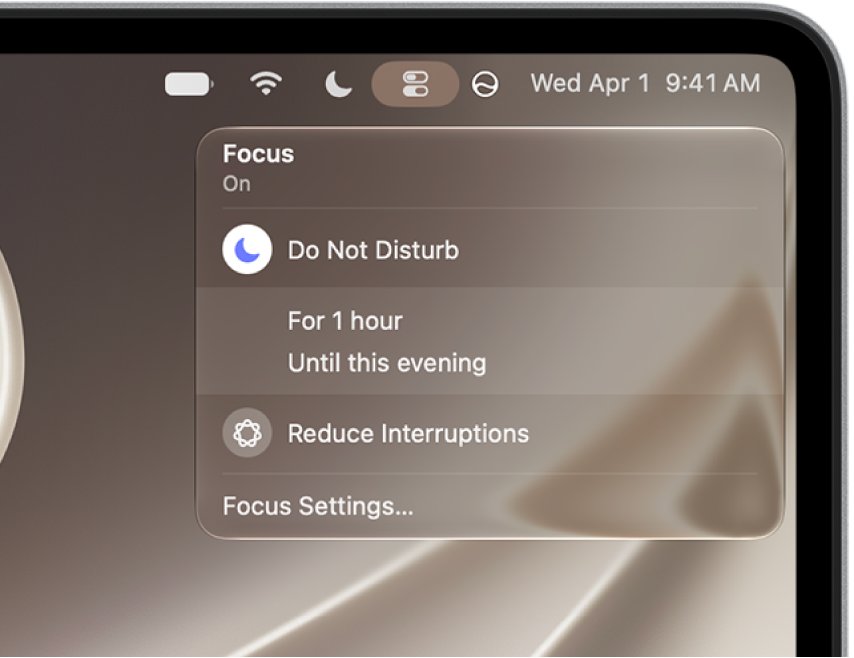
Turn off Focus or Do Not Disturb for WhatsApp on Mac
A Focus silences notifications from apps that are not on its allowed list. If you keep Focus up to date across your Apple devices, a Focus turned on from your iPhone also silences your Mac.
- Click Control Center in the menu bar, then click the Focus section.
- Click the highlighted Focus to turn it off.
- To keep the Focus but allow WhatsApp, open System Settings > Focus and click the Focus.
- Click Allowed Apps, choose Allow Some Apps from the Notifications pop-up menu, click the Add button, select WhatsApp and click Add.
- Check Set a Schedule in the same Focus and remove any schedule that turns it on when you need alerts.
- Click Done.
The Gaming Focus turns on by default when a game controller connects to the Mac, so allow WhatsApp there too if you play with a controller.
Unmute a WhatsApp chat on Mac
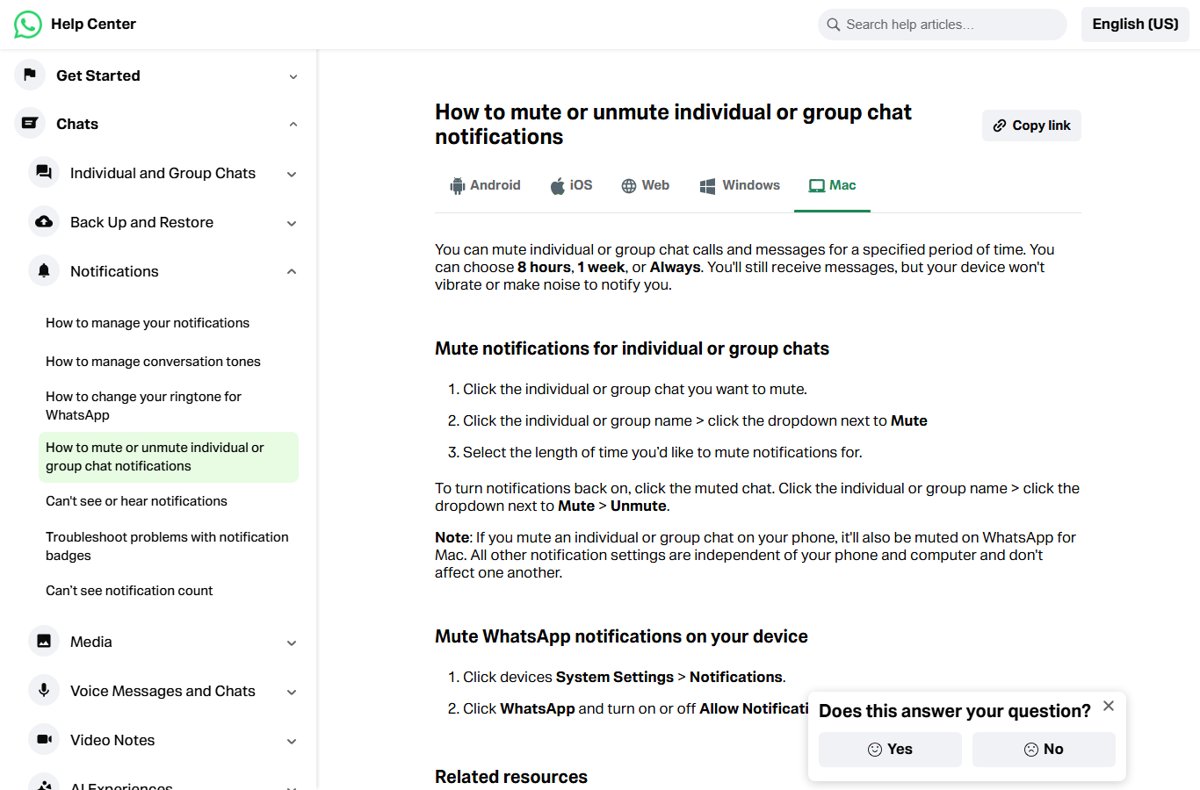
A muted chat still receives messages but makes no sound or alert. Muting a chat on your phone also mutes it on WhatsApp for Mac.
- Open WhatsApp on your Mac and click the muted chat.
- Click the contact or group name at the top.
- Click the dropdown next to Mute.
- Select Unmute.
- Repeat for any other chat that stays silent.
Mute periods are 8 hours, 1 week or Always, so a chat muted with Always never unmutes on its own. Other WhatsApp notification settings are separate on the phone and the Mac.
Mac notification settings for WhatsApp alerts, sound and badges
All of these sit in System Settings > Notifications. The per-app options are under WhatsApp; the screen-state options are at the top of the page.
| Setting | Where | Set it to |
|---|---|---|
| Allow notifications | On | |
| Alert location | Desktop and Notification Center; add Lock Screen to see alerts after sleep | |
| Notification style | Persistent if alerts disappear before you see them; Temporary otherwise | |
| Play sound for notification | On | |
| Badge application icon | On, to show the unread count on the Dock icon | |
| Show previews | Always or When Unlocked | |
| Show notifications when display is sleeping | Top of Notifications | Allow Notifications |
| Show notifications when screen is locked | Top of Notifications | Allow Notifications |
| Show notifications when mirroring or sharing the display | Top of Notifications | Allow Notifications if you present or share your screen often |
Update WhatsApp for Mac to fix notification bugs
- Open the App Store on your Mac.
- Search for WhatsApp Messenger.
- Click Update if it is shown.
- Quit WhatsApp and open it again.
- Install any pending macOS update, then check the WhatsApp notification settings again.
If WhatsApp is missing from your Mac or the install is damaged, reinstall WhatsApp for Mac from the Mac App Store, then turn its notifications back on in System Settings.
Fix WhatsApp Web notifications in Safari on Mac
WhatsApp Web in a browser uses website notifications, which are separate from the WhatsApp app.
- Open web.whatsapp.com and click Turn on desktop notifications in the banner above your chats list, then follow the prompts.
- If you do not see the banner, refresh the page.
- In Safari, choose Safari > Settings, click Websites, then click Notifications.
- Set web.whatsapp.com to Allow.
- Open System Settings > Notifications, click the website under Application Notifications, and turn on Allow notifications.
If the banner still does not appear, notifications are muted or turned off inside WhatsApp's own settings.
Relink WhatsApp on Mac after a linked device logout
WhatsApp for Mac is a linked device. It logs out if you do not use your phone for over 14 days, and WhatsApp disconnects linked devices after 30 days of inactivity.
- Open WhatsApp on your Mac and check whether it shows a QR code instead of your chats.
- On your phone, open WhatsApp and go to Linked devices.
- Tap the option to link a device and scan the QR code on the Mac.
- Wait for your chats to load on the Mac.
- Send yourself a test message from another device to confirm alerts arrive.
How to test WhatsApp notifications on your Mac
- Make sure no Focus icon shows in the menu bar.
- Switch to another app so WhatsApp is in the background.
- Ask someone to send you a message, or send one from another linked device to a chat that is not muted.
- Confirm a banner appears at the top right of the screen and a sound plays.
- Check that the WhatsApp icon in the Dock shows a badge count until you read the message.
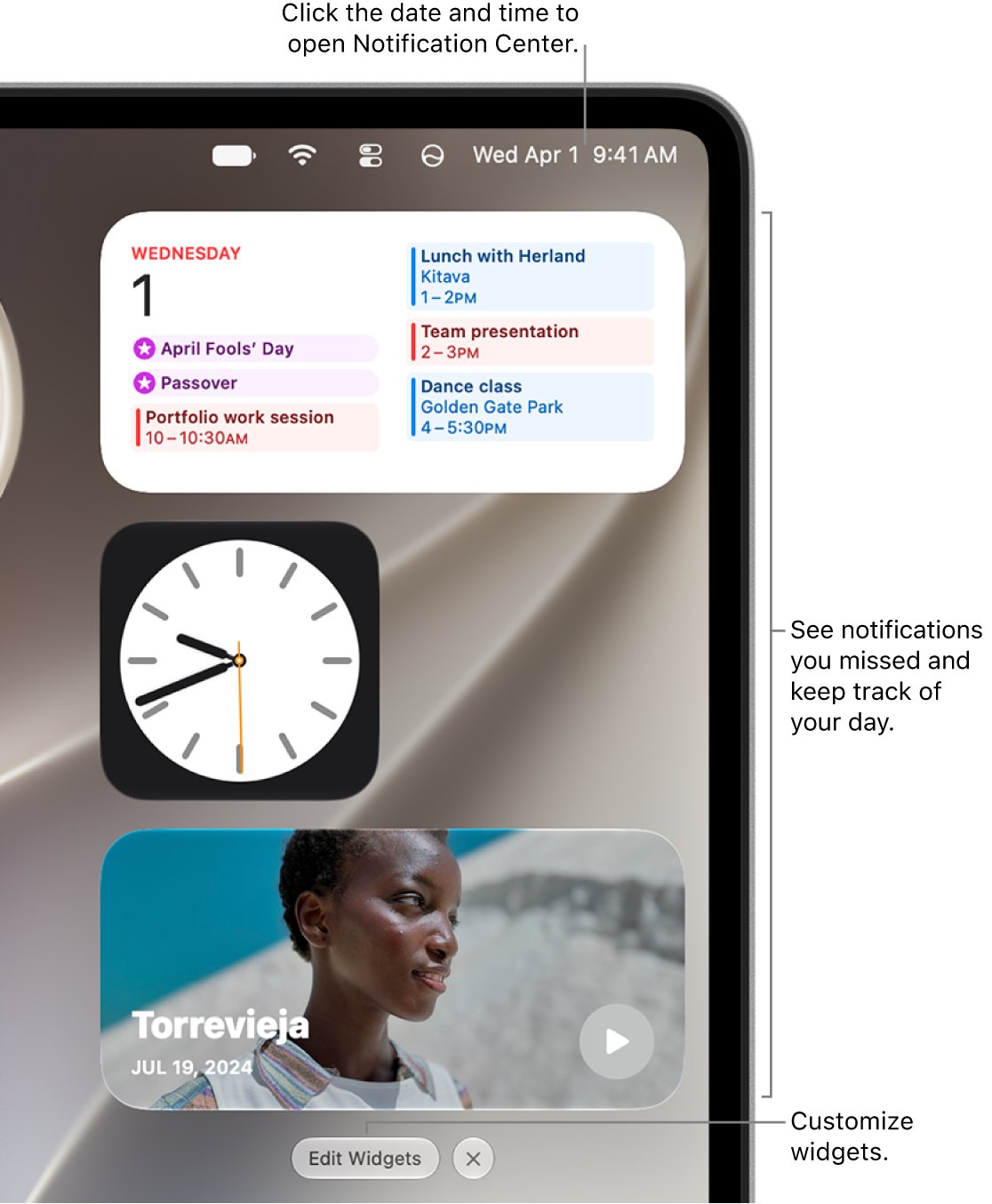
- Open Notification Center to confirm the alert is listed there.
WhatsApp Mac notifications still not working: more fixes
Not getting WhatsApp notifications at all
Notifications are off for WhatsApp, or a Focus is filtering them.
- Recheck Allow notifications under System Settings > Notifications > WhatsApp.
- Turn off any active Focus, including one shared from your iPhone.
- Update WhatsApp from the Mac App Store and restart it.
WhatsApp notification not showing on screen, but listed in Notification Center
Desktop is not selected as an alert location, or alerts are temporary.
- Select Desktop for WhatsApp in Notifications settings.
- Choose Persistent so alerts stay until you dismiss them.
WhatsApp does not give notifications for one group
The group is muted on the Mac or on your phone.
- Open the group, click its name, and choose Unmute from the Mute dropdown.
- Check the same group on your phone, because a mute there carries over to the Mac.
No WhatsApp notifications while the Mac is locked
Notifications are paused when the screen is locked or the display is sleeping.
- Set when screen is locked to Allow Notifications at the top of Notifications settings.
- Set when display is sleeping to Allow Notifications.
- Add Lock Screen as an alert location for WhatsApp.
Notification badge count is missing
Badges are turned off for WhatsApp in macOS.
- Open System Settings > Notifications > WhatsApp.
- Turn on Badge application icon.
WhatsApp Mac notifications FAQ
Why am I not getting WhatsApp notifications on my Mac?
Usually Allow notifications is off for WhatsApp in System Settings > Notifications, or a Focus such as Do Not Disturb is silencing it. Muted chats and an outdated WhatsApp app are the next things to check.
Why does WhatsApp not give me notifications for some chats?
Those chats are muted. A mute set on your phone also applies to WhatsApp for Mac. Open the chat, click its name, and choose Unmute from the dropdown next to Mute.
Why am I not receiving WhatsApp notifications when my Mac is locked?
macOS can pause notifications when the screen is locked or the display sleeps. Set both options to Allow Notifications at the top of System Settings > Notifications.
Why don't I get WhatsApp notifications after turning on Do Not Disturb on my iPhone?
If you keep Focus up to date across your Apple devices, turning on a Focus on your iPhone turns it on for your Mac too. Turn it off, or add WhatsApp to the Focus's allowed apps.
Why is the WhatsApp notification not showing on screen?
Desktop is not selected as an alert location for WhatsApp, or the style is temporary and the banner disappears quickly. Select Desktop and choose Persistent in WhatsApp's notification settings.
Why is WhatsApp not notifying me on iPhone or Mac after a long break?
Linked devices log out if you do not use your phone for over 14 days. Open WhatsApp on the phone, then relink the Mac from Linked devices if it shows a QR code.
How do I get WhatsApp Web notifications on a Mac?
Click Turn on desktop notifications in the banner above your chats list, allow web.whatsapp.com in Safari's Websites > Notifications settings, and turn on Allow notifications for the site in System Settings.
Bottom line: getting WhatsApp alerts back on a Mac
Turn on Allow notifications for WhatsApp in System Settings, clear any Focus, and unmute the silent chats before trying anything else. Those three switches cause nearly every silent WhatsApp on macOS; updating the app and relinking the Mac only matter once they are set correctly.