To unlock an iPhone with a forgotten passcode, tap Forgot Passcode? on the iPhone Unavailable screen and either enter your previous passcode or reset the iPhone with your Apple Account password.
This guide covers all four iPhone locks: the screen passcode, the Apple Account, iCloud Activation Lock and the carrier lock, with the official route for each one.
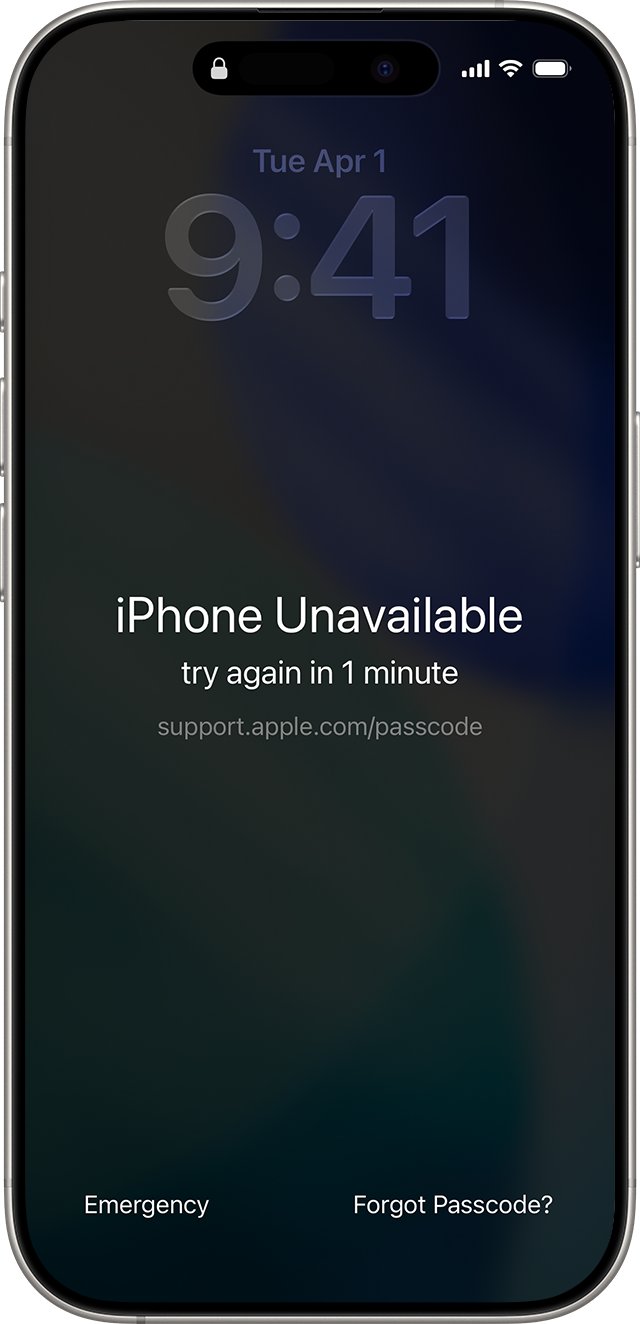
Fastest way to unlock an iPhone when you forgot the passcode
On iOS 17 and later, Passcode Reset lets you use your old passcode for 72 hours after you change it. It needs no computer and erases nothing.
- Enter a passcode on the Lock Screen until the iPhone Unavailable screen appears (this happens after five wrong attempts).
- Tap Forgot Passcode? in the bottom corner of the screen.
- Tap Enter Previous Passcode if you changed the passcode in the last 72 hours.
- Type the old passcode, then follow the prompts to set a new one straight away.
- If you do not know any previous passcode, tap Start iPhone Reset instead and continue with the reset steps in the next sections.
The Forgot Passcode? button only appears when the iPhone is online over Wi-Fi or cellular, signed in to your Apple Account, and has Find My turned on.
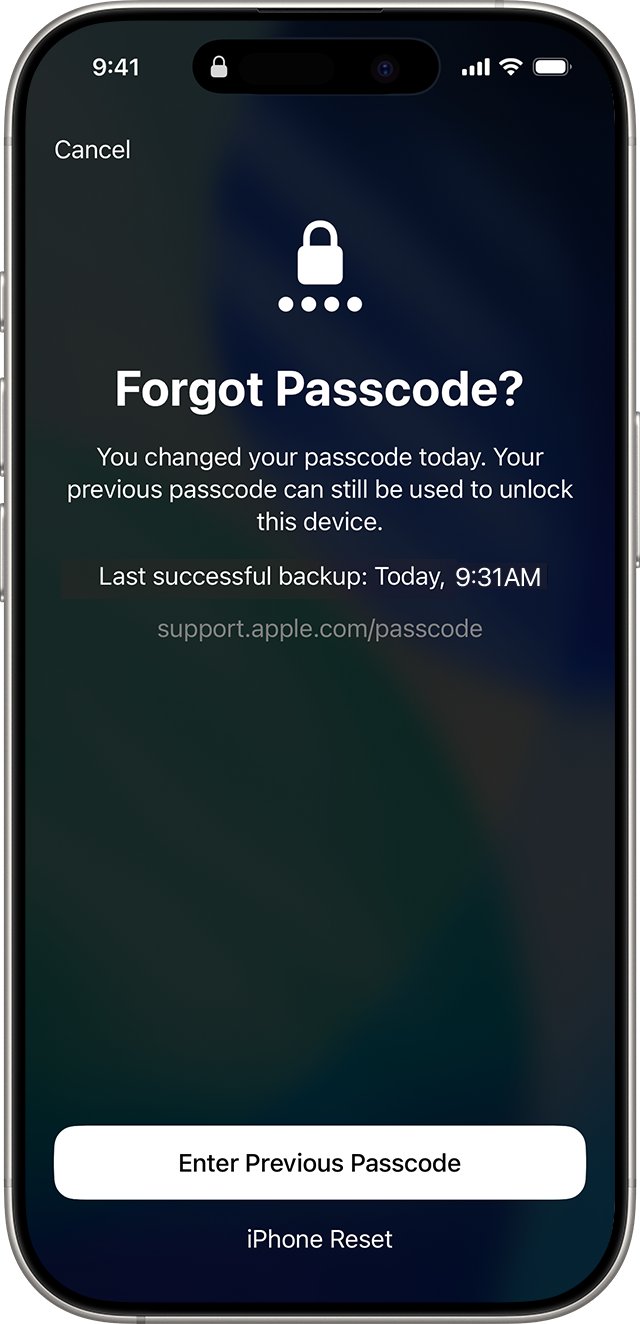
Which unlock method should you use?
Match what you see on the screen to a row. Every passcode route except Passcode Reset erases the iPhone, so a backup decides whether you get your data back.
| What you see or need | Use this method | Erases data? |
|---|---|---|
| Changed the passcode in the last 72 hours, iOS 17 or later | Passcode Reset with your old passcode | No |
| iPhone Unavailable or Security Lockout, online, Find My on | Forgot Passcode? then Start iPhone Reset on the iPhone | Yes |
| No Forgot Passcode? button, or iOS earlier than 15.2 | Recovery mode restore with a Mac or Windows PC | Yes |
| iPhone is lost or not in your hands | Erase This Device at icloud.com/find | Yes |
| iPhone Locked to Owner or Activation Lock screen | Enter the original Apple Account and password, or remove it at icloud.com/find | No |
| Forgot the Apple Account password | Forgot password? or iforgot.apple.com, then account recovery | No |
| SIM from another carrier is not supported | Ask your current carrier for a carrier unlock | No |
The four types of iPhone lock, explained
You can tell which lock you have in about 30 seconds from the screen in front of you. Each lock has a different owner and a different key.
| Lock | What it protects | How you recognize it | Who can remove it |
|---|---|---|---|
| 1. iPhone screen lock (passcode, Face ID, Touch ID) | The data on the device | Passcode keypad, or iPhone Unavailable after wrong attempts | You, with the passcode, or by erasing the iPhone |
| 2. Apple Account lock | Your Apple services, iCloud and purchases | Password prompt you cannot pass in Settings or the App Store | You, through password reset or account recovery |
| 3. iCloud Activation Lock | Reactivation after an erase | iPhone Locked to Owner or a request for the previous owner's Apple Account during setup | The Apple Account owner, or Apple with proof of purchase |
| 4. Network carrier lock | Use with other carriers' SIM or eSIM | Carrier Lock in Settings does not say No SIM restrictions | Only your current carrier |
Face ID and Touch ID never replace the passcode. A passcode is always required after a restart, after 48 hours without an unlock, and after five failed Face ID or Touch ID attempts.
How to unlock an iPhone screen passcode
This is the restore route that works on every iPhone model, even when the iPhone is offline. You need a Mac or Windows PC, a charging cable, an internet connection and up to 60 minutes.
Restoring erases the iPhone. You get your data back only from an iCloud or computer backup.
- Turn off the iPhone. On a Face ID model, press and hold the side button and the Volume down button until the power off slider appears, then drag the slider.
- Connect the cable to your Mac or Windows PC, but not yet to the iPhone.
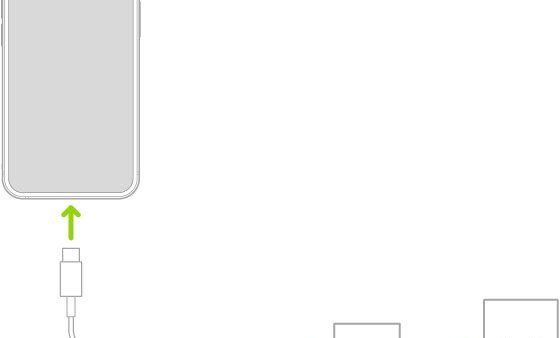
- Hold the recovery mode button for your model (see the table below) and connect the cable to the iPhone while holding it.
- Keep holding the button through the Apple logo, and release it only when the image of a computer and a cable appears.
- On a Mac, open a Finder window and select the iPhone in the sidebar under Locations. On Windows, open the Apple Devices app and select the iPhone in the sidebar.
- Select Restore when you are offered Restore or Update, and follow the onscreen instructions.
- When the Hello screen appears, disconnect the iPhone and set it up again, restoring from a backup if you have one.
If the software download takes more than 15 minutes, the iPhone leaves recovery mode. Let the download finish, turn the iPhone off and enter recovery mode again.
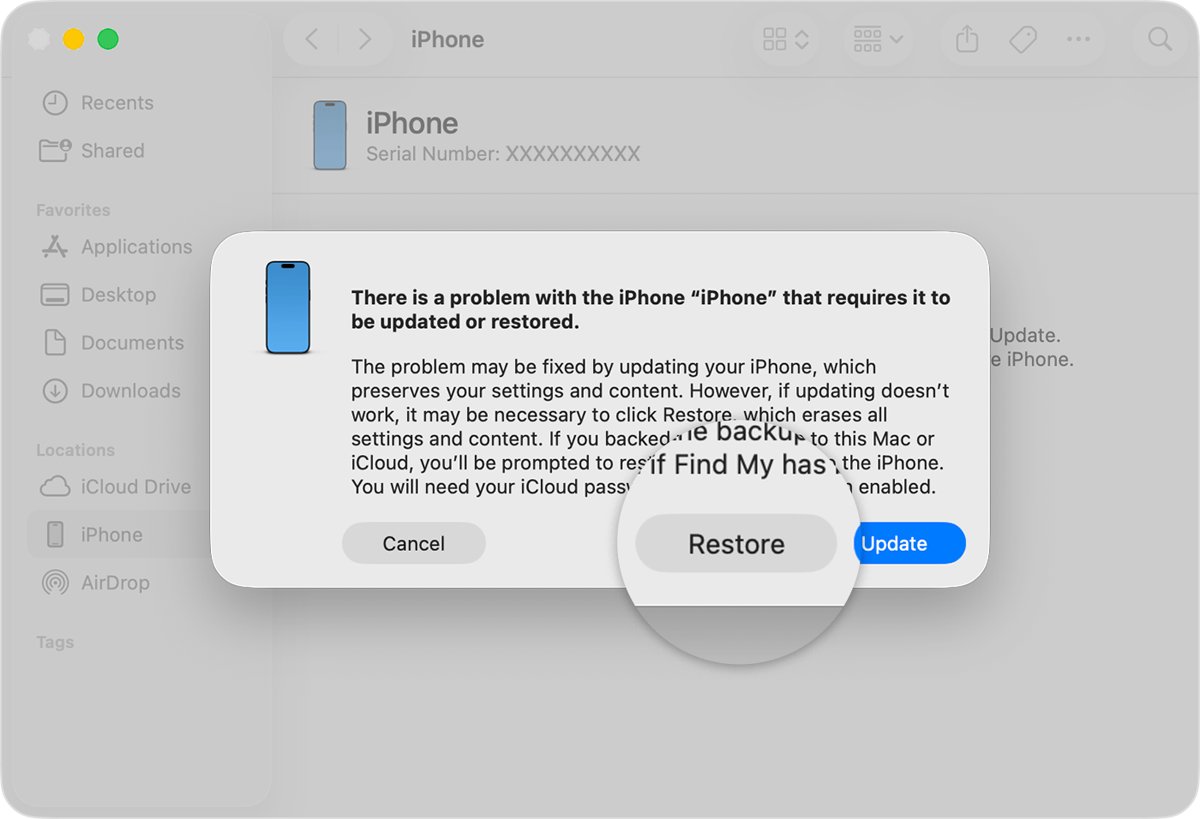
Recovery mode button for each iPhone model
| iPhone model | Button to hold while connecting the cable |
|---|---|
| iPhone with Face ID (iPhone X and later, including iPhone 11 to iPhone 17) | Side button |
| iPhone 8, iPhone 8 Plus, iPhone SE (2nd and 3rd generation) | Side button |
| iPhone 7, iPhone 7 Plus | Volume down button |
| iPhone 6s and earlier, iPhone SE (1st generation) | Home button |
If the buttons do not respond and the computer-and-cable screen never appears, the iPhone needs service from Apple or an Apple Authorized Service Provider.
Unlock iPhone Unavailable or Security Lockout without a computer
On iOS 15.2 and later, the iPhone can erase itself from the lock screen. You need Find My turned on beforehand, an active Wi-Fi or cellular connection, and your Apple Account password.
- Enter a passcode until the iPhone Unavailable screen appears.
- Tap Forgot Passcode? when it appears (on iOS 15.2 and iOS 16 the button is Erase iPhone).
- On the Security Lockout screen, tap Start iPhone Reset to confirm.
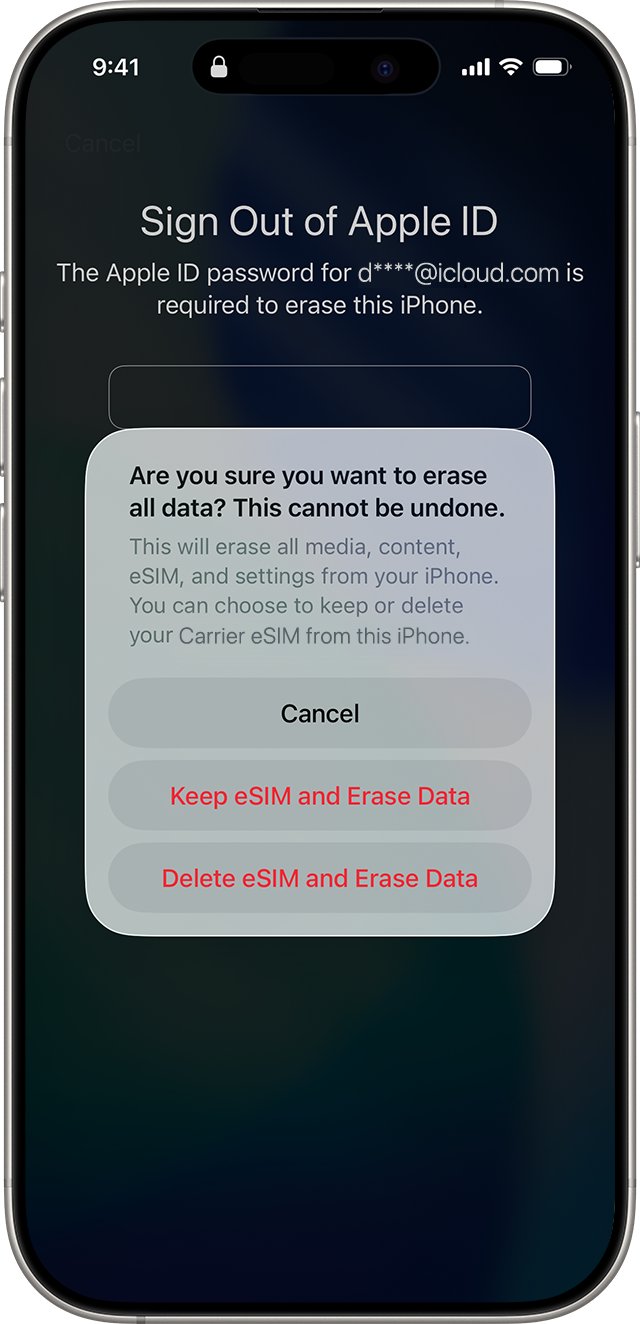
- Enter your Apple Account password to sign out of the account on the iPhone.
- Tap Erase iPhone. With an eSIM on iOS 17 or later, choose whether to keep or delete the eSIM.
- After the restart, set up the iPhone, restore a backup if you have one, and set a new passcode.
If you use an eSIM on iOS 16 or earlier, ask your carrier for a QR code to set the eSIM up again before you erase.
Erase a locked iPhone remotely with iCloud Find My
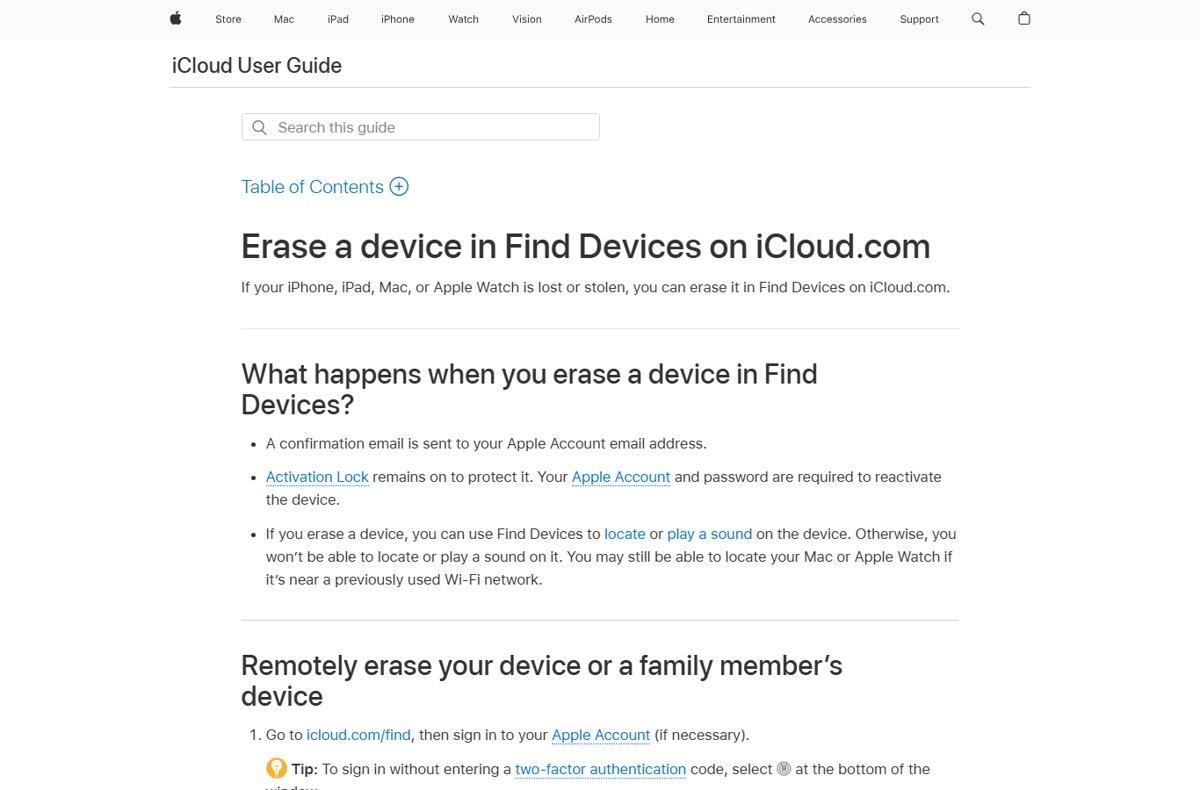
Use this when the iPhone is lost, or when you cannot get the lock screen erase or a computer to work. Activation Lock stays on after the erase, so only your Apple Account can reactivate the iPhone.
- Go to icloud.com/find on any browser and sign in to your Apple Account.
- Select the locked iPhone in the list of devices.
- Select Erase This Device and follow the onscreen instructions.
- Add a phone number or message if asked; it appears on the iPhone's Lock Screen.
- Wait for the erase. An online iPhone erases right away, and an offline one erases the next time it connects.
- Set up the erased iPhone and sign in with the same Apple Account when it asks.
How to remove iCloud Activation Lock
Activation Lock turns on automatically with Find My. Apple stores the Apple Account on its activation servers, so the password is required to turn off Find My, erase the iPhone, or reactivate it.
On iOS 15 and later, a locked used iPhone shows an iPhone Locked to Owner screen when you turn it on.
- On the Activation Lock screen, enter the Apple Account and password used to set up the iPhone, or the device passcode if it offers that option.
- If you are not the owner and the device is offline, ask the owner to go to icloud.com/find and sign in.
- The owner selects the iPhone and clicks Remove This Device.
- Restart setup on the iPhone; it should now reach the Hello screen without asking for the old account.
- If you own the iPhone but cannot sign in, reset your Apple Account password first (next section).
- If you still cannot remove it and have proof of purchase, start an Activation Lock support request with Apple.
Erasing the iPhone does not remove Activation Lock. For an iPhone owned by a business or school, ask the IT department.
How to unlock an Apple Account lock with Forgot Password
The quickest reset uses a trusted device (an iPhone, iPad, Mac or Apple Watch already signed in to your account) or your trusted phone number.
- On the sign-in screen, tap Forgot password? or Forgot password or don't have an Apple Account?.
- Follow the prompts; Apple directs you to a trusted device or sends a code to your trusted phone number.
- If you are already signed in on another Apple device such as a Mac, change the Apple Account password there instead.
- Have your recovery factors ready: trusted phone number, recovery contact code, account email, or the card on file.
- If none of these work, go to iforgot.apple.com in Safari on iOS 17 or later to request account recovery.
- Watch for the confirmation email within 72 hours, which gives the date you can regain access.
If you set up a recovery key, standard account recovery is turned off and you must use the 28-character key plus your trusted phone number.
How to carrier unlock an iPhone
Apple cannot unlock an iPhone for another carrier. Only your current carrier can, and the request can take a few days.
- Open Settings, tap General, then tap About.
- Look at Carrier Lock. If it says No SIM restrictions, the iPhone is already unlocked.
- If it shows anything else, contact your current carrier and ask for an unlock.
- After the carrier confirms the unlock, remove your SIM card and insert the new carrier's SIM; the iPhone activates.
- For an eSIM from a new carrier, set up the eSIM in Settings instead.
- With no other SIM to test, back up the iPhone, erase it, then restore it from that backup to finish the unlock.
How to check your iPhone is unlocked
- After a passcode reset or restore, confirm the iPhone shows the Hello setup screen, then reaches the Home Screen with your new passcode.
- During setup, confirm you are not asked for a previous owner's Apple Account; if you are, Activation Lock is still on.
- Open Settings and confirm your name appears at the top, which proves the Apple Account is signed in.
- Go to Settings > General > About and confirm Carrier Lock reads No SIM restrictions after a carrier unlock.
- Restart the iPhone and unlock it with the new passcode once before relying on Face ID or Touch ID.
Alternative solutions worth knowing
When the standard steps fail, these Apple routes remain. Paid iCloud unlock tools and third-party desktop unlockers are not Apple routes, and Activation Lock is checked on Apple's servers every time the iPhone activates.
| Option | When it helps | What to bring or know |
|---|---|---|
| Apple Support and the Genius Bar | No computer to borrow, or the iPhone will not enter recovery mode | The iPhone and your Apple Account details; book through getsupport.apple.com |
| Activation Lock support request | You own the iPhone but cannot sign in to remove Activation Lock | Proof of purchase documentation |
| Account recovery | You cannot reset your Apple Account password | Several days or more of waiting; Apple Support cannot shorten it |
| Recovery key | You set one up and lost access to your Apple Account | The 28-character key and your trusted phone number |
| Support app on a borrowed device | Your own iPhone is locked | Open Support, go to Support Tools > Reset Password > Help Someone Else |
How to avoid being locked out again
- Turn on iCloud Backup so a forced erase never costs you data.
- Keep Find My turned on; without it, the lock screen erase and the remote erase do not work.
- When you change the passcode, use the new one several times within 72 hours so Passcode Reset is not your only memory of it.
- Open Settings > [your name] > Sign-in & Security and check your trusted phone number is current.
- Set up a recovery contact or a recovery key, and store a printed copy of any key outside your Apple Account.
- Before you sell or buy a used iPhone, make sure it is erased and removed from the previous owner's account.
Still not working? Fix an iPhone that won't unlock
Why won't my iPhone unlock with the password?
The passcode was changed recently, or too many wrong attempts triggered iPhone Unavailable.
- Wait until Forgot Passcode? appears on the iPhone Unavailable screen.
- Tap it, then tap Enter Previous Passcode if you changed the passcode within 72 hours.
- If not, use Start iPhone Reset or the recovery mode restore.
Why won't my iPhone swipe up to unlock?
The touchscreen is not registering the swipe because of a case, screen protector, debris or a frozen state.
- Soft reset the iPhone: hold either volume button and the side button, drag the slider, then hold the side button to turn it back on.
- Clean the screen and make sure it is dry.
- Disconnect Lightning or USB-C accessories.
- Remove the case and any screen protector, then try the swipe again.
- If the screen still does not respond, troubleshoot a black or frozen iPhone screen before you set up service with Apple.
Face ID will not unlock the iPhone
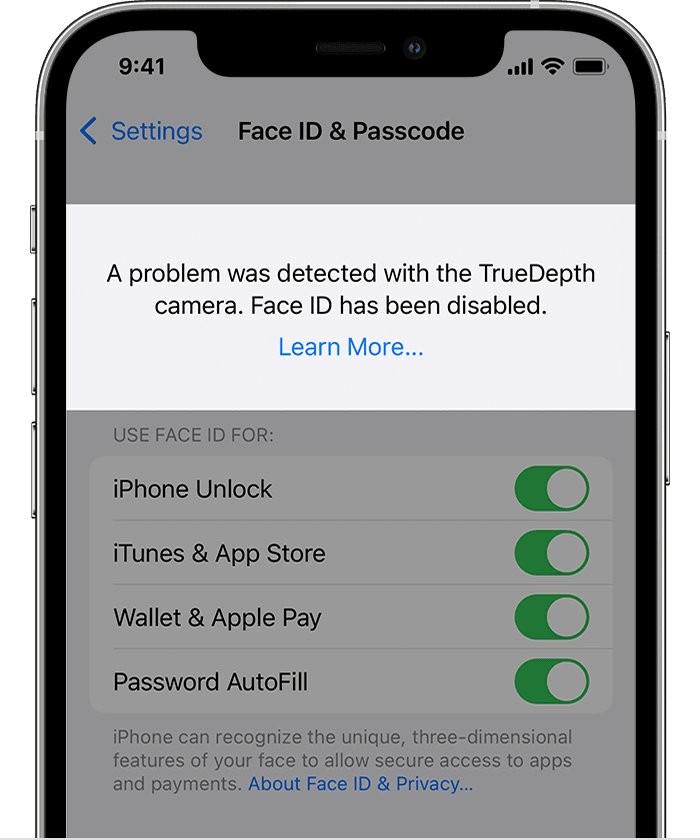
A passcode is required after a restart or 48 hours, or the TrueDepth camera is blocked.
- Enter your passcode once; Face ID cannot replace it after a restart.
- Remove anything covering the TrueDepth camera, such as a case, smudge or privacy screen protector.
- Hold the iPhone within arm's length (10 to 20 inches) and make sure your eyes, nose and mouth are visible.
- Go to Settings > Face ID & Passcode, tap Reset Face ID, then tap Set up Face ID.
- If an alert says Face ID has been disabled, update iOS and get service if it persists.
The Forgot Passcode? button does not appear
The iPhone is offline, signed out of the Apple Account, has Find My turned off, or runs iOS earlier than 15.2.
- Connect the iPhone to Wi-Fi from Control Center, or insert an active SIM.
- Wait on the iPhone Unavailable screen until the button appears.
- If it never appears, use a Mac or Windows PC and the recovery mode restore.
The iPhone will not enter recovery mode
The cable went in before the button was held, or the wrong button was used for the model.
- Turn the iPhone off completely.
- Connect the cable to the computer first, then hold the correct button and connect the iPhone.
- Keep holding through the Apple logo until the computer-and-cable image appears.
- If the buttons do not respond, contact Apple or an Apple Authorized Service Provider.
"The SIM card inserted in this iPhone does not appear to be supported"
The carrier unlock has not been applied yet.
- Go to Settings > General > About and check Carrier Lock.
- If it does not say No SIM restrictions, contact your carrier.
- On iOS 13 or earlier, have the carrier confirm the unlock, restore the iPhone to factory settings, then restore from a backup.
How to unlock iPhone FAQ
How do I unlock my iPhone if I forgot the passcode?
Tap Forgot Passcode? on the iPhone Unavailable screen. On iOS 17 or later, enter your previous passcode if you changed it within 72 hours. Otherwise tap Start iPhone Reset and use your Apple Account password, or restore the iPhone in recovery mode with a computer.
Can I unlock an iPhone passcode without losing my data?
Only with Passcode Reset, which lets you use your old passcode for 72 hours after a change on iOS 17 or later. Every other route for a forgotten passcode erases the iPhone, and your data comes back only from an iCloud or computer backup.
How do I unlock an iPhone that says iPhone Unavailable?
Wait for the Forgot Passcode? option, tap it, then tap Start iPhone Reset and enter your Apple Account password. The option needs iOS 15.2 or later, Find My turned on and an internet connection. Without those, use a computer and recovery mode.
How do I unlock an iPhone locked to owner?
Enter the Apple Account and password used to set the iPhone up. If you bought it used, ask the previous owner to remove it at icloud.com/find with Remove This Device. Apple can help through an Activation Lock support request if you have proof of purchase.
Will erasing my iPhone remove the Activation Lock?
No. Activation Lock stays on after an erase, including a remote erase from icloud.com/find. The iPhone still asks for the original Apple Account and password during setup until the owner removes it from their account.
Do paid iCloud unlock tools actually work?
Apple does not offer or endorse them. Activation Lock is stored on Apple's activation servers and checked each time the iPhone activates, and Apple lists only three ways past it: the owner's Apple Account password, removal at icloud.com/find, or a support request with proof of purchase.
Can I unlock my iPhone with a laptop?
Yes. Put the iPhone in recovery mode, connect it to a Mac and select it in Finder, or to a Windows PC and select it in the Apple Devices app, then choose Restore. This erases the iPhone and removes the passcode.
Can I unlock my iPhone with an Apple Watch?
Apple Watch can unlock an iPhone you normally open with Face ID, but it cannot get you past a forgotten passcode. A passcode is still required after every restart and after 48 hours without an unlock.
How do I unlock iPhone 13, iPhone 14, iPhone 15 or iPhone 17?
Every Face ID iPhone from iPhone X to iPhone 17 uses the same steps. Use Forgot Passcode? on the lock screen, or turn it off, hold the side button while connecting it to a computer, and restore it in recovery mode.
How do I unlock an iPhone 11 or iPhone 12 with a forgotten passcode?
iPhone 11 and iPhone 12 are Face ID models, so the side button enters recovery mode. If they run iOS 15.2 or later with Find My on, the Forgot Passcode? or Erase iPhone option on the lock screen works without a computer.
How long does a carrier unlock take?
It can take your carrier a few days to complete the request. Contact the carrier to check its status, then confirm the unlock in Settings > General > About, where Carrier Lock should read No SIM restrictions.
Is it possible to unlock an iPhone without the Apple Account password?
You can erase the screen passcode with a computer without the password, but the iPhone then stops at Activation Lock if Find My was on. Reset the Apple Account password or request account recovery to finish setup.
Quick summary: which iPhone unlock method to try first
Start with Forgot Passcode? on the lock screen, fall back to a recovery mode restore with a computer, and handle Activation Lock and carrier locks through the account owner and the carrier. Passcode Reset is the only route that keeps your data, the lock screen reset needs no computer, and recovery mode works on every model; Activation Lock and carrier locks can only be lifted by the Apple Account owner or the carrier.



![Troubleshooting headphone detection on Windows 11, 10 [Step-by-step]](https://techdows.com/wp-content/uploads/2026/10/Troubleshooting-Headphone-Detection-on-Windows-11-10-Step-By-Step-500x338.jpg)