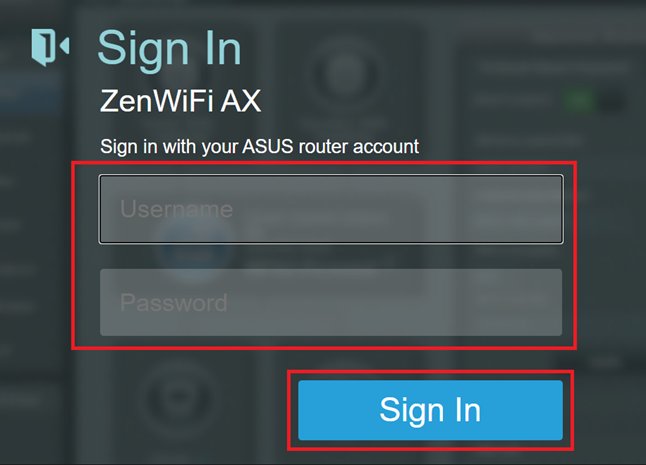
Type http://192.168.1.1 into a browser on a device connected to your router, then sign in with the admin user name and password to open the router settings.
This guide covers logging in, changing the Wi-Fi name and password, the admin password, internet (WAN) and DNS settings, finding the right address when 192.168.1.1 fails, and resetting the router.
192.168.1.1 admin router settings & setup guide
The router's admin page only loads from inside your own network, so connect first and then open the browser.
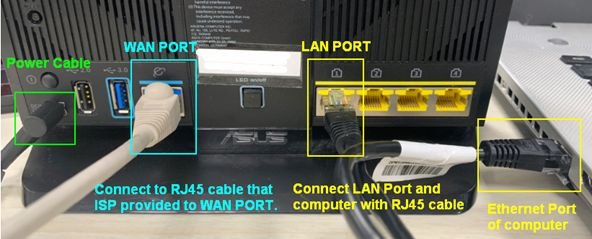
- Connect your computer or phone to the router by Wi-Fi or an Ethernet cable.
- Open any web browser, such as Edge, Chrome, Firefox or Safari.
- Type
http://192.168.1.1in the address bar, not the search box, and press Enter. - Wait for the router login page to load.
- Enter the admin user name and password, then select Log In or Sign In.
- Set a new admin password if the router asks for one on first login.
Many brands also accept a web address instead of the IP: NETGEAR uses routerlogin.net and ASUS uses asusrouter.com. Both open the same admin page.
What is 192.168.1.1?
| Question | Answer |
|---|---|
| What kind of address is it? | A private IPv4 address inside the 192.168.0.0 to 192.168.255.255 range reserved for local networks |
| Is 192.168.1.1 a website? | No. It is your router's local address; it does not exist on the public internet |
| Who uses it? | Many routers use it as their default gateway, while others use 192.168.0.1 or a brand-specific address such as 192.168.50.1 |
| What does it open? | The router's web interface, where you manage Wi-Fi, passwords, internet connection and security settings |
| Can anyone on the internet reach it? | No. Private addresses are not routable on the internet, so you must be on the router's network |
192.168.1.1 username and password for common routers
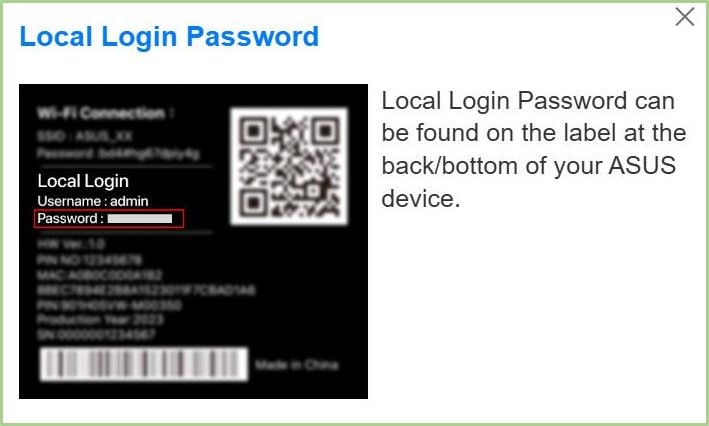
The router admin login is not your Wi-Fi password and not your internet provider account. Check the label on the bottom or back of the router first.
| Router | Login address | Default admin login |
|---|---|---|
| NETGEAR (most models) | routerlogin.net, routerlogin.com, 192.168.1.1 or 192.168.0.1 | User name admin; password password on current models or 1234 on older ones; newer models make you change it at setup |
| ASUS | asusrouter.com or the LAN IP, for example 192.168.50.1 | admin / admin on some models; others print unique credentials on the label |
| Router from your internet provider | Printed on the router label | Printed on the label, or set by the technician during installation |
| Any router you already set up | The address you used at setup | The admin password you created; user names and passwords are case-sensitive |
If the default login no longer works, someone changed it. Use the brand's password recovery option or reset the router as the last step in the troubleshooting section below.
Change the Wi-Fi network name and password from 192.168.1.1
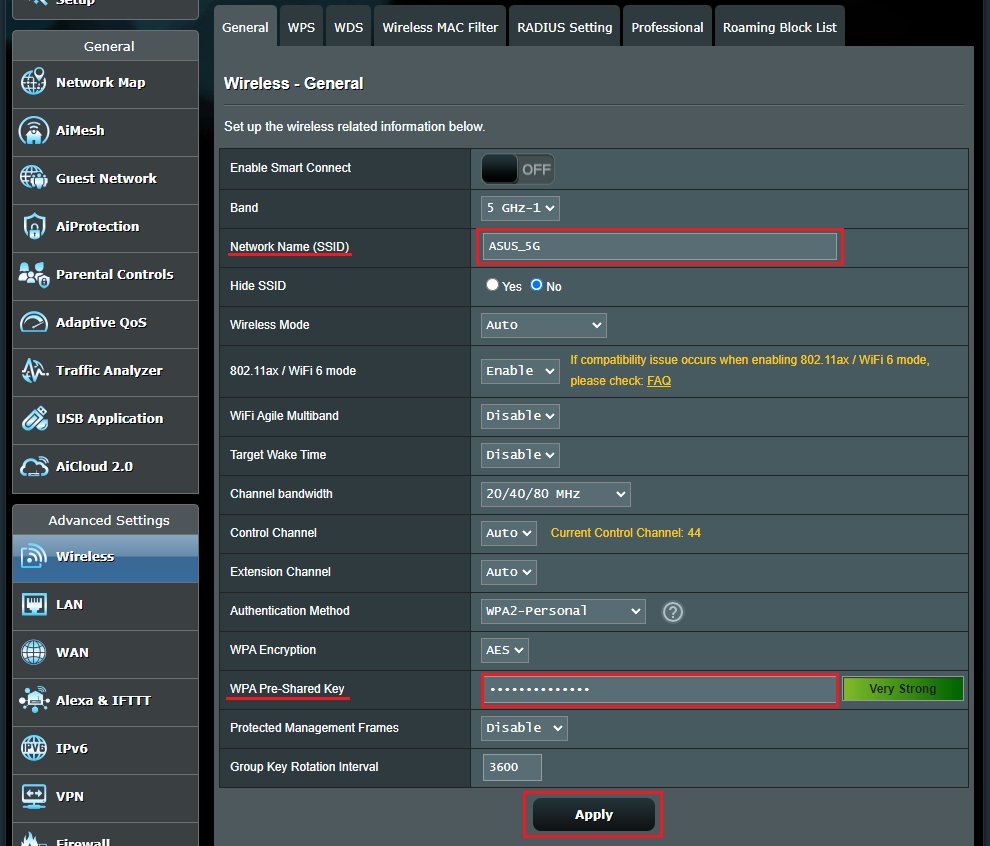
Menu names differ by brand and firmware, but the Wi-Fi name (SSID) and password always sit together in the wireless section.
- Log in to
http://192.168.1.1with the admin account. - Open the Wireless or Wi-Fi settings section.
- Type a new network name in the SSID or Network Name field. Use a unique name and the same name on every band.
- Set security to WPA3 Personal, or WPA2/WPA3 Transitional if older devices must connect.
- Enter a new password in the Password, Network Key or Pre-Shared Key field.
- Select Apply or Save, then reconnect each device with the new name and password.
Changing the Wi-Fi password disconnects every device until it rejoins with the new password. Devices that remember the old details may need to forget the network first, then connect to the Wi-Fi network again with the new password.
Change the router administrator password
Anyone on your network who knows the default admin login can change your settings, so replace it straight away.
- Log in to the router admin page.
- Open the Administration or System section. On NETGEAR routers, select ADVANCED > Administration > Set Password.
- Enter the current password, then the new password twice.
- Use more than 10 characters mixing capitals, numbers and symbols, and avoid sequences such as 1234567890.
- Turn on password recovery if the router offers it.
- Select Apply and log in again with the new password.
Configure the internet or WAN settings
Most home connections work with the default automatic setting. Change the WAN type only when your internet provider gives you specific values.
| Connection type | Use it when | What you enter |
|---|---|---|
| Automatic IP (DHCP) | Cable, fiber or a provider modem that hands out an address | Nothing; the router gets its WAN address automatically |
| PPPoE | The provider gave you a user name and password, common with DSL | The provider's User Name and Password |
| Static IP | The provider assigned you a fixed address | WAN IP address, subnet mask and default gateway from the provider |
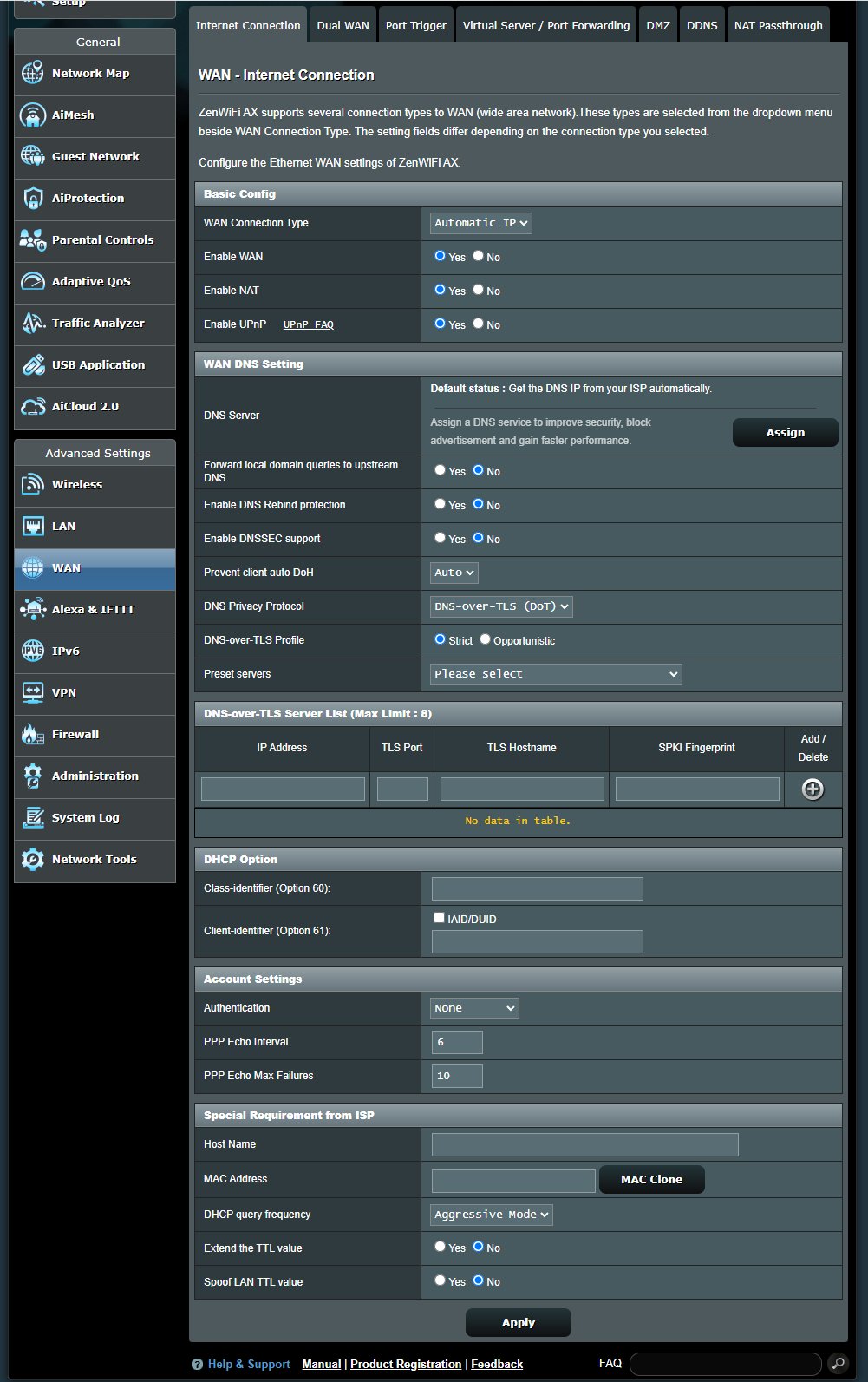
On ASUS routers this setting lives in WAN > Internet Connection > WAN Connection Type. Leave MTU at its default unless your provider asks for a different value, and confirm every value with the provider before you save.
Review DNS and other advanced router settings
Back up the current configuration before you change advanced settings, so you can restore it if something breaks.
| Setting | Recommended value | Why |
|---|---|---|
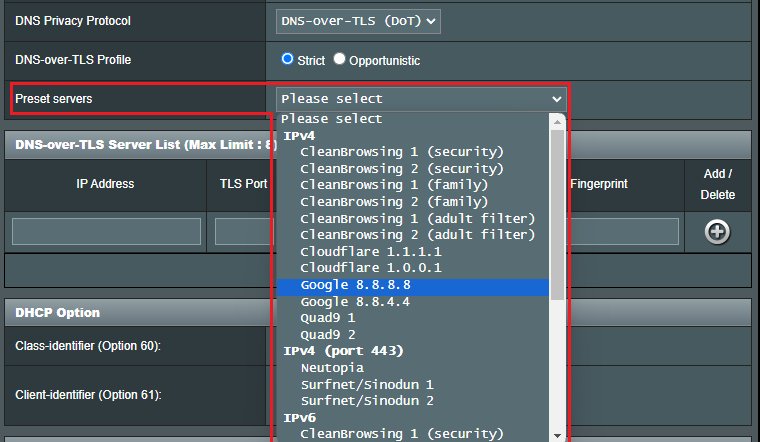
| DNS server | Provider default, or a custom primary and secondary server | All devices on the network use the router's DNS by default |
| Firmware updates | Automatic, or check now | Updates fix security flaws and add settings |
| Hidden network | Disabled | Hiding the SSID does not secure the network |
| MAC address filtering | Disabled | MAC addresses are easy to copy, so it is not a real lock |
| Channel | Auto | The router picks the clearest channel |
| Channel width | 20 MHz on 2.4 GHz; Auto on 5 GHz and 6 GHz | Reduces interference on the crowded 2.4 GHz band |
| DHCP | Enabled, with an 8-hour lease at home | Only one device on the network should hand out addresses |
| NAT | Enabled on the router only | NAT on both the modem and router causes double NAT problems |
| WMM | Enabled | Prioritises voice and video traffic |
To change DNS on one computer only instead of the whole network, change DNS settings on Windows in the adapter settings.
Save your router changes and test the connection
- Select Apply or Save on each page you changed; some routers restart to apply them.
- Reconnect your devices to the Wi-Fi with the new name and password.
- Open a website on each device to confirm internet access works.
- Log out of the router page, then log in again with the new admin password.
- Check the router's status or dashboard page shows the internet connection as connected.
Find the correct router IP if 192.168.1.1 does not work
Your router may use a different address. The Default Gateway that Windows lists with your IP address details is the address to type into the browser.
ipconfigRun it in Command Prompt or Terminal. Without parameters, ipconfig lists the IPv4 address, subnet mask and default gateway for every network adapter.
You should see: The Default Gateway line under your Wi-Fi or Ethernet adapter shows the router address, such as 192.168.1.1, 192.168.0.1 or 192.168.50.1.
On a Mac, the same value appears as the router address in the network details, and you can find the router IP on a Mac from System Settings or Terminal. On NETGEAR routers, ADVANCED > Router Information also shows it once you are logged in.
Why can't I open 192.168.1.1?
The page does not load or times out
You are not on the router's network, or the router uses a different address.
- Connect to the router's own Wi-Fi network, shown on the router label, or plug in an Ethernet cable.
- Disconnect from any VPN, work network or second connection.
- Type the address in the address bar with
http://in front. - Try
192.168.0.1, then the Default Gateway shown byipconfig. - Try a different browser or device, or clear the browser cache.
The login page loads but rejects the password
The admin password was changed from the default, or you entered the Wi-Fi password.
- Check the label on the router for the default user name and password.
- Remember that user names and passwords are case-sensitive.
- Use the brand's password recovery option. On NETGEAR, enter wrong credentials three times to reach Router Password Reset, then enter the serial number and answer your security questions.
The router page worked before but now will not respond
The router or modem needs a restart.
- Turn off the modem, router and connected devices.
- Turn on the modem first, wait for it to connect, then turn on the router.
- Temporarily turn off pop-up blockers or ad-blocking extensions and try again.
Reset the router only as a last resort
A factory reset erases the admin password, Wi-Fi name, Wi-Fi password and every custom setting, so try password recovery first.
- Keep the router powered on.
- Find the recessed Reset button on the back or bottom.
- Press and hold it with a straightened paperclip. NETGEAR asks for 15 seconds; ASUS asks for 5 to 10 seconds until the power light flashes.
- Wait for the lights to return to normal while the router restarts.
- Log in at
http://192.168.1.1or the label address with the default credentials. - Run the setup again: create a new admin password, Wi-Fi name and Wi-Fi password.
192.168.1.1 router login FAQs
What is the username and password for 192.168.1.1?
It depends on the router brand. NETGEAR uses admin with password or 1234, some ASUS models use admin and admin, and many routers print unique credentials on a label. If you changed the password at setup, use that instead.
Is 192.168.1.1 a website?
No. 192.168.1.1 is a private local address that many routers use for their admin page. It only works from a device connected to that router, and it does not exist on the public internet.
Why can't I open 192.168.1.1?
Usually your device is not on the router's network, a VPN is active, or your router uses another address. Connect directly to the router and check the Default Gateway with ipconfig.
Can I change my Wi-Fi password from 192.168.1.1?
Yes. Log in to 192.168.1.1, open the Wireless or Wi-Fi section, enter a new password in the password or network key field, and select Apply. Reconnect every device afterwards.
Does changing the Wi-Fi password disconnect devices?
Yes. Every device drops off the network and must rejoin with the new password. Some devices need you to forget the saved network first before they accept the new details.
Should I change advanced router settings?
Only when you have a reason. Back up the settings first, keep firmware updates on, and leave channel, DHCP and NAT at their recommended defaults unless your internet provider tells you otherwise.
What if my router uses 192.168.0.1 instead?
Type http://192.168.0.1 in the browser instead. Both are common defaults, and the Default Gateway shown by ipconfig on Windows always tells you which one your router uses.
Is the router admin password the same as the Wi-Fi password?
No. The admin password opens the router settings page, while the Wi-Fi password lets devices join the network. Your internet provider account is a third, separate login.
Summary: managing a router at 192.168.1.1
Log in at 192.168.1.1, replace the default admin password, set WPA3 or WPA2/WPA3 Wi-Fi with a strong password, and leave advanced settings at their defaults unless you need a change. Those three changes close the most common security gaps, and they are reversible from the same page. If 192.168.1.1 does not open, the Default Gateway from ipconfig gives the right address, and a factory reset remains the fix of last resort. Brand-specific pages differ, so ISP routers such as the Verizon router login follow their own address and app.