AGC (automatic gain control) on a Windows 11 microphone automatically raises or lowers the mic's gain so your voice reaches a steady level, and it is best left on for calls but turned off for recording, streaming and music. AGC is a driver or app feature, not one of the standard microphone input settings in Windows.
This guide explains where the AGC setting lives, how to turn it on or off, how to set mic gain by hand, and how to fix a mic that keeps auto-adjusting, pops or plays your own voice back.
How to turn off microphone AGC in Windows 11
Windows 11 has no single switch labelled AGC. Automatic gain control is applied by your audio driver or by the app you talk in, so you turn it off where those enhancements are controlled.
- Select Start > Settings > System > Sound.
- Under Input, select your microphone to open its properties page.
- Select Additional device properties.
- On the Enhancements tab, check Disable all enhancements or Disable all sound effects, whichever appears.
- If there is no Enhancements tab, open the Advanced tab and clear Enable audio enhancements.
- Click OK, then record a test clip to check the level.
Some drivers list AGC as its own checkbox on one of these tabs. If yours does, you can clear only that box and keep other enhancements such as noise suppression.
Automatic Gain Control (AGC) microphone setting
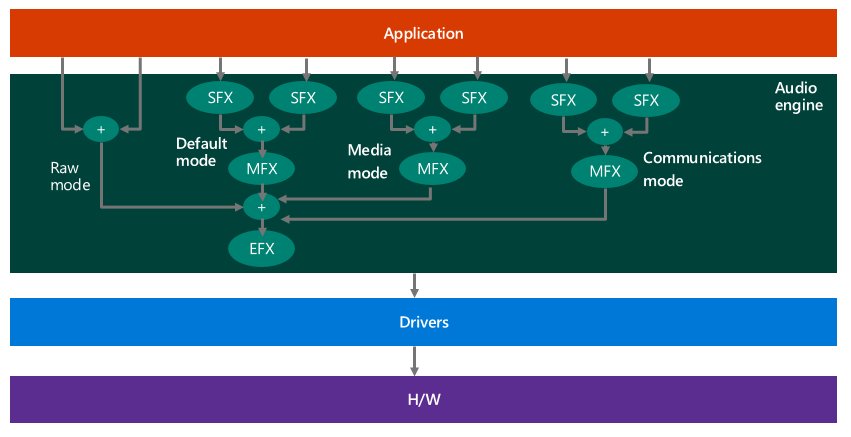
Microsoft's audio driver documentation defines AGC as processing that provides a controlled signal amplitude at its output despite variation of the amplitude in the input signal. In practice, it turns quiet speech up and loud speech down.
| Question | Answer |
|---|---|
| What does AGC stand for? | Automatic gain control |
| What does it change? | The input-to-output gain of the mic signal, adjusted continuously from the average or peak level |
| Who applies it? | The audio driver's enhancements, the headset's own processing, or a calling app |
| Where is it in Windows 11? | In the mic's Additional device properties window, on the Enhancements or Advanced tab, depending on the driver |
| Which streams skip it? | Raw capture streams, which must not include echo control, AGC or noise suppression |
| Is it the same as Microphone Boost? | No. Microphone Boost is a fixed extra gain on the Levels tab; AGC changes the gain all the time |
Should you disable microphone AGC? On or off by use case
| What you use the mic for | AGC setting | Why |
|---|---|---|
| Teams, Zoom or other video calls | On | Keeps your level steady as you move or change how loudly you speak |
| Laptop's built-in mic in a meeting | On | Built-in mics sit at varying distances from your mouth |
| Podcasting, voice-over or streaming | Off | AGC raises background noise in pauses and squashes loud passages |
| Recording singing or instruments | Off | Music needs its natural loud and quiet parts |
| Game chat with a headset | On, unless your voice pumps or cuts out | Headset mics vary in level between players |
| Voice level keeps rising and falling on its own | Off | That pumping is AGC adjusting the gain |
| Using a separate audio interface or recording app with its own gain | Off | Set gain once on the hardware or in the app |
Enable or disable AGC microphone in Windows 11 from Control Panel
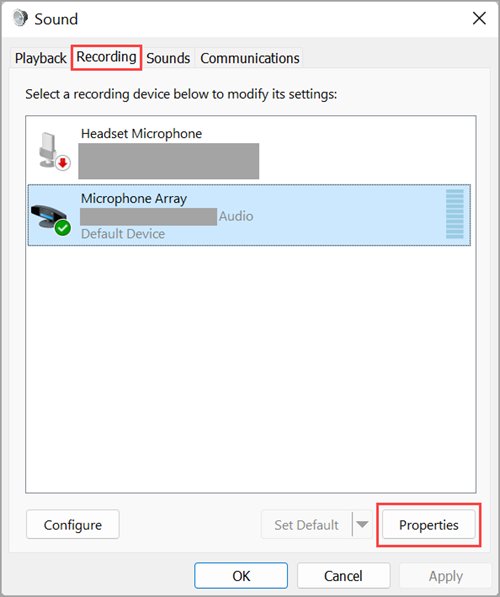
The classic Sound window reaches the same driver tabs. Use it when the Settings page does not show Additional device properties.
- Go to Start > Settings > System > Sound.
- Scroll down and select More sound settings.
- Select the Recording tab, select your mic and select Properties.
- Open the Enhancements or Advanced tab, depending on your driver.
- Check Disable all enhancements, or clear Enable audio enhancements, to turn AGC off; reverse it to turn AGC back on.
- Click OK and repeat for every input device you use.
How to adjust microphone gain manually in Windows 11
With AGC off, the mic stays at whatever level you set in Windows 11 sound settings. Set it once with a test recording.
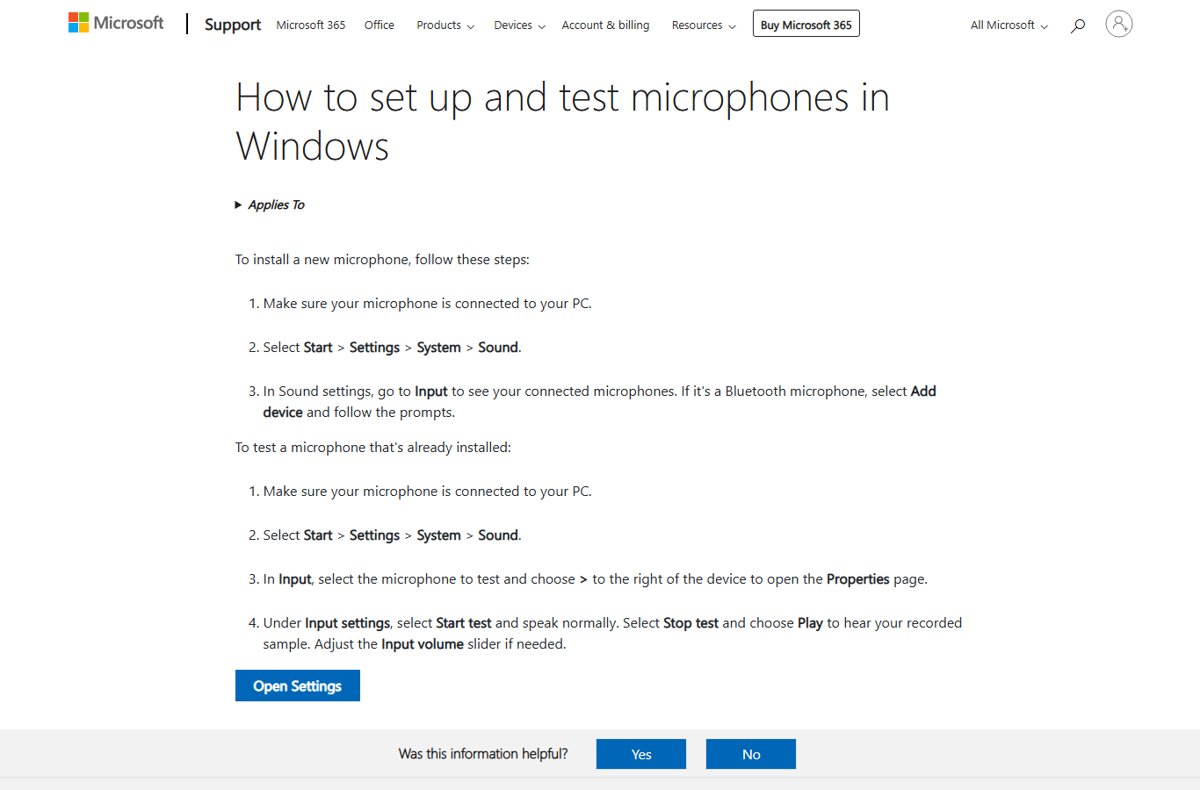
- Select Start > Settings > System > Sound.
- In Input, select the microphone and choose > to open its properties page.
- Under Input settings, select Start test and speak normally.
- Select Stop test, then Play to hear your recorded sample.
- Move the Input volume slider and test again until your voice is clear without distortion.
- For more gain, open More sound settings > Recording > Properties > Levels and raise Microphone Boost if it is listed.
Microsoft suggests a starting point of 50 on the Microphone slider and +24.0 dB on Microphone Boost for Surface mics. Microphone Boost is not available on every device.
How to stop Microphone from auto-adjusting in Windows 11
If the input volume keeps changing after you turn off driver enhancements, the app you are using is adjusting it. Calling apps often have their own automatic level control.
- Turn off enhancements for the mic as shown in the first section.
- In Microsoft Teams, select Settings and more > Settings.
- Select Devices, then go to Audio settings.
- Turn off Automatically adjust mic sensitivity.
- In other calling or game chat apps, open the audio or voice settings and turn off any automatic mic volume or sensitivity option.
- Close and reopen the app, then check whether the level still moves.
Some audio settings in Teams may be unavailable because of policies set by your meeting organizer or IT admin.
How to stop hearing yourself on mic on Windows 11
Hearing your own voice in your headset usually means the mic signal is being played back to your output device, or the headset's own monitoring is on.
- Open Start > Settings > System > Sound > More sound settings.
- Select the Recording tab, select your mic and select Properties.
- Check each tab for an option that plays the device through your speakers or headphones, and turn it off.
- Repeat for every other input on the Recording tab, since another input can be the one playing back.
- Open your headset maker's app and turn off mic monitoring or sidetone if it has it.
- Make a test call to confirm the echo is gone.
If only the other people on a call hear an echo, the sound is usually coming from someone's speakers into their mic. Ask them to use a headset.
Clicking sound or popping noise from microphone on PC
Mic clicks, pops or crackles
Audio enhancements, an unsupported audio format, a faulty Realtek or other audio driver or stalled audio services.
- Turn off enhancements for the mic in Additional device properties.
- On the device's properties page, select Advanced and choose a different option under Default format.
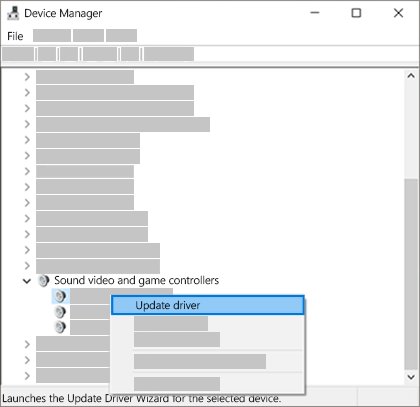
- Open Device Manager, expand Sound, video and game controllers, right-click your audio device and select Update driver.
- Select Start, type services.msc and press Enter, then restart Windows Audio and Windows Audio Endpoint Builder.
Voice level pumps up and down in recordings
AGC is raising the gain in pauses and cutting it when you speak.
- Turn off enhancements or the AGC option in the mic's properties.
- Turn off Automatically adjust mic sensitivity in Teams or the matching option in your app.
- Set the Input volume slider by hand with a test recording.
Mic is too quiet after turning AGC off
AGC was boosting a low input level.
- Raise Input volume under Input settings.
- Raise Microphone Boost on the Levels tab if your device has it.
- Move the mic closer to your mouth and check the headset's mute button is off.
Windows does not detect the microphone
Microphone privacy permissions or a missing driver.
- Go to Settings > Privacy & security > Microphone and turn on Microphone access and Let apps access your microphone.
- Turn on Let desktop apps access your microphone for desktop apps.
- In Device Manager, uninstall the audio device, restart and let Windows reinstall it.
Test your microphone level after changing AGC
- Open Settings > System > Sound and select your mic under Input.
- Under Input settings, select Start test and speak at your normal volume, then pause for a few seconds.
- Select Stop test and Play to listen back.
- Check that your voice stays at one level and that background noise does not rise during the pause.
AGC microphone FAQ
What is AGC in microphone properties?
It is the automatic gain control option your audio driver adds to the mic's properties window. When it is on, the driver keeps adjusting the mic gain so quiet and loud speech come out at a similar level.
What does AGC mean in microphone settings?
AGC means automatic gain control. It measures the incoming signal and turns the gain up or down to keep a stable output level, even when you speak softly, loudly or move away from the mic.
What is AGC for a headset mic?
On a headset, AGC keeps your voice at a steady level in calls and game chat. It is applied by the headset, its software or the PC's audio driver. Turn it off if your voice pumps or background noise swells between words.
What is AGC audio?
AGC audio is sound that has passed through automatic gain control, so its loudness is evened out. It suits speech on calls, but it compresses the natural loud and quiet parts of music and performances.
Should microphone AGC be on or off?
Keep AGC on for video calls and casual chat, where a steady level matters most. Turn it off for podcasting, streaming, voice-over and music recording, and set the input volume by hand instead.
How do I change microphone gain in Windows 11?
Go to Settings > System > Sound, select your mic under Input and move the Input volume slider. For more gain, open More sound settings > Recording > Properties > Levels and raise Microphone Boost if it is listed.
Where are microphone settings on Windows 11?
Open Start > Settings > System > Sound and look in the Input section. Select your mic to see Input volume, the microphone test and Additional device properties. App permissions are under Settings > Privacy & security > Microphone.
Where is the mic on a Windows 11 laptop?
The hardware maker decides where the built-in mic sits, not Windows 11. Check your PC maker's features page for the mic openings, then confirm the built-in mic is listed under Input in Settings > System > Sound.
Is Microphone Boost the same as AGC?
No. Microphone Boost adds a fixed amount of gain that you set on the Levels tab, while AGC changes the gain continuously. You can use Microphone Boost with AGC turned off.
Microphone AGC in Windows 11: on or off verdict
Leave microphone AGC on for calls and meetings, and turn it off for recording, streaming or music, then set the Input volume slider by hand. AGC exists to keep speech at a steady level, which helps on calls but causes pumping and rising background noise in recordings where you want full control of the gain.


![Troubleshooting headphone detection on Windows 11, 10 [Step-by-step]](https://techdows.com/wp-content/uploads/2026/10/Troubleshooting-Headphone-Detection-on-Windows-11-10-Step-By-Step-500x338.jpg)