To change the display color profile on Windows 11, open Settings > System > Display > Color profile, select your display and choose Set profile on the profile you want as the default.
This guide covers adding and removing ICC color profiles, the Control Panel route on older Windows 11 builds, calibration, automatic color management and fixes when a profile does not apply.
Change color profile on Windows 11 24H2
Newer Windows 11 releases manage display color profiles from a Color profile page inside Display settings. Each connected display keeps its own list of profiles and its own default.
- Select Start > Settings > System > Display.
- Select Color profile.
- On the Color management page, select the display you want to change near the top.
- Find the profile you want in the list for that display.
- Select Set profile to make it the default color profile.
The change applies straight away to that display. Repeat the steps for each monitor if you use more than one.
Add a new ICC color profile to a display in Windows 11
Monitor makers and calibration tools supply ICC color profiles that describe a display's real colors. Save the profile file somewhere you can find it before you start.
- Go to Settings > System > Display > Color profile.
- On the Color management page, select the display you want to manage color profiles for.
- Select Add profile.
- Browse to the color profile file and open it.
- Select Set profile on the new profile if you want it as the default.
Remove color profile on Windows 11 24H2
- Go to Settings > System > Display > Color profile.
- Select the display that has the profile you want to delete.
- Expand the color profile you want to remove.
- Click Remove at the bottom of the expanded profile.
Set a different profile as the default first if you are removing the active one, so the display keeps a profile you chose.
Change color profile on Windows 11 23H2
Older Windows 11 builds without the Color profile page in Display settings use the classic Color Management window from Control Panel. It holds the same installed profiles and the same per-display defaults.
- Select Start, type color management, then select Color Management in the results.
- Pick your display from the device list on the devices tab.
- Turn on the option to use your own settings for that device.
- Add the profile you want from the installed list, or browse to the profile file.
- Select the profile and set it as the default profile for the display.
- Close the window and check the colors on screen.
Remove color profile on version 23H2
- Select Start, type color management, then select it in the list of results.
- Select the All Profiles tab.
- Select the color profile you want to delete.
- Select Remove.
This is also how Microsoft says to delete a profile created by the Windows HDR Calibration app.
Windows 11 color profile, calibration or auto color management: which to use
| Your situation | Use this | Why |
|---|---|---|
| Your monitor maker supplies an ICC profile | Add profile, then Set profile | The profile describes that exact model's colors |
| No profile available and colors look off | Calibrate display on the Color profile page | Calibration creates a new color profile for the display |
| HDR is on for an external display | Windows HDR Calibration app | Calibrate display sends HDR displays to that app |
| Supported wide-gamut display and mixed apps | Automatically manage color for apps | Windows color-manages every app, even ones that are not color-aware |
| One older app shows wrong colors with auto color management on | Use legacy display ICC color management on that app's Compatibility tab | Gives an ICC-based app the display's full gamut |
| Surface Studio | Pick sRGB, DCI-P3 or Vivid from the action center | Switching updates the default display profile automatically |
Color profile vs color calibration
| Color profile | Color calibration | |
|---|---|---|
| What it is | A file that describes a display's color characteristics, such as its gamut | A guided process that measures your display and writes a new profile |
| Where it comes from | Monitor maker, calibration hardware or Windows itself | Calibrate display in Settings, or the Windows HDR Calibration app for HDR |
| What Windows does with it | Converts colors to the display's color space using the default profile | Saves the result as a color profile for that display |
| When there is none | Windows uses the display's EDID colorimetry data | Not required on HDR-certified displays, which usually work well out of the box |
| Per display? | Yes, each display has its own default | Yes, the profile is created for the display the tool runs on |
Calibrate display color on Windows 11 to create a profile
- Go to Settings > System > Display > Color profile.
- Select Calibrate display.
- Follow the display calibration steps on screen.
- Return to the Color profile page and confirm the new profile is set for that display.
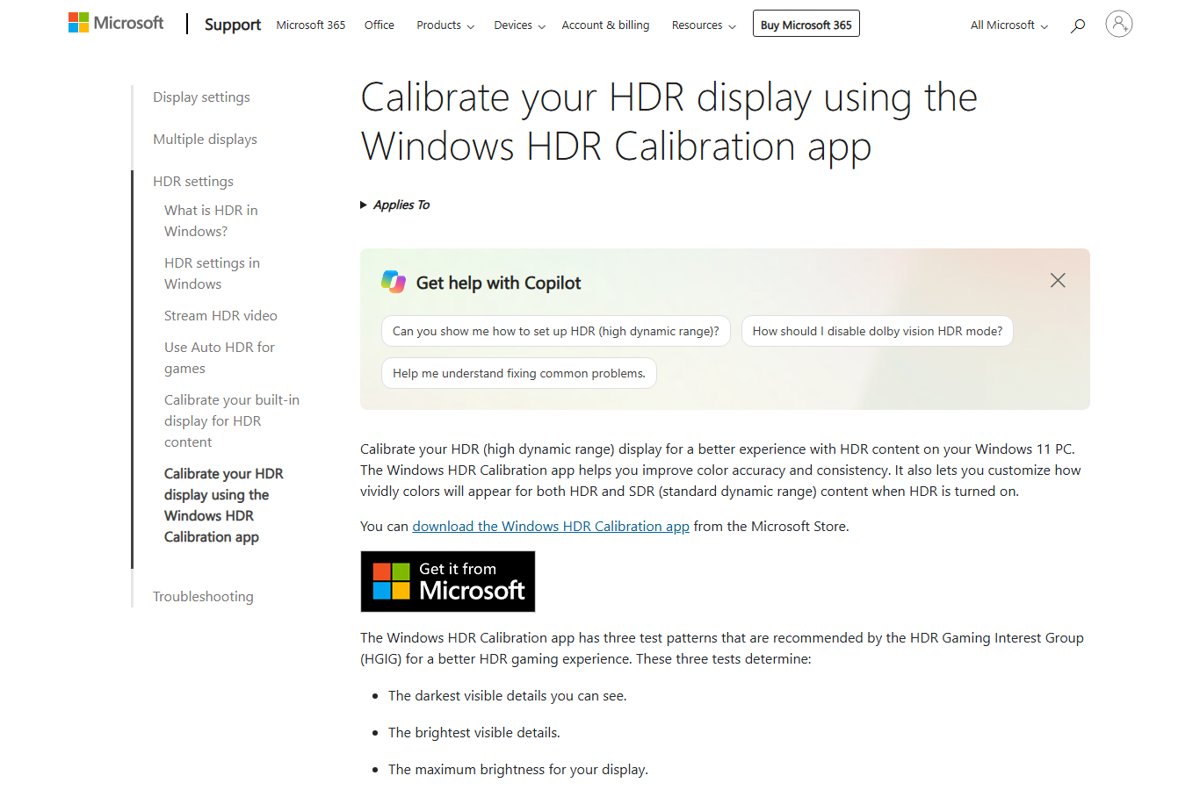
For an HDR-enabled external display, Calibrate display prompts you to use the Windows HDR Calibration app from the Microsoft Store. That app needs Windows 11, HDR turned on in Settings > System > Display > HDR, and a display driver of WDDM 2.7 or later.
Turn on automatic color management in Windows 11
Auto color management makes colors appear accurately across all Windows apps on supported displays, whether the apps are color-managed or not. Windows 11, version 22H2 extended it to qualifying SDR displays that have an accurate manufacturer or calibration profile.
- Select Start > Settings > System > Display > Color profile.
- Select your display near the top.
- Look for Automatically manage color for apps.
- Select Automatically manage color for apps to turn it on.
If the setting is missing, that display does not qualify. Windows still uses the default color profile you set.
Check which color profile is active on a display
- Open Settings > System > Display > Color profile.
- Select the display at the top of the Color management page.
- Confirm the profile you chose is the one set as the default for that display.
- Open a photo you know well and compare it with how it looked before the change.
Windows 11 color profile not working: fixes
Changing the color profile makes no visible difference
Auto color management or HDR is active, and apps that use ICC profiles are limited to sRGB by default.
- Check whether Automatically manage color for apps is on for that display.
- For an older color-managed app, open its executable's Properties > Compatibility tab.
- Select Use legacy display ICC color management and reopen the app.
Colors look washed out or oversaturated after HDR calibration
The color saturation slider in the Windows HDR Calibration app was pushed too far.
- Delete the profile from Color Management > All Profiles > Remove.
- Run the Windows HDR Calibration app again, full screen, in your usual lighting.
- Turn off post-processing effects in the monitor's on-screen menu if the app misbehaves.
Calibrate display or HDR calibration is unavailable
An outdated graphics driver or an older GPU.
- Select Start > Settings > Windows Update > Check for updates.
- Install the latest driver from your GPU maker if Windows Update has none.
- Confirm the GPU meets the HDR Calibration app requirements, such as NVIDIA GTX 10xx, AMD RX 400 series or Intel 11th Gen graphics or later.
Wrong colors on one monitor only
Each display keeps its own default profile, just as it keeps its own display scale setting.
- Open Settings > System > Display > Color profile.
- Select the affected display at the top of the page.
- Select Set profile on the correct profile for that monitor.
Windows 11 display color profile FAQ
Where are color profile settings in Windows 11?
Open Settings > System > Display > Color profile. The Color management page there lets you add or remove profiles, set a default for each display, calibrate the display and turn on automatic color management.
How do I set a default color profile in Windows 11?
Go to Settings > System > Display > Color profile, select the display at the top and choose Set profile on the profile you want. Each monitor keeps its own default, so repeat this for every display.
How do I add an ICC profile in Windows 11?
Open Settings > System > Display > Color profile, select the display and choose Add profile. Browse to the ICC profile file from your monitor maker or calibration tool, then select Set profile to make it active.
How do I remove a color profile in Windows 11?
In Settings > System > Display > Color profile, select the display, expand the profile and click Remove. On older builds, open Color Management from Start, select the All Profiles tab, choose the profile and select Remove.
What is the difference between a color profile and color calibration?
A color profile is a file that describes a display's colors. Calibration is the process that measures your display and creates a new profile from the results. Calibrate display in Settings writes that profile for you.
Should I turn on Automatically manage color for apps?
Turn it on if your display supports it and you want accurate color in every app, including apps that are not color-aware. It also improves gradients and, on 8-bit displays, uses dithering to raise color quality.
What happens if a display has no color profile?
Windows falls back on the color data the display reports through its EDID. Content from apps that are not color-aware is treated as sRGB.
Does Windows 10 have the same color profile page?
No. On Windows 10, search for calibrate display color in the Settings search box and follow the directions. The Color profile page with Set profile and Add profile is part of Windows 11.
Best color profile setup for a Windows 11 display
Install the ICC profile from your monitor maker, set it as the default on the Color profile page, and turn on automatic color management if your display offers it. The maker's profile describes your exact panel, Windows uses the default profile to convert colors, and auto color management extends accurate color to apps that do not manage it themselves.


![Rockstar Games Launcher not working on Windows PC [Fix]](https://techdows.com/wp-content/uploads/2026/10/Rockstar-Games-Launcher-not-working-on-Windows-PC-Fix-600x338.jpg)