When Safari stops loading pages after the macOS Sonoma update, the cause is usually a VPN or security app, iCloud Private Relay, a Safari extension or a stale network setting, not Safari itself.
This guide shows how to tell a Safari problem from a Wi-Fi problem, then walks through each fix Apple documents for macOS Sonoma 14 on a MacBook Air.
Quick fix for Safari not connecting after the macOS Sonoma update
Work through these checks in order and test a page in Safari after each one. Most readers are finished before step 6.
- Open the Apple menu and choose Restart, because some background updates take effect only after a restart.
- Unplug your router and modem for a couple of minutes, then plug them back in and let them start up fully.
- Open System Settings > General > Date & Time and make sure Set time and date automatically is on.
- In Safari, choose File > New Private Window (or press Shift + Command + N) and load the page there.
- If you use iCloud+, choose View > Reload and Show IP Address to load the page without Private Relay.
- Choose Safari > Settings > Extensions and deselect every extension, then reload the page.
- Turn off any VPN, firewall, antivirus or parental-control app you installed, then restart the Mac.
If none of that works, open the same page in another browser or on another device on the same Wi-Fi. The result tells you which section below applies.
Safari or Wi-Fi: which macOS Sonoma fix do you need?
| What you see | Likely cause | Go to |
|---|---|---|
| Safari fails, Mail and other browsers work | Extension, Private Relay or Safari setting | Extensions, Private Relay and Safari settings sections |
| Pages work in a private window only | Damaged cookies or cache for that site | Clear Safari website data |
| Nothing on the Mac gets online, but Wi-Fi shows connected | VPN or security app, DHCP lease, DNS or network settings | VPN check, DHCP lease, network location and DNS sections |
| Other devices on the same Wi-Fi also fail | Router or internet provider | Restart the router and contact your ISP |
| Only certain websites are blocked | Screen Time web limits, a content blocker or the website | Screen Time section and content-blocker check |
Turn off Safari extensions in macOS Sonoma
An extension that was not updated for the Safari version shipped with Sonoma can stop pages from loading. Apple's first Safari check is to switch extensions off.
- Open Safari and choose Safari > Settings from the menu bar.
- Click the Extensions tab.
- Deselect the checkbox next to each extension.
- Reload the page with Command + R.
- If the page now loads, turn extensions back on one at a time to find the one that breaks it.
- Update the faulty extension from its developer or the App Store, or leave it off.
Load Safari pages without iCloud Private Relay
Private Relay sends Safari traffic through two relays. Some networks and some websites that rely on IP filtering do not work with it, and the rest of the Mac keeps working while Safari fails.
- In Safari, choose View > Reload and Show IP Address to test one page without Private Relay. This item appears only when Private Relay is on for your network.
- To turn Private Relay off for your current network, open the Apple menu > System Settings.
- Click Network in the sidebar, then click Wi-Fi on the right.
- Click Details next to the network you are connected to.
- Turn off Limit IP address tracking.
- Reload the page in Safari.
If System Settings says "Some of your system settings prevent Private Relay from working", a VPN or filtering app installed settings that conflict with it. Turn that app off or uninstall it completely if you want Private Relay.

Check VPN, firewall and content blocker apps on a Mac
Apple lists VPN apps, firewall apps, antivirus apps, parental-control apps and content blockers as common causes of a Mac that cannot reach the internet. They often leave settings behind that a macOS update does not remove.
- Open Finder > Applications and look for apps with words such as VPN, Firewall, Security, Shield, Protection or Virus in the name.
- Open each one and use its own switch to turn off its protection or connection.
- Open System Settings and type VPN in the search field, then repeat for profile, firewall and filter.
- Turn off or delete any VPN, profile or filter that your organization does not require. Select a profile and click the Remove (–) button to delete it.
- Search System Settings for Login Items and remove items that belong to the software.
- Restart the Mac and test Safari again.
If your Mac is managed by a school or employer, ask the administrator before removing a profile or filter.
Clear Safari website data for a site that will not load
If a page loads in a private Safari window but not in a normal one, the site's stored cookies or cache are the problem. Clearing those cookies signs you out of that site, so have your password ready.
- Choose Safari > Settings.
- Click Privacy, then click Manage Website Data.
- Select the affected website in the list.
- Click Remove, then click Done.
- Open the website again in a normal Safari window.
Safari settings that can block websites on macOS Sonoma
A website can refuse to work with a strict browser setting. Open Safari > Settings and check these tabs.
| Settings tab | Applies to | What to check |
|---|---|---|
| Privacy | All websites | Whether the site needs cross-site tracking allowed or your IP address shown |
| Security | All websites | Whether JavaScript is enabled |
| Websites | One website at a time | Content blockers, pop-up windows, downloads, camera and microphone access |
| Advanced | All websites | Advanced tracking and fingerprinting protection, and whether all cookies are blocked |
Change one setting, reload the page, and switch it back if it made no difference.
Renew the DHCP lease on a MacBook Air
A MacBook Air that kept an old IP address after the update can show Wi-Fi as connected while nothing loads. Renewing the lease asks the router for a fresh IP address for your Mac.
- Open the Apple menu > System Settings, then click Network in the sidebar.
- Click Wi-Fi on the right, then click Details next to your network.
- Click TCP/IP.
- Click Renew DHCP Lease.
- Click OK, then reload the page in Safari.
Reset Mac network settings with a new network location
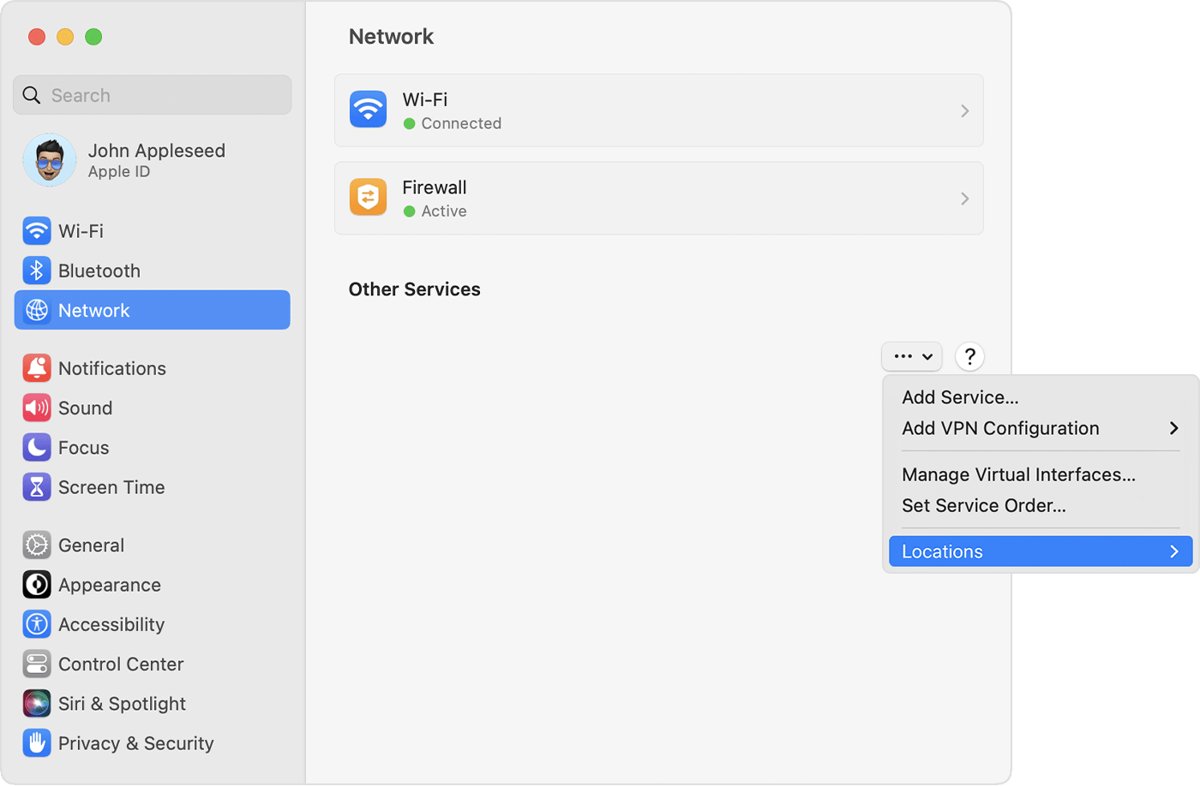
macOS has no single reset button for networking. Apple's method is a new network location, which starts with default settings and keeps your old ones so you can switch back.
- Open the Apple menu > System Settings, then click Network in the sidebar.
- Click the More pop-up menu below the list of services.
- Choose Locations > Edit Locations.
- Click the Add (+) button and type a name such as Home Reset.
- Click Done.
- Quit System Settings to save the switch, then join your Wi-Fi network again and test Safari.
To go back to the old settings, choose Apple menu > Location and pick the previous location.
Check DNS servers in macOS Sonoma network settings
Custom DNS servers, often added by a VPN or filtering app, can stop names from resolving. Safari then reports that it cannot find or connect to the server.
- Open the Apple menu > System Settings, then click Network.
- Click Wi-Fi, then click Details next to your network.
- Click DNS in the sidebar of the details window.
- Note any servers listed under DNS Servers that you did not add or do not recognize.
- Select an unwanted server and click the Remove (–) button.
- Click OK and reload the page in Safari.
Run Wireless Diagnostics on a MacBook Air
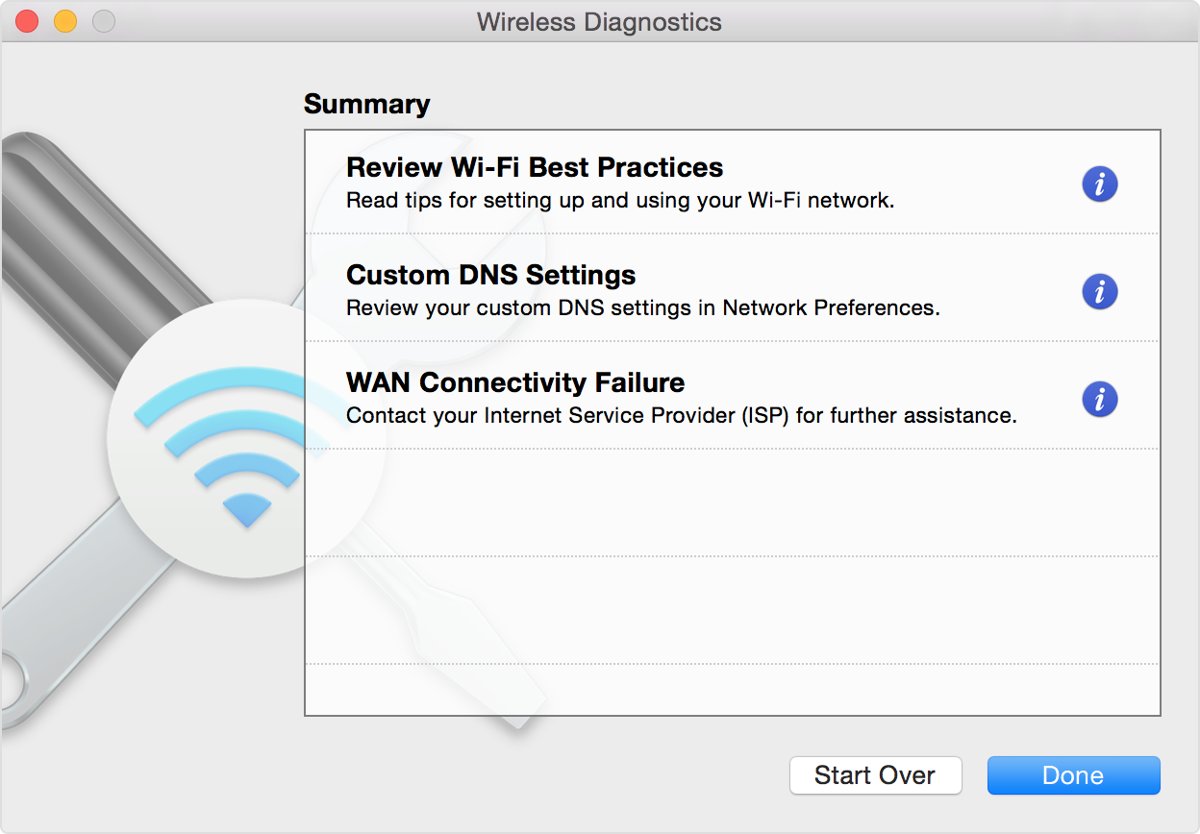
Wireless Diagnostics is built for this exact case: the Mac reaches the router but webpages will not load. It does not change any settings.
- Quit all open apps.
- Join the Wi-Fi network that is giving trouble, if you are not already on it.
- Hold the Option key and click the Wi-Fi icon in the menu bar.
- Choose Open Wireless Diagnostics.
- Follow the onscreen steps to analyze the connection.
- Click the Info buttons in the Summary pane to read each issue and its suggested fix.
Also click the Wi-Fi icon without Option and look for Wi-Fi Recommendations. It appears only when the Mac has detected a problem.
Check Screen Time web content limits in Safari
If Safari loads some websites but blocks others with a restriction message, Screen Time content limits are a likely cause, especially on a shared or family Mac.
- Open the Apple menu > System Settings, then click Screen Time in the sidebar.
- If you manage a family group, choose the family member from the pop-up menu.
- Click Content & Privacy.
- Click Store, Web, Siri & Game Center Content.
- Under Web Content, choose Unrestricted Access, or click Customize and add the blocked site to the allowed list.
- Reload the page in Safari.
How to check Safari is back online on macOS Sonoma
- Open System Settings > Network and confirm Wi-Fi shows a green indicator and the word Connected.
- Open a site you rarely visit in a normal Safari window, so the page cannot come from the cache.
- Open the same site in a private window to confirm both modes load.
- Turn your extensions back on one by one and reload after each, so a faulty one does not return unnoticed.
- If you switched network location, restart the Mac and confirm Safari still loads pages.
Safari not connecting to internet on Mac: fixes by error
"Safari can't connect to the server"
The site is down, the address is wrong, or DNS, a VPN or a firewall is blocking the connection.
- Check the address for typos, and try removing the https:// part.
- Try the page later in case the site is temporarily unavailable.
- Turn off VPN and security apps, then remove unknown DNS servers.
- On a work or school network, ask the administrator whether a firewall blocks the site.
Safari says you are not connected to the internet
The Mac has no working internet route, even if the Wi-Fi icon looks normal.
- Check System Settings > Network for a green Connected status.
- Renew the DHCP lease from Details > TCP/IP.
- Run Wireless Diagnostics from the Wi-Fi menu while holding Option.
- Connect to a different network, such as a phone hotspot, to test whether the problem is your router or provider.
Safari is not allowing certain websites
Screen Time limits, a content blocker, Private Relay or the website's own browser checks.
- Set Web Content to Unrestricted Access in Screen Time, or allow the site.
- Turn off content blockers for that site in Safari > Settings > Websites.
- Choose View > Reload and Show IP Address.
- Contact the website owner if it rejects Safari or says Safari is out of date.
Safari internet connection on macOS Sonoma FAQ
Why can't Safari connect to the server?
Safari cannot connect to the server when the site is down, the address is wrong, or something on the Mac blocks the connection. VPN apps, firewalls, custom DNS servers and corporate network firewalls are the usual blockers. Test the page on another device to see which it is.
How do I connect Safari to the internet?
Safari uses the Mac's network connection, so there is no separate switch for it. Connect to Wi-Fi from the menu bar, confirm System Settings > Network shows Connected, and Safari can load pages unless an extension, Private Relay or a security app is blocking it.
Why is Safari not allowing certain websites?
Safari blocks certain websites when Screen Time web content limits are set, when a content blocker is active for the site, or when the site does not accept your browser settings. Check Screen Time first, then the site's settings under Safari > Settings > Websites.
Why does Safari say I'm not connected to the internet when Wi-Fi works?
Your Mac can be joined to the Wi-Fi network while the network itself has no internet route, or while a VPN or filter blocks traffic. Renew the DHCP lease, run Wireless Diagnostics and turn off VPN apps to find which applies.
Can iCloud Private Relay stop Safari from loading pages?
Yes. Some networks and websites that rely on IP filtering do not work with iCloud Private Relay, and it affects only Safari. Choose View > Reload and Show IP Address to test a page, or turn off Limit IP address tracking for that network.
Why did Safari stop working after a macOS update?
A macOS update replaces Safari but keeps your extensions, VPN apps, profiles and network settings. If one of those is not compatible with the new version, Safari or the whole Mac can lose its connection. Restart, then check extensions and security apps first.
How do I reset network settings on a Mac?
Create a new network location. Open System Settings > Network, choose Locations > Edit Locations from the More menu, add a location and quit System Settings. Your old settings stay saved, so you can switch back from Apple menu > Location.
Bottom line: fixing Safari internet access on a MacBook Air with Sonoma
Test the page in another browser first, then turn off VPN and security apps, Safari extensions and Private Relay before touching network settings. Those leftovers survive the Sonoma update and cause most Safari-only failures; a new network location is the clean reset when the whole Mac is offline.