An old iPod touch usually fails to join Wi-Fi because the router uses settings it cannot handle, such as a 5 GHz-only network or WPA3-only security, so the fix is to give it a 2.4 GHz band with WPA2/WPA3 Transitional security, then forget and rejoin the network.
This guide shows which Wi-Fi standards each iPod touch generation supports, the router changes that bring it back online, the on-device resets, and how to confirm the connection works.
Quick fix for an iPod touch that won't join Wi-Fi
- Open the router's configuration app or webpage and make sure the 2.4 GHz band is turned on.
- Set the router's security to WPA2/WPA3 Transitional, or WPA2 Personal (AES) if transitional is not offered.
- Give the 2.4 GHz and 5 GHz bands the same network name, and turn off hidden network and MAC address filtering.
- Restart the router and cable modem by unplugging them and plugging them back in.
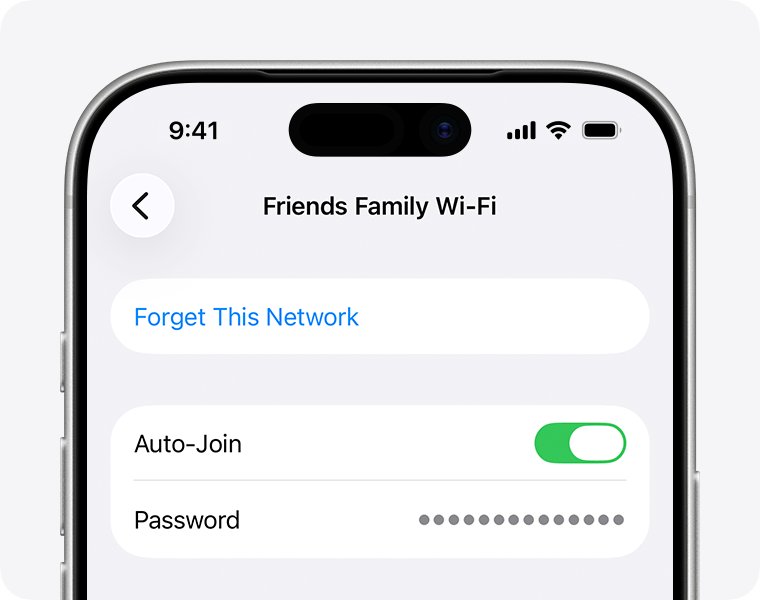
- On the iPod touch, go to Settings > Wi-Fi, tap the info button next to your network, then tap Forget This Network.
- Tap your network in the list again and enter the Wi-Fi password.
A Wi-Fi icon at the top of the screen means the iPod touch has joined. Open Safari and load a page to prove the internet connection works.
Which Wi-Fi does each iPod touch generation support?
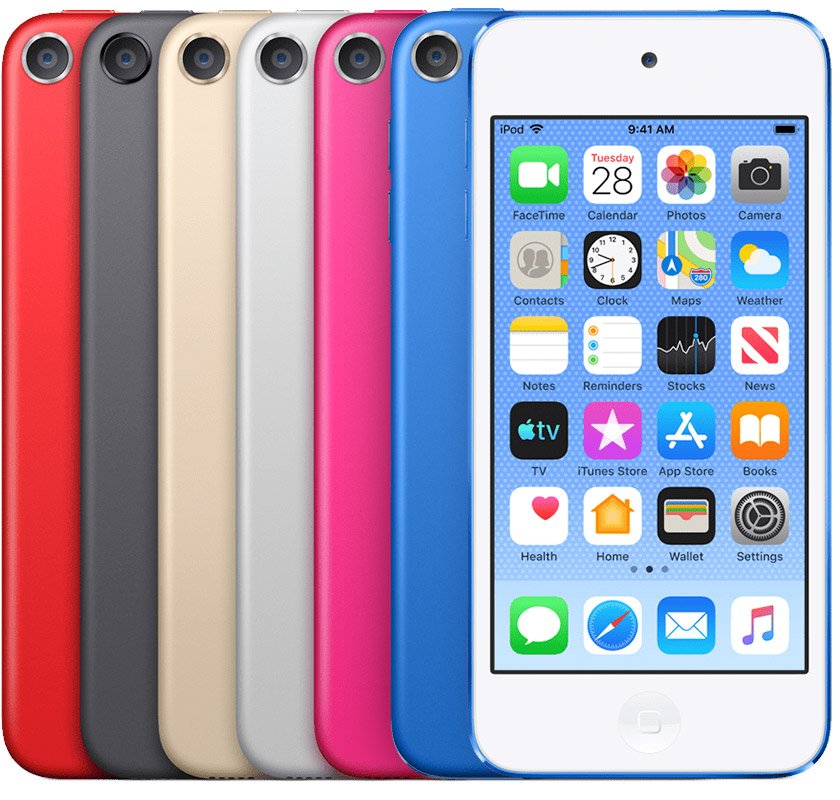
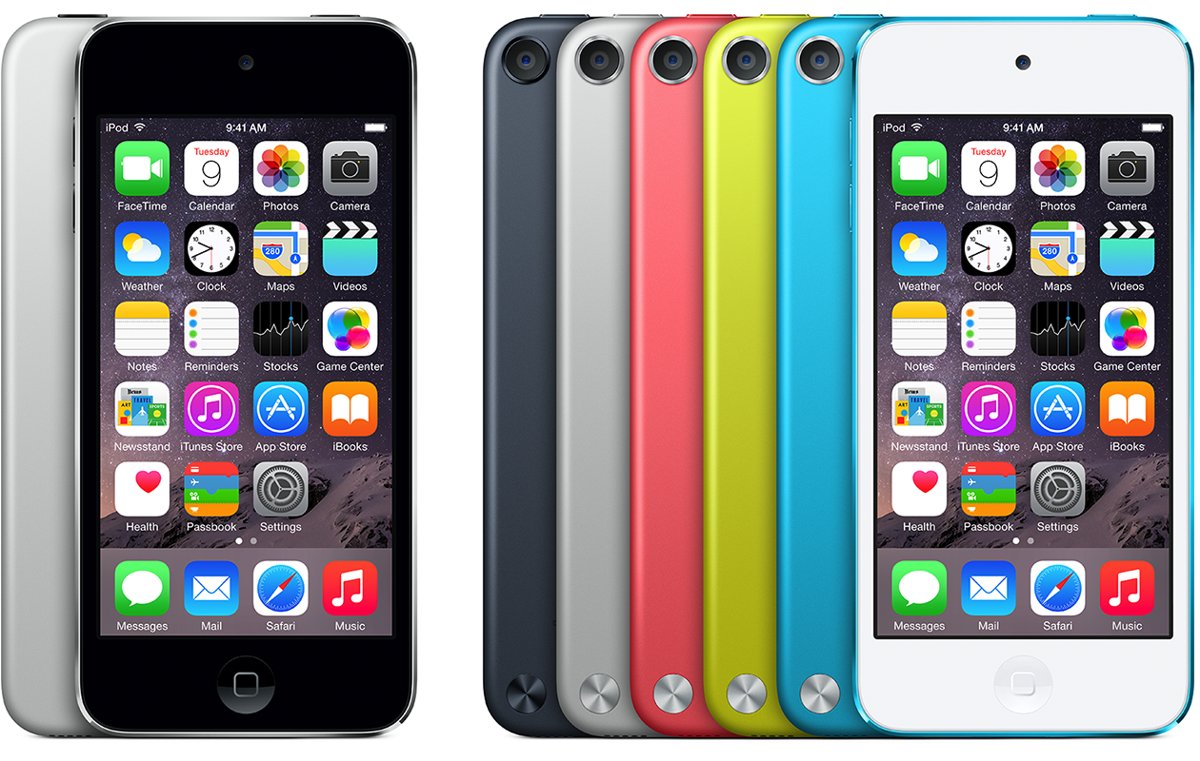
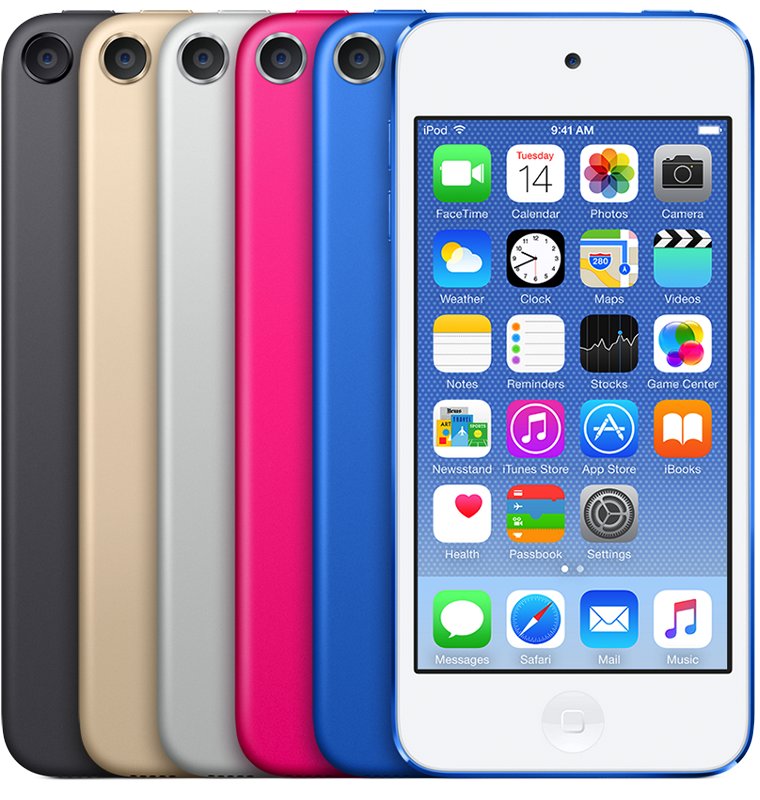
The first four generations only have a 2.4 GHz radio, so they never see a network that broadcasts on 5 GHz alone. Find your model number in small print on the back of the iPod touch.
| Generation | Model number | Introduced | Wi-Fi standard | Bands |
|---|---|---|---|---|
| iPod touch (1st generation) | A1213 | 2007 | 802.11b/g | 2.4 GHz only |
| iPod touch (2nd generation) | A1288, A1319 | 2008 | 802.11b/g | 2.4 GHz only |
| iPod touch (3rd generation) | A1318 | 2009 | 802.11b/g | 2.4 GHz only |
| iPod touch (4th generation) | A1367 | 2010 | 802.11b/g/n | 2.4 GHz only |
| iPod touch (5th generation) | A1421, A1509 | 2012 | 802.11a/b/g/n | 2.4 GHz and 5 GHz |
| iPod touch (6th generation) | A1574 | 2015 | 802.11a/b/g/n/ac | 2.4 GHz and 5 GHz |
| iPod touch (7th generation) | A2178 | 2019 | 802.11a/b/g/n/ac | 2.4 GHz and 5 GHz |
No iPod touch supports Wi-Fi 6 (802.11ax). Apple notes that WPA3 Personal works with all Wi-Fi 6 devices and only some older ones, which is why a WPA3-only router can lock an iPod touch out.
iPod touch Wi-Fi problems and the matching fix
| What you see | Likely cause | Fix |
|---|---|---|
| Your network is missing from the list | 5 GHz-only network on a 1st to 4th generation model, or a hidden network | Turn on the 2.4 GHz band and disable hidden network |
| Network shows but the password is rejected | WPA3-only security or a changed Wi-Fi password | Switch to WPA2/WPA3 Transitional, then forget and rejoin |
| Joins, then shows no internet | Router or modem problem, or DHCP conflict | Restart router and modem, test other devices |
| Wi-Fi switch is grayed out | Software fault on the iPod touch | Restart or force restart the iPod touch |
| Connects at a friend's house but not at home | Home router settings | Apply Apple's recommended router settings |
| Cannot join any network anywhere | Hardware fault in the Wi-Fi radio | Contact Apple |
Router settings that let an old iPod touch connect
Change these in the router manufacturer's app or configuration webpage. Back up the router's current settings first, and apply the same values to every band.
| Router setting | Set to | Why it matters for an old iPod touch |
|---|---|---|
| Security | WPA2/WPA3 Transitional, or WPA2 Personal (AES) | Older devices use WPA2 while newer ones use WPA3 |
| Bands | Enable all bands, including 2.4 GHz | 1st to 4th generation models only use 2.4 GHz |
| Radio mode | All, or Wi-Fi 2 through Wi-Fi 6 | Lets 802.11b/g and 802.11n devices connect at their best speed |
| Network name (SSID) | One name for all bands | Separate names can stop devices joining reliably |
| Hidden network | Disabled | A hidden network does not appear in the iPod touch list |
| MAC address filtering | Disabled | A filter blocks any device not on the allow list |
| Channel width (2.4 GHz) | 20 MHz | Avoids interference on the band older models depend on |
| Channel | Auto | The router picks the clearest channel |
| DHCP | Enabled on the router only | Two DHCP servers cause address conflicts |
Avoid WEP, WPA Personal, TKIP and WPA/WPA2 mixed modes even if an old device accepts them. Apple lists them as weak and deprecated. Check the router manufacturer's site for a firmware update too.
Forget and rejoin the Wi-Fi network on iPod touch
Do this after any router change, because the iPod touch keeps the old settings until it rejoins.
- Open Settings and tap Wi-Fi.
- On newer iOS versions, tap Edit to see known networks.
- Tap the info button next to your network.
- Tap Forget This Network, then tap Forget to confirm.
- Tap the network name in the list and enter the password.
- For a hidden network, tap Other and enter the network name, security type and password.
Restart or force restart the iPod touch
Restart the iPod touch if the Wi-Fi switch is grayed out or the network list will not refresh. Turn it off and on first; use a force restart if it does not respond.
| Model | Force restart buttons | Release when |
|---|---|---|
| iPod touch (7th generation) | Hold the Sleep/Wake button and the volume down button together | The Apple logo appears |
| iPod touch (6th generation) and earlier | Hold the Sleep/Wake button and the Home button together | The Apple logo appears |
Reset network settings on iPod touch
Resetting network settings removes saved Wi-Fi networks, passwords and VPN settings, and renames the device back to "iPod touch". It does not delete music, photos or apps.
- Open Settings and tap General.
- On iOS 15, tap Transfer or Reset iPod touch, then tap Reset.
- On iOS 12 to iOS 14, tap Reset.
- Tap Reset Network Settings and confirm.
- Go to Settings > Wi-Fi and join your network again with its password.
Do not tap Erase All Content and Settings here unless you mean to wipe the device. That option removes all of your content.
Update iOS on an iPod touch after it connects
Once the iPod touch is online, install the newest iOS its model accepts. Updates keep your data and settings.
- Plug in the iPod touch and keep it on Wi-Fi.
- Go to Settings > General > Software Update.
- Read the installed version and install any update shown.
- If Wi-Fi still fails, connect the iPod touch to a computer with a cable instead.
- On a Mac with macOS 10.15 or later, select the iPod touch in the Finder sidebar, click General, then Check for Update.
- On a Windows PC, open iTunes, click the iPod touch button, click Summary, then Check for Update.
Older generations stop at earlier iOS versions, so Software Update simply reports that the software is up to date once the last supported release is installed.
How to check the iPod touch is online
- Look for the Wi-Fi icon at the top of the screen.
- Go to Settings > Wi-Fi and confirm a checkmark sits next to your network name.
- Open Safari and load a webpage.
- Walk to another room and back to confirm the iPod touch reconnects on its own.
Why won't my iPod touch connect to Wi-Fi?
Home network does not appear on the iPod touch
A 1st to 4th generation iPod touch cannot see 5 GHz networks, and hidden networks never list.
- Check the model number on the back against the table above.
- Turn on the router's 2.4 GHz band with the same network name.
- Set Hidden network to disabled, restart the router, and look again.
Incorrect password or unable to join the network
The router uses WPA3 Personal only, or the saved password is out of date.
- Change the router security to WPA2/WPA3 Transitional.
- Forget the network on the iPod touch.
- Rejoin and type the password carefully; it is case-sensitive.
Connected but no internet
The router or modem has lost its connection, or two devices hand out addresses.
- Check whether other devices can get online on the same network.
- Restart the router and cable modem by unplugging them.
- Make sure only the router has DHCP and NAT turned on.
- If nothing on the network can get online, contact your internet service provider.
Wi-Fi works on public networks but not at home
The home router has a setting the iPod touch does not support, such as MAC address filtering.
- Turn off MAC address filtering or add the iPod touch to the allowed list.
- Set Radio mode to All on every band.
- Update the router firmware from its manufacturer.
iPod touch cannot join any Wi-Fi network
A fault in the iPod touch hardware.
- Reset network settings as described above.
- Test at a different location with a known working network.
- If it still fails everywhere, contact Apple Support.
Old iPod touch Wi-Fi FAQ
Why won't my iPod touch connect to Wi-Fi?
Most often the router uses settings an old iPod touch cannot handle: a 5 GHz-only network on a 1st to 4th generation model, WPA3-only security, a hidden network or MAC filtering. Switch to WPA2/WPA3 Transitional with 2.4 GHz on, then forget and rejoin.
How do I fix my iPod touch Wi-Fi?
Restart the iPod touch and router, forget the network in Settings > Wi-Fi, and rejoin it. If that fails, reset network settings from Settings > General. Apply Apple's recommended router settings if the problem only happens on your home network.
Can an old iPod touch connect to 5 GHz Wi-Fi?
Only the 5th, 6th and 7th generation models. The 1st, 2nd and 3rd generations support 802.11b/g and the 4th generation supports 802.11b/g/n on 2.4 GHz only, so they need a 2.4 GHz band.
How do I get an old iPod working again?
Charge it, then force restart it if the screen stays dark. Once it starts, connect it to a 2.4 GHz Wi-Fi network with WPA2 security and install any software update offered in Settings > General > Software Update.
Why won't my iPod turn on?
The battery may be fully drained or the software frozen. Charge it for a while, then force restart: hold Sleep/Wake and volume down on the 7th generation, or Sleep/Wake and Home on the 6th generation and earlier, until the Apple logo appears.
How do I restore an old iPod touch?
To wipe it on the device, go to Settings > General > Reset and choose Erase All Content and Settings. You can also connect it to a Mac with Finder or a Windows PC with iTunes and restore it from there. Both remove all content.
How do I use an old iPod touch?
Music, photos and videos already stored on it play without Wi-Fi. For browsing and app downloads it needs a compatible Wi-Fi network, and apps must still support the iOS version your model runs.
Do they make iPod touch anymore?
No. Apple announced in May 2022 that iPod touch would be available only while supplies lasted, ending the iPod line. Apple said the music experience had moved to iPhone, Apple Watch, iPad and Mac.
Bottom line: getting an old iPod touch back on Wi-Fi
Set the router to WPA2/WPA3 Transitional with the 2.4 GHz band on, then forget and rejoin the network on the iPod touch. Transitional mode lets older devices use WPA2 while newer ones keep WPA3, and 2.4 GHz is the one band every iPod touch generation can use, so newer devices lose nothing.