Open HP Support Assistant from its taskbar icon, check your PC for updates, select the drivers, BIOS and firmware packages it lists, and install them.
This guide covers where to find the app, how to run and automate updates, the manual HP Software and Drivers route, Windows Update as a backup, and fixes when HP Support Assistant will not install.
How to use HP Support Assistant for Windows 11
HP Support Assistant comes preinstalled on new HP desktop and notebook PCs running Windows 11 and Windows 10. It finds the driver, software and firmware packages HP has published for your exact model.
- Click the HP Support Assistant icon on the taskbar, or type HP Support Assistant in Windows search and open it.
- Sign in with an HP account if you want to manage other HP devices from the same app.
- Select your PC in the list of devices and open its updates.
- Run the check for new updates and wait for the scan to finish.
- Tick each driver, BIOS or firmware update you want, then start the download and install.
- Restart the PC when the installer asks, and keep a laptop plugged in until a BIOS or firmware update completes.
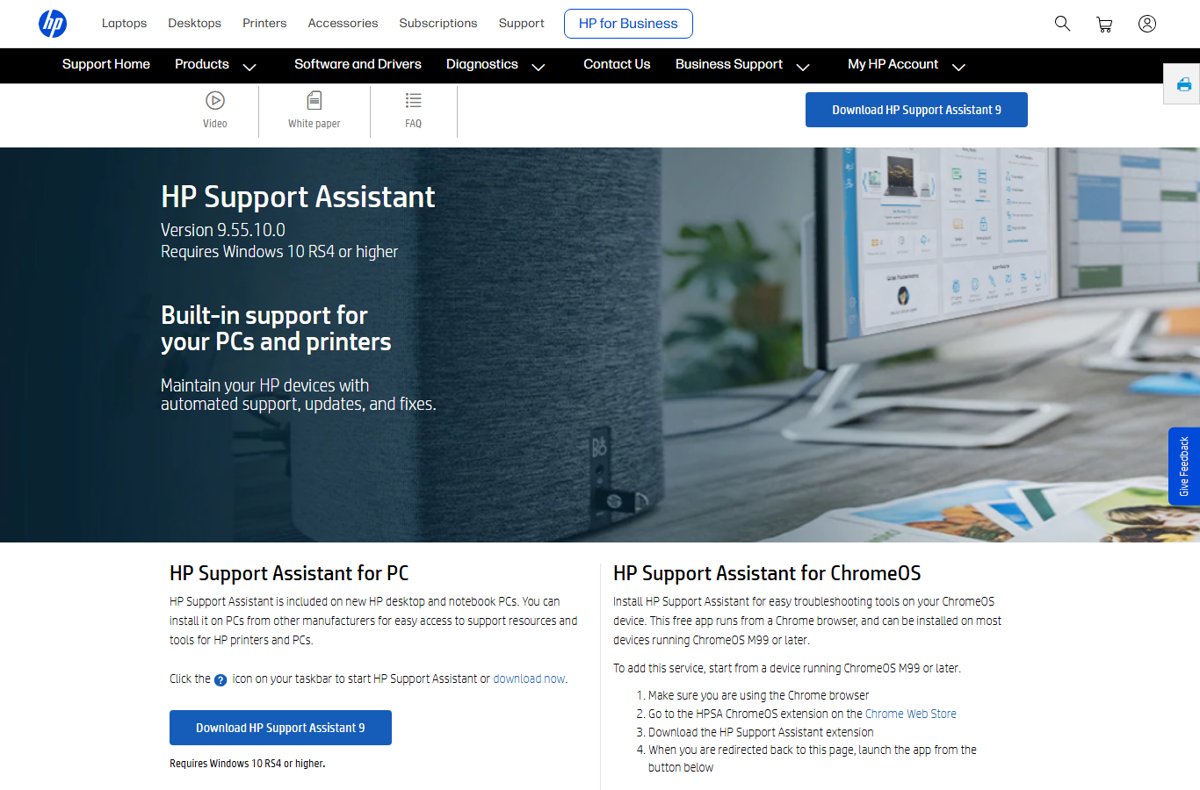
HP Support Assistant labels vary slightly between version 9 releases. The current build is 9.55.10.0, and the flow stays the same: choose the device, check for updates, select, install.
HP Support Assistant vs HP Software and Drivers vs Windows Update
| Your situation | Use this | Why |
|---|---|---|
| HP laptop or desktop with HP Support Assistant installed | HP Support Assistant | Scans the model and lists every HP driver, BIOS and firmware package in one place |
| PC with an Arm processor | HP Software and Drivers website or Windows Update | HP Support Assistant is not supported on Arm devices |
| HP printer | HP Support Assistant on a PC, or the printer's page on HP Software and Drivers | Both cover printer drivers and firmware |
| One device has a problem right after a Windows update | Windows Update optional updates or Device Manager | Fastest route for a single driver Microsoft already distributes |
| HP Support Assistant will not install or open | HP Software and Drivers website | Manual download of the same HP packages |
HP Support Assistant requirements
| Requirement | Details |
|---|---|
| Windows version | Windows 10 version 1803 (RS4) or later, or Windows 11 (23H2, 24H2, 25H2, 26H2) |
| Processor | x64 or x86; Arm-based PCs are not supported |
| Price | Free, preinstalled on new HP desktop and notebook PCs |
| Non-HP PCs | Can be installed to manage HP printers and HP support resources |
| HP account | Optional; needed to add other devices and view subscribed HP services |
| Older version 8 | Needs .NET Framework 4.5 or later |
How to install HP Support Assistant
If the taskbar icon is missing, the app was removed or never installed. Download it only from HP's own HP Support Assistant page.
- Go to the HP Support Assistant page on support.hp.com.
- Select Download HP Support Assistant 9.
- Double-click the downloaded file and follow the on-screen instructions.
- Open HP Support Assistant from the taskbar icon or Windows search when setup finishes.
The HP Support Assistant download page lists the current version, file size and supported Windows builds.
Set HP Support Assistant to install updates automatically
HP Support Assistant can either install firmware and driver updates on its own or only notify you when they are available. Notify-only suits PCs where you want to schedule BIOS updates yourself.
| Choice | What happens | Best for |
|---|---|---|
| Install updates automatically | Driver and firmware updates download and install without prompting | Home laptops you rarely check |
| Notify me when updates are available | You get an alert and choose what to install | Work PCs and anyone who wants to approve BIOS updates first |
Change the choice in the app's settings area. Signing in with an HP account also lets you add a family member's PC or printer and get notified about its updates.
Update HP drivers and firmware manually from HP Software and Drivers
Use this route on Arm PCs, when HP Support Assistant will not run, or when you need one specific package.
- Open support.hp.com/us-en/drivers in a browser.
- Select your product type: Printer, Laptop, Desktop, Poly or Other.
- Identify your model on the next page.
- Check that the listed operating system matches your Windows version.
- Expand the category you need, such as BIOS, firmware, audio or graphics, and download the package.
- Run the downloaded file and follow the on-screen instructions, then restart if prompted.
How do I manually update my HP printer firmware?
A printer firmware update changes the software inside the printer itself, not on the PC. HP Support Assistant on a connected PC lists printer firmware alongside PC updates, and the HP website offers the same files.
- Turn on the printer and make sure it is connected to the same network as your PC, or by USB.
- Open support.hp.com/us-en/drivers and select Printer.
- Enter the printer model name and select it from the results.
- Open the firmware section of the results and download the update.
- Run the file on the PC and follow the prompts without turning off the printer until it finishes.
HP Smart and myHP have merged into the HP app, which also manages HP printers on Windows 10 64-bit and Windows 11.
Update HP drivers through Windows Update optional updates
Windows Update also distributes many HP drivers. It is a useful second check after HP Support Assistant, and the only built-in route on Arm PCs.
- Select Start > Settings > Windows Update > Advanced options.
- Turn on Receive updates for other Microsoft products.
- Under Additional options, select Optional updates.
- Select the driver updates you want, then select Download and install.
- Restart the PC after the updates finish, even if no restart is requested.
You can also update drivers on Windows 11 one device at a time from Device Manager.
How to check HP drivers and BIOS updated correctly
- Open HP Support Assistant again and run a fresh check for updates on your PC.
- Confirm the packages you installed no longer appear in the list.
- Open Settings > System > About and confirm the Windows version and device specifications are unchanged.
- Test the device you updated, such as audio, Wi-Fi or the touchpad, to confirm it works after the restart.
If a driver update causes a new problem, roll back that driver in Device Manager or install the previous version from HP Software and Drivers. Before you update firmware on Windows 11 again, confirm the PC boots normally and the BIOS version changed.
Cannot install HP Support Assistant on Windows 11 PC
Installer refuses to run or says the device is not supported
The PC has an Arm processor, which HP Support Assistant does not support.
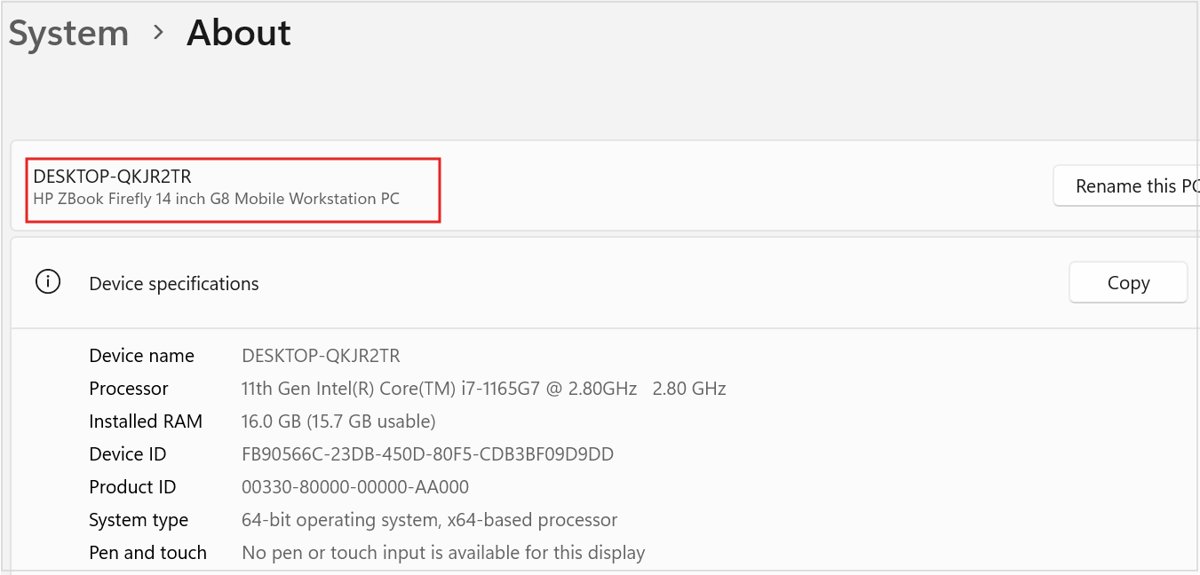
- Right-click Start, select Settings, then System > About.
- Check the processor under Device specifications.
- If it is an Arm processor, use HP Software and Drivers or Windows Update instead.
Installer fails on an older Windows 10 PC
HP Support Assistant 9 needs Windows 10 version 1803 (RS4) or later.
- Open Settings > System > About and read the version under Windows specifications.
- Install the pending feature updates from Windows Update.
- Run the HP Support Assistant installer again.
HP Support Assistant is missing from the taskbar
The app was uninstalled, or the PC is not an HP model and never shipped with it.
- Type HP Support Assistant in Windows search to check whether it is installed.
- If it is not found, download HP Support Assistant 9 from support.hp.com and install it.
Download stalls or the installer reports a corrupted file
The download was interrupted or saved incompletely.
- Delete the partial file from your Downloads folder.
- Download the installer again from HP's HP Support Assistant page.
- Restart Windows and run the new file.
Is HP Support Assistant safe to use?
Yes. HP Support Assistant is HP's own free tool, and it installs only packages HP has published for your model. Download it from support.hp.com, keep it updated, since recent releases include security improvements, and keep a laptop on AC power during BIOS or firmware installs so the update is not interrupted.
HP Support Assistant driver updates FAQ
How do I update all HP drivers at once?
Open HP Support Assistant, select your PC, run the check for updates, then tick every listed driver, BIOS and firmware package and install them together. Restart when prompted and run the check again to catch anything that depended on an earlier update.
Does HP Support Assistant download drivers?
Yes. It downloads and installs HP driver, software and firmware updates for your PC and connected HP printers. You can set it to install updates automatically or to notify you so you choose what to install.
What is HP Support Assistant?
HP Support Assistant is a free HP app, preinstalled on new HP desktops and laptops, that delivers driver and firmware updates, automated fixes and troubleshooters, and links to HP support for your devices.
Where is HP Support Assistant on my PC?
Look for its icon on the Windows taskbar. If it is not there, type HP Support Assistant in Windows search. If search finds nothing, the app is not installed and you can download version 9 from support.hp.com.
How do I install HP Support Assistant?
Go to the HP Support Assistant page on support.hp.com, select Download HP Support Assistant 9, double-click the downloaded file and follow the on-screen instructions. It needs Windows 10 version 1803 or later or Windows 11, and does not run on Arm PCs.
Should I use HP Support Assistant?
Yes, on an HP PC it is the simplest way to get model-specific BIOS, firmware and driver updates that Windows Update may not offer. On Arm PCs, which it does not support, use HP Software and Drivers or Windows Update.
Is HP Support Assistant safe to use?
Yes. It is published by HP, free, and installs only updates HP releases for your model. Download it only from support.hp.com and keep the app itself updated.
Can I use HP Support Assistant on a non-HP computer?
Yes. HP lets you install it on PCs from other manufacturers to manage HP printers and reach HP support resources, though PC driver updates apply only to HP computers.
Is HP Support Assistant the same as the HP app?
No. The HP app replaced HP Smart and myHP and covers printing, scanning and device settings. HP Support Assistant remains the separate tool for HP PC driver, BIOS and firmware updates.
Bottom line: keeping an HP PC updated
Run HP Support Assistant on any x64 HP PC and let it notify you of new driver and firmware updates. It is the only HP tool that lists BIOS, firmware and driver packages for your exact model in one scan. Use HP Software and Drivers for Arm PCs or a single package, and Windows Update as a second check.

![How to change your user account picture in Windows 11? [Easy steps]](https://techdows.com/wp-content/uploads/2026/10/How-to-Change-Your-User-Account-Picture-in-Windows-11-Easy-Steps-600x338.jpg)