To disable Apple Pay on an iPhone, open Wallet, tap a card, tap More > Card Details and tap Remove Card; Apple Pay stops working on that device once no payment cards remain.
There is no single Apple Pay off switch, so this guide covers each device, removing cards everywhere at once, a lost device, and recurring payments that removal does not cancel.
How to disable Apple Pay on iPhone
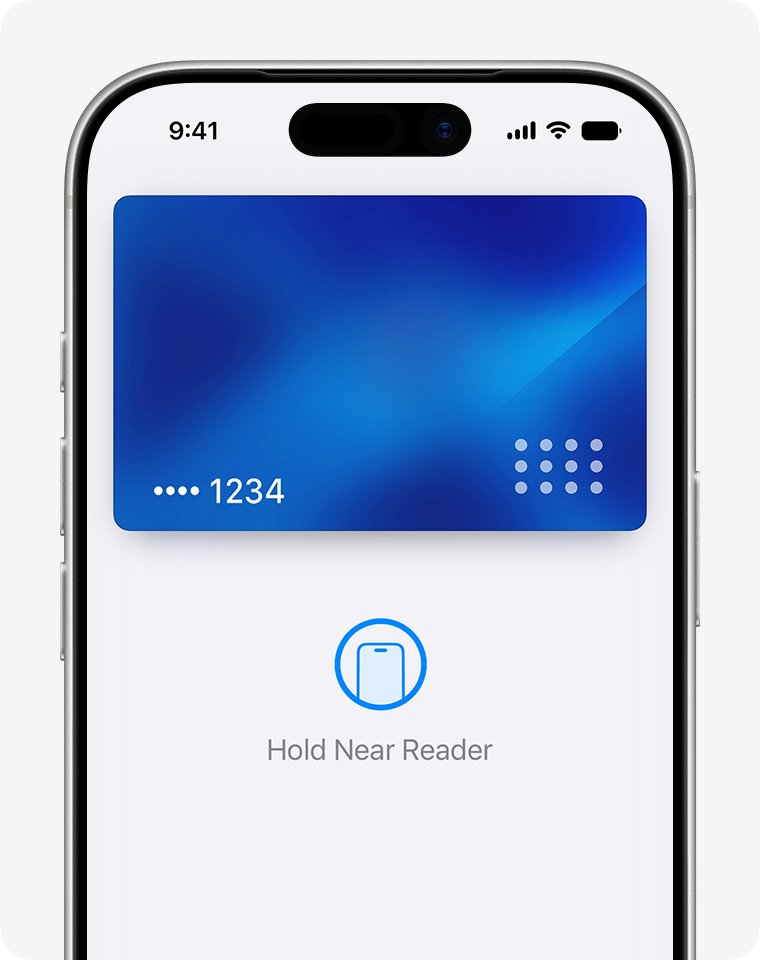
Apple Pay works with the cards stored in Wallet on each device. Remove every payment card and the iPhone can no longer pay.
- Open the Wallet app.
- Tap the card you want to remove.
- Tap the More button, then tap Card Details. On iOS 15 and earlier, skip this step.
- Scroll down and tap Remove Card.
- Confirm the removal.
- Repeat for every other debit, credit or prepaid card you want off Apple Pay.
Which way to turn off Apple Pay fits your situation?
| Your situation | Do this | Effect |
|---|---|---|
| You no longer want to use Apple Pay on one device | Remove the cards on that device | That device stops paying; other devices keep their cards |
| You want a card gone from all your devices | Delete it from Cards Found For You | Removes the card from all your devices |
| Your iPhone or iPad is lost or stolen | Mark it as lost in Find My | Apple Pay cards and passes are suspended |
| You do not have the device to hand | Remove payments from your Apple Account page | Cards on that device can no longer pay |
| You only want to stop iPhone approving Mac purchases | Turn off Allow Payments on Mac | Mac checkout can no longer use the iPhone |
| A subscription keeps charging through Apple Pay | Manage or revoke it in Preauthorized Payments | Asks the merchant to stop future charges |
How to disable Apple Pay on iPad
On iPad, cards are managed in Settings rather than in a Wallet app.
- Open Settings.
- Tap Wallet & Apple Pay.
- Tap the card you want to remove.
- Tap Remove Card and confirm.
- Repeat for each remaining card.
How to disable Apple Pay on Apple Watch
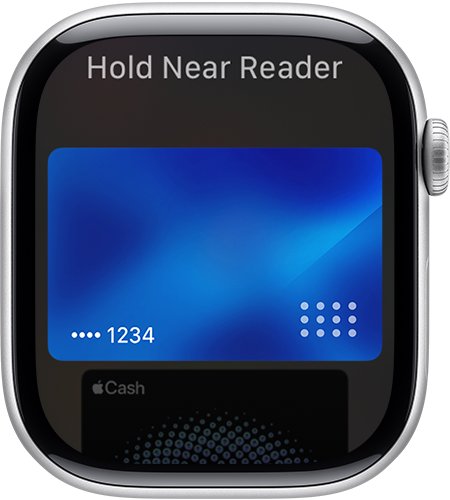
Cards on Apple Watch are separate from the cards on your iPhone, so removing a card from the iPhone does not remove it from the watch.
- On your Apple Watch, open the Wallet app.
- Tap the card you want to remove.
- Scroll down and tap Remove.
- Confirm, then repeat for each card on the watch.
How to disable Apple Pay on Mac
A Mac with Touch ID stores its own cards. A Mac without Touch ID pays by asking your iPhone or Apple Watch to approve, which you turn off on the iPhone.
- On a Mac with Touch ID, open System Settings (or System Preferences) and select Wallet & Apple Pay.
- Click the card you want to remove, then click Remove.
- To stop your iPhone approving purchases made on any Mac, open Settings on the iPhone and tap Wallet & Apple Pay.
- Turn off Allow Payments on Mac.
- To stop websites checking whether you have Apple Pay, open Safari settings on the Mac, select the Advanced tab and turn off the Apple Pay check.
Remove a card from Apple Pay on all devices at once
Cards you added before are linked to your Apple Account and offered again under Cards Found For You. Deleting a card there removes it from all of your devices.
- On your iPhone, open Wallet and tap the Add Card button.
- Tap Cards Found For You.
- Tap Edit.
- Tap the Remove button next to the card, then tap Delete.
- Tap Delete Card to confirm removal from all your devices.
Turn off Apple Pay on a lost or stolen iPhone
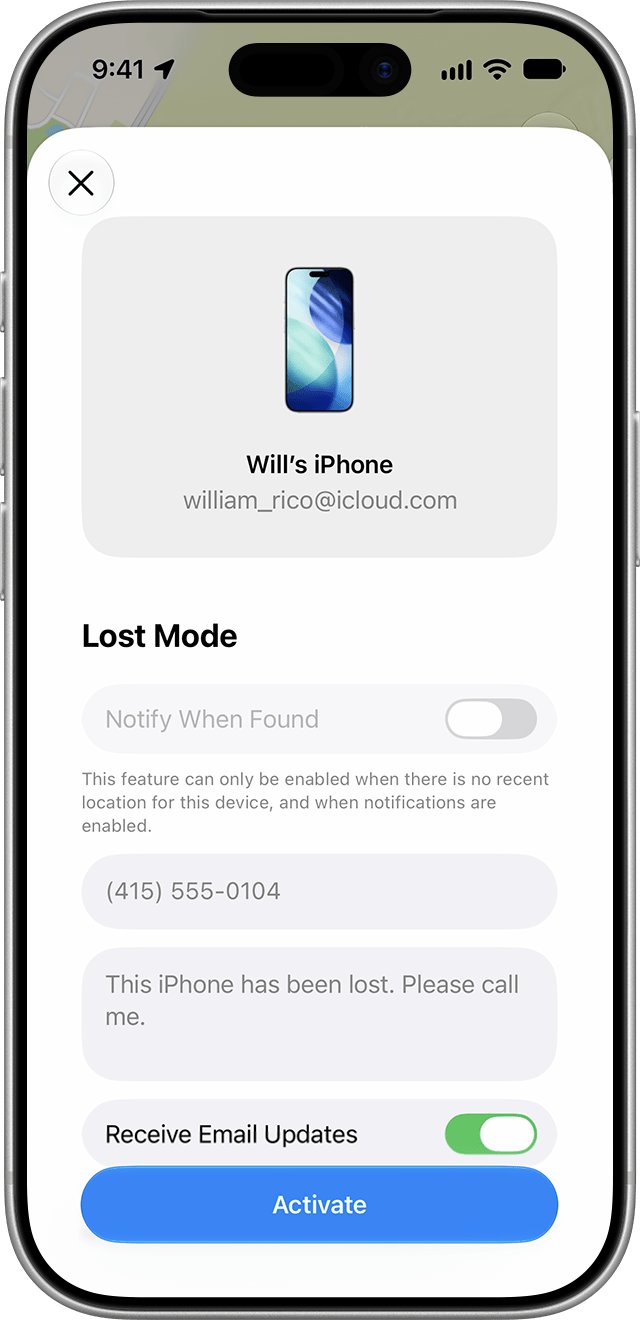
If Find My was on, Lost Mode suspends Apple Pay without cancelling the cards, and you can reenable it if the device turns up. Do not remove the device from Find My, because that removes Activation Lock.
- On another device, open the Find My app or sign in at icloud.com/find. No verification code is needed.
- Select the lost iPhone or iPad under All Devices.
- Scroll down to Lost [Device] and turn on Lost Mode.
- Add a phone number and message if you want a finder to contact you.
- To remove payment ability completely, sign in at account.apple.com and remove the cards used with Apple Pay on that device.
- If you cannot do either, call your bank or card issuer and ask them to suspend the card from Apple Pay.
Erasing the device remotely with Find My also removes the ability to pay with its cards. Card issuers suspend the cards even if the device is offline.
How to stop payments on Apple Pay subscriptions
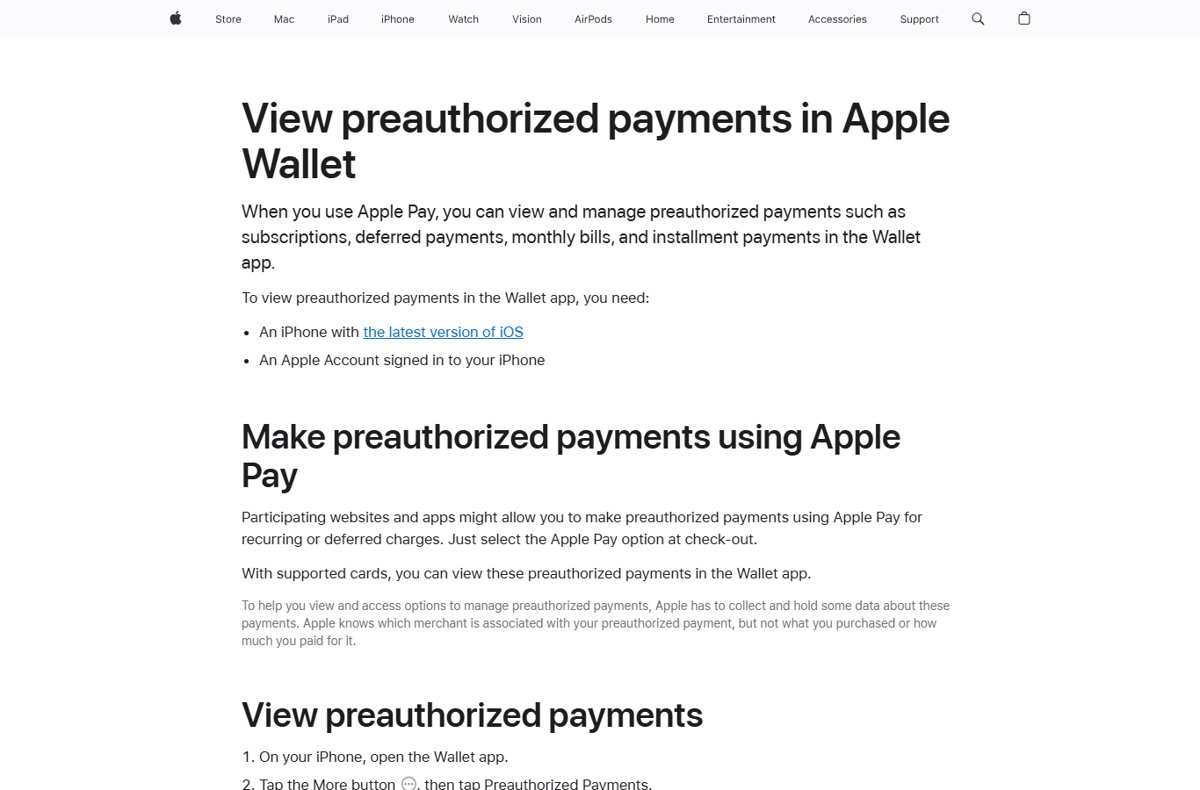
Removing a card does not cancel recurring or deferred payments set up with Apple Pay. Apple notes the preauthorized payment stays in place and the account stays open.
- On your iPhone, open Wallet.
- Tap the More button, then tap Preauthorized Payments.
- Tap the merchant.
- Tap Manage with [Merchant] to cancel or change the payment on the merchant's site.
- If the merchant site offers no way out, tap Revoke Payment Authorization.
Revoking only asks the merchant not to charge the Apple Pay card again, and some charges may still occur. Cancel with the merchant directly to be certain.
Check that Apple Pay is turned off
- On iPhone, open Wallet and confirm no debit, credit or prepaid cards remain.
- On iPad, open Settings > Wallet & Apple Pay and confirm the card list is empty.
- On Apple Watch, open Wallet and confirm no payment cards remain.
- On Mac, open System Settings > Wallet & Apple Pay and confirm the cards are gone.
- Check Preauthorized Payments in Wallet for any merchant that can still charge you.
How to enable Apple Pay again
To turn Apple Pay back on, add a card again. You need a supported card, an Apple Account signed in and Face ID, Touch ID or a passcode set.
- Open Wallet on your iPhone and tap the Add Card button.
- Tap Cards Found For You to restore a previous card, or Debit or Credit Card to add a new one.
- Tap Continue.
- Hold the card close to the iPhone, or tap Enter Card Details Manually.
- Complete any verification your bank asks for.
- For Apple Watch, open the Apple Watch app on the iPhone, tap Wallet & Apple Pay, then Add Card.
Fix problems when turning off Apple Pay
A merchant still charges the card after you removed it
Removing a card from Wallet does not cancel preauthorized payments.
- Open Wallet, tap More, then tap Preauthorized Payments.
- Tap the merchant and choose Manage with [Merchant].
- Cancel the subscription on the merchant's site or app.
- For a completed payment you want reversed, contact the merchant or your card issuer, or reach Apple Pay support for help with the Wallet side.
Apple Pay still works on your watch or Mac
Each device keeps its own cards.
- Remove the cards on the Apple Watch in its Wallet app.
- Remove the cards on a Touch ID Mac in System Settings > Wallet & Apple Pay.
- Turn off Allow Payments on Mac on the iPhone if the Mac approves payments through the phone.
The removed card appears again when you add a card
The card is still linked to your Apple Account under Cards Found For You.
- Open Wallet and tap Add Card, then Cards Found For You.
- Tap Edit, tap Remove next to the card and tap Delete.
- Tap Delete Card to confirm.
You can't use Apple Pay after re-adding a card
The card issuer, region or device settings block it.
- Check with your card issuer that the card supports Apple Pay.
- Install the latest iOS, iPadOS, watchOS or macOS update.
- Work through the Apple Pay not working fixes if payments still fail.
Disable Apple Pay FAQ
How do I turn off Apple Pay on my iPhone?
Open Wallet, tap a card, tap More, then Card Details, and tap Remove Card. Repeat for every payment card. With no cards left, Apple Pay cannot pay on that iPhone, and you can add a card again at any time.
How do I disable Apple Pay on iPad?
Go to Settings, tap Wallet & Apple Pay, tap each card and tap Remove Card. The iPad then has no cards for Apple Pay in apps or on the web.
How do I deactivate Apple Pay on all my devices?
In Wallet on iPhone, tap Add Card, then Cards Found For You, tap Edit, remove the card and tap Delete Card. Apple states this removes the card from all of your devices.
Does removing a card from Apple Pay cancel the card?
No. Removing a card from Wallet only takes it off Apple Pay on that device. The card, the bank account and any preauthorized payments stay active, so contact the issuer to cancel the card itself.
How do I stop an Apple Pay payment?
For a recurring charge, open Wallet, tap More, then Preauthorized Payments, and cancel with the merchant or revoke the authorization. For a single payment already made, contact the merchant or your card issuer, because Apple Pay passes the payment to them.
How do I turn off Apple Pay if my iPhone is stolen?
Mark the iPhone as lost in Find My at icloud.com/find. Lost Mode locks it and suspends Apple Pay cards. You can also remove the cards from your Apple Account page or call your card issuer.
How do I enable Apple Pay again?
Open Wallet, tap Add Card, then choose Cards Found For You or Debit or Credit Card, tap Continue and follow the steps. Your bank may ask for extra verification before the card works.
Why can't I use Apple Pay?
Apple Pay needs a supported card from a participating issuer, an Apple Account signed in, Face ID, Touch ID or a passcode set, and a supported country or region. Check those first, then contact your card issuer.
Bottom line: the safest way to disable Apple Pay
Remove every card from each device's Wallet, delete it from Cards Found For You if you want it gone everywhere, and cancel recurring payments with the merchant. Apple Pay has no master switch, cards live per device, and removing a card leaves preauthorized payments running.