When File Explorer search stops working in Windows 11, restart Windows Explorer and the Windows Search service first, then rebuild the search index if results are still missing.
This guide gives eight fixes in the order that solves most cases, plus a symptom table, the settings to check, status messages explained and when to escalate.
Fix 1: Restart Windows Explorer and the Windows Search service
File Explorer runs inside the Windows Explorer process, and its search box relies on the Windows Search service. Restarting both clears most frozen or empty searches in under a minute.
- Save open work, then press Ctrl + Shift + Esc to open Task Manager.
- On the Processes tab, right-click Windows Explorer and select End task; the taskbar disappears briefly.
- Select File > Run new task, type
explorer.exeand press Enter to bring Explorer back. - Type
services.mscin the taskbar search box and open Services. - Right-click Windows Search and select Stop, then right-click it again and select Start.
- Open File Explorer and search the same folder again.
If Windows Search will not start, open its Properties. The service should show Running with a startup type of Automatic (Delayed Start).
Which search problem do you actually have?
Match what you see to a row and jump to that fix. Each symptom has a different cause, so the right fix saves time.
| What you see | Likely cause | Start with |
|---|---|---|
| Search box does nothing or File Explorer freezes when you type | Explorer or the search process is hung | Fix 1, then Fix 6 |
| Search spins on Searching… and never finishes | Search host process stuck or index busy | Fix 6 |
| A file you know exists does not appear | Folder not indexed or index damaged | Fix 3, then Fix 2 |
| Files outside Documents, Pictures, Music and Desktop never show | Classic indexing mode | Fix 4 |
| File names are found but words inside files are not | File type indexed by properties only | Settings to check |
| Search broke after an update or crash | Corrupted system files | Fix 7 |
| Search settings page is greyed out with no status | Indexer database or keys corrupted | When to escalate |
Fix 2: Rebuild the search index
A damaged index returns old, partial or no results. Rebuilding recreates the catalog Windows uses to find files; it does not move or change the files themselves.
- Open Start > Settings > Privacy & security > Searching Windows.
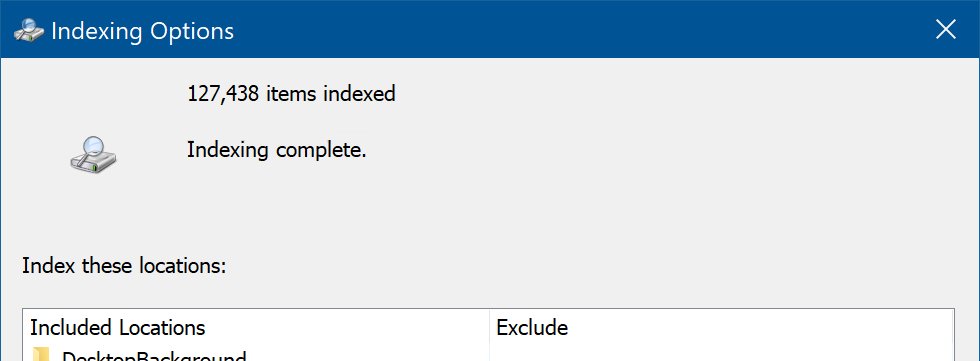
- Select Advanced indexing options to open Indexing Options.
- Select Advanced, then select Rebuild and confirm the prompt.
- Leave the PC on and plugged in while the index rebuilds; Microsoft allows up to 24 hours on large drives.
- Check that the status in Indexing Options reads Indexing complete before testing search.
Search results stay incomplete until the rebuild finishes, so test once the status changes rather than straight away.
Fix 3: Add missing folders to indexed locations
In Classic mode Windows indexes only Documents, Pictures, Music and the desktop. A project folder on another drive is invisible to fast search until you add it.
- Open Settings > Privacy & security > Searching Windows.
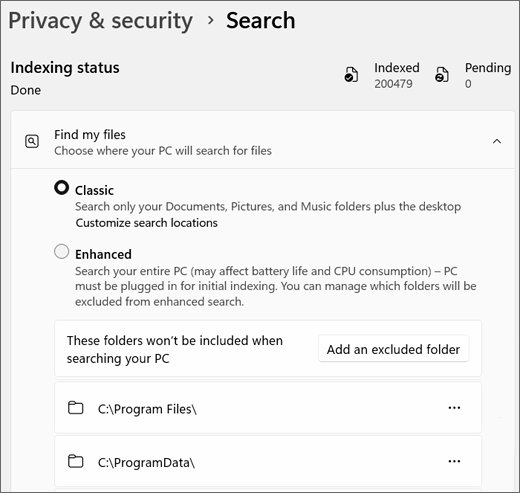
- Under Find my files, select Customize search locations (shown with Classic), or select Advanced indexing options.
- In Indexing Options, select Modify.
- Expand the drive and tick the folder you want searched.
- Select OK, then Close.
- Check the excluded folders listed under Add an excluded folder on the Searching Windows page and remove the folder there if it appears.
Fix 4: Switch to Enhanced search mode
Enhanced mode indexes your entire PC, including all user folders and files. It gives fuller results but can use more system resources than Classic.
- Open Settings > Privacy & security > Searching Windows.
- Under Find my files, select Enhanced.
- Keep the PC plugged in while the first full index builds; this can take a couple of hours.
- Search for a file in a non-default folder to confirm it now appears.
If Enhanced mode slows an older PC, switch back to Classic and add only the folders you need with Fix 3.
Fix 5: Run the Search and Indexing troubleshooter
Microsoft documents a Search and Indexing troubleshooter that detects and repairs common indexing faults. Windows also runs search troubleshooters automatically when it detects a problem.
msdt.exe -ep WindowsHelp id SearchDiagnosticRun it from a Command Prompt window. It opens the Search and Indexing troubleshooter, where you tick the problems that apply, such as files not appearing in search results.
You should see: The troubleshooter reports the problems it found and fixed. To see automatic runs on Windows 11, open Settings > System > Troubleshoot > Recommended troubleshooter history.
If the troubleshooter does not open on your build, skip to Fix 6; the remaining fixes cover the same repairs by hand.
Fix 6: Reset a search box stuck on “Searching…”
In Windows 11 the search experience runs as SearchHost.exe. Ending it stops Windows Search, and it starts again automatically the next time you search.
- Press Ctrl + Alt + Delete and select Task Manager.
- Select Details.
- Right-click SearchHost.exe and select End task, then confirm with End process.
- Type
services.mscin the taskbar search box, right-click Windows Font Cache Service and select Stop. - Try the search again, then right-click Windows Font Cache Service and select Start.
- Restart the PC if the box still hangs; a restart also installs pending updates.
Fix 7: Repair system files with SFC and DISM
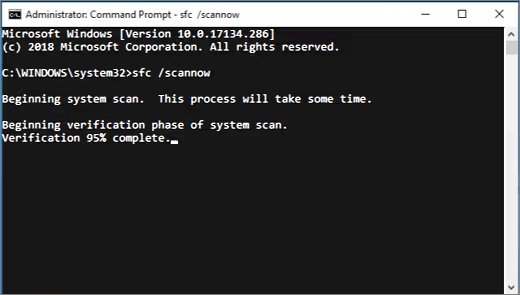
Corrupted Windows files can break search and Explorer together. Run DISM first, then System File Checker, from an administrator Command Prompt: type cmd in Search, right-click Command Prompt and select Run as administrator.
DISM.exe /Online /Cleanup-image /Restorehealth
sfc /scannow
DISM repairs the Windows component store that SFC uses as its source, which can take several minutes. sfc /scannow then checks protected system files and replaces damaged ones. Keep the window open until verification reaches 100%.
You should see: "Windows Resource Protection did not find any integrity violations" means no damage; "found corrupt files and successfully repaired them" means the repair worked. Restart, then test search.
If SFC says it found corrupt files but could not fix some of them, run it again in Safe Mode, then check the CBS.log file it names.
Fix 8: Search from This PC or with PowerToys Run as a fallback
Searching from This PC does a slow but in-depth search instead of relying only on Home results. Microsoft PowerToys Run adds a quick launcher that can also list files in a folder by name pattern.
- Open File Explorer and select This PC in the navigation pane, or open the exact folder that holds the file.
- Type the file name in the search box and wait for the full scan to finish.
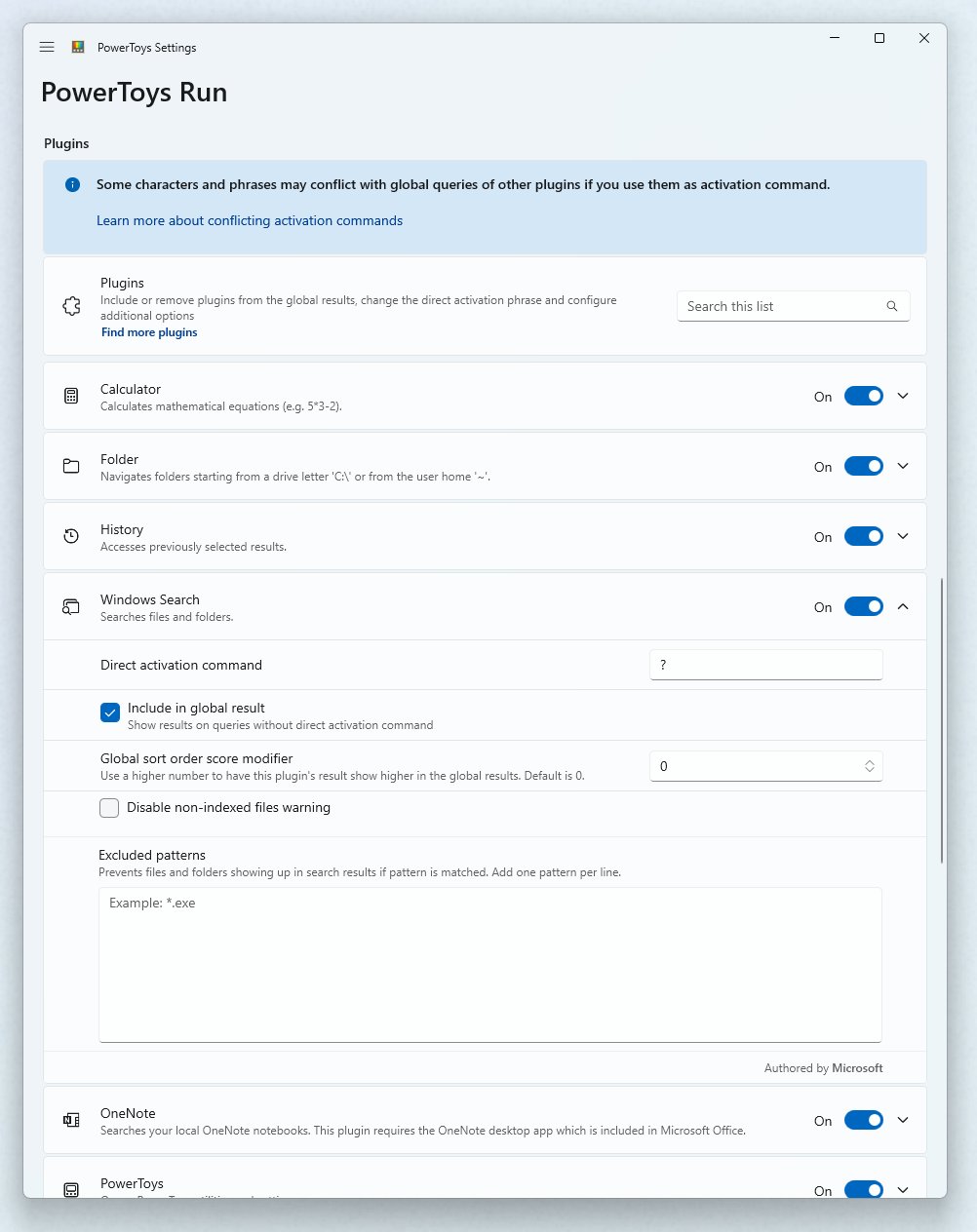
- For a launcher-style search, install Microsoft PowerToys and enable PowerToys Run.
- Press Alt + Space and type a folder path followed by a mask, such as
C:\Users\Name\Documents\*.docx. - Select a result, or press Ctrl + Shift + E to open its folder in File Explorer.
PowerToys Run's Windows Search plugin uses the same index as File Explorer, so it does not replace Fixes 2 to 4 when the index itself is broken.
Settings to check for File Explorer search in Windows 11
| Setting | Where to find it | What it should be |
|---|---|---|
| Find my files mode | Settings > Privacy & security > Searching Windows | Enhanced, or Classic with your folders added |
| Indexed locations | Advanced indexing options > Modify | Every folder you search regularly is ticked |
| Excluded folders | Searching Windows > Add an excluded folder list | No folder you expect results from |
| File contents indexing | Indexing Options > Advanced > File Types | Properties and content for documents you search by text |
| Windows Search service | services.msc > Windows Search > Properties | Running, Automatic (Delayed Start) |
| Indexing status | Searching Windows or Indexing Options | Indexing complete |
| Indexed item count | Searching Windows > Indexed | Below about 400,000 items for good performance |
On Windows 10 the same controls sit under Settings > Search > Searching Windows and Advanced Search Indexer Settings.
Error messages and symptoms reference for Windows Search indexing
The status line in Searching Windows and Indexing Options tells you why results are missing. These are the messages Microsoft documents and what to do about each.
| Status message | What it means | What to do |
|---|---|---|
| Indexing complete | The index is finished | If files are still missing, check indexed locations with Modify |
| Indexing in progress. Search results might not be complete during this time. | New files are being added | Leave the PC on and plugged in for a few hours |
| Indexing speed is reduced because of user activity. | Indexing slows while you work | Wait, or leave the PC idle on power |
| Indexing is waiting for computer to become idle. | CPU or disk is too busy | Find and close what is using the disk or CPU |
| Indexing is paused to conserve battery power. | Low battery | Connect the charger |
| Indexing is paused. | Paused from the settings page | Wait 15 minutes, or restart the Windows Search service |
| Indexing is not running. | Service stopped or disabled | Set Windows Search to Automatic (Delayed Start) and start it |
| Insufficient disk space to continue indexing. | Drive nearly full | Free more than 1 GB on the drive |
| Insufficient memory to continue indexing. | Low memory | Close memory-heavy apps in Task Manager |
| Indexing is paused by an external application. | Game mode or an upgrade paused it | Restart the Windows Search service |
Windows File Explorer search not working in folders
File Explorer search finds nothing even though the file exists
The folder is not in the index, or the index is out of date.
- Add the folder in Indexing Options > Modify (Fix 3).
- Check that the folder is not in the excluded folders list on Searching Windows.
- Rebuild the index if the folder was already included (Fix 2).
Search freezes on Searching… and never finishes
The search host process is hung or the index is still building.
- End SearchHost.exe in Task Manager > Details (Fix 6).
- Check the indexing status; wait if it reads Indexing in progress.
- Restart Windows Explorer and the Windows Search service (Fix 1).
Search works in Documents but not in a folder on another drive
Classic mode indexes only the default user folders.
- Switch Find my files to Enhanced (Fix 4), or add that drive's folder in Modify.
- Search from inside the folder or from This PC for an in-depth scan.
Words inside documents are not found
The file type is indexed by properties only.
- Open Indexing Options > Advanced > File Types.
- Select the extension and, under How should this file be indexed?, choose properties and file contents.
- Select OK, then rebuild the index.
How to check File Explorer search is working again
- Open Settings > Privacy & security > Searching Windows and confirm the status reads Indexing complete.
- Note the Indexed count; it should be above zero and rise after you add folders.
- Open a folder you added and search for a file name you know is inside it.
- Search for a word inside a document to confirm content indexing works.
- Restart the PC and repeat one search to confirm the fix holds.
Additional tips for faster File Explorer search results
| Tip | Why it helps |
|---|---|
| Search from inside the folder that holds the file | Narrows the scope and returns results faster than searching Home |
| Use This PC for a deep search | Scans beyond indexed results when you are unsure where a file is |
| Leave a laptop plugged in after big file moves | Indexing pauses on battery and finishes faster on power |
| Exclude huge folders of small files or code | Those files grow the index far beyond the usual 10 percent of content size |
| Plug in a Copilot+ PC for the first index | Microsoft recommends power for the initial semantic and traditional indexing |
Prevention tips to keep File Explorer search working
| Habit | What it prevents |
|---|---|
| Install Windows updates promptly | Search and Explorer bugs that Microsoft fixes in updates |
| Keep more than 1 GB free on the system drive | Indexing stopping with insufficient disk space |
| Avoid "optimize your PC" apps that disable services | Microsoft notes some of these disable the Windows Search service |
| Keep the index below about 400,000 items | Slow searches and high CPU or disk use from an oversized index |
| Add new work folders to the index when you create them | Files that never appear in quick search results |
When to escalate a Windows 11 search problem
Stop troubleshooting on your own when the symptoms point to disk damage or corruption that settings cannot reach.
| Sign | What it suggests | Next step |
|---|---|---|
| Status keeps reading Index is performing maintenance | The indexer hit write errors, which often come before drive failure | Back up personal files now and check the drive |
| Search settings page is greyed out with no status | Indexer registry keys or database are corrupted | Ask IT or use a Windows repair or reset option |
| SFC cannot repair some files even in Safe Mode | Deeper system damage | Repair-install or reset Windows after a backup |
| Search fails on a work PC | A Group Policy may control indexing | Contact your IT department |
| Every fix fails on a home PC | An unresolved Windows bug | Send feedback in Feedback Hub under Desktop Environment > Search |
Windows 11 File Explorer search FAQs
Answers to frequently asked questions about Windows 11 File Explorer search and indexing.
Why does File Explorer search find nothing even though the file exists?
The file's folder is usually not in the search index, or the index is damaged. Add the folder in Indexing Options with Modify, check the excluded folders list, then rebuild the index if the folder was already included.
Why does search freeze on Searching… and never finish?
The SearchHost.exe process has hung or the index is still building. End SearchHost.exe on the Details tab of Task Manager, restart Windows Explorer, and check that indexing status reads Indexing complete.
How do I rebuild the Windows search index?
Open Settings > Privacy & security > Searching Windows > Advanced indexing options, select Advanced, then Rebuild. Keep the PC on and plugged in; a full rebuild can take up to 24 hours on large drives.
How do I make sure a specific folder gets indexed?
Open Settings > Privacy & security > Searching Windows, select Advanced indexing options, then Modify. Tick the folder, select OK, and make sure it is not in the excluded folders list.
Should I use Classic or Enhanced search mode?
Use Enhanced if your files are spread across drives and folders, because it indexes the whole PC. Use Classic on a slower PC; it indexes Documents, Pictures, Music and the desktop, and you can add other folders yourself.
Why can File Explorer find file names but not words inside files?
That file type is set to index properties only. In Indexing Options, select Advanced > File Types, choose the extension, choose properties and file contents under How should this file be indexed?, then rebuild the index.
How long does Windows 11 take to index files?
The first index can take up to a couple of hours, and a full rebuild can take up to 24 hours on a large drive. After that, Windows indexes only changed files in the background.
Does rebuilding the search index delete my files?
No. The index is only a catalog of file names, properties and words, and rebuilding recreates that catalog. Search results are incomplete until it finishes, but documents and photos stay where they are.
Where is the Windows search index stored?
By default the index lives in C:\ProgramData\Microsoft\Search\Data\Applications\Windows. On Windows 11 the file is Windows.db; on Windows 10 it is Windows.edb.
Bottom line: the fix order for File Explorer search in Windows 11
Restart Windows Explorer and Windows Search first, then add missing folders or switch to Enhanced mode, and rebuild the index only if results are still wrong. Most search failures are a hung process or an incomplete index, and these steps fix both without touching your files, leaving SFC and DISM for real corruption.