To add iCloud Calendar to Outlook on Windows, install iCloud for Windows, open Calendars and Contacts, turn on Automatically sync your iCloud calendars and contacts to Microsoft Outlook, and click Done.
This guide covers the classic Outlook sync, adding an iCloud account to new Outlook, the app-specific password fix for "Something went wrong", and the mistakes that stop calendars from syncing.
How to sync iCloud Calendar with classic Outlook
Apple's calendar sync works with the classic desktop version of Outlook. iCloud for Windows installs an iCloud add-in that moves events between iCloud and Outlook.
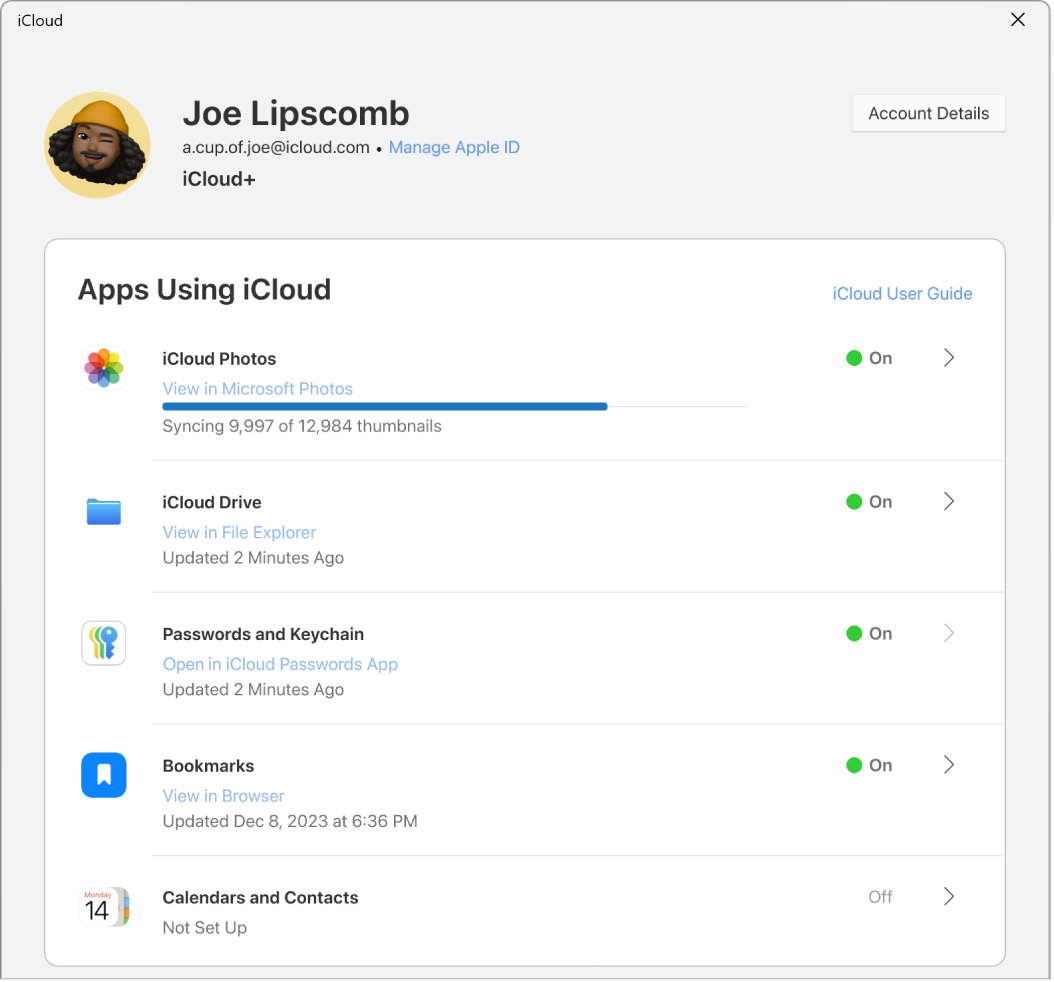
- Install iCloud for Windows from the Microsoft Store if you do not have it.
- Open iCloud for Windows and sign in with the same Apple Account you use on your iPhone or Mac.
- Enter the verification code sent to your trusted device if asked.
- Click the arrow to the right of Calendars and Contacts.
- Turn on Automatically sync your iCloud calendars and contacts to Microsoft Outlook.
- Click Done, then follow the onscreen instructions to set up Outlook.
- Open classic Outlook and go to the calendar view to see your iCloud calendars.
If recent changes do not show up, select Refresh in Outlook. Attachments added to an event in Outlook do not appear in Calendar on iPhone or Mac, and the reverse is also true.
Before you start: iCloud Calendar and Outlook requirements
| Requirement | Details |
|---|---|
| Windows | Windows 10 May 2019 Update or later; Apple recommends Windows 11 |
| iCloud for Windows | Version 10 or later for Calendar; Apple recommends version 15 |
| Outlook | Classic Outlook 2021 or later, or Outlook for Microsoft 365 |
| Apple Account | iCloud already set up on an iPhone, iPad or Mac |
| @icloud.com address | Apple asks for an iCloud Mail address before the Outlook sync is set up |
| Two-factor authentication | Required to create an app-specific password for adding iCloud by email |
| Account type | Managed Apple Accounts cannot use iCloud for Windows |
With Advanced Data Protection turned on, iCloud for Windows 14.1 or later is needed to sign in. Accounts with security keys need iCloud for Windows 15 or later.
How to add an iCloud account in new Outlook
New Outlook signs in to iCloud through Apple's own web sign-in page instead of a typed password.
- Open View settings, or select File > Account info.
- Go to Accounts > Your accounts.
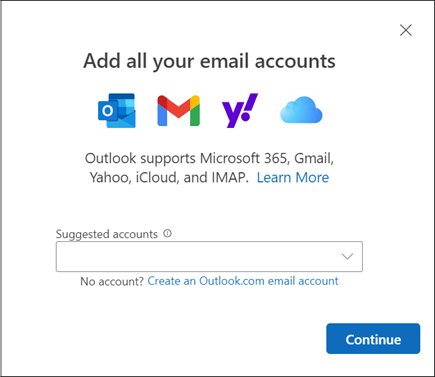
- Select Add Account, type your iCloud address and continue.
- Confirm the iCloud sync prompt.
- Sign in to your Apple Account in the browser window, enter any two-factor code, and allow the requested permissions.
- Close the success window. If sign-in fails, try again or choose Advanced setup.
Apple documents its automatic calendar sync for classic Outlook only. After adding the account, open the calendar list in new Outlook; if your iCloud calendars are not listed, use classic Outlook with iCloud for Windows.
Set iCloud as the primary account in new Outlook
- Open View settings and go to Accounts > Your accounts.
- Select Manage next to your iCloud account.
- Under Account details, select Set as primary account.
- Return to the accounts page or close Settings.
In classic Outlook, the equivalent is File > Account Settings, select the iCloud account and choose Set as Default. Do not make iCloud the default in Data Files, because that stops calendar and contact sync.
Remove iCloud from new Outlook
- Open View settings and go to Accounts > Your accounts.
- Select Manage next to the iCloud account.
- Under Account details, select Remove.
- Close Settings.
Removing the account from Outlook does not delete anything from iCloud; your events stay on iCloud.com and your Apple devices. To stop classic Outlook syncing, turn off Calendars and Contacts in iCloud for Windows.
Add iCloud Mail and Calendar to classic Outlook with an app-specific password
Use this route when you add iCloud as an account in classic Outlook without the iCloud for Windows sync. Your normal Apple Account password does not work here.
- Sign in at account.apple.com.
- In Sign-In and Security, select App-Specific Passwords.
- Select Generate an app-specific password, name it, and copy the password.
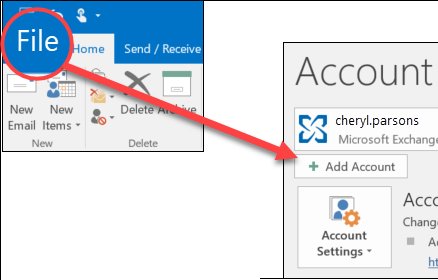
- In classic Outlook, select File > Add Account.
- Type your iCloud address and select Connect.
- Paste the app-specific password into the password box and select Connect.
- Select Done.
The password is about 16 characters with dashes and is case-sensitive. You can have up to 25 active app-specific passwords, and changing your Apple Account password revokes all of them.
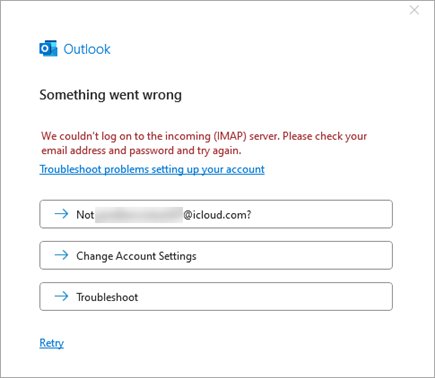
Classic Outlook says "Something went wrong"
"Something went wrong" when adding iCloud in classic Outlook
The account needs an app-specific password, not your Apple Account password.
- Close the error.
- Sign in at account.apple.com and turn on two-factor authentication if it is off.
- Generate a new password under Sign-In and Security > App-Specific Passwords.
- Start File > Add Account again, paste the new password and select Connect.
"Installed version of Outlook is not supported by iCloud"
Office was installed from the Windows store, which the iCloud add-in does not support.
- Uninstall the Microsoft Store version of Office.
- Install Office from Microsoft 365.
- Turn the iCloud Outlook sync back on in iCloud for Windows.
Check that iCloud Calendar is syncing with Outlook
- Create a test event in Calendar on your iPhone or Mac.
- Select Refresh in Outlook and confirm the event appears in the iCloud calendar.
- Create a test event in the iCloud calendar in Outlook.
- Open icloud.com/calendar and confirm the Outlook event is there.
- Delete both test events.
Common setup mistakes
Most failed syncs come from a wrong account, a disabled add-in or a wrong default data file. If Outlook disabled the add-in, you can manage Outlook add-ins from the same Options window.
iCloud calendars do not appear in Outlook
iCloud for Windows is signed in with a different Apple Account than your iPhone.
- Open iCloud for Windows and check the signed-in account.
- Sign out and sign back in with the account your devices use.
Calendar changes stop syncing
The iCloud Outlook Add-in is inactive or disabled.
- In Outlook, select File > Options > Add-ins.
- If the iCloud add-in is under inactive or disabled add-ins, choose COM Add-ins next to Manage and select Go.
- Select the iCloud Outlook Add-in checkbox, select OK and restart Outlook.
Events do not move between devices
iCloud is set as the default account in Data Files.
- Select File > Info > Account Settings > Data Files.
- Select an account other than iCloud and choose Set as Default.
- Restart your computer.
Calendars still out of date after the fixes
The sync connection needs resetting.
- Close Outlook and open iCloud for Windows.
- Turn off Contacts and Calendars and select Apply.
- Wait a few seconds, turn it back on and select Apply.
- Open Outlook and check the PC's date and time settings are correct.
iCloud Mail stays in the Outbox
The message failed to send from the iCloud account.
- Move the message from the Outbox folder in Outlook to Drafts, or delete it.
- Open it from Drafts or Deleted Items and select Send again.
iCloud Calendar in Outlook FAQ
Can you add iCloud Calendar to Outlook?
Yes. On Windows, iCloud for Windows syncs your iCloud calendars and contacts to classic Outlook 2021 or later and Outlook for Microsoft 365. Turn on the Outlook sync option under Calendars and Contacts in iCloud for Windows.
How do I add iCloud Calendar to Outlook 365?
Install iCloud for Windows, sign in, and turn on Automatically sync your iCloud calendars and contacts to Microsoft Outlook. The desktop Outlook for Microsoft 365 app then shows your iCloud calendars. The Microsoft Store version of Office is not supported.
How do I add iCloud Calendar to classic Outlook?
Use iCloud for Windows: open Calendars and Contacts, turn on the Outlook sync option, click Done and follow the prompts. Apple's sync is built for classic Outlook, which receives an iCloud add-in to handle events.
How do I add iCloud Calendar to Outlook on Windows 11?
Install iCloud for Windows from the Microsoft Store, sign in with your Apple Account, and turn on the Outlook option under Calendars and Contacts. Apple recommends Windows 11 with iCloud for Windows 15 and Outlook 2021 or later.
Does New Outlook support iCloud Calendar?
New Outlook can add an iCloud account through Apple's sign-in page. Apple's automatic calendar sync through iCloud for Windows supports classic Outlook, so use classic Outlook if your iCloud calendars do not appear in new Outlook.
Do I use my normal Apple Account password in classic Outlook?
No. When adding iCloud as an account in classic Outlook, use an app-specific password generated at account.apple.com. Your Apple Account must have two-factor authentication turned on to create one.
What happens if I remove iCloud from Outlook?
Outlook stops showing your iCloud mail and calendars, but nothing is deleted from iCloud. Your events remain on iCloud.com and on every Apple device signed in to the same Apple Account.
How many Apple app-specific passwords can I have?
Up to 25 active app-specific passwords. You can revoke them one at a time or all at once at account.apple.com, and changing your Apple Account password revokes every one automatically.
How do I use iCloud Calendar on Windows without Outlook?
Open icloud.com/calendar in a web browser and sign in with your Apple Account. Apple notes that your iCloud Calendar is always available on iCloud.com from any device.
The bottom line on iCloud Calendar in Outlook
Use iCloud for Windows with classic Outlook for two-way calendar sync, and add iCloud by app-specific password only when you also want iCloud Mail in Outlook. The iCloud for Windows route is the one Apple supports for calendars and contacts, and it installs the add-in that keeps events moving in both directions.